Near 95°C or another preset ceiling, onboard sensors can cut CPU or GPU clock speed, voltage, or power draw to prevent overheating. Your system trades some performance for lower heat, so a game can stutter or a render can slow after sustained load.
The sections below suit desktop and laptop owners who need to separate a heat limit from a power cap, then correct the cause without random hardware changes.
Heat Limits Trigger a Protective Response
Every watt consumed by a processor becomes heat inside your case or laptop chassis. Higher voltage and clock speed raise that heat load, while the CPU cooler and case airflow must move it away through heatsinks, fans, and room air.
PC thermal throttling starts near a component’s programmed thermal limit. Your CPU or GPU reduces performance fast enough for its cooling hardware to catch up, while an emergency shutdown sits farther down the safety chain for heat that remains uncontrolled.
Lower clocks reduce silicon stress
A CPU cannot hold peak boost clocks without limits. Silicon transistors leak more current at higher temperatures, which adds heat and can turn a demanding workload into a feedback loop. Lower clock speed interrupts that loop by reducing electrical activity.
Brief temperature spikes during a boost burst are not automatically a fault. Sustained high readings paired with falling performance deserve your attention.
That protective behavior is preferable to a crash or shutdown. Steady clock cuts still mean your hardware is running below its expected performance range, so your next step is finding the source of the heat.
CPU Temperature Sensors Drive Fast Clock Changes
On-die CPU temperature sensors sit close to the circuits producing heat. Firmware reads those values throughout a workload and matches them against thermal limits and thermal junction temperature targets set for that specific chip.
BIOS/UEFI firmware uses those readings alongside electrical limits. Your CPU or GPU can lower boost clocks, voltage, package power, or several controls at once, reducing heat output without waiting for the system to become unstable.
The heat-control loop runs in milliseconds
- Sensor reports heat Your CPU or GPU sends on-die temperature data during gaming, rendering, compiling, or another heavy task.
- Firmware reads limits BIOS/UEFI rules match sensor data against thermal and electrical targets.
- Headroom narrows The chip lowers boost clocks, voltage, package power, or several controls together.
- Heat output falls Lower electrical demand leaves less energy for the heatsink and airflow path to remove.
- Boost returns gradually Higher clocks return after temperatures drop and your component regains thermal headroom.
CPU thermal throttling can look subtle during a short task. A brief spike may trim boost clocks for a few seconds without a major benchmark loss or warning flag. Your clock reading needs temperature, power, and utilization data beside it.
| Control | What changes | Effect on heat |
|---|---|---|
| Boost clock | Core frequency falls | Switching activity drops |
| Voltage | Core voltage falls | Electrical loss declines sharply |
| Package power | CPU wattage ceiling tightens | Cooler receives less heat |
| Fan curve | Fan speed rises | Heat leaves the cooler faster |
Recovery does not require a reboot. As the die cools, firmware permits more voltage, power, and frequency. That fast loop explains why clocks rise and fall repeatedly during a long workload.
Those fluctuations reflect not only sensor feedback but also the cooling capacity and power design surrounding the chip.
Component Design Shapes the Heat Response
Cooling layouts change the way each component reacts under load. A desktop CPU may hold high boost power until it nears its thermal junction temperature, while a slim laptop can share a small heat-pipe assembly across the CPU, GPU, and voltage regulators.
| Component | Common heat response | What you may notice |
|---|---|---|
| Desktop CPU | Boost clocks and package power drop near Tjunction | Lower benchmark scores during long runs |
| Laptop CPU | Shared cooling reaches limits sooner | Warm keyboard area and loud exhaust |
| GPU | Clocks, voltage, power draw, and fan speed shift continuously | FPS decline and frame-time stutter |
| SSD | Controller slows sustained transfers | Copy speeds fade with little fan noise |
GPU thermal throttling works less like a hard switch and more like a moving ceiling. NVIDIA and AMD graphics cards alter clock speed and power draw throughout a game, trying to stay inside temperature and power targets while preserving frame rate.
Storage follows a quieter pattern. A Samsung SSD or another NVMe drive can slow sustained transfers after its controller gets hot during a large file copy, video cache build, or game install. Your M.2 heatsink can matter even without a fan surge.
Power Caps Can Resemble Heat Limits
A lower clock speed does not prove that heat caused the slowdown. A CPU or GPU can hit a configured wattage ceiling before its temperature reaches the thermal limit, producing power limit throttling rather than a heat-driven reduction.
Power limits leave a different data trail
Intel processors can show package power limits through Intel XTU or HWiNFO, while AMD systems expose similar limits through firmware telemetry. Your chip can stay cool yet remain unable to boost because the platform restricts watts.
Quiet modes, battery-saving profiles, frame-rate caps, low utilization, and workload-dependent boost behavior can lower clocks too. Your laptop can run slower on battery because its power profile favors runtime and lower fan noise rather than because cooling hardware has failed.
- Temperature ceiling Heat reaches the relevant limit while clock speed and performance fall.
- Power ceiling Wattage reaches a configured cap before the component becomes hot.
- Low utilization The workload does not request enough work to justify higher clocks.
- Frame cap A game limits output, leaving the GPU with unused headroom.
- Quiet profile Firmware restricts fan speed and power to reduce noise.
That distinction prevents wasted repairs. Fresh thermal paste will not change a battery profile, and a higher power limit can worsen a cooling fault. Your evidence needs temperature, utilization, power, clock data, and throttle status together.
Heat Saturation Causes Slowdowns and Stutter
Frame rates that slide after several minutes point toward a heat pattern. At the start of a gaming session, a GPU has thermal headroom and holds higher clocks. As the cooler saturates, clocks move lower and frame times become uneven.
Long workloads expose cooling limits
Video rendering exposes the same pattern in a different way. A five-minute export can finish at full speed, while a 45-minute render slows after the heatsink, radiator, and case air absorb sustained heat. Your final render time reveals more than a short preview.
Laptops make airflow faults easy to spot. Resting a laptop on a bed, blanket, or couch cushions intake vents and traps warm exhaust around the chassis. Your fans race, yet the CPU receives less fresh air.
A repeatable trend matters more than one peak reading. Run the same game scene or render twice, then review temperatures, fan speed, clocks, and FPS after the system warms up. Falling performance with high utilization points toward a real heat constraint.
Telemetry Logs Confirm the Limiting Factor
Logs turn suspicion into evidence. HWiNFO can record CPU temperature, package power, clock speed, fan speed, and thermal flags over time, while Task Manager shows whether your workload still holds high CPU or GPU utilization.
A repeatable thermal throttling test exposes the pattern
- Record idle data Leave your system idle for five minutes and record room temperature, idle temperature, and fan behavior.
- Run real work Use a familiar game, render, compile, or benchmark long enough for temperatures to level out.
- Log full telemetry Capture clocks, package power, utilization, fan speed, temperature, and thermal-limit indicators.
- Review the timeline Look for a temperature plateau followed by clock reduction during continued high utilization.
- Repeat the workload Run the same settings again to separate a repeatable trend from a background task.
Your strongest confirmation has three parts: the component reaches its relevant limit, a thermal flag appears or clocks fall, and performance declines despite heavy utilization. MSI Afterburner can show GPU clocks and frame-time behavior during a game, exposing stutter after warm-up.
90 C is not a universal verdict. Some modern Intel and AMD CPUs operate close to that range under heavy boost loads, while another model has a lower thermal target. Match sustained readings with your exact CPU specification rather than a universal number.
Accurate limits prevent unnecessary upgrades, leaving basic airflow inspection as the sensible first remedy.
Airflow Checks Come Before Hardware Changes
Start with the measurements that exposed the limit. A clean log keeps you from chasing thermal paste, a new cooler, or BIOS settings while the real cause is a capped power profile or blocked intake.
- Clear the vents Move your laptop to a hard surface and remove objects blocking intake or exhaust openings.
- Watch fan response Run a demanding workload and confirm CPU, GPU, and case fans spin up under heat.
- Clean dust buildup Power down, then clear filters, fan blades, heatsink fins, and radiator fins with care.
- Verify airflow direction Intake fans should feed cool air while exhaust fans remove warm air from the case.
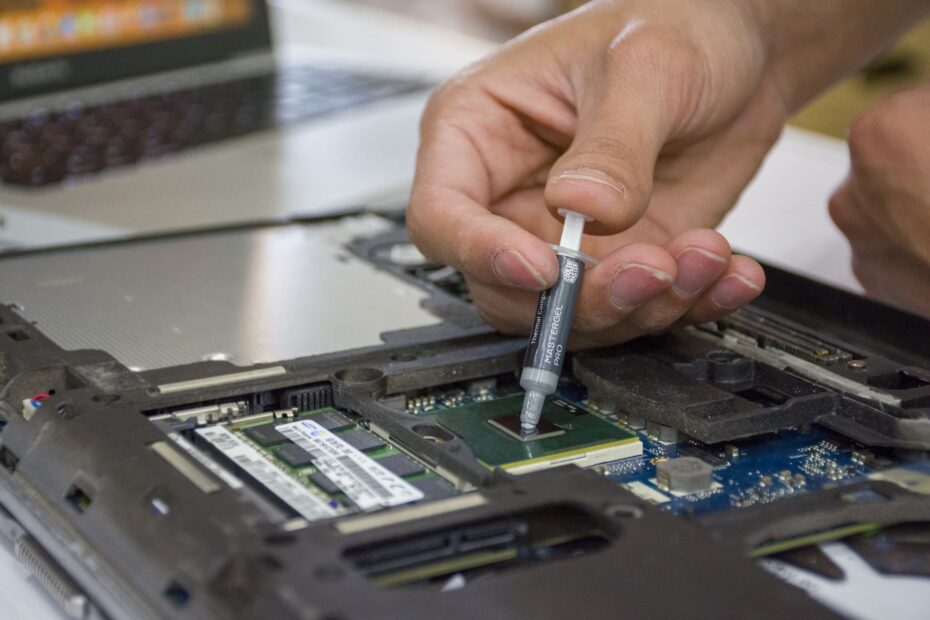
- Inspect cooler contact Look for loose mounting hardware, shifted heatsinks, or dried thermal paste.
Dust behaves like a felt blanket across radiator fins. Your fan can spin at full speed behind that layer, but air volume through the cooler drops. A failed fan, loose cable, or reversed case fan can produce a similar result.
Advanced tuning needs logged evidence
After cleaning and airflow checks, inspect cooler mounting pressure, thermal paste condition, fan curves, and room temperature. A 10 F warmer room leaves less headroom because your cooler starts with warmer intake air.
Reserve BIOS/UEFI power tuning, undervolting, cooler replacement, and hardware upgrades for measured cases that remain heat-limited. Your least invasive correction belongs ahead of a more aggressive change, especially on laptops with tightly controlled firmware.
The right remedy also depends on whether protection was brief and expected or a recurring sign of inadequate cooling.
Short Protection and Persistent Overheating Need Different Responses
Brief clock adjustments during a demanding boost workload can be normal. Stable performance, temperatures inside the component’s specified behavior, and no repeatable slowdown mean the protection system is working as intended.
Persistent heat is different. Stop the workload around burning smells, emergency shutdowns, a fan that never responds, or temperatures that race to the limit within moments. Your cooling system may have a failed fan, poor heatsink contact, blocked airflow, or a deeper hardware fault.
Thermal throttling is designed to protect a CPU or GPU and does not ordinarily damage it. Repeated overheating still leaves you with lower usable performance and an unresolved cooling problem.
Capture a log during the exact workload causing trouble. Your next action follows the evidence: correct airflow and dust faults for a thermal limit, adjust a power profile for a power ceiling, or inspect workload settings where utilization stays low.
Final Thoughts
Heat control is a negotiation between power, cooling capacity, and time under load. PC thermal throttling protects your hardware by cutting performance before temperatures become dangerous, but repeated slowdowns signal that you should inspect the cooling path and identify the real limit with logged data.
FAQ
How can I fix thermal throttling on my PC?
Start with a log that proves heat is the limit, then clear dust, remove airflow obstructions, confirm fans respond, and inspect cooler contact. Your next steps can include fresh thermal paste, improved fan curves, an undervolt, or a stronger cooler after basic airflow corrections fail.
Is 90 C too hot for a CPU?
90 C can be near the intended ceiling for some modern Intel or AMD CPUs during heavy boost workloads, yet excessive for another model. Check your CPU’s documented thermal limit, sustained temperature, clock behavior, and performance rather than judging one number alone.
Will thermal throttling damage a CPU?
At a CPU’s temperature limit, automatic clock-speed and power reductions protect the chip rather than ordinarily damaging it. Persistent high heat still deserves attention because it can expose failed cooling hardware, reduce performance, and lead to shutdowns.
How can you tell if your PC is thermal throttling?
Use HWiNFO or similar software during the workload causing trouble. Your evidence should show high sustained temperature near the component limit, falling clocks or a thermal flag, continued high utilization, and lower FPS, benchmark results, render speed, or compile speed.
What is the difference between thermal throttling and power-limit throttling?
Thermal throttling begins because a component approaches its temperature limit. Power-limit throttling begins because a CPU or GPU reaches a wattage ceiling, even while temperatures remain below the thermal target. Your logs need temperature and power data together to separate them.