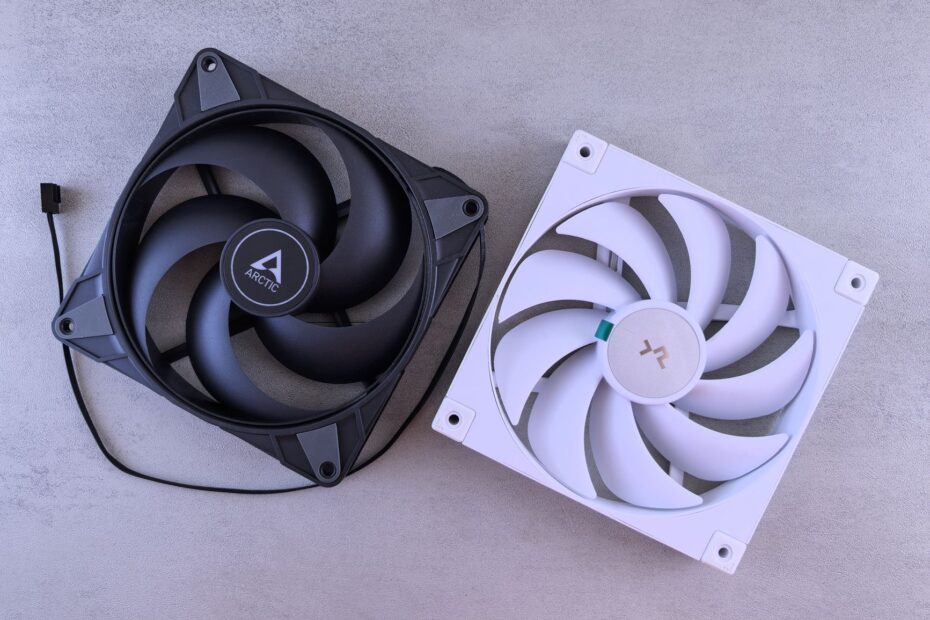
Matching heat output, airflow paths, and cooling hardware lets fans run at lower speeds. A 20 dBA fan can still sound sharp behind a restrictive panel, while an efficient GPU can keep the entire system calmer under load.
You can use the sections below to judge sound pressure level, fan design, case layout, and PWM settings for gaming, work, or mixed desktop use.
PC Acoustics Start With Heat, Airflow, and Sound Quality
A desktop PC produces several sounds at once rather than one uniform noise. Your cooling fans move air, while the CPU, GPU, drives, pump, and power supply unit can add separate tones. The sound at your desk depends on sound pressure level and the character of that sound.
Decibels Measure Sound Pressure Rather Than Tone
A decibel reading uses a logarithmic scale, so two 20 dBA sources do not add up to 40 dBA. Their combined sound rises by less than plain addition suggests. Your ears also react strongly to high-pitched tones, which can feel louder than broad airflow noise at the same reading.
| Sound level | Typical impression | Meaning at your desk |
|---|---|---|
| 20 dBA | Very quiet | A fan can blend into room sound at low fan RPM, though motor tone still matters. |
| 25-30 dBA | Soft airflow | Your PC is audible in a quiet room but rarely distracting during normal work. |
| 35 dBA | Clearly audible | Your system stands out during silence, while gaming audio or office activity can mask it. |
| 40 dBA and above | Prominent cooling noise | High fan speed, a demanding GPU, or restricted case airflow is involved. |
Manufacturer dBA figures only match when test distance, ambient room sound, fan RPM, mounting method, and airflow resistance match. A fan measured in open air behaves differently behind a fine dust filter or a radiator. Your PC case changes the load placed on every fan.
Those restrictions become consequential when demanding tasks raise thermal load and expose which component is actually loudest.
Do not choose a fan from its decibel rating alone. A low figure without fan RPM, test distance, and airflow resistance says little about how it will sound inside your system.
Workload Reveals the Dominant Noise Source
Idle behavior does not predict gaming behavior. At the desktop, your case fans and CPU cooler may be the clearest sources because GPU cooling is barely active. During a long game, the GPU cooler commonly takes over because graphics hardware produces far more heat than a lightly loaded processor.
| Workload | Likely dominant source | Useful focus |
|---|---|---|
| Web browsing and office work | Case fans, CPU cooler, hard drive | Lower idle RPM and reduce vibration. |
| Gaming | GPU cooler | GPU efficiency, cooler size, power limit, and intake airflow. |
| Video rendering or compiling | CPU cooler and case exhaust | CPU heatsink capacity and sustained airflow. |
| File storage activity | Hard-drive chatter and vibration | Drive isolation and solid-state storage. |
Your GPU selection has a larger effect on gaming sound than swapping already adequate case fans. A card that draws less power produces less waste heat, allowing its fans to stay at lower RPM. That reduced heat load also lowers the exhaust work needed from the rest of your system.
Non-Fan Sounds Need Their Own Diagnosis
Coil whine is an electrical chirp or squeal that can rise with frame rate. An AIO pump can produce a steady hum, while a power supply unit can ramp its fan after internal heat passes a set point. Your quiet PC component selection needs to account for these sources because fan changes cannot silence them.
Hard drives add chatter and low vibration through the chassis. Rubber grommets or isolated trays reduce that transfer, while solid-state storage removes moving storage parts from the sound mix. After heat output is under control, fan design becomes the next acoustic limit.
Fan Design Sets the Airflow-to-Noise Tradeoff
Fan RPM changes both the amount and character of sound. Faster blades create stronger turbulence, and motor noise becomes easier to hear as speed rises. Your target is enough airflow at a speed that avoids a sharp or intrusive tone.
Fan Size Changes the RPM Requirement
A 140 mm fan can move similar air to a 120 mm model at lower rotational speed. That is why larger fans can sound softer in mounts that accept them. Size does not settle the issue, since weak motors, poor blade geometry, or panel resonance can spoil the result.
Mounting Position Sets Blade Priorities
| Mounting location | Fan trait that matters | Reason |
|---|---|---|
| Open rear exhaust | Airflow-focused blade design | Air moves through little resistance. |
| Mesh front intake | Balanced airflow-to-noise ratio | Dust mesh adds modest resistance. |
| Radiator or dense CPU heatsink | Higher static pressure | Closely packed fins resist airflow. |
| Solid front-panel intake | Static pressure and low turbulence | Narrow vents force air through a tight path. |
Static-pressure fans suit radiators, dense heatsinks, restrictive filters, and cramped intake panels. Airflow-focused models suit open mounts where blade resistance stays low. Bearing type, motor quality, and vibration damping also shape your experience, since broad airflow rush is less irritating than a repeating motor hum.
A high-CFM claim does not mean quiet operation. Match the fan to resistance at its mounting point, then judge its behavior at the RPM your system will use.
Case Airflow Limits Fan Speed Across the System
A restrictive front panel can turn a quiet parts list into a loud machine. Cool air needs a clear path through the intake, across the GPU and CPU area, and out through rear or top exhaust. Dust filters, radiator placement, cable clutter, and blocked vents raise the static pressure your fans must overcome.
Directed Airflow Beats Maximum Fan Count
Two or three well-placed fans can outperform six poorly placed units that create turbulence near each other. Your intake should feed the GPU cooler with fresh air rather than pulling warm exhaust back toward it. More fans help only where they lower the RPM needed from the existing group.
- Clear the intake: Move unused cables away from front fans and keep the lower GPU area open.
- Use paired paths: Place intake fans low and forward, then use rear or top exhaust for warm air.
- Clean filters: Dust mats raise resistance and force higher RPM for the same cooling effect.
- Limit dead zones: Avoid a powerful exhaust fan with no nearby intake source.
- Watch radiator placement: A front radiator warms intake air before it reaches your graphics card.
Extra fans can lower sound where each unit shares airflow work and runs slower. They can also add baseline motor sound, blade turbulence, resonance, and electrical noise. Your system gains little after airflow is already sufficient for the CPU cooler and GPU cooling load.
Cooling Hardware Sets the System Noise Ceiling
Heat capacity determines how quickly cooling hardware has to react. A large CPU heatsink absorbs short heat spikes before its fan surges, while a compact cooler reaches its limit sooner. Your hardware sets the noise ceiling long before PWM fan control enters the picture.
| Cooling approach | Noise strengths | Noise limits |
|---|---|---|
| Large tower air cooler | Large fin area and slow 120 mm or 140 mm fans | Needs case clearance and can block tall memory modules. |
| Compact air cooler | Simple layout and no pump hum | Smaller fan and fin area can demand higher RPM. |
| 240 mm or larger radiator | More surface area and thermal mass for sustained loads | Pump noise and radiator fans remain audible. |
A larger heatsink or radiator gives heat more metal and fin area to travel through. During a 20-minute render, that added capacity can hold fan speed lower than a compact cooler can. Your CPU power draw still decides whether the cooler has enough headroom.
Low-Load Parts Matter in Quiet Rooms
A semi-passive power supply unit can keep its fan off during light work, reducing background sound. Solid-state storage removes drive chatter, while mechanical drives benefit from grommets or suspended mounting. These choices matter during late-night office use, where a gaming GPU is idle and small sounds stand out.
Because quieter-state noises often have different causes, isolating the source prevents upgrades aimed at the wrong component.
A Short Diagnosis Process Stops Misguided Hardware Changes
A broad rushing sound points toward airflow or fan noise. A repeated tick, hum, or buzz points toward a bearing, loose panel, cable contact, or chassis resonance. High-pitched electrical noise points toward coil whine, which needs a different response from a noisy fan.
Controlled Checks Isolate the Source
- Set fixed speed: Hold one fan group at a steady RPM and listen for a clear sound change.
- Watch GPU behavior: Run your usual game and observe GPU fan speed, temperature, and noise timing.
- Remove the side panel: Use this only for diagnosis because open-panel airflow does not reflect normal use.
- Inspect contact points: Check fan screws, radiator mounts, drive trays, and cables near spinning blades.
- Pair heat with sound: A loud CPU fan can react to GPU heat trapped inside the case.
Your loudest device is not always the root cause. A GPU dumping hot air into a cramped chassis can raise CPU and case temperatures, causing several fan groups to ramp together. Trace the heat path before spending money on a replacement part.
Do not lower fan speed before checking temperatures under the workload that produces the noise. Silence gained through overheating is not useful.
PWM Fan Curves Reduce Everyday Noise
PWM fan control gives each fan a temperature-based speed command rather than a fixed voltage. A smooth fan curve keeps idle sound low, then adds airflow as heat rises. Your system feels calmer because short temperature jumps do not trigger a sudden burst of RPM.
Sensor Selection Matches Fans to Heat Sources
CPU cooler fans should follow CPU temperature because they sit directly on that heat source. Gaming-focused case airflow can follow GPU temperature where motherboard software allows it. Mixed control works well where both parts heat the same chamber.
Gradual Curves Avoid Audible Speed Surges
- Find the floor: Lower PWM duty until each fan reaches its minimum stable speed without stopping.
- Hold idle steady: Set a quiet base speed that avoids repeated starts and stops.
- Use gentle steps: Spread RPM changes across several temperature points rather than sharp jumps.
- Add response delay: Use hysteresis or delay settings to ignore brief heat spikes.
- Check real workloads: Review idle, gaming, and sustained processor loads before settling on a curve.
Keep temperatures within limits specified for your CPU and GPU rather than chasing the lowest fan RPM. A fan curve should serve your workload rather than a single idle screenshot. That approach leads to smarter hardware choices.
Workload-First Parts Planning Focuses Spending on the Loudest Source
Gaming systems should start with GPU efficiency and GPU cooler design because graphics cooling dominates during play. Long processor loads place more weight on CPU cooler capacity. For office systems, your low-speed fan behavior and storage noise shape daily comfort more than peak cooling figures.
- Identify the workload: Base your parts plan on gaming, rendering, compiling, office work, or mixed use.
- Check case resistance: Favor open intake paths over decorative panels that starve front fans.
- Match fan pressure: Use static-pressure models for radiators, dense fins, filters, and narrow vents.
- Avoid high-RPM excess: Filling every mount with fast fans raises idle sound without fixing poor airflow.
- Tune before replacing: Adjust airflow paths and PWM curves before changing hardware.
- Target the dominant source: Change the remaining loud part only after your checks isolate it.
PC noise level and component choice becomes clearer once you focus on the workload that matters most. Your next step is to identify the loudest source during that workload, correct airflow and control settings, then address the single part that still dominates.
Final Thoughts
Quiet computing comes from moving heat with the least disruptive fan speed your hardware allows. Your CPU, GPU, cooler, PC case airflow, and fan curves all share that workload. Start with heat output and airflow resistance, because a calm fan cannot overcome a hot component or blocked intake without becoming loud.
FAQ
What is a good noise level for PC fans?
A PC fan near 20 dBA can be very quiet in open air at low RPM. Your real result depends on mounting, filter resistance, motor tone, and room sound. Around 25 to 30 dBA is comfortable for desktop systems during normal work.
What is a good noise level for PC fans and a complete desktop PC?
Fan sound near 20 dBA is quiet under the maker’s stated test conditions. A complete desktop at 25 to 30 dBA is softly audible during normal work, while 35 dBA stands out in a quiet room. Your room sound and the pitch of the noise affect how loud it feels.
Is 35 dB loud for a PC?
A 35 dBA PC is clearly audible in a quiet room, especially during idle work or late-night use. Your gaming audio, keyboard activity, and room sound can mask it. A steady 35 dBA rush is less distracting than high-pitched coil whine at a lower reading.
Is 20 dB quiet for a fan?
Under manufacturer test conditions, a 20 dBA rating indicates relatively quiet operation. Your case can alter that result because a radiator, dust filter, or narrow intake raises resistance. Check the stated distance and RPM before treating two 20 dBA claims as equal.
How do fan size and RPM affect PC noise?
A larger 140 mm fan can move similar air to a 120 mm fan at lower RPM. Your system can sound softer because lower blade speed reduces turbulence and motor noise. Blade shape, bearing quality, and panel vibration still affect the final sound.
Do more fans make a PC quieter?
More fans can lower noise where they share airflow work and run at lower RPM. Your system can become louder where extra fans add turbulence, vibration, resonance, or baseline motor sound. Two or three properly placed fans are enough for many air-cooled desktops.