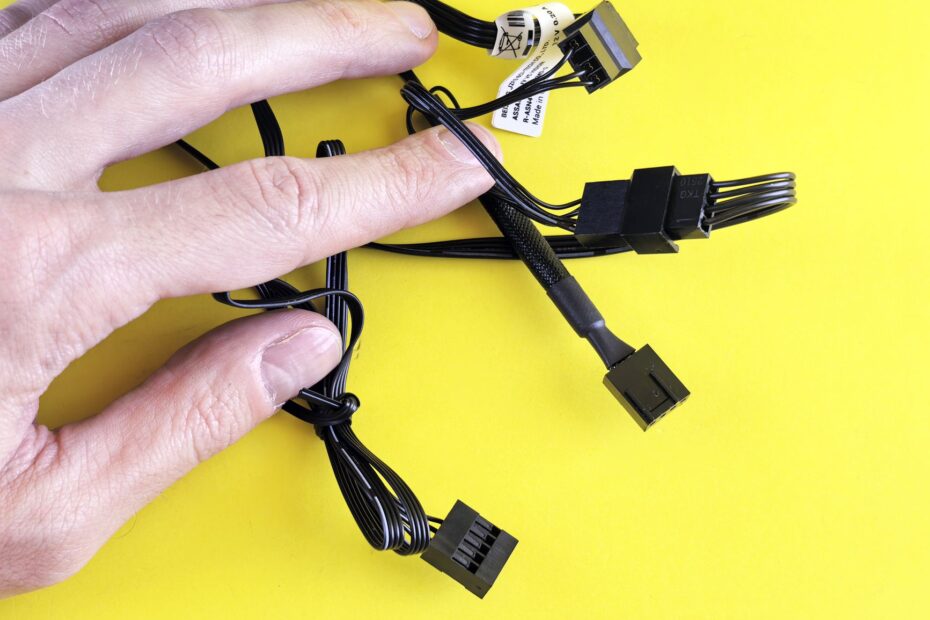
At the motherboard’s lower edge, a cluster of small case leads carries power-button, reset-button, and status-light signals to assigned pins. Your motherboard manual pinout diagram identifies each position, while the cable labels show which lead belongs there. Small plugs look intimidating, yet each one has a narrow electrical role.
This walkthrough helps you place switch and LED leads, separate USB and audio cables, read board-specific layouts, and trace a no-power symptom before your case panel goes back on.
Case Controls Reach the Motherboard Through Separate Headers
Your case power button does not feed power straight into the PC. Pressing it briefly closes the power switch (PWR SW) circuit on the motherboard front-panel header (F_PANEL/JFP1), and the board reads that closure as a startup or shutdown request.
The small exposed pin block handles button commands and indicator lights. USB ports, USB Type-C, headset jacks, microphones, and a speaker/buzzer header follow separate paths. Keeping those groups apart saves you from placing a large front-I/O plug near the wrong pins.
| Case cable label | What it controls | Motherboard destination | Orientation rule |
|---|---|---|---|
| PWR SW or PWR_BTN | Your case power button | F_PANEL, JFP1, PANEL1, or FP1 | Either plug direction works |
| RESET SW | Your reset button | System-panel reset pins | Either plug direction works |
| PLED or PWR LED | Your power-status light | Power LED pins | Positive and negative sides must match |
| HDD LED | Your storage activity light | Drive LED pins | Positive and negative sides must match |
| HD AUDIO | Your headset and microphone jacks | HD Audio header (AAFP) | Keyed plug orientation |
| USB 2.0 | Your lower-speed USB-A ports | 9-pin internal USB header | Blocked pin guides placement |
| USB 3.x | Your high-speed USB-A ports | 19-pin internal USB header | Large keyed plug guides placement |
| USB-C | Your front USB Type-C port | Internal Type-E header | Wide keyed plug guides placement |
A case with a small speaker can also include a four-pin lead for the speaker/buzzer header. That buzzer can report boot faults through beep codes before your display shows an image, which gives you another clue during a startup fault.
The Motherboard Manual Sets the Actual Pin Layout
Silkscreen text near the lower-right edge of a board can disappear behind a graphics card or cable bundle. Your motherboard manual pinout diagram shows the header label, pin numbering, board orientation, and the exact pairs for every small lead.
Header names differ by manufacturer and model. ASUS boards can mark the block F_PANEL, MSI boards can mark it JFP1, ASRock boards can mark it PANEL1, and Gigabyte boards can mark it F_PANEL or SYSTEM PANEL. The printed name points you toward the header, not a universal wire arrangement.
Read Each Pin Diagram in a Fixed Order
- Find the header. Match the board’s printed F_PANEL, JFP1, PANEL1, or FP1 label with the named header in your motherboard manual.
- Locate pin one. Follow the diagram’s pin number, triangle mark, or square solder pad rather than relying on cable position.
- Read the board view. Confirm whether the diagram shows the board from above with rear ports on the left.
- Spot the gap. Treat an absent pin as an orientation mark only after the manual shows its location.
- Match each pair. Place every two-pin lead across its labeled pair instead of following a familiar-looking row.
Your cable labels should face outward where space allows. That small habit gives you a readable trail during later fault tracing. One board can place PLED pins across three positions, while another gives your power LED a two-pin pair beside PWR SW.
Because labels and positions vary by board, identifying each lead’s electrical role prevents damaging assumptions.
Never rely on a pinout image from a similar board. A shifted pair can leave your power button inactive or place an LED lead on the wrong circuit.
Switch Leads and LED Leads Follow Different Electrical Rules
Pressing your power button creates a brief electrical bridge across two PWR SW pins. The motherboard detects that momentary closure and responds by starting, waking, or requesting a shutdown through the operating system.
PWR SW and RESET SW are passive two-wire switches. Neither lead has a positive or negative role, so either plug direction works on its assigned pair. Pin placement matters; plug direction does not.
LED Leads Need Matching Polarity
Power LED and hard drive activity LED leads contain diodes, which pass current in one direction. A colored wire commonly marks positive, while a white or black wire commonly marks negative. Your diagram identifies the terminals with plus and minus symbols.
A reversed LED lead almost never harms the board. Your light stays dark until you turn the plug around on the same pins. That result differs from forcing a large keyed USB or audio plug into an unrelated header.
| Lead type | Electrical behavior | Result of reversed orientation |
|---|---|---|
| PWR SW | Momentary switch | Your button still works |
| RESET SW | Momentary switch | Your button still works |
| PLED | Polarity-sensitive LED | Your light remains off |
| HDD LED | Polarity-sensitive LED | Your activity light remains off |
Place the Switch and LED Leads Before Crowding the Header
Small leads are far easier to place before a large graphics card, bottom radiator, or dense power-cable bundle blocks the board’s lower edge. Set your case wires beside the manual diagram, then sort PWR SW, RESET SW, PLED, and HDD LED before placing anything.
Place PWR SW before the other small leads because it gives you the earliest startup confirmation. Follow with RESET SW, then place LEDs by their printed positive and negative marks. Your PC still runs without a reset lead, though your reset button does nothing while that lead remains absent.
Follow a Stable Placement Sequence
- Brace the board. Hold the motherboard tray steady so pressure does not flex the board near the header.
- Read each label. Turn every plug until its printed name is visible before moving it toward the pins.
- Center both holes. Set the housing directly above its pin pair instead of approaching from an angle.
- Press straight down. Apply gentle fingertip pressure until the housing seats over both pins.
- Inspect the row. Look for plugs sitting one pin left, one pin right, or partly raised above the header.
Split PLED+ and PLED- leads need separate positions. A combined PLED block needs the matching two- or three-pin pattern shown in the manual. Corsair 7000 Series cases, for example, can include several front-I/O cables, while their switch and LED leads still follow your board’s individual map.
Never force a housing onto an offset pin. Bent header pins can turn a short wiring task into a motherboard repair or replacement.
USB, USB-C, Audio, and Speaker Cables Stay on Their Own Paths
Your system-panel pins carry button and light signals, not front-port data. USB-A cables attach to dedicated internal USB headers with plastic shrouds and keyed shapes, unlike the exposed pin grid used by PWR SW, RESET SW, PLED, and HDD LED.
USB 2.0 uses a compact 9-pin header with one blocked position. USB 3.0 and USB 3.2 Gen 1 front-port cables use a larger 19-pin header, often near the board’s right edge. Your case can include both because separate port groups need separate cable runs.
HD Audio and USB Type-C Need Dedicated Headers
HD Audio carries signals from your front headphone and microphone jacks to the HD Audio header (AAFP). Place the plug marked HD AUDIO rather than a legacy AC’97 plug, since HD Audio supports jack sensing and current front-panel layouts.
Your front USB Type-C port needs an internal Type-E header. Without that header, the case port remains unavailable unless an appropriate adapter routes the cable to a compatible internal connection. An adapter changes the physical route, not the board’s required pin pattern.
| Front feature | Header shape | Wrong-header result |
|---|---|---|
| Your USB 2.0 ports | Small pin block with one gap | Pins can bend through poor alignment |
| Your USB 3.x ports | Large rectangular 19-pin plug | Plug or header can suffer damage |
| Your USB-C port | Wide Type-E plug | No physical match exists without an adapter |
| Your headset jacks | Keyed HD AUDIO plug | Audio functions can remain absent |
Unlabeled Leads and Adapter Blocks Still Need the Manual Map
Case wiring varies more than product photos suggest. Your bundle can omit RESET SW, include a combined front-panel block, or hide tiny labels beneath black insulation. Missing reset wiring is normal in a case with no reset button.
An unlabeled two-wire lead needs identification before placement. Trace it back to the case control or LED, compare its wire colors with nearby leads, and consult your case manual. Wire length alone does not identify a power-switch lead.
Adapter Blocks Reduce Finger Work
An ASUS Q-Connector or similar front-panel adapter block lets you seat small leads into a removable housing outside the case. You then place that housing on the motherboard header in one motion. Your manual still decides the position of every wire.
Combined plugs save handling time, yet they fit only boards built for that arrangement. A blocked hole, absent pin, or three-position LED layout signals that the fit is wrong. Do not shave plastic or force the housing.
Backward LED placement is reversible. A USB, USB-C, or HD Audio plug pushed into the wrong location can bend pins or harm the connector shell. PC front panel connectors reward patient placement because only a few leads share the same physical format.
Once each connector is matched deliberately, a brief functional test can expose mistakes before access becomes inconvenient.
Verify Every Front-I/O Feature Before Closing the Case
A single power-on pass can reveal a misplaced PWR SW lead before cable management hides the header. Leave your side panel off, attach display and power leads, and press the case button with the power supply rocker switch in the on position.
Watch for your power LED after startup, then create storage activity by opening a file or loading the operating system. Your HDD LED should flicker during drive activity. A working PC with a dark LED points toward reversed polarity rather than a major rebuild.
Run a Front-I/O Verification List
- Power button. Press your case button once and confirm that the motherboard begins its startup sequence.
- Reset button. Press your reset control after the operating system starts, provided your case has that switch.
- Power light. Confirm that your PLED lights during normal system operation.
- Drive light. Open a file and watch for your HDD LED to flash.
- USB-A ports. Plug in a known-working flash drive and verify data access through every front USB-A port.
- Audio and USB-C. Verify your headset, microphone, and USB-C accessory before fitting the side panel.
Front-port verification catches faults that your power button cannot reveal. A USB device can fail because its internal header is loose while your system-panel wiring remains correct.
Trace a No-Power Symptom From Main Power to the PWR SW Pair
A dead power button does not prove that your PWR SW plug is wrong. Inspect the power supply rocker switch, AC cable, motherboard 24-pin lead, and CPU EPS power lead. Your case button cannot start a board that lacks its main power feeds.
After those checks, compare your PWR SW placement with the exact pair shown in the manual. A lead shifted by one pin can leave your PC lifeless even though every other cable sits firmly in place.
Separate Symptoms Point to Separate Cable Paths
| Symptom | Most direct place to inspect | Practical correction |
|---|---|---|
| Your case button does nothing | PWR SW pair and main board power | Confirm 24-pin, CPU EPS, PSU switch, and PWR SW pins |
| Your power LED stays dark | PLED polarity and pin pair | Turn your LED plug 180 degrees |
| Your drive LED stays dark | HDD LED polarity and storage activity | Flip the lead after activity is present |
| Your front USB has no response | Internal USB header | Reseat the USB 2.0 or USB 3.x cable |
| Your front audio is absent | HD Audio or AAFP header | Reseat the HD AUDIO plug |
A controlled screwdriver contact can isolate your case switch. With power attached, briefly touch only the two documented PWR SW pins with a screwdriver tip. Your system starting from that brief contact points toward the case button or its wiring; no response points back toward board-level or main-power troubleshooting.
Final Checks Keep the Header Wiring Traceable
Your manual is the map, while the printed motherboard labels show the physical destination. Place switch leads on documented pairs, match positive and negative LED polarity, route USB and audio cables to their own keyed headers, then verify each front feature before cable management.
That order turns a cluster of tiny plugs into a short set of traceable circuits. Your work stays easier to inspect, and a later startup or front-port fault has a clear place to begin.
FAQ
What does a PC front panel connector do?
A single two-pin lead can carry a control or indicator signal from your case to the motherboard. Your PWR SW lead sends the power-button signal, while your PLED and HDD LED leads operate status lights. USB and audio functions travel through separate internal headers rather than the system-panel pins.
How do you set up front panel connectors?
Start with your motherboard manual pin diagram, locate your F_PANEL, JFP1, PANEL1, or similar header, then place each labeled case lead on its documented pins. Your PWR SW and RESET SW plugs work in either direction, while LED plugs need positive and negative sides aligned.
Which way do front panel connectors go?
Your power-switch and reset-switch plugs can face either direction on their assigned two-pin pairs. Your power LED and HDD LED plugs need correct polarity, with a colored wire serving as positive in many cases and white or black serving as negative. A reversed LED plug normally leaves that light dark.
How do you attach the PC front panel to the motherboard?
Lay your case leads beside the motherboard manual diagram and match PWR SW, RESET SW, PLED, and HDD LED to labeled system-panel pin pairs. Place HD Audio, USB 2.0, USB 3.x, and USB-C cables only on matching internal headers, using each plug’s keyed shape as a placement confirmation.
What happens after you place the power LED backward?
Your PC can still start and run with a backward power LED lead. The LED diode blocks current in that direction, so your front power light remains off. Turn your PLED plug 180 degrees on the same documented pins, then start the system again and confirm that the light works.
Why does your PC stay off after front-panel wiring?
A no-start symptom can come from your PSU switch, AC cable, 24-pin motherboard lead, CPU EPS lead, or a misplaced PWR SW plug. Confirm those power paths before blaming case wiring. Brief contact across only the documented PWR SW pins can separate a case-switch fault from a broader boot problem.