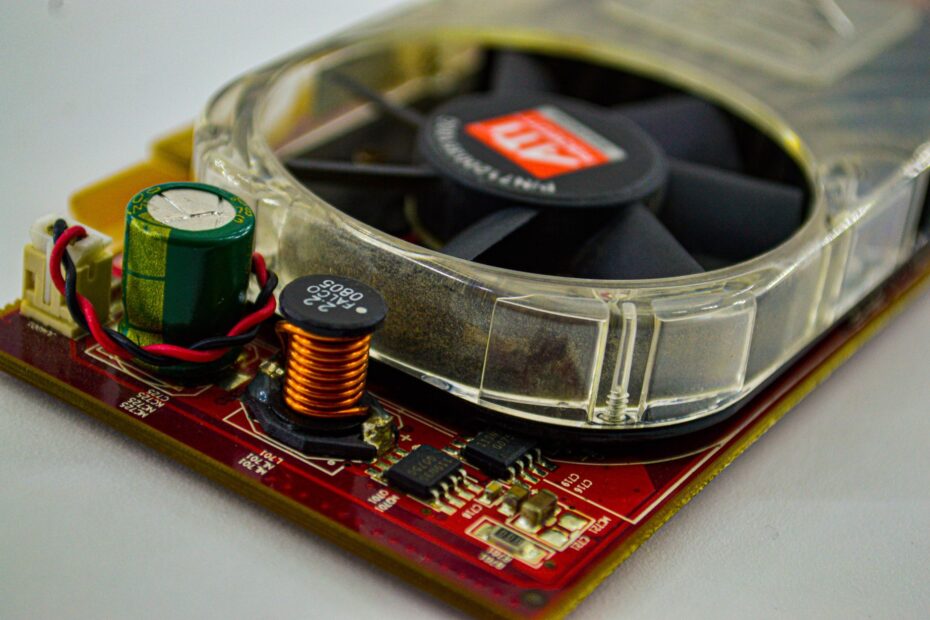
Audible vibration in inductors inside a GPU, power supply unit (PSU), or motherboard stems from electrical conditions. Changing power draw and high frame rates can shift the pitch, but a stable PC with normal temperatures is not signaling a hardware emergency.
Here, you’ll learn how the sound forms, where it travels inside a case, and which low-risk adjustments fit your gaming or work setup.
Coil Whine Has a Distinct Sound Pattern
A sharp buzz that rises during a loading screen and fades at the desktop points toward coil whine. The sound comes from physical hardware, not Windows, game code, or a driver, though software can alter the workload that makes your hardware audible.
Your ears can separate it from the deeper airflow sound of case fans. Fan noise has a lower whoosh and follows fan speed, while coil whine can chirp, squeal, buzz, or hiss with a pitch that shifts almost instantly as frame rate changes.
- Fan airflow produces a broad, low whoosh that rises steadily as RPM increases.
- Liquid-cooler pump produces a steadier hum or vibration near the CPU socket area.
- Hard-drive activity produces clicks, seeking taps, or muted spinning sounds from a drive cage.
- Loose panel produces a rattle that shifts after pressure is applied to a side panel while powered off.
- Electrical whine shifts pitch with GPU load, menu FPS, or a benchmark scene.
Menus are a common trigger because some games render 400, 800, or more frames per second there. Your GPU can draw substantial power while displaying a static menu, and that electrical pattern can make a quiet desktop system sound far louder than expected.
The quick pitch shift is the useful clue. A fan takes time to change RPM, while an inductor can react within a scene change, menu transition, or frame-rate cap adjustment.
Switching Power Produces Electromagnetic Vibration
Inductors react to changing magnetic fields
Voltage regulation converts incoming power into the lower, tightly controlled voltages required by a GPU, CPU, memory, and PCI Express devices. Inductors, also called chokes, store energy in a magnetic field and release it through rapid switching cycles.
As current changes, magnetic forces act on the inductor core and copper windings. That movement is microscopic, but it can happen thousands of times per second and enter the range of human hearing.
Your PC’s power delivery hardware is built around this switching behavior. The sound appears only when a particular combination of frequency, current, physical mounting, and resonance turns that tiny movement into an audible tone.
Mechanical resonance amplifies a small vibration
Magnetostriction adds another cause. Certain magnetic materials change shape by an extremely small amount as their magnetic field changes, and that movement can pass into solder joints, circuit boards, or metal shielding.
Your particular unit can sound louder than another unit with the same model number because resonance differs. A winding, ferrite core, adhesive layer, or mounting point can amplify a narrow frequency much like a guitar body amplifies a vibrating string.
Capacitors do not produce the familiar high-pitched sound as frequently as inductors, yet they sit within the same power circuits. Their electrical behavior can influence the conditions around nearby chokes, so the source is better described as a power-delivery assembly.
That distinction matters during diagnosis. A visible component is not always the part making the sound, and sound reflection inside a metal chassis can further blur the source.
GPU, PSU, and Motherboard Circuits Can Produce the Sound
The graphics card is a frequent source in gaming PCs because its motherboard voltage regulation module (VRM) handles rapid swings in current draw. Your GPU can move from light desktop work to heavy rendering within milliseconds, and its chokes react to that changing electrical load.
GPU coil whine causes include uncapped rendering, abrupt scene changes, ray tracing workloads, and benchmark loops. A card can sound quiet at 60 FPS, then produce a sharper tone at 300 FPS because its VRM is switching under a different load pattern.
Similar sounds can come from different locations
A PSU can emit a high tone through an internal transformer or inductor. Motherboard VRMs near the CPU socket can also whine during shader compilation, video encoding, or sustained all-core workloads.
Your initial impression can be wrong because sound reflects inside the case. A PSU at the bottom of the chassis can seem like GPU noise, while a motherboard choke can project through an opening near the rear exhaust.
| Likely source | Common trigger | Clue for your diagnosis |
|---|---|---|
| GPU VRM | High FPS, ray tracing, benchmarks | Pitch shifts with scene changes or a frame-rate cap |
| PSU | Large total system draw | Noise is strongest near the rear PSU exhaust |
| Motherboard VRM | CPU-heavy work or high CPU voltage | Sound is strongest around the CPU socket heatsinks |
| CPU power circuit | All-core boosts and rapid load swings | Pitch shifts while GPU usage stays low |
PSU coil whine can also alter GPU noise without proving that either component has failed. A different unit changes voltage ripple, transient response, and the load relationship seen by the graphics card, which can move resonance into a less audible frequency.
This is why swapping hardware does not always produce a clear verdict. A quieter result can reflect a changed electrical interaction rather than a defective graphics card or power supply.
Frame rate is a useful test variable because uncapped rendering can force rapid, repetitive shifts in power demand.
High Frame Rates Make Power Changes Easier to Hear
An uncapped menu can make a graphics card work harder than a demanding game scene because it renders frames as fast as the CPU and GPU allow. Coil whine at high FPS becomes more obvious when voltage regulation cycles follow intense, rapidly shifting power demand.
Your system may produce a rising tone as FPS climbs from 90 to 300, then shift again during a cutscene. That pattern ties the sound to rendering load rather than a fixed-speed fan or pump.
Physical variation changes the audible result
Two RTX 4070 cards from the same production line can behave differently. Inductor construction, coil winding tension, potting compound, adhesive coverage, board stiffness, and heatsink mounting pressure all affect how much vibration reaches the air.
Heat can shift the sound as well. Materials expand slightly as the card warms, so your PC may become quieter after 10 minutes of gaming or produce a different pitch once the GPU settles near its operating temperature.
Load patterns matter beyond wattage
Rapid swings matter as much as high power draw. A GPU pulling 250 watts in a stable scene can sound calmer than the same card moving sharply between lighter and heavier frames in a menu or synthetic benchmark.
- Uncapped menus can push frame rates far beyond your display refresh rate.
- Older games can produce extreme FPS because their rendering demands are modest.
- Benchmark loops expose repeating electrical patterns that make tonal noise easy to hear.
- Shader compilation can move CPU and GPU demand in abrupt bursts.
A stable 250-watt load and a rapidly changing 250-watt load are not acoustically identical. That difference explains why a menu, which looks simple on screen, can sound harsher than a detailed game environment.
The load pattern also separates a harmless sound from a hardware warning. Noise that tracks a predictable workload means something very different from noise paired with instability or a burning odor.
Stable Coil Whine Differs From Hardware Failure Signs
A stable PC that whines only under load is irritating, but the sound itself does not damage your GPU. Coil whine reflects movement in a power component rather than a destructive electrical event, provided your system remains stable and temperatures stay within expected limits.
Your concern should rise with crashes, black screens, unexpected shutdowns, artifacting, or failed boots. Those symptoms point beyond normal inductor vibration and call for stopping the workload before inspecting the hardware setup.
Stop using the system after electrical crackling, a burning odor, smoke, visible discoloration, or a sudden severe noise shift. Do not open a PSU, because internal capacitors can retain hazardous charge after the power cord is removed.
- Stable game sessions point toward an acoustic issue rather than imminent GPU failure.
- Normal temperatures show that cooling remains effective despite the high-pitched sound.
- Repeated shutdowns call for hardware inspection rather than sound-reduction settings.
- Burning odor calls for immediate power removal and professional service.
- Visible board damage calls for a manufacturer claim or qualified repair assessment.
Not by itself, as long as your PC remains stable and the sound appears predictably during graphics or CPU load. An abrupt sound paired with instability deserves more attention than a familiar squeal heard only at 500 FPS.
CPU-area noise follows the same rule. Motherboard coil whine can be harmless during heavy processing, yet a new sound alongside failed boots or artifacts is not a noise problem alone.
A Controlled Listening Process Locates the Source
Repeat the same workload before drawing conclusions. Run one game menu, one benchmark scene, or one known GPU-heavy location, then listen at idle, with a frame-rate cap, and with the cap removed.
Your goal is one variable at a time. A clear pitch drop after setting a 120 FPS limit points strongly toward the GPU power circuit, while unchanged noise during GPU load shifts may come from the PSU or motherboard.
Safe isolation avoids electrical hazards
- Stabilize the case place the PC on a firm desk with cables clear and remove the side panel only while the system is stationary.
- Run one scene use the same game menu or benchmark loop during each listening pass.
- Listen outside first locate the loudest area near the GPU, PSU exhaust, CPU socket, or drive bays.
- Use a paper tube hold a nonconductive paper tube near, not against, the suspected area to focus sound.
- Alter software settings adjust frame caps, fan curves, or workload type without touching powered hardware.
Never stop a fan with your finger, insert a tool into a running system, or press on a powered graphics card. Your hands can slip, static discharge can harm components, and a blocked fan can introduce a separate thermal problem.
Fan noise can be isolated through software with a temporary fixed curve, followed by listening for a pitch that does not follow RPM. Storage activity can be checked by moving a large local file, while pump noise tends to stay steadier across GPU frame-rate changes.
Sound location becomes more reliable after two or three repeatable passes. Your ear is less likely to mistake reflected chassis noise for a GPU problem after the frame-rate cap and fan curve each produce clear results.
Once the source and workload trigger are isolated, reducing that trigger can quiet the system without replacing hardware.
Load Tuning Can Reduce Audible Vibration
A frame-rate cap is the cleanest starting point because it changes the electrical conditions that excite the vibration. Set a cap near your display refresh rate, such as 120 FPS on a 120 Hz panel or 144 FPS on a 144 Hz panel, then listen again.
Your next options depend on how loud the sound remains and how much performance you can trade. V-Sync or adaptive sync can restrict runaway menu FPS, while a modest GPU power limit or careful undervolting can reduce current swings without altering the game itself.
| Action | Vibration effect | Risk and trade-off |
|---|---|---|
| Frame-rate cap | Reduces needless rendering load | Minimal risk, lower peak FPS |
| V-Sync or adaptive sync | Restricts menu and game frame output | Added latency in some setups |
| GPU power limit | Lowers peak current demand | Small performance reduction |
| Careful undervolting | Changes voltage and current behavior | Requires stability checks after each adjustment |
| Case repositioning | Masks sound rather than altering its source | No electrical effect |
How to reduce coil whine depends on the component and load pattern. A frame-rate cap is effective for menu-related GPU noise, while CPU power limits or motherboard voltage settings are more relevant for noise near the CPU socket.
Do not glue, tape, press, or coat chokes on a powered card or motherboard. Such modifications can trap heat, damage a component, complicate an RMA, and turn an acoustic complaint into physical damage.
Clear evidence helps with return decisions
Record a 20 to 30 second video from a stated distance, such as 12 inches from the open side panel. Include the game or benchmark, FPS, GPU power setting, case position, and any crashes or visual artifacts in your notes.
Your documentation matters most where the sound is audible from normal seating distance through a closed case, or where it disrupts work and gaming despite sensible load tuning. A retailer or manufacturer can judge an unusually loud unit more clearly from a repeatable example than from a vague description.
Masking and mitigation are different. A quieter fan profile or a less exposed case location can make your room more comfortable, while an FPS cap or undervolt alters the load pattern that excites the component.
A return makes more sense where the noise remains intrusive during ordinary use, not only during an uncapped menu at extreme FPS. Your video should show the same sound under the same workload more than once.
Final Thoughts
The sound begins with magnetic forces moving tiny parts inside power hardware, and high FPS can make that movement audible. Your most useful response is to identify the load pattern, verify that the PC stays stable, try low-risk settings changes, and document an unusually loud unit before seeking an RMA or manufacturer claim.
PC coil whine causes are tied to resonance and power delivery, not a single brand or graphics card model. Once you identify the component and workload involved, your next choice becomes clearer: live with a normal sound, tune the load, or seek service for a disruptive unit.
FAQ
What causes coil whine in PCs?
Inductors, chokes, and transformers can vibrate as changing magnetic fields move their cores or windings. Your GPU, PSU, motherboard VRM, and CPU power-delivery circuit can produce the sound under a particular combination of switching frequency, current draw, and physical resonance.
What generates coil whine in a GPU, PSU, motherboard, or CPU power circuit?
Inductors and transformers are the usual sound sources because their magnetic fields change thousands of times per second. Capacitors can influence the electrical conditions around those parts, but the familiar high-pitched tone usually comes from vibrating inductors or transformers.
Why does coil whine get louder under load or at very high FPS?
Heavy rendering and uncapped menus increase or rapidly shift power draw through the GPU VRM. Those shifts alter switching behavior and electromagnetic vibration, so your PC can become louder at 300 FPS than at 90 FPS.
Is coil whine bad for a PC or a sign that a component is failing?
Coil whine is not harmful by itself when your PC remains stable, temperatures stay normal, and the sound appears predictably during graphics or CPU load. It becomes a concern with shutdowns, burning smells, smoke, electrical crackling, visible damage, or sudden instability.
Can coil whine damage a GPU?
Mechanical vibration in power-delivery parts produces this sound without damaging your GPU. A GPU that displays artifacts, crashes, overheats, or loses power needs attention, but those symptoms are separate from the whine itself.
How can I tell coil whine apart from fan noise, pump noise, or a failing PSU?
Coil whine shifts pitch with FPS, rendering load, or benchmark scenes, while fan noise follows RPM and pump noise stays more even. Your safest method is to alter fan curves and frame caps through software, then listen from outside the open, stationary case.