I’ve spent years watching illustrators, photo editors, and students wrestle with the wrong drawing tablet, so I pulled together ten computer pen pads that genuinely fit different hands and workflows. Whether sketching on the couch, retouching photos at a desk, or teaching a class on the go, the right surface changes the whole experience. This roundup skips the brochure fluff and focuses on pressure sensitivity, ergonomics, screen quality, and real portability, so the next tablet you buy actually matches how you work.
A Side-By-Side Look

XPPen PN01 Battery-Free Stylus for Star G640 & Star G430

XPPen Artist 22 2nd Pen Display 21.5″

Wacom Intuos Small Bluetooth Drawing Tablet (Pistachio)

XPPen Magic Drawing Pad 12.2″ Standalone Tablet

Wacom Bamboo Pen and Touch
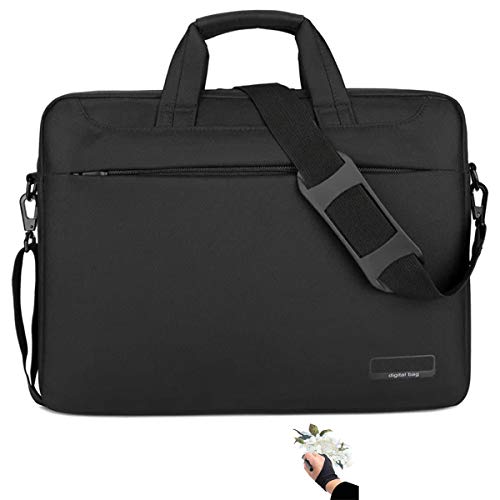
MIXJOY Waterproof Tablet Case Bag 16″

XPPen Magic Drawing Pad 12.2″ Digital Art Tablet

XPPen Deco 01 V3 Drawing Tablet 10×6.25″ (Green)

VEIKK A15Pro Graphics Drawing Tablet 10×6″

Wacom Intuos3 6×8″ Pen Tablet
Meet The Standout Selections
If you already own an XPPen Star G640 or Star G430, this PN01 stylus is the replacement or backup pen that keeps your setup alive. The barrel skips the battery entirely, so there’s no charging downtime mid-sketch and no anxiety about a pen dying mid-line. It registers 8192 pressure levels (the tiny gradations of how hard the nib presses the surface), which matches the sensitivity of the host tablets exactly.
For anyone whose primary pen has gone missing or grown sticky, this is the lowest-friction way back to a working surface. It also makes sense for households where two people share a tablet, since the passive design means no pairing dance.
Practical Pluses
- No charging or battery swaps means the pen is always ready
- Matches the 8192-level sensitivity of the Star G640 and G430 tablets
- Lightweight barrel stays comfortable during longer drawing sessions
- Easy secondary-pen option for shared tablets
Things To Consider
- Only works with the two Star models listed, so it’s not a universal pen
Whose Desk It Belongs On
Owners of an XPPen Star G640 or G430 who need a replacement or backup stylus.
Reach For A Different Pick When
Anyone working on a different XPPen display should consider the XPPen Artist 22 2nd Pen Display instead, since it ships with its own active stylus.
The Artist 22 2nd trades the typical “draw blind on a pad, look up at a monitor” workflow for a direct-on-screen experience. Its 21.5-inch panel covers 122% of the sRGB color space (the standard color range used across most web and print content), which is meaningful for anyone preparing client-ready artwork. Tilt support and 8192 pressure levels mean the stylus reads more like a real brush than a mouse surrogate.
The adjustable stand leans from 16 to 90 degrees, so it behaves like a flat drafting table one minute and an upright reference monitor the next. Compared with the spare stylus in pick 1, this is a complete workstation built around color and screen real estate.
Positive Points
- Full 21.5-inch canvas mirrors hand-to-cursor movement, reducing the eye-hand gap
- 122% sRGB coverage supports accurate color work for client deliverables
- Tilt recognition helps with shading and natural brush angles
- Wide-angle stand adapts between flat drafting and upright viewing
Trade Offs
- Large footprint demands a dedicated desk and stable surface
- Heavier than pen-only tablets, so it’s not a commuting tool
Feature Snapshot
Who Should Grab It
Studio illustrators and retouchers who need a primary color-accurate display and don’t mind dedicating desk space.
Skip It When
Anyone sketching in cafes or on the road should look at the XPPen Magic Drawing Pad 12.2″ instead.
This compact Wacom Intuos leans on Bluetooth to stay cable-free across Chromebooks, Macs, Windows PCs, and compatible Android devices. Four customizable ExpressKeys let a teacher trigger whiteboard controls or a student summon a brush swap without breaking flow. The pistachio finish is a small touch, but it lifts the tablet out of the generic black-peripheral look.
Compared with the larger Artist 22 2nd, the Intuos Small is purely an input surface. That keeps the focus on hand control rather than screen review, which suits note takers and digital art beginners who already work in front of a laptop screen.
Advantages To Know
- Bluetooth pairing cuts the cable from a packed bag
- Works across Chromebook, macOS, Android, and Windows, broadening classroom use
- ExpressKeys map to any repeated keystroke for faster workflows
Honest Caveats
- Smaller active area feels cramped for full-page illustration
- No built-in display, so newcomers face the usual hand-eye coordination learning curve
Made For
Students, teachers, and casual creators who want wireless simplicity across multiple devices.
Look Elsewhere When
Anyone needing a wider drawing area with shortcut keys should consider the XPPen Deco 01 V3.
Most pen tablets demand a tethered computer, but the Magic Drawing Pad pulls off the trick of running entirely on its own. The X3 Pro Slim Stylus delivers 16384 pressure levels, which is a noticeable step above the 8192 seen in earlier XPPen models, and the paper-like screen finish reduces the slippery feel of glossy glass. With 8GB of RAM plus 256GB of storage on board, it can hold a meaningful library of works in progress.
This is the pick for someone who wants to leave the laptop at home. Sketching on a park bench, taking visual notes in a meeting, or doing touch-ups on a flight all become realistic workflows. The trade-off is that you’re locked into the onboard software ecosystem instead of a full desktop app.
Why It Works Well
- 16384 pressure levels for nuanced line variation
- Paper-like screen texture mimics traditional sketching
- Generous 8GB RAM plus 256GB storage for on-device files
- No computer required, so it travels lighter than a tablet-plus-laptop setup
Worth Noting
- Onboard app ecosystem is more limited than a desktop workflow
- 12.2-inch screen feels modest for full-spread illustrations
- Charging the internal battery becomes part of the daily routine
Feature Rundown
Built With In Mind
Traveling sketchers and visual note takers who don’t want to carry a laptop alongside their drawing tool.
A Better Fit Elsewhere
Studio-bound creators running Photoshop or full desktop pipelines should look at the XPPen Artist 22 2nd Pen Display instead.
The Bamboo Pen and Touch is a no-frills entry into the Wacom ecosystem. The dual sensors handle both pen strokes and finger gestures, which is useful for navigating around a canvas without lifting the stylus. Four ExpressKeys along the side let you bind common shortcuts without leaving the drawing area.
It’s older tech, and that shows up in the wired USB connection and the more modest active area. Still, for someone curious about pen input who doesn’t want to overspend, it’s a credible starting point that pairs well with mainstream creative software.
The Value In It
- Combined pen and touch input adds gesture flexibility
- Bundled photo editing software helps new owners get started
- Ergonomic battery-free pen reduces hand fatigue
- ExpressKeys map to any shortcut for quicker access
- Wide compatibility with mainstream creative apps
Some Limits To Know
- Wired USB only, no wireless option
- Older design with limited tilt recognition
- Active area is on the smaller side for serious illustration
The Right Fit
Casual creatives and beginners testing the waters of pen input without a big upfront commitment.
Swap It Out When
Anyone wanting wireless flexibility should pick the Wacom Intuos Small Bluetooth Drawing Tablet instead.
Pen displays are fragile, and the MIXJOY case is built specifically for the popular 16-inch class. The internal dimensions target a snug fit for the Wacom Cintiq 16, Huion Kamvas Pro 16, and XP-Pen Artist 15.6 Pro or Innovator 16. The water-resistant nylon shell adds a layer of confidence when the bag sits on a wet cafe table or under a dripping umbrella.
This isn’t a drawing tool itself, but pairing a quality case with a pen display is what turns the display into a travel-ready kit. Think of it as the missing accessory that keeps the investment intact.
Useful Highlights
- Tailored interior protects 16-inch pen displays from scratches and minor bumps
- Water-resistant shell defends against splashes and light rain
- Shoulder strap design frees up hands while commuting
Practical Considerations
- Interior size is fixed, so verify your display matches before committing
- Doesn’t include dedicated stylus slots, so pens need separate storage
Best Suited To
Owners of 16-inch pen displays who commute between home, studio, and client sites.
Not Your Match When
Users of smaller pads like the Wacom Intuos Small won’t need this size and should look elsewhere.
This sibling of pick 4 leans harder into the sketchbook feel. The X3 Pro Slim Pencil is slim enough to feel like a real pen between the fingers, and the paper-like screen gives the nib a bit of bite instead of skating across glass. Tilt support rounds out the illusion, especially when shading a charcoal-style sketch.
It’s also fully standalone, so the workflow stays laptop-free. For artists who like to rough in thumbnails on location and finish on a desktop later, the on-board 256GB storage becomes a useful sketchbook buffer. Compared with the older Wacom Bamboo, this is a markedly more modern experience.
What Stands Out
- Slim stylus profile feels closer to a traditional drawing pen
- Paper-like screen texture adds realistic friction for linework
- Tilt recognition enriches shading and angle-based brushwork
- Self-contained storage for mobile-first sketching habits
A Few Limitations
- On-board app selection is narrower than desktop suites
- Battery life planning matters during long off-grid sessions
Feature Card
Who Will Love This
Sketchbook-style artists who want a tactile feel without giving up the digital workflow.
Consider Something Else When
Anyone needing a wide canvas for detailed illustration work should consider the XPPen Deco 01 V3.
The Deco 01 V3 is built for daily drawing. Its 10 by 6.25-inch active area is generous enough for full-canvas illustrations without overwhelming a desk, and eight physical shortcut keys sit along the side for binding brush swaps, undo, or layer toggles. Tilt support up to 60 degrees brings shading capabilities that older pads lacked.
At 16384 pressure levels and with a battery-free stylus, this pad keeps up with the workflow demands of working illustrators. It feels like the more grown-up cousin of the Wacom Intuos Small, trading the Bluetooth convenience for a larger workspace and a more substantial button array.
Useful Touches
- Wide 10×6.25-inch active area handles full-page illustrations
- Eight physical shortcut keys reduce keyboard dependency
- 60-degree tilt recognition supports expressive shading
- Battery-free stylus stays ready without charging routines
Points To Note
- Wired connection limits placement flexibility on smaller desks
- Green finish won’t blend into every setup aesthetic
Perfect Match For
Daily illustrators and concept artists who want a generous canvas plus real shortcut keys at an accessible price.
Where Another Pick Suits Better
Travelers and field sketchers should pick the XPPen Magic Drawing Pad 12.2″ instead for computer-free drawing.
The A15Pro is for users who want controls at their fingertips. Twelve shortcut keys plus a physical dial let you bind brush size, zoom, rotation, and undo without ever reaching for the keyboard. The dial in particular feels intuitive for anyone coming from a knob-heavy audio or photo editing background.
Compatibility stretches across Windows, macOS, Chrome OS, Linux, and Android, which makes the A15Pro flexible across mixed-device households. The tilt support and battery-free stylus keep the drawing experience close to more expensive competitors, though the VEIKK brand has a smaller software ecosystem than Wacom or XPPen.
A Few Strong Suits
- Dial plus 12 shortcut keys enable deep customization
- Broad operating system coverage including Linux and Android
- Tilt support adds brush angle responsiveness
- Battery-free passive stylus stays maintenance-free
Possible Compromises
- Smaller software ecosystem than Wacom or XPPen
- Driver maturity may lag behind the larger brands
Specs At A Glance
Right Fit For
Designers and illustrators who rely on quick shortcut access and dial-based control during long sessions.
Where A Sibling Pick Shines
Anyone needing pen-on-screen drawing should consider the XPPen Artist 22 2nd Pen Display.
The Intuos3 is a classic that still appears in working studios because Wacom drivers have remained broadly compatible over the years. Its 1024 pressure levels feel modest next to today’s 16384-level flagships, but for sketching, photo retouching, and education workflows, it’s a proven tool. The 6×8-inch active area splits the difference between a small note-taking pad and a full studio canvas.
It’s a wired, USB-only design with no wireless option, which dates it. For a long-time Wacom fan rebuilding a workstation on a budget, this remains a credible option if the older spec sheet fits the work.
What Makes Sense
- Wacom driver stability is well documented over many years
- Compatible with a long list of creative software titles
- Customizable menu shortcut buttons streamline repetitive actions
Points To Weigh
- 1024 pressure levels feel coarse next to modern standards
- Wired only, no Bluetooth or wireless option
- Older design lacks tilt support found in current pads
Who It Suits Best
Long-time Wacom users maintaining a classic setup or working with legacy creative software.
Reach For A Different Pick When
Anyone needing modern pressure sensitivity should consider the XPPen Deco 01 V3 instead.
Finding The Right Fit For Your Workflow
Active Area And Pen Sensitivity
Pressure levels describe how many distinct pressures the stylus can detect between a light touch and a firm press. Most modern pads sit between 8192 and 16384 levels, which is well past the threshold where casual users notice a difference. Real-world benefit shows up in subtle line-weight variation, brush dynamics, and the natural feel of pencil sketching. Active area matters just as much. A 6×8-inch pad handles sketches and note-taking well, but full-page illustrators usually want at least 10×6 inches to avoid running off the edge during long strokes.
Screen Versus Tablet-Only
Pen displays like the XPPen Artist 22 2nd put the cursor directly under the nib, removing the hand-eye gap that beginners often struggle with. Tablet-only models like the Wacom Intuos Small or VEIKK A15Pro are lighter, cheaper, and more portable. For someone starting out, a tablet-only pad with Bluetooth tends to be the gentlest learning curve. For established illustrators who stare at a screen for hours, a pen display pays off in reduced fatigue.
Connectivity And Portability
Bluetooth adds flexibility for hybrid work setups, but the connection can occasionally drop on crowded networks. Wired USB remains the most stable route for sustained sessions. Standalone tablets like the XPPen Magic Drawing Pad trade tethering entirely for the constraint of a smaller built-in software ecosystem.
Key Considerations Across These Picks
Mistakes Worth Dodging
Buying a pad with a too-small active area is the most common slip. Sketchers and illustrators quickly outgrow anything under 8×5 inches. Another trap is assuming every stylus is interchangeable. The XPPen PN01 only fits the Star G640 and G430, so a generic replacement can waste money. Finally, ignoring driver support leads to headaches. macOS, Chrome OS, and Linux compatibility varies by brand, and checking the supported list before purchase prevents return-day frustration.
Where The Extra Money Goes
Higher-tier pads pay for three things: pressure resolution, screen quality, and shortcut density. A 16384-level stylus produces smoother gradients than a 1024-level one. Color-accurate displays with wide sRGB coverage matter for client-ready illustration work. Physical shortcut keys and dials, like those on the VEIKK A15Pro, shave seconds off every brush change, which adds up across a long session. The upgrade is worth it once daily drawing becomes part of a working routine.
Frequently Asked Questions
What does pressure sensitivity actually do?
It controls how line thickness and opacity respond to how hard you press the stylus. More levels mean smoother transitions between a barely-there stroke and a heavy line.
Do I need a pen display to start drawing?
No. Most beginners learn pen control on a tablet-only pad like the Wacom Intuos Small and progress to a display once muscle memory is built.
Are wireless drawing tablets reliable?
For most home and classroom setups, yes. Crowded Wi-Fi environments can occasionally cause brief dropouts with Bluetooth models.
Can I use one tablet across multiple computers?
Yes, as long as the operating systems are on the supported list. Many pads, including the VEIKK A15Pro, support Windows, macOS, Chrome OS, Linux, and Android.
How do I protect a pen display when traveling?
A padded carrying case like the MIXJOY Waterproof Tablet Case Bag shields the screen from scratches and minor impacts in transit.
Closing Remarks
The best computer pen pad is the one that matches how and where you actually create. A student doodling between classes has different needs than a studio illustrator prepping client artwork, and both are different from someone sketching on a long flight. Match the active area, pressure sensitivity, and connection type to your real workflow, and the rest falls into place.