Choosing a creative workstation isn’t about chasing specs on paper. It shapes how smoothly a long painting session flows, how often a heavy file stalls, and whether your gear travels when inspiration hits. I’ve put together ten setups covering pen displays, standalone tablets, and full desktops, so artists working in any medium can find a starting point that actually fits.
An Overview Of The Picks

XPPen PN01 Battery-Free Stylus for Star G640 & G430

Dell 27″ All-in-One Core 7 16GB Desktop

XPPen Artist 22R Pro 21.5″ Pen Display

XPPen Artist 22 2nd 21.5″ Pen Display

Dell 27″ All-in-One Core 5 Desktop
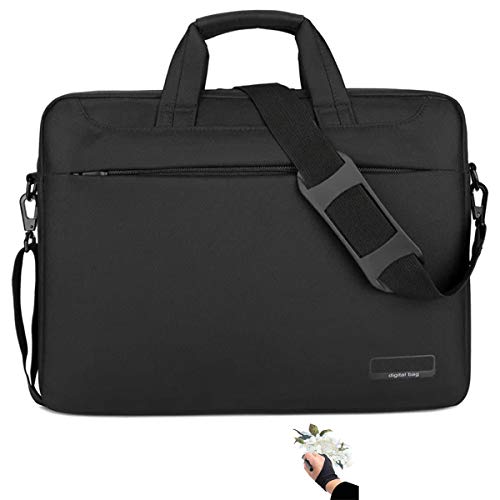
MIXJOY Waterproof Pen Display Travel Bag

UGEE 14.25″ 2.4K Standalone Drawing Pad

XPPen Magic Drawing Pad 12.2″ Standalone Tablet

Dell Slim Desktop ECS1250 i3 8GB 512GB

Wacom Cintiq Pro 24 4K Pen Display
A Deeper Look At The Lineup
A pen-only accessory makes sense when the rest of a setup is already in place. The XPPen PN01 stylus replaces the nib on existing XPPen Star G640 or Star G430 pen tablets, delivering 8192 levels of pressure sensitivity (the number of distinct pressure signals a pen reports to software, which translates directly into how softly or firmly each line registers on screen) without any battery to charge.
That matters during long sessions where artists sketch, ink, and shade for hours, since there’s no mid-flow downtime hunting for a charging cable. The PN01 also keeps the same ergonomic shape users already know, so existing muscle memory stays intact.
Standout Benefits
- No charging required, so the pen is always ready when inspiration strikes.
- High pressure resolution (8192 levels) helps capture soft shading gradients.
- Familiar grip and weight reduce the learning curve for current XPPen owners.
Things To Consider
- Only works with the Star G640 and Star G430, so it’s not a universal replacement pen.
- Like most EMR-style styluses (electromagnetic resonance pens that draw power from the tablet surface), nibs eventually wear down and need periodic replacement.
Who It Suits Best
Artists already invested in an XPPen Star G640 or G430 who want to refresh a worn pen or keep a backup nearby for travel.
Where Another Pick Suits Better
Anyone still choosing a tablet should look at the XPPen Artist 22R Pro instead, since it bundles a full pen-display experience with its own stylus.
For studio-bound illustrators who prefer one tidy unit over a tower-plus-monitor mess, the Dell 27-inch All-in-One packs the full creative workstation into its screen housing. The FHD IPS panel (an in-plane switching display that holds accurate color at wide viewing angles) covers 99% sRGB, which is the standard color space most web and print work targets, and ships with an Intel Core 7 150U paired with 16GB of RAM. That’s enough headroom for layered Photoshop work, mid-size Illustrator files, and the occasional video edit.
Windows 11 Home comes preinstalled, so any pen display or graphics tablet from this list drops in without driver headaches. The narrow-bezel design gives more drawing real estate relative to the desk footprint.
What Helps Most
- 27-inch screen is large enough to keep tool palettes and canvas visible side by side.
- All-in-one form factor removes cable clutter, leaving more desk space for sketchpads.
- 16GB RAM supports layered projects without constant file-saving breaks.
Points To Note
- FHD resolution on a 27-inch panel means pixel density is modest for fine detail review.
- Integrated graphics limit heavy 3D or rendering workflows, so a dedicated GPU tower may serve animators better.
Quick Facts
Made For
Studio-based digital artists who want a clutter-free, color-accurate canvas paired with a pen display they can move between projects.
Skip It When
Photographers and animators running heavy GPU work should reach for the Wacom Cintiq Pro 24 plus a separate tower setup for the rendering muscle they need.
Production illustrators working in Photoshop, Clip Studio, or Krita often toggle between brushes, layers, and zoom tools faster than keyboard shortcuts allow. The XPPen Artist 22R Pro answers that grind with two red dial wheels and 20 customizable shortcut keys flanking the 21.5-inch drawing surface. Color coverage sits at 120% sRGB, which means colors render with more headroom than standard sRGB panels can display.
Full lamination (a manufacturing process that bonds the glass directly to the LCD layer beneath, eliminating the air gap between pen tip and image) tightens the parallax, so the cursor lands right under the nib rather than floating slightly above. The included battery-free stylus handles long sessions without mid-work charging pauses.
Why It Works Well
- Physical dials and shortcut keys cut down on menu diving during fast concept work.
- Battery-free stylus removes charging interruptions during marathon painting sessions.
- Full-laminated screen reduces parallax for precise line work, especially in detailed illustration.
Honest Caveats
- 21.5-inch panel feels modest for illustrators used to dual-monitor layouts.
- Requires a connected computer to run, unlike the standalone tablets later in this list.
Spec Overview
Best Suited To
Concept artists and illustrators who lean heavily on brush-and-tool shortcuts and want physical controls within thumb’s reach.
Look Elsewhere When
Traveling artists should consider the XPPen Magic Drawing Pad, which runs standalone without a tethered computer.
The second-generation Artist 22 keeps the same 21.5-inch footprint as its 22R sibling but drops the dual red dials in favor of a cleaner surface. In exchange, it widens color coverage to 122% sRGB and adds tilt recognition (the ability for software to detect the angle at which the pen is held, mimicking how a real brush or calligraphy pen behaves when tilted). 8192 pressure levels keep line variation smooth, and the included battery-free stylus means no charging pauses.
An adjustable stand shifts the screen angle from 16 to 90 degrees, which matters for illustrators who alternate between upright painting and leaning back to sketch loose thumbnails. USB-C to USB-C connectivity (cable sold separately) tidies the desk by combining power and data through a single cord on supported setups.
Where It Helps
- Tilt function lets artists shade with the side of the nib, like a real pencil or brush.
- Wide-angle stand adapts to seated, standing, or reclined working postures.
- Cross-platform compatibility (Windows, Mac, Linux) keeps the door open for studio software switches.
Trade Offs
- Lacks the physical shortcut dials of the 22R Pro, so menu shortcuts become more important.
- USB-C to USB-C cable is sold separately, adding a small extra step to setup.
Perfect Match For
Cross-platform illustrators who want a clean, tilt-capable pen display for a flexible home studio setup.
Swap It Out When
Artists prioritizing workflow shortcuts over tilt precision may prefer the XPPen Artist 22R Pro, which still has those dual red dials.
A step down from the Core 7 All-in-One, this Dell trims the processor to the Intel Core 5 120U while keeping the same 27-inch FHD IPS panel and 99% sRGB color coverage. For hobbyist artists, students, or anyone running everyday illustration tools rather than rendering farms, that trade often goes unnoticed. The narrow bezel preserves desk space, and Windows 11 Home keeps driver setup simple for any pen display paired with it.
Think of it as the All-in-One above with a quieter engine under the hood, which is plenty for sketch work, digital painting, and most vector illustration.
Notable Upsides
- Same color-accurate 99% sRGB panel as the higher-tier Dell in this list.
- Compact all-in-one layout suits small home studios and dorm desks.
- Preinstalled Windows 11 Home keeps setup quick for first-time creative PC owners.
Things To Weigh
- Lower-tier processor may struggle with very large multi-layer files compared to the Core 7 sibling.
- Integrated graphics rule out serious 3D sculpting or motion work for now.
Whose Shelf It Belongs On
Students and hobbyist artists who want a tidy, color-accurate workspace without overspending on processing headroom.
Consider Something Else When
Studio professionals handling huge files daily will find the Dell 27″ All-in-One Core 7 a more future-proof match.
A pen display is only as portable as the bag that carries it. The MIXJOY case fits 16-inch class displays from Wacom, Huion, and XP-Pen, with internal dimensions around 16.93 by 12.6 by 3.15 inches. The water-resistant nylon shell shields against splashes and weather, which is reassuring when commuting through unpredictable rain or squeezing a bag into a crowded studio shelf.
For traveling artists who already own one of the larger pen displays, this accessory is the missing piece that turns a fragile panel into a mobile kit.
Useful Touches
- Water-resistant outer fabric helps protect against coffee spills and light rain during commutes.
- Cross-brand compatibility covers Wacom Cintiq 16, Huion Kamvas Pro 16, and XP-Pen 15.6-inch displays.
- Shoulder-strap design keeps hands free for sketchbooks or coffee on the move.
Minor Gripes
- Internal dimensions limit fit, so larger 22-inch and 24-inch pen displays won’t work here.
- Padding is functional rather than heavy-duty, so checking airline checked-baggage rules before flights is wise.
Right Fit For
Mobile artists carrying a 16-inch pen display between home, studio, and client meetings.
Reach For A Different Pick When
Anyone whose display exceeds 16 inches, like the Wacom Cintiq Pro 24, should look at a hard-shell roller case built for larger panels.
Untethered creativity is the pitch here. The UGEE standalone drawing pad runs Android on a 6nm octa-core processor (an eight-core chip built on a 6-nanometer process for efficient battery use), with 8GB of RAM and 256GB of storage built in. There’s no need to plug into a separate computer, which makes it behave more like a sketchbook than a workstation. The 14.25-inch 2.4K screen hits a sharp pixel density for fine line work.
A 10000mAh battery with 27W DC fast charging keeps the device running through long café sessions. The paper-like NanoMatte display (a textured screen surface that mimics the slight tooth of real paper for natural-feeling pen strokes) gives the stylus more bite than glossy panels.
Benefits That Matter
- No computer required, so artists can sketch anywhere with Wi-Fi, like a park or train.
- 2.4K resolution keeps brush tips and small UI elements crisp at arm’s length.
- Paper-like screen texture feels closer to drawing on a real sketchbook.
Practical Considerations
- Android app ecosystem for creative work is smaller than full desktop software, so app choice may feel limiting.
- Storage fills quickly with high-resolution layered files, though 256GB handles most active projects.
Feature Snapshot
Built With In Mind
Sketch-first artists who prefer the freedom of a tablet over the tethered workflow of a traditional pen display.
Not Your Match When
Desktop software loyalists running full Photoshop or Clip Studio pipelines should consider the XPPen Artist 22 2nd instead, since it pairs with a workstation.
The Magic Drawing Pad pushes pressure sensitivity to 16384 levels via the X3 Pro Slim Pencil, which is roughly twice what most budget styluses offer. That extra resolution shows up in subtle pressure transitions, useful for calligraphic line variation and very soft washes. The 12.2-inch paper-like screen keeps the surface tactile, and the slim pencil feels close to a real drawing tool.
Storage and memory match the UGEE above (8GB RAM, 256GB), so project files live locally without immediate cloud sync. For artists who travel light and want a pro-grade pressure response without a tethered computer, this is the closest thing on the list to a digital sketchbook with serious precision.
The Practical Payoff
- 16384 pressure levels capture the gentlest brush taps and the heaviest inking strokes alike.
- Standalone design removes the need to boot a full workstation for quick sketches.
- Paper-like screen texture gives natural resistance for controlled line work.
A Few Limitations
- 12.2-inch screen is compact, so detailed canvas work requires frequent zoom-outs.
- App ecosystem depends on the tablet’s operating environment, which is narrower than full desktop suites.
Who Should Grab It
Traveling professional artists who value pressure precision and portability over a large canvas.
A Better Fit Elsewhere
Anyone needing a bigger working area for finished illustrations should consider the Wacom Cintiq Pro 24, which delivers a much larger 4K canvas tethered to a workstation.
Not every studio wants an all-in-one screen-plus-PC combo. The Dell Slim Desktop ECS1250 is a compact tower that tucks behind a monitor or sits on a shelf, freeing the desk for the real working area. The Intel Core i3 14100 paired with 8GB of DDR5 RAM (a faster, more efficient generation of system memory than older DDR4) covers everyday illustration tasks, and the 512GB SSD (solid-state drive) keeps project load times brisk.
WiFi 6 handles wireless connectivity without taking up a port, and multi-monitor support via DisplayPort and HDMI lets illustrators pair this with any pen display from this list. It’s a tidy hub for minimalists who’d rather choose their own screen.
A Few Highlights
- Slim form factor slides behind monitors or onto narrow shelves without clutter.
- Multi-monitor support accommodates a primary pen display plus reference screens.
- DDR5 RAM and SSD storage keep app launches and file saves responsive.
Worth Noting
- Integrated Intel UHD graphics limit heavy GPU tasks like 3D rendering or large video edits.
- Entry-level processor may bottleneck when juggling multiple high-res canvases simultaneously.
Perfect Match For
Minimalist artists who prefer a separate monitor-plus-tower setup and want a clean, compact hub for everyday illustration work.
Another Choice May Suit
Illustrators who want fewer cables should consider the Dell 27″ All-in-One Core 5, which combines screen and PC in one housing.
The Cintiq Pro 24 sits at the top of the pen-display food chain. The 4K touchscreen renders fine detail at near-print clarity, and the Pro Pen 2 has long been a reference standard for how a stylus should feel: balanced, latency-free, and natural across long sessions. Minimal parallax keeps the cursor tucked under the nib, even on the corners of the wide 24-inch surface.
For studio-bound professionals who paint, illustrate, or retouch for hours each day, this display earns its premium positioning. It requires a connected computer to run, but paired with a capable workstation, it becomes the centerpiece of a serious creative pipeline.
A Strong Showing
- 4K resolution on a 24-inch canvas reveals brush detail that lower-res panels smooth over.
- Pro Pen 2 sets a tactile standard many other styluses are measured against.
- Touch input supports gesture-driven workflows in compatible creative apps.
Some Limits To Know
- Requires a connected workstation, adding to total setup cost for new artists.
- Large 24-inch footprint demands generous desk space, which may not suit tight studios.
Feature Card
Who Will Love This
Studio-based professionals who need the largest, sharpest tethered canvas and the most refined stylus experience available.
Not Your Match When
Traveling artists should look at the XPPen Magic Drawing Pad, which delivers similar precision in a portable standalone form.
What Matters Before Choosing A Creative Workstation
Picking a setup starts with how art actually gets made. Pen displays trade portability for screen real estate, so they shine in studio setups where the artist sits at the same desk most days. Standalone tablets like the UGEE and XPPen Magic Drawing Pad flip that script, freeing creators to work in cafés, on trains, or outdoors, but they trade off access to full desktop software ecosystems.
Pressure sensitivity deserves attention too. 8192 levels covers most needs, but styluses reaching 16384 levels, like the X3 Pro Slim Pencil on the Magic Drawing Pad, capture softer transitions and finer line variation. Color coverage matters for any artist whose work moves toward print or high-fidelity digital display, with 99% sRGB being the practical baseline and wider gamuts giving extra headroom.
Finally, think about the connection story. Tethered pen displays pull data, power, and sometimes video through one or more cables that need routing. All-in-one desktops remove most cable mess but lock the screen to the computer. Compact towers like the Dell Slim Desktop let artists pair any display they prefer, which keeps upgrade paths open down the road.
Key Considerations Across These Picks
Pitfalls Shoppers Hit
A common mistake is chasing raw pressure numbers without checking the software compatibility list. High-pressure styluses need drivers and OS support to actually report those levels, so always confirm the tablet pairs with the creative app ecosystem in use. Another trap is assuming bigger is always better for screens, when a 24-inch display on a small desk often forces uncomfortable neck angles.
Buyers also forget to budget for accessories. A pen display without a stand, a short USB-C cable, or a carrying bag can turn a great purchase into a frustrating one. The MIXJOY case here solves that for 16-inch panels, but larger displays need their own protective solutions.
What The Higher Tier Buys
Stepping up to premium tier usually buys three things: wider color coverage, better pen feel, and longer hardware lifespan. The Wacom Cintiq Pro 24, for example, delivers 4K clarity and the Pro Pen 2’s reference-standard feel, which translates to less eye fatigue and more natural stroke variation during long sessions.
The upgrade makes sense for professional artists whose income depends on gear reliability and color accuracy. For hobbyists and students, mid-range options like the XPPen Artist 22 2nd or the Dell 27-inch All-in-One Core 5 deliver most of the daily-use benefits without the premium price tag.
Frequently Asked Questions
Do standalone drawing tablets work without an internet connection?
Yes, both the UGEE 14.25″ Standalone Drawing Pad and the XPPen Magic Drawing Pad run their creative apps locally once installed, so sketches and paintings happen offline without needing a tethered computer.
What pressure level is enough for professional illustration?
8192 levels covers most professional work, but styluses hitting 16384 levels capture softer pressure transitions that show up in delicate line work and subtle shading.
Can a pen display replace a computer monitor?
A tethered pen display can serve as a primary monitor, though text clarity on 4K panels like the Wacom Cintiq Pro 24 is far better than on FHD panels for mixed illustration-and-reading workflows.
How important is color coverage for digital art?
Color coverage matters most for artists who print their work or need consistent color across devices. 99% sRGB is the practical baseline, while wider gamuts offer extra headroom for vivid work.
Are all-in-one desktops good for illustration?
All-in-one desktops like the Dell 27-inch models work well for illustration, especially when paired with a pen display. The trade-off is that integrated graphics limit heavy 3D or video work compared to dedicated GPU towers.
Final Verdict
The right setup depends on where art gets made. Studio artists get the most from a tethered pen display plus a capable computer, like the Wacom Cintiq Pro 24 paired with a workstation. Travelers get more freedom from a standalone tablet like the XPPen Magic Drawing Pad. For most creators, mid-range options deliver the sweet spot of capability, color accuracy, and price without forcing trade-offs that hurt daily use.