Remote desktop work on Linux used to mean digging through packages and config files just to get a stable session. Today’s options include dedicated thin clients, fanless mini PCs, and tiny routers that double as gateways, so the right host hardware matters as much as the software. I focused this list on the kinds of devices that actually run Linux or feed Linux sessions well, covering everything from kiosk setups to full home offices.
How The Shortlist Stacks Up

NComputing RX300+ Thin Client for vSpace Pro

NanoPi R76S Mini Router, RK3576 Octa-Core

Presentation Clicker with USB-A and USB-C
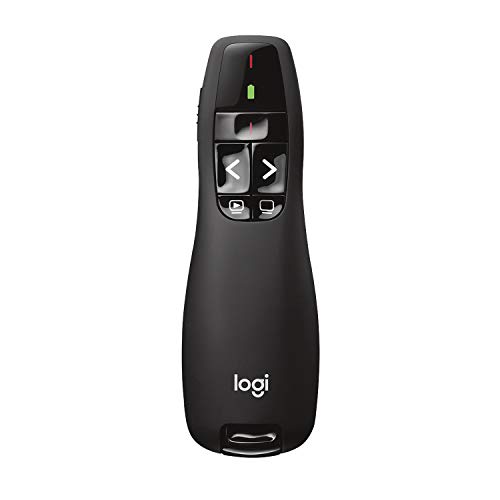
Logitech Wireless Presenter R400
GEEKOM Air12 Mini PC, Intel PT7505

SJRC Fanless Mini PC, Core i3-6006U
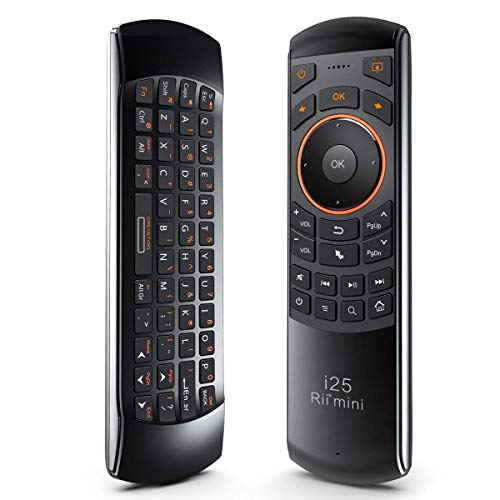
Rii Mini i25 Wireless Fly Mouse Keyboard
The Strengths Of Each Pick
The RX300+ is not a general-purpose computer. It is a thin client, meaning a stripped-down endpoint that boots straight into a remote session and offloads everything else to a central server. It targets NComputing vSpace Pro, VERDE VDI, and Microsoft RDS, which makes it a natural fit for shops running virtual desktop infrastructure.
For a Linux admin overseeing a fleet of kiosk terminals, the appeal is the predictability. You get HDMI output up to 1920×1200, transparent USB redirection, and dual-band WiFi, so peripherals like scanners and printers pass through to the host session. It also handles Microsoft RemoteFX, which is handy when you mix legacy Windows hosts into the same environment.
The Good Stuff
- Native support for vSpace Pro, VERDE VDI, and Microsoft RDS without extra client installs
- HDMI output reaches 1920×1200, enough for most office monitors
- Transparent USB redirection passes scanners, printers, and smart cards through to the host
- Dual-band 2.4GHz and 5GHz WiFi on board, plus gigabit Ethernet
- Optional dual-display mode via a separately purchased SDA adapter
Things To Consider
- Locked to NComputing’s ecosystem, so it is not useful for ad hoc remote work
- Dual-display setup requires buying an extra adapter that is easy to miss during ordering
- USB 2.0 only on the four ports, which slows down newer external SSDs
Key Specs
Who It Suits Best
IT teams running an existing VDI deployment in a classroom, lab, or back office need a cheap, predictable endpoint that boots straight into a session.
Where Another Pick Suits Better
For a single-user home office where you want general Linux capability, the GEEKOM Air12 Mini PC gives you a full distro instead of a locked terminal.
The NanoPi R76S is a tiny open-source gateway built around a Rockchip RK3576 system on a chip, which integrates the CPU, memory controller, and NPU on a single piece of silicon. It is aimed at hobbyists who want to build their own router, NAS, or edge device rather than buy one off the shelf.
Compared with the NComputing RX300+ above, this is a different shape of Linux project. You are not connecting to a remote session; you are building the gateway that other devices route through. The dual 2.5GbE ports, M.2 WiFi module, and 6 TOPS NPU (a measure of how many trillion neural-network operations per second the chip can perform) open the door to local AI workloads and fast LAN aggregation.
The Practical Payoff
- Rockchip RK3576 octa-core SoC with a built-in 6 TOPS NPU for edge AI
- Dual 2.5GbE LAN ports give you multi-gig routing without an extra switch
- Boots from a TF card and supports FriendlyWrt or OpenMediaVault out of the box
- M.2 slot accepts a WiFi module, saving a USB dongle
- Compact footprint slips behind a monitor or onto a DIN rail
Honest Caveats
- Requires comfort with command-line setup and SD-card image flashing
- Arm-based platform, so not every Linux package has a binary ready to run
- No onboard storage beyond the bundled 32GB eMMC, so big media libraries need an external drive
Feature Snapshot
Made For
Hobbyists building a custom router, NAS, or home-lab gateway who enjoy rolling their own firmware and tuning kernel modules.
Skip It When
If you just need a working Linux desktop, the GEEKOM Air12 Mini PC saves you an entire weekend of flashing and troubleshooting.
Remote desktop work does not stop at the keyboard. When you walk a client through a Linux session over Zoom or in person, a clicker that handles slides and a laser pointer keeps your hands free. This ELISWEEN model stands out by combining a USB-A and a USB-C plug on one receiver, so a single dongle covers both an old ThinkPad and a newer MacBook.
The 2.4GHz radio and onboard volume controls mean you can advance slides, blank the screen, and adjust sound without touching the host. For someone juggling presentations across mixed hardware, that combination removes the usual adapter scramble.
Where It Excels
- USB-A and USB-C plugs share a single receiver, so one device fits every laptop
- Plug-and-play pairing removes driver installs on Linux and macOS
- Built-in volume buttons cut down on alt-tabbing during a talk
- Red light pointer is visible on most projector screens
Points To Keep In Mind
- Red laser is not as crisp as a green beam on bright outdoor displays
- Receiver is small enough to lose in a laptop bag pocket
- Some Linux distros map the volume keys differently, so a quick test before a big meeting is wise
Best Suited To
Presenters who jump between a personal MacBook and a work Windows laptop and need one clicker that handles both without dongle juggling.
A Better Fit Elsewhere
For a dedicated conference-room setup where the hardware never changes, the Logitech R400 is the safer long-term workhorse.
The Logitech R400 has been a fixture on podiums for years, and for good reason. The ergonomic curve fits the hand, the touch keys are spaced far enough apart to find by feel, and the red Class 2 laser shows up on most projection surfaces. It connects over a USB-A receiver, which means no driver hunting.
Stacked against the ELISWEEN above, the R400 trades the dual-port receiver for a more refined button layout and a 50-foot wireless range. In a fixed conference room with a single PC, that trade feels like a win.
Reasons It Performs
- Contoured grip reduces hand fatigue during long sessions
- Up to 50-foot wireless range covers most meeting rooms
- Touch keys are intuitive enough to use without looking down
- Plug-and-play USB-A receiver works across Linux, Windows, and macOS
Trade Offs
- USB-A only, so newer USB-C laptops need a hub or adapter
- AAA batteries must be replaced periodically, no rechargeable pack
- Red laser washes out on bright outdoor or high-lumen screens
Right Fit For
Conference-room regulars who want a predictable, durable clicker that disappears into the routine rather than asking for attention.
Look Elsewhere When
Anyone presenting from a modern USB-C-only laptop should grab the ELISWEEN clicker to skip the dongle dance entirely.
The Air12 is the box to consider when you want a real x86 Linux machine in a footprint smaller than a paperback book. It runs an Intel Pentium 7505 chip with 16GB of RAM and a 512GB SSD, which is enough overhead to host a remote desktop session, run containers, and browse at the same time without breaking a sweat.
Compared with the SJRC fanless mini PC reviewed next, this one leans toward stronger single-core performance, which matters for compiling code and snappy web apps. The trade-off is a small amount of fan noise under load, which is generally quiet enough to live behind a monitor.
Well-Handled Touches
- Intel Pentium 7505 delivers noticeable single-core gains over older N5095-class chips
- 16GB of RAM covers a remote desktop plus a browser with plenty of tabs open
- 512GB SSD keeps the OS, apps, and session caches on fast storage
- Tiny chassis fits on a crowded desk or behind a VESA-mounted monitor
Worth Noting
- Active cooling means a faint fan noise under sustained load
- Power button placement on the back panel is awkward for wall-mounted setups
- No dedicated GPU, so hardware-accelerated 3D or video encoding is limited
Feature Rundown
Who Should Grab It
Knowledge workers and developers who want a quiet, capable Linux box on the desk without devoting a full tower to it.
Reach For A Different Pick When
For absolute silence in a bedroom or recording environment, the SJRC fanless Mini PC removes every trace of fan noise.
Fanless PCs trade raw speed for absolute silence. The SJRC uses an aluminum chassis as a passive heatsink, drawing heat away from the Intel Core i3-6006U without any spinning parts. That makes it a strong match for digital signage, kiosk displays, and home offices where quiet matters more than benchmarks.
Where the GEEKOM Air12 above pushes modern silicon, this box sticks with a sixth-generation Intel part that is well documented across Linux kernels. Owners commonly find distro support is rock-solid, which matters when the box runs unattended for weeks at a time.
Notable Upsides
- Passive cooling means zero mechanical noise, ever
- Dual display output via HDMI 4K and VGA covers legacy and modern monitors
- Gigabit LAN keeps remote desktop latency consistent
- mSATA SSD slot is easy to swap when storage needs grow
Small Caveats
- Core i3-6006U is an older chip, so multi-threaded workloads feel slow
- 8GB of RAM is fine for a single session but tight under heavy multitasking
- Passive cooling can throttle under sustained heavy CPU load in a warm room
Feature Card
Perfect Match For
Home offices, signage projects, and 24/7 Linux setups where silence and reliability outweigh raw throughput.
Not Your Match When
Developers compiling large projects will find the older CPU a drag, and the GEEKOM Air12 is the better daily driver.
The Rii i25 is not a keyboard in the usual sense. It is a handheld combo that pairs a tiny QWERTY layout with an IR fly-mouse mode, so you can wave it in the air to move a cursor and tap out short commands. The appeal shows up the moment a Linux media PC lives behind a TV.
For a home-theater setup where a full keyboard on the coffee table would feel ridiculous, this little remote hits a useful middle ground. It handles search queries, app launches, and the occasional SSH escape sequence without forcing you to find a real keyboard.
Advantages To Know
- Combines keyboard, fly mouse, and IR remote in one device
- USB receiver plugs into a media PC and pairs without extra drivers
- Backlight on the keys helps in a dim living room
- Lightweight body fits one hand for couch use
Points To Note
- Fly-mouse accuracy drops on very large screens, so precise clicks take practice
- Compatibility varies on certain smart-TV systems, especially Samsung sets
- Battery life depends heavily on backlight use and is shorter than a full keyboard
Whose Shelf It Belongs On
Anyone running a Linux media PC or HTPC (home theater PC) hooked to a TV and wants one device for browsing, searching, and light admin.
Swap It Out When
Daily office typing on a real desk is better served by the GEEKOM Air12 Mini PC paired with a standard wireless keyboard and mouse.
What To Weigh Before Choosing Linux Remote Desktop Hardware
Match The Endpoint To The Workflow
Thin clients like the NComputing RX300+ work when a central server hosts every session, which is ideal for labs, classrooms, and call centers. Mini PCs such as the GEEKOM Air12 or SJRC fanless unit are better when the host machine sits at your desk and connects out, since you get a full Linux desktop on top of any remote sessions you layer on. The NanoPi R76S is a third path, useful when your primary need is the gateway rather than the endpoint itself.
Pay Attention To Networking Headroom
Any remote desktop session lives or dies by the network. Gigabit’s minimum wired Ethernet on the SJRC and dual 2.5GbE on the NanoPi R76S give you plenty of headroom for streaming a full graphical session without stutter. WiFi is fine for casual work, but for sustained sessions a wired connection keeps latency predictable.
Choose The Right Peripheral For The Job
A clicker like the ELISWEEN or Logitech R400 shines when a session involves presenting rather than typing. For a media PC behind a TV, the Rii i25 covers the couch scenario where neither a keyboard nor a clicker fits. Match the peripheral to where you actually sit when you work.
Think About Noise And Longevity
Fanless designs like the SJRC mini PC remove every moving part, which means no dust-clogged fans and no fan noise during late-night work. Active-cooled boxes like the GEEKOM Air12 trade a faint hum for stronger CPU performance. Either is fine, just decide which trade-off matters more in your room.
Key Considerations Across These Picks
Common Buying Slip Ups
A frequent mistake is buying a thin client thinking it will replace a general PC. The NComputing RX300+ boots straight into a hosted session and offers no full desktop, which is exactly what labs want and exactly what casual users find frustrating. Before buying, confirm whether you need an endpoint or a standalone machine.
Another slip is ignoring network gear. A powerful mini PC behind a 100Mb switch will bottleneck a remote session just as badly as a budget box on gigabit. Spend on cabling and a switch that matches the device’s LAN port.
What The Higher Tier Buys
Stepping up from the SJRC to the GEEKOM Air12 brings a newer processor and more RAM, which translates directly into faster compiles, smoother multi-window remote sessions, and longer useful life for the box. The upgrade pays off when you actually push the CPU rather than leave it idle on a single remote window.
Frequently Asked Questions
Do I really need a thin client instead of a mini PC for Linux? A thin client only makes sense when a central server already hosts the desktop environment you want to connect to. For a standalone home office where you control the host, a mini PC is the more flexible choice.
Will these mini PCs run any Linux distro? Most x86 mini PCs on this list boot mainstream distros without issues, though newer kernels tend to support the latest chips best. Arm-based boards like the NanoPi R76S need a distro built for that architecture.
Is fanless cooling really worth it? In quiet rooms and 24/7 setups, the absence of fan noise and moving parts is genuinely valuable. The trade is slower sustained performance under heavy load, which most office work never hits.
How much RAM do I need for remote desktop work? 8GB covers a single remote session plus light browser use, while 16GB leaves comfortable headroom for local apps running alongside the session. Anything heavier should consider 32GB.
Do presentation clickers work on Linux? Most modern clickers present themselves as standard USB HID (Human Interface Device) input, which Linux handles without extra drivers. Volume keys can map differently across desktops, so a quick test before a big meeting is wise.
Bottom Line
The right pick depends on whether you are building a hosted environment, a desk-side Linux box, or a media PC at the far end of the room. Thin clients serve fleets, mini PCs serve individuals, and small peripherals fill the gaps in between. Match the hardware to the workflow you actually live with, and the rest falls into place.