A capable desktop doesn’t have to drain your wallet. I’ve put together nine low cost desktops that handle homework, spreadsheets, video calls, and creative hobbies without forcing you to learn computer science to set them up. The picks below range from compact all-in-ones to tiny barebones boxes, so you can match the right form factor to your desk and your workflow.
A Side-By-Side Look

Lenovo IdeaCentre 24 23.8″ N100 8GB 512GB SSD All-in-One Desktop Computer

MINISFORUM MS-01 Mini Workstation Core i5-12600H Barebone Mini PC

HP 2026 Pro Tower Business Desktop PC
MINISFORUM MS-01 Workstation Core i9-13900H Mini PC Barebone

HP OmniDesk Desktop PC Meteor Silver M02-0010

MINISFORUM AI X1 Pro-370 Mini PC Ryzen AI 9 HX 370

MINISFORUM M1 Pro Mini PC Core Ultra 5 125H
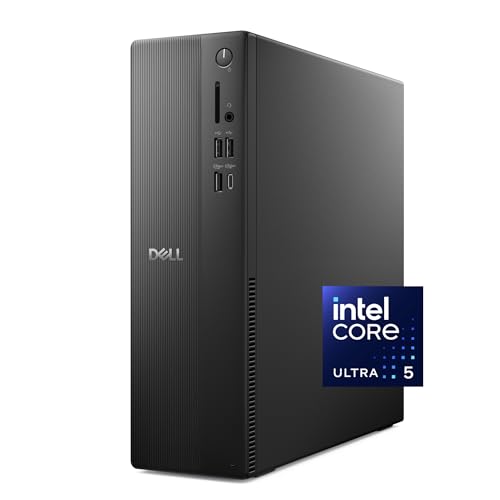
Dell Slim Desktop ECS1250

MINISFORUM X1-255 Mini PC Ryzen 7 255 Barebone
More Details On Our Top Picks
Pulling this IdeaCentre out of the box feels like unboxing a slim monitor, because the PC lives inside the display. That single-cable simplicity matters in a dorm room or a small home office where every inch of desk real estate counts. The 23.8-inch panel gives you enough screen to keep a research paper, a Zoom window, and a browser tab open side by side.
An Intel N100 quad-core chip, 8GB of DDR4-3200 RAM, and a 512GB PCIe SSD run the show. None of those numbers sound exciting on their own, but together they handle Google Docs, video calls, and light photo editing without breaking a sweat. A WiFi 6 card plus Bluetooth 5.2 keeps the wireless side modern, and a USB-C port plus HDMI-out give you room to add a second monitor later.
Well-Handled Touches
- The all-in-one chassis removes the tower from your desk, so cable management becomes almost trivial.
- Booting takes well under ten seconds thanks to the PCIe SSD, which removes that annoying wait when you sit down to work.
- Two display outputs (HDMI plus the integrated panel) let you run a dual-monitor setup with no extra graphics card.
- 8GB of RAM holds around fifteen browser tabs plus office software before things get sluggish.
Practical Considerations
- The N100 chip will struggle with heavy video editing or modern gaming, so creators and dedicated gamers should look elsewhere.
- RAM is typically soldered on these all-in-ones, so upgrading later isn’t a simple swap.
- Owners commonly report that the included keyboard and mouse are basic replacements rather than keepers.
Quick Facts
Best Suited To
Students, remote workers, and small-office users who want a clean, single-cable desk setup for word processing, research, and video calls.
Consider Something Else When
If you need serious CPU muscle for compiling code or rendering video, the MINISFORUM MS-01 Workstation Core i9-13900H Mini PC Barebone offers much more headroom in a similarly compact footprint.
This is the pick for tinkerers who read spec sheets for fun. Where the Lenovo above hides everything inside a monitor, the MS-01 sits as a tiny box on your desk and invites you to open it up. It’s a barebones kit, so you’ll add RAM, storage, and an operating system yourself, which is part of the appeal for anyone building a home server or a lab.
An Intel Core i5-12600H with twelve cores and sixteen threads drives the platform, paired with dual 10 Gigabit SFP+ ports (fiber-optic networking connectors) and dual 2.5 Gigabit Ethernet jacks. That networking combo is the standout: most desktops ship with one Gigabit port, so this thing can act as a router, a NAS (network-attached storage) host, or a firewall box without adding PCIe cards. The HDMI plus two USB4 outputs handle up to an 8K display.
Real-World Strengths
- Twelve CPU cores punch well above what you’d expect from something this small.
- Dual SFP+ ports are a rare find on a consumer mini PC, which makes this a natural fit for 10G networking experiments.
- Three M.2 slots plus U.2 support mean storage expansion won’t feel cramped.
- USB4 outputs let you dock to a Thunderbolt monitor with a single cable.
Points To Keep In Mind
- Barebones means no RAM, SSD, or OS, so budget extra for those components.
- You’ll want at least basic Linux or Windows familiarity to get the most out of it.
- The fan ramps up under sustained loads, so quiet-room setups may notice it.
Who Should Grab It
Home-lab enthusiasts, self-hosters, and IT students who want enterprise-style networking in a shoebox-sized case.
Skip It When
Anyone who just wants to plug in a keyboard and start writing should reach for the HP OmniDesk Desktop PC instead.
Sometimes a regular tower is exactly what a small business needs. The HP Pro Tower leans into the familiar black-box design that fits under a reception counter, on a back-office shelf, or beside a point-of-sale station. It looks like a PC, because it is one, no monitor tucked into the chassis or stickers shouting about AI.
An Intel Core i3-13100 with four cores and eight threads handles the basics cleanly, and Turbo Boost pushes a single core up to 4.5 GHz when a spreadsheet recalculates. Compared to the Lenovo all-in-one above, this is the more conventional choice: you bring your own display, keyboard, and mouse, and you get a chassis that opens easily for adding RAM or a bigger drive later.
The Practical Payoff
- Standard tower form factor means repairs and upgrades feel familiar to anyone who’s owned a PC.
- Turbo Boost to 4.5 GHz keeps single-threaded apps like spreadsheets and browser tabs snappy.
- Tool-less side panel access makes adding a hard drive or SSD a quick afternoon task.
- HP’s business-class support tends to outlast consumer warranties for shops that keep PCs running for years.
Trade-Offs To Consider
- Display, keyboard, and mouse are not included, so budget for those if your shop is starting from scratch.
- The Core i3 won’t keep up with photo editing or any kind of video work.
- You’ll likely see integrated graphics only, so plan on a discrete GPU if any future task demands one.
Right Fit For
Small businesses, retail counters, and back offices running point-of-sale, scheduling, or inventory software.
Look Elsewhere When
If you prefer a single tidy unit on a tiny desk, the Lenovo IdeaCentre 24 All-in-One will save you the extra peripherals.
Step up from the i5 version and you land at the i9-13900H, a chip that brings fourteen cores and twenty threads to a case that still fits in a hand. This is the barebones version, which means the box arrives empty of RAM, SSD, and OS, just waiting for you to bring your own components. That’s not a flaw, it’s the point.
Where the HP Pro Tower above is about plugging in and going, this box is about picking the exact memory speed and SSD capacity you want. Three M.2 slots cover fast storage, dual 2.5G LAN plus dual 10G SFP+ ports keep the networking elite, and the option to add a discrete graphics card through the available slot opens the door to real gaming or GPU-accelerated work.
Notable Gains
- The i9-13900H pushes boost clocks up to 5.4 GHz, which crushes single-threaded tasks.
- Three SSD slots let you tier storage across speed and capacity without external drives.
- 10G SFP+ networking handles editing from a NAS without bottlenecking.
- Discrete GPU support turns this from a server box into a quiet workstation.
Potential Drawbacks
- Barebones pricing climbs quickly once you add RAM, drives, a GPU, and a Windows license.
- Build complexity means this isn’t the right first PC for someone new to hardware.
- Under sustained multi-core load, the compact chassis can run warm and loud.
Feature Card
Whose Shelf It Belongs On
Prosumers and software developers who want workstation-class compute in a case that disappears under a monitor.
A Better Fit Elsewhere
If you prefer a turnkey experience with no component shopping, the Dell Slim Desktop ships ready to plug in.
The OmniDesk is the small-footprint tower I’d hand to a parent setting up a family computer. It’s a tidy silver box, not the bulky beige towers of a decade ago, and it runs Windows 11 Home out of the box. That last point matters: there’s no tinkering, no driver hunting, no Linux install. Plug in a monitor and you’re working in under fifteen minutes.
Under the hood sits an Intel Core i3-14100 with integrated UHD 730 graphics, 8GB of RAM, and a 512GB SSD. The chip handles schoolwork, browser research, and video calls with the same kind of composure the Lenovo all-in-one shows, but in a form factor that doesn’t lock you into the included display. Microsoft Copilot support means the AI features baked into Windows 11 have hardware to lean on.
Noteworthy Benefits
- Windows 11 Home preinstalled means zero setup friction on day one.
- The 14th-generation Core i3 is a meaningful step up from older budget CPUs in multi-tab browsing.
- Compact silver chassis looks at home next to a living-room TV or a study desk.
- 512GB of SSD storage holds a respectable media library before you reach for external drives.
Where It May Fall Short
- Display, keyboard, and mouse still aren’t included, so total cost creeps up once you add them.
- The UHD 730 integrated graphics won’t run modern 3D games at usable frame rates.
- RAM upgrades may be limited depending on the exact configuration HP ships.
Made For
Families, retirees, and home offices that need a low-maintenance, modern Windows PC for everyday productivity.
Not Your Match When
If your household wants a single tidy unit with no extra cables, the Lenovo IdeaCentre 24 All-in-One folds the monitor into the box.
This is the most forward-looking pick on the list. The Ryzen AI 9 HX 370 carries a dedicated NPU (neural processing unit, a chip built specifically to accelerate AI workloads) rated for 50 TOPS, which means Windows Copilot features and local AI tools actually have silicon to run on instead of leaning on the CPU. For anyone experimenting with on-device AI, that’s a meaningful shift.
Twelve cores and twenty-four threads, 32GB of DDR5 memory, and a 1TB SSD come preinstalled, which makes this feel like a finished system rather than a project. The integrated Radeon 890M graphics are surprisingly capable for a mini PC, and HDMI, DisplayPort, and dual USB4 outputs handle triple-display setups for traders, editors, or analysts. WiFi 7 and Bluetooth 5.4 round out the modern spec sheet.
What Pays Off
- The 50 TOPS NPU offloads AI work from the CPU, so background AI tools don’t slow your active apps.
- 32GB of DDR5 is enough headroom to run local language models alongside a browser and office apps.
- WiFi 7 future-proofs wireless networking as newer routers roll out.
- The Radeon 890M handles light gaming and GPU-accelerated creative apps without a discrete card.
Some Limits To Know
- The premium CPU and preinstalled RAM push this well past entry-level pricing.
- Software support for the NPU is still maturing, so some apps may not yet tap the AI silicon.
- Compact cooling means sustained multi-core loads will heat up the chassis.
Who It Suits Best
Creators, developers, and AI-curious hobbyists who want a quiet desktop that handles local model inference today.
Swap It Out When
If AI acceleration isn’t on your roadmap, the MINISFORUM M1 Pro Mini PC offers similar expandability at a friendlier price.
The M1 Pro is the sweet spot in the MINISFORUM lineup for anyone who wants real graphics in a small box. Where the AI X1 above leans on AI silicon, this one leans on Intel Arc integrated graphics, which double the iGPU performance of the previous generation. That matters when you dock the unit behind a TV for weekend gaming or use it as a media-editing workstation.
An Intel Core Ultra 5 125H with fourteen cores and eighteen threads keeps things responsive, and 32GB of DDR5-5600 memory (overclockable to 6400) gives apps plenty of room to breathe. The Oculink port (an external PCIe connection for attaching a graphics card dock) is the secret weapon: it lets you plug in an external GPU enclosure later if integrated graphics stop being enough. WiFi 7 and a 2.5G Ethernet jack handle networking.
Useful Strengths
- Arc graphics punch well above typical integrated solutions for light 3D work.
- Oculink support means you can add an external GPU without opening the chassis.
- 32GB of fast DDR5 comes preinstalled, so memory isn’t a future bottleneck.
- Triple-display output via HDMI, DisplayPort, and dual USB4 covers trading and editing desks.
Things To Weigh
- You’ll supply your own operating system, which adds time and cost to setup.
- External GPU enclosures add bulk that offsets the small-footprint advantage.
- Arc graphics still trail a real discrete GPU for demanding AAA games.
Built With In Mind
Hybrid users who want one small box for office work during the week and casual gaming or editing on weekends.
Another Choice May Suit
If you prefer a ready-to-go Windows machine out of the box, the HP OmniDesk avoids the OS install step entirely.
Dell’s Slim Desktop leans hard on the word “slim,” and the chassis lives up to it. The case sits low and narrow, which makes it easy to slide behind a monitor arm, tuck under a standing-desk converter, or rest on a small shelf where a traditional tower wouldn’t fit. The included wired keyboard is a nice touch for offices that don’t want to spec out peripherals separately.
Inside, an Intel Core Ultra 5-225 (Series 2) handles productivity, paired with 16GB of DDR5 memory and a 512GB SSD. Intel UHD Graphics cover the integrated side, and WiFi 6 plus Bluetooth handle wireless. DisplayPort can drive a 4K monitor or daisy-chain four full-HD displays (when the monitors support daisy-chaining), which makes this a strong candidate for control rooms or trading setups where screen real estate matters more than raw gaming power.
Where It Helps
- The slim chassis fits where traditional towers can’t, like behind a monitor or inside a media console.
- 16GB of DDR5 is generous for a productivity desktop and handles heavy browser sessions comfortably.
- DisplayPort daisy-chaining turns one port into a four-monitor wall for trading or surveillance work.
- Wired keyboard included out of the box means one fewer accessory to shop for.
A Few Limitations
- Slim cases restrict future GPU upgrades, so this is the configuration you’ll likely live with.
- Display and mouse still aren’t bundled, so plan for those separately.
- Integrated UHD graphics aren’t suited for modern gaming or GPU-accelerated creative apps.
Who Should Grab It
Front-desk managers, control-room operators, and tidy home offices that prioritize desk space over expandability.
Where A Sibling Pick Shines
If you want a small box but also need AI acceleration for local models, the MINISFORUM AI X1 Pro-370 is the more forward-looking choice.
The X1-255 closes out the list as the budget-friendly sibling to the AI X1 above. It drops the Ryzen AI chip in favor of a regular Ryzen 7 255 with eight cores and sixteen threads, which still handles daily productivity and creative tasks comfortably. The trade is a noticeably lower entry price for anyone who already owns compatible RAM and SSDs sitting in a drawer.
Like the other MINISFORUM barebones picks, this one ships without memory, storage, or an operating system, so bring your own. Once populated, it gives you HDMI 2.1, DisplayPort 2.0, and dual USB4 outputs for a triple-monitor setup, plus an Oculink port for an external GPU down the road. WiFi 7 and a 2.5G Ethernet jack round out the modern connectivity.
Where It Delivers
- Ryzen 7 255 brings eight high-performance cores at a sensible price tier.
- USB4 plus HDMI 2.1 plus DisplayPort 2.0 give you flexibility on modern displays.
- Oculink support future-proofs the box for an external GPU enclosure.
- Barebones pricing keeps upfront cost low if you already have RAM and drives.
Potential Compromises
- You’ll need to budget for DDR5 memory, an SSD, and an OS license on top of the unit.
- No discrete GPU out of the box, so modern gaming requires the Oculink dock plus an enclosure.
- Compact cooling can throttle performance during long multi-core sessions.
Feature Snapshot
Perfect Match For
DIY builders and upgraders who have spare DDR5 memory and SSDs ready to install.
Not Your Match When
If you’d rather skip the build steps entirely, the Dell Slim Desktop arrives fully assembled with Windows preinstalled.
What To Weigh Before Picking A Desktop On A Budget
Matching a desktop to your day matters more than chasing the biggest numbers. A chip that breezes through spreadsheets will feel sluggish the moment someone opens a video editor, and a machine built for creative work is overkill for a reception counter running a browser. Start by listing the three apps you actually live in, then check whether the CPU and memory on your shortlist can handle them with headroom to spare.
Form factor shapes the experience just as much as raw specs. All-in-one designs like the Lenovo IdeaCentre 24 trade away future upgrades for a single tidy unit, while traditional towers like the HP Pro Tower invite you to crack the case open and swap parts. Mini PCs sit between those extremes: small, quiet, and surprisingly expandable if you pick a model with Oculink or USB4 ports. For most home offices, a compact mid-tower hits the sweet spot.
Connectivity tends to get overlooked until you actually need it. WiFi 6 covers today’s wireless routers, but WiFi 7 future-proofs the desktop if you’re planning to keep it for five years. Ethernet matters for anyone moving large files to a NAS or attending video calls where dropouts aren’t acceptable. Display outputs decide how many monitors you can run, and daisy-chaining through DisplayPort can stretch a single port into four screens.
Storage and memory deserve a practical lens. A 512GB SSD is the comfortable minimum for a family PC, while creators editing video will want at least 1TB. RAM at 16GB handles multitasking today, but if you’re buying for a five-year window, 32GB buys peace of mind. Barebones boxes skip those components, so price them in honestly before comparing total cost.
Mistakes Worth Dodging And Where The Extra Cash Goes
Common Buying Slip Ups
The most common misstep is buying a desktop that meets today’s needs with zero headroom. A Core i3 with 8GB of RAM runs a browser and email today, but a couple of OS updates and an extra browser tab can push it into stuttering territory. Picking a chip one tier above your minimum cost is the cheapest insurance against regret.
Another trap is underestimating peripherals. Many low cost desktops ship without a monitor, keyboard, or mouse, and the cheapest third-party bundle can offset any savings on the PC itself. Read the bundle carefully and budget honestly, especially for shops setting up multiple workstations at once.
Barebones boxes also catch first-time shoppers off guard. The headline price looks appealing until you remember that RAM, storage, and a Windows license are separate line items. For first-time PC owners, a turnkey system usually costs less than a barebones kit once you add the parts.
When Paying More Pays Off
Higher-tier models cost more because they shift the bottleneck. A faster CPU cuts compile times, a stronger NPU accelerates local AI work, and more RAM lets dozens of browser tabs stay resident without reloading. The upgrade makes sense when your workload actually pushes the cheaper tier to its limits.
Networking is the easiest place to justify spending up. A 2.5G or 10G Ethernet port moves files to a NAS at full speed, and WiFi 7 keeps the wireless side modern as routers evolve. If you work from home or move large files regularly, these ports pay back the difference faster than a slightly faster CPU.
Finally, the operating system question matters more than people expect. Turnkey Windows machines save setup time and ship with manufacturer driver support, while barebones kits often invite a Linux install or a separately purchased Windows license. For most home users, the time saved by buying ready-to-run is worth more than the dollars saved on a kit.
Frequently Asked Questions
Are Low Cost Desktops Good For Everyday Tasks?
Yes, modern budget desktops handle web browsing, video calls, office apps, and streaming comfortably. The key is matching the chip and memory to your actual workload rather than overspending on power you won’t use.
How Much RAM Do Low Cost Desktops Need?
8GB is the bare minimum for a Windows 11 machine today, while 16GB gives comfortable headroom for multitasking. If you keep dozens of browser tabs open or run creative apps, 32GB removes the bottleneck entirely.
Do Budget Desktops Come With Windows Preinstalled?
Some do, and some don’t. Turnkey models like the HP OmniDesk and Dell Slim Desktop ship with Windows 11 Home ready to run. Barebones kits from MINISFORUM require you to install an OS yourself, which adds time and cost.
Can Mini PCs Replace A Traditional Desktop?
For most productivity work, yes. Modern mini PCs pair capable CPUs with quiet cooling and small footprints. Heavy gaming or workstation rendering still benefits from a discrete GPU, but mini PCs with Oculink ports allow external GPU upgrades.
Is An All-In-One Desktop Worth It For Small Spaces?
All-in-one designs like the Lenovo IdeaCentre 24 shine in dorm rooms, reception desks, and tiny home offices where one tidy unit beats a separate tower and monitor. The trade-off is reduced upgradability, so think of it as a long-term appliance rather than a customizable PC.
Bottom Line
A low cost desktop in 2026 can genuinely cover the workload most households and small offices throw at it, from homework to spreadsheets to weekend video calls. The right pick depends less on chasing the cheapest sticker price and more on matching form factor, performance, and expandability to the way you’ll actually use the machine. Browse the picks above, weigh the trade-offs honestly, and you’ll land on a desktop that earns its space on your desk for years.