Finding a keyboard that genuinely supports how you work makes every hour in front of a Mac feel easier. The right layout, key feel, and visibility features reduce fatigue, sharpen focus, and let you type for longer stretches without strain. I narrowed eight solid options across wireless, wired, mechanical, and large-print categories so anyone shopping for accessibility-first typing can find a strong match.
The Choices Worth Comparing

Apple Magic Keyboard with Numeric Keypad

Logitech MX Keys Wireless Illuminated Keyboard for Mac
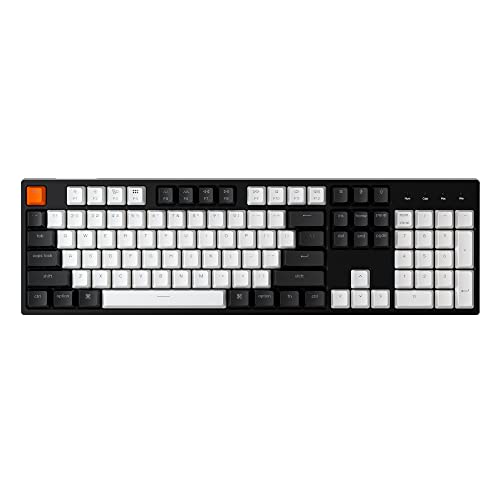
Keychron C2 Full Size Wired Mechanical Keyboard

Macally Large Print Backlit Keyboard for Mac

Magic Keyboard with Touch ID and Numeric Keypad

Macally Wired Keyboard with Built-In USB Hub
Keychron B4 Pro Ultra-Slim 96% Wireless Keyboard

Keychron B35 Wireless 96% Layout Keyboard
Taking A Closer Look At The Options
The Apple Magic Keyboard with Numeric Keypad is the natural starting point for anyone deeply embedded in the Mac ecosystem. It pairs over Bluetooth (a short-range wireless protocol that links devices without cables) to a Mac, iPad, or iPhone, so moving between a desk setup and a couch session stays friction-free. The low-profile scissor-switch keys deliver a quiet, consistent stroke that most people find easy on the wrists during long writing days.
The extended layout adds a dedicated document navigation cluster plus a full number pad, which accountants and spreadsheet-heavy users will appreciate. For a Mac user who wants zero setup friction and battery life that stretches roughly a month between charges, this is the path of least resistance.
What Pays Off
- Native macOS pairing means no driver installs or configuration screens
- Internal rechargeable battery (built-in power cell that recharges via cable) lasts about a month under typical use
- Low-profile keys reduce finger travel for lighter typing effort
- Numeric keypad speeds up data entry and financial workflows
- Works seamlessly across Mac, iPad, and iPhone from a single keyboard
Things To Consider
- No backlight, so dim-room typing requires memorization or external lighting
- Lightning cable charging feels dated on a modern Mac setup
Feature Snapshot
Who It Suits Best
Daily Mac users who want a clean, no-fuss keyboard with full numeric pad access and Apple-grade build quality.
Consider Something Else When
Typists who work in dim rooms should look at the Logitech MX Keys for Mac instead, since it adds adaptive backlighting.
The Logitech MX Keys for Mac shifts the conversation toward a sturdier, more desktop-ready feel. Its single-piece metal top plate resists flex when typing firmly, which gives the board a planted, premium sensation that lighter plastic keyboards struggle to match. Owners get a Mac-specific key layout finished in Space Gray that visually pairs with most iMacs and MacBook Pros.
Smart backlighting is the headline accessibility win. The LEDs react to hand proximity and ambient light, illuminating the keys only when needed. For anyone working across late-night sessions, a dim home office, or a brightly lit studio, that automatic visibility reduces eye strain without manual fiddling.
Key Advantages
- Adaptive backlight reacts to room lighting conditions
- Metal top plate adds rigidity and desk presence
- Mac-specific layout with familiar media and brightness keys
- USB-C charging matches modern Mac cabling
Honest Caveats
- Heavier than scissor-switch boards, so travel use is limited
- Numeric keypad version takes meaningful desk width
Right Fit For
MacBook Pro and iMac owners who type in varying lighting and want a refined, desk-anchored typing surface.
A Better Fit Elsewhere
Frequent flyers and couch typists will find the Keychron B4 Pro lighter and easier to slip into a bag.
The Keychron C2 sits in a different category from the slim Apple boards above. This is a 104-key mechanical keyboard with Gateron G Pro Brown switches, which offer a tactile bump (a small physical rise mid-press) without the loud click of Blue switches. Writers and developers who type for hours often find the firmer feedback more comfortable over a long session.
The C2 is hot-swappable, meaning the switches can be pulled out and replaced without soldering. That makes it appealing for someone who wants to experiment with switch feel or replace a worn switch later. Mac-specific media and function keys are mapped directly, and a braided USB-C cable handles the connection.
Practical Advantages
- Hot-swappable switches let owners tune the feel over time
- Tactile Brown switches support touch typing accuracy
- Full 104-key layout includes dedicated numpad and function row
- RGB backlight helps locate keys in dark environments
Points To Note
- Wired only, so desk placement is fixed near a USB port
- Larger footprint demands more desk real estate than compact picks
- Mechanical key travel is louder than scissor-switch boards, a concern in shared rooms
Quick Facts
Built With In Mind
Writers, coders, and tactile-typing enthusiasts who want a sturdy workhorse keyboard with room to customize.
Look Elsewhere When
Shared-room users should consider the Keychron B35, which uses silent switches to keep noise down.
The Macally Large Print Keyboard tackles one specific accessibility challenge head-on: key visibility. Oversized, high-contrast characters sit on each key cap, so readers who struggle with standard key labels can identify commands at a glance. That makes it a practical fit for seniors, low-vision users, or anyone working in low-light rooms.
It ships as a compact mini keyboard with a dual USB-C and USB-A cable for flexible Mac and iPad connectivity. Adjustable backlighting sits behind the labels, sharpening contrast further when the room dims. Quiet scissor-switch keys keep shared spaces peaceful during long typing sessions.
Features That Help
- Large-print characters reduce eye strain and mis-presses
- Backlit keys adjust for dim environments
- Compact footprint saves desk space
- Quiet scissor mechanism suits shared rooms
Small Caveats
- Wired design limits placement flexibility
- Compact layout omits a numeric keypad, limiting data-entry speed
- Print labels may wear with heavy use over years, which is a commonly reported issue with printed keycaps
Perfect Match For
Seniors, low-vision users, and accessibility-focused shoppers who want clarity and a smaller desk footprint.
Swap It Out When
Users who type financial spreadsheets daily should consider the Apple Magic Keyboard with Numeric Keypad for a dedicated number pad.
The Magic Keyboard with Touch ID layers a security shortcut onto the same low-profile typing experience Apple’s standard board delivers. A fingerprint reader lives in the top-right corner, giving owners a fast, password-free way to unlock the Mac, confirm App Store purchases, and authenticate Apple Pay.
For users on Apple Silicon Macs (M1 and later), Touch ID removes the friction of typing long passwords repeatedly. The extended layout, document navigation cluster, and full numeric pad still come standard, and the rechargeable battery keeps wiring to a single Lightning cable for charging.
Strong Points
- Touch ID simplifies daily authentication routines
- Low-profile scissor keys keep wrist strain low
- Numeric keypad supports data-heavy workflows
- Black key option offers a refined visual contrast
Worth Bearing In Mind
- Touch ID requires an Apple Silicon Mac to function
- Lightning charging cable feels dated on newer Mac setups
- No backlighting, unlike the Logitech MX Keys for Mac
Whose Shelf It Belongs On
Owners of M1, M2, M3, or M4 Macs who want fast, secure logins without memorizing passwords.
Reach For A Different Pick When
Intel-based Mac users should consider the standard Apple Magic Keyboard, since Touch ID will not function on older hardware.
The Macally Wired Keyboard doubles as a small docking station, which is the angle that makes it interesting. Two USB-A ports and one USB-C port sit along the keyboard body, so a mouse, a flash drive, or a phone-charging cable can plug in without reaching for the Mac itself. For a Mac mini or a laptop on a stand, that convenience adds up fast.
The dual-interface cable ships with both USB-C and USB-A connectors, meaning it works with newer MacBooks and older machines alike. Auto OS detection switches command keys between Mac and Windows layouts, so cross-platform households can share one board without reconfiguring.
Reasons It Performs
- Three-port hub reduces reliance on the Mac’s own USB ports
- Dual USB-C and USB-A cable covers older and newer Macs
- Backlit keys help during evening work sessions
- Auto OS detection supports mixed-platform environments
A Few Limitations
- Wired connection limits repositioning
- Hub ports deliver standard USB speeds, not high-wattage charging
Feature Card
Best Suited To
Mac mini owners and laptop-on-stand setups where extra USB ports are scarce and desk space is tight.
Where Another Pick Suits Better
Wireless-first users should look at the Keychron B35, which trades the hub for cable-free flexibility.
The Keychron B4 Pro targets the portability crowd. Its 96% layout keeps the numpad intact while shaving off the extra gap a full-size board leaves, so the keyboard slips into a backpack sleeve without much fuss.
Triple-mode connectivity covers Bluetooth, a 2.4 GHz wireless dongle (a small USB receiver that gives a faster, lower-latency link than Bluetooth), and wired USB-C. That flexibility means the board can hop between a Mac, an iPad, and a desktop tower without re-pairing rituals. The headline battery figure of roughly 300 hours means a heavy traveler can leave the charging cable at home for most trips.
Useful Touches
- Compact 96% layout preserves the numpad in a smaller shell
- Triple connectivity covers Bluetooth, 2.4 GHz, and USB-C
- Around 300 hours of battery life between charges
- Mac, Windows, and Linux compatibility out of the box
Practical Considerations
- Slim build feels less rigid under heavy keystrokes than full-size boards
- Wireless mode requires occasional dongle management for the 2.4 GHz link
Who Should Grab It
Hybrid workers and frequent travelers who need a slim, multi-device board that lasts through long trips.
Not Your Match When
Users who prefer a firmer, planted typing feel should consider the Logitech MX Keys for Mac instead.
The Keychron B35 leans into silence and ergonomics. Silent switches damp the click and clack that mechanical boards typically produce, so the B35 fits comfortably into a shared office, a library, or a late-night home workspace without drawing side-eye from neighbors.
Like the B4 Pro above, the B35 uses a 96% layout that preserves the numpad while trimming the desk footprint. A built-in Launcher button can map to a custom shortcut, which is a small but useful productivity touch for anyone with repetitive tasks. The ergonomic tilt reduces wrist extension during long typing sessions.
Where It Excels
- Silent switch action suits shared or quiet environments
- 96% layout keeps the numpad in a compact frame
- Ergonomic angle eases wrist strain during long sessions
- Mac, Windows, and Linux support covers most workflows
Possible Compromises
- Battery life specifications are less headline-grabbing than the B4 Pro’s
- No dedicated backlight mentioned for dark-room visibility
Made For
Office workers and night-owl typists who need quiet operation and a slim, ergonomic typing angle.
Skip It When
Dark-room typists should look at the Logitech MX Keys for Mac, which adds reliable backlighting.
What Matters Most Before Choosing Mac Accessibility Keyboards
Key Visibility And Tactile Feedback
Key labels, print size, and contrast matter most for anyone with low vision. The Macally Large Print Keyboard leads this category with oversized characters and adjustable backlighting. Tactile feedback (the physical bump or resistance a key provides when pressed) matters for users with limited finger strength, where a lighter scissor switch from the Apple Magic Keyboard feels easier than a stiff mechanical alternative.
Layout, Numpad, And Reach
A 96% layout keeps the numeric keypad while trimming width, which suits small desks. The Keychron B4 Pro and B35 both follow this format. Full 104-key boards like the Keychron C2 give maximum productivity but demand more desk space. People with limited reach often do well on a compact board without a numpad, like the Macally mini keyboard.
Connection Style And Mobility
Wired boards never need charging but tether the desk. Wireless boards, especially the Keychron B4 Pro with its roughly 300-hour battery, free the workspace. A 2.4 GHz dongle connection offers lower input lag (the delay between a key press and the on-screen response) than Bluetooth, which is a small consideration for fast typists.
Compatibility And Extras
Touch ID requires Apple Silicon, so older Intel Macs miss out on that convenience. Backlighting, USB hubs, and silent switches each solve a specific problem, so picking based on the single feature that matters most usually beats chasing a long checklist.
Key Considerations Across These Picks
Pitfalls Shoppers Hit
A common mistake is buying a board without checking macOS-specific key labels, then discovering the Command and Option keys are in unexpected spots. Another trap is choosing a mechanical board for a shared apartment without considering noise, since switches that feel great to type on can disturb others. Low-vision shoppers sometimes skip backlighting entirely, then find the keyboard unusable in the evening.
What The Higher Tier Buys
Spending more typically delivers a sturdier chassis, smarter backlighting, or stronger wireless reliability. The Logitech MX Keys for Mac earns its premium through a metal top plate and adaptive illumination. The Magic Keyboard with Touch ID adds hardware-level security that a budget keyboard cannot match. The upgrade is worth it when those features directly address your daily friction.