Shopping for a new personal computer in 2026 means deciding how much space you have, what you actually do on it, and whether you want macOS or Windows in your corner. I picked seven machines that cover the most common real-world scenarios: tight desks, family laptops, student homework, light creative work, and small-office hubs. Mini desktops lead the way for footprint-conscious setups, while a few budget-friendly laptops handle the everyday basics without overcomplicating things.
An Overview Of The Picks

Apple 2024 Mac mini Desktop Computer with M4 chip (256GB)
Apple 2024 Mac mini Desktop Computer with M4 chip (512GB)
Apple 2024 Mac mini Desktop Computer with M4 Pro chip

HP 2020 14″ Laptop with Intel Celeron N4000
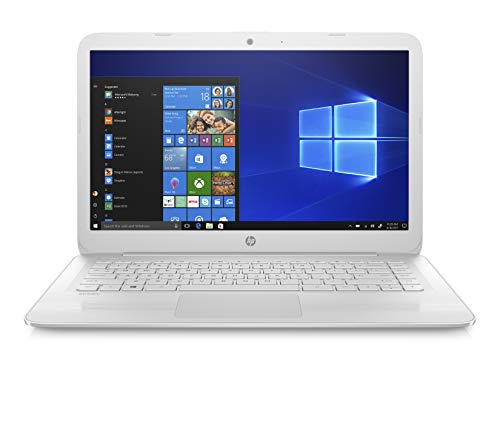
HP Stream 14-inch Laptop (Diamond White)

HP Stream 14-Inch Touchscreen Laptop (Brilliant Black)

HP Stream 14-cb Laptop with 64GB eMMC
The Details Behind The Selections
The M4-powered Mac mini measures roughly five inches square, which is genuinely smaller than a paperback book. Ports sit on both the front and back panels, so plugging in a monitor cable, an external SSD, or a wired keyboard does not feel like a daily yoga session behind a desk. Inside, the M4 chip pairs a 10-core CPU with a 10-core GPU and 16GB of unified memory, which is the type of memory the CPU and GPU share to keep multitasking smooth.
For someone working from a small apartment desk or a converted corner of the kitchen, this machine disappears into the setup while still handling documents, browsing, photo editing, and video calls without breaking a sweat. I would point at this pick first for new Mac users, since the low entry storage pushes you toward cloud storage or an external drive from day one.
Useful Highlights
- Tiny five-inch footprint fits beside a monitor without claiming desk real estate.
- 16GB of unified memory keeps plenty of browser tabs and apps open at once.
- Front and rear I/O layout reduces cable juggling behind the unit.
- Apple silicon (Apple’s custom processors) runs cool and quiet under typical office loads.
Things To Consider
- 256GB of internal storage fills up fast with photo libraries and project files.
- No display, keyboard, or mouse ships in the box, so those add to the total spend.
- Runs only macOS, which is a dealbreaker for anyone tied to Windows-only software.
Quick Facts
Who It Suits Best
Anyone working from a tight desk who already lives inside macOS and wants a near-silent hub for daily tasks.
Look Elsewhere When
You need more room for local files; the 512GB Mac mini (Pick 2) makes more sense for heavier personal archives.
Take everything the entry Mac mini does well and double the internal storage, and you land at Pick 2. The chassis stays identical at five inches square, and the M4 chip with its 10-core CPU and 10-core GPU is unchanged from the 256GB version. The real story here is breathing room: 512GB of SSD space lets a household keep years of photos, music projects, or school files locally without leaning on an external drive.
I would frame this as the more relaxed pick for someone who treats their computer like a long-term archive rather than a streaming-only box. It also makes sense for a small creative setup, where Logic or Final Cut libraries start to add up quickly.
What Helps Most
- 512GB SSD cuts the need for an immediate external drive purchase.
- Same compact five-inch body keeps the desk footprint minimal.
- 16GB unified memory stays generous for everyday creative workflows.
Honest Caveats
- Costs more than the 256GB sibling for what is mainly a storage bump.
- Still ships without peripherals, which inflates the setup cost.
- macOS-only environment limits compatibility with certain legacy Windows software.
Right Fit For
Creators and families who want a tiny Mac with enough storage to hold growing photo and project libraries.
Consider Something Else When
You regularly run heavy multitasking or compile large code projects, since the M4 Pro Mac mini (Pick 3) brings more memory.
The M4 Pro Mac mini keeps the same five-inch enclosure but pushes the internals further with a 12-core CPU and 16-core GPU. That extra GPU headroom is what makes this machine useful for someone editing 4K timelines, working in large Photoshop files, or compiling code in Xcode while a simulator runs in the background. The 24GB of unified memory gives the system more room to breathe before it starts swapping data to the SSD.
Compared to Pick 1 and Pick 2, this is the version you reach for when the standard M4 starts feeling tight. Independent designers, video editors, and software hobbyists are the natural audience here.
Everyday Perks
- 16-core GPU accelerates video export and GPU-heavy creative tasks.
- 24GB unified memory reduces slowdowns during parallel workflows.
- Same compact body fits anywhere the standard Mac mini would.
- 512GB SSD gives creators more room for active project files.
Trade Offs
- Premium price tag jumps well above the base M4 models.
- Owners commonly report the fan staying quiet under normal loads but spinning up under sustained export work.
- Still requires separately sourced monitor and input devices.
Best Suited To
Working creatives and developers who want compact Mac power for projects that tax the standard M4 chip.
Skip It When
Your workload is mostly documents and browsing, since the base Mac mini (Pick 1) covers that ground more comfortably.
This HP laptop leans into the role of a straightforward everyday machine. The 14-inch HD display sits in a Natural Silver chassis that travels well, and the dual-core Intel Celeron N4000 reaches up to 2.6GHz under burst loads, which is enough for web browsing, Office documents, and streaming. 4GB of DDR4 RAM and 64GB of eMMC storage define its limits, so this is a computer for light use rather than a creative workstation.
The included one-year Office 365 Personal subscription is what tips this pick into “starter laptop” territory. Anyone moving from a Chromebook or replacing an aging family laptop will appreciate that Microsoft Word, Excel, and PowerPoint arrive ready to go.
A Few Strong Suits
- Office 365 Personal included for one full year out of the box.
- 14-inch form factor balances screen size and backpack portability.
- 802.11ac Wi-Fi (a common Wi-Fi standard, slightly older than Wi-Fi 6 but widely compatible) handles typical home networks without issue.
A Few Limitations
- 64GB eMMC storage fills up quickly once Windows updates and apps land on it.
- 4GB of RAM struggles with more than a handful of browser tabs open at once.
- 1366 x 768 display looks soft next to full HD panels common in 2026.
Made For
First-time PC owners and light home users who mostly write, browse, and stream.
A Better Fit Elsewhere
Anyone who wants more local storage should look at the HP Stream 14 Touchscreen (Pick 6) with its 64GB plus touchscreen setup.
The Diamond White HP Stream 14 is a budget-first laptop built around an Intel Celeron N4000, 4GB of RAM, and 32GB of eMMC storage. It runs Windows 10 Home in S Mode (a streamlined version of Windows that only installs apps from the Microsoft Store and uses Microsoft Edge for browsing), which keeps the system focused on essentials. That locked-down approach is also why this machine fits well as a first computer for a student or a shared family laptop.
A one-year Office 365 Personal bundle covers Word, Excel, and PowerPoint from the start. The trade-off shows up in storage, where even modest document libraries can push the drive to its limits.
The Good Stuff
- Low entry price for shoppers building a starter setup.
- Lightweight 14-inch chassis travels easily between rooms.
- Bundled Office 365 Personal handles homework and basic productivity.
Points To Keep In Mind
- 32GB eMMC is the tightest storage on this list and leaves little room for downloads.
- S Mode restricts installs to Microsoft Store apps, which can frustrate some users.
- Not designed for gaming or sustained creative work, so expectations need to match the hardware.
Who Will Love This
Students and casual users who want a colorful, affordable laptop for browsing and documents.
Reach For A Different Pick When
You want more headroom for files and apps; the HP Stream with 64GB eMMC (Pick 7) doubles local storage.
This Brilliant Black Stream swaps the Celeron chip for an AMD dual-core A4-9120E and adds a touchscreen to the 14-inch display. The touchscreen layer makes the laptop feel more like a tablet at times, which is helpful for kids scrolling through educational apps or someone sharing a recipe in the kitchen. 64GB of eMMC storage gives more breathing room than Pick 5, while the same Office 365 Personal bundle covers the productivity basics.
It is the Stream to choose when the household wants a touch-friendly interface without jumping to a higher price tier.
Real Benefits
- Touchscreen adds flexibility for casual games, scrolling, and shared use.
- 64GB eMMC doubles the local storage compared to Pick 5.
- AMD dual-core processor handles browsing and video playback smoothly enough.
Possible Compromises
- 4GB of RAM still limits how many apps can run at the same time.
- S Mode requires switching out for full Windows if non-Store software is needed.
- Touchscreen models tend to be heavier than non-touch siblings, which matters on long commutes.
Perfect Match For
Families who want a shared laptop with a touchscreen for browsing, schoolwork, and streaming.
Where Another Pick Suits Better
A single user who needs more power should step up to the M4 Mac mini (Pick 1) for everyday desktop work.
The Stream 14-cb rounds out the list with a familiar formula: an Intel Celeron, 4GB of RAM, and a 64GB eMMC drive behind a 14-inch HD WLED panel. WLED refers to white LED backlighting, the standard approach for most modern laptop displays. Windows 10 S Mode keeps the system simple, and the Office 365 Personal subscription gives a full year of Microsoft productivity tools.
For a guest room or backup machine, this Stream covers the essentials without much fanfare.
Benefits That Matter
- 14-inch HD WLED display works well for everyday streaming and documents.
- 64GB eMMC gives more usable space than the smaller Stream variants.
- One-year Office 365 Personal included for immediate productivity use.
Where It Is Less Suited
- 4GB of memory struggles with heavy multitasking across modern browsers.
- S Mode blocks traditional Windows software installs out of the box.
- Plastic chassis construction does not feel as premium as metal-bodied laptops.
Whose Shelf It Belongs On
Anyone needing a dependable secondary laptop for travel, a guest room, or a kitchen counter.
Swap It Out When
Touch interaction matters in your daily routine, since the Stream touchscreen (Pick 6) offers that same core spec set plus a touch layer.
Matching The Machine To The Way You Compute
Choosing a personal computer in 2026 comes down to three honest questions: how much desk or bag space do you have, which operating system your software expects, and how heavy your daily tasks actually are. A writer working from a one-bedroom apartment has different needs than a student juggling group projects or a designer editing video on weekends. Matching the right form factor to the right workload saves both money and frustration.
Form Factor And Footprint
Mini desktops like the Mac mini line vanish into a setup, leaving room for a clean monitor and a real keyboard. They also tend to run cooler and quieter than tower PCs, since they push air through a smaller chassis. Laptops trade that minimalism for portability, which matters for commuters, students, and anyone who moves between rooms during the day.
A 14-inch laptop remains the sweet spot for most households: large enough for split-screen work, small enough for a backpack. Touchscreen layers add a tablet-style option without changing the underlying size.
Operating System And Software
macOS keeps a tight grip on system updates and app quality, which suits people who want fewer fiddly settings. Windows, including S Mode variants, remains the default for school-required software, many business tools, and the broadest range of games. Pick the operating system first, since switching later means migrating files and relearning menus.
Performance And Memory
A 10-core CPU and 16GB of memory handles everyday creative and office tasks comfortably for years. Stepping up to a 12-core chip with 24GB matters when timelines get long, code projects grow, or many browser tabs stay open simultaneously. Budget laptops with 4GB of RAM work for browsing and documents but feel tight once spreadsheets and apps stack up.
Storage is the other variable worth weighing. SSDs (solid-state drives, the fast modern replacement for spinning hard drives) boot quickly and stay quiet, but 32GB or 64GB eMMC fills up fast. Cloud storage and external SSDs stretch that capacity, but anyone with a large local library benefits from a roomier internal drive.
Key Considerations Across These Picks
Pitfalls Shoppers Hit
The most common mistake is buying on price alone and ending up with 32GB of storage that fills before the first school semester ends. Another trap is assuming all 14-inch laptops perform the same way; Celeron and AMD A4 chips handle browsing but stumble on heavier workloads. People also forget about peripherals: Mac minis ship without a monitor, keyboard, or mouse, and that adds up.
Where The Extra Money Goes
A higher-tier model usually means more memory, a faster chip, and storage that does not run out after a few months. For a household using one computer for everything, that headroom pays off in longevity. For a dedicated browsing station, the budget tier often does the job just as well. The honest read is to spend where the machine will feel it, and save where the workload stays light.
Frequently Asked Questions
Is a Mac mini powerful enough for everyday work in 2026? Yes, the M4 chip handles documents, browsing, photo editing, and video calls without strain, though heavy video or code work benefits from the M4 Pro version.
Do I really need a touchscreen on a 14-inch laptop? Touchscreens make casual browsing and shared family use easier, but they add weight and cost that may not matter for dedicated office work.
How much storage do I need on a budget Windows laptop? Plan on at least 64GB for basic use, with cloud storage or an external SSD filling the gap for larger media libraries.
Can these budget laptops run Microsoft Office smoothly? Yes, Office 365 Personal runs well on Celeron and AMD A4 hardware for documents, spreadsheets, and presentations.
Should I choose macOS or Windows for a family computer? macOS offers tighter control and fewer settings to manage, while Windows fits school and business software more broadly, so pick based on what the household actually runs.
Closing Thoughts
Your ideal personal computer depends less on raw specs and more on the space you work in and the apps you open daily. Pick the smallest form factor that fits your desk, choose the operating system your software expects, and step up the memory and storage only when the workload truly asks for it. That approach keeps the budget honest without leaving performance on the table.