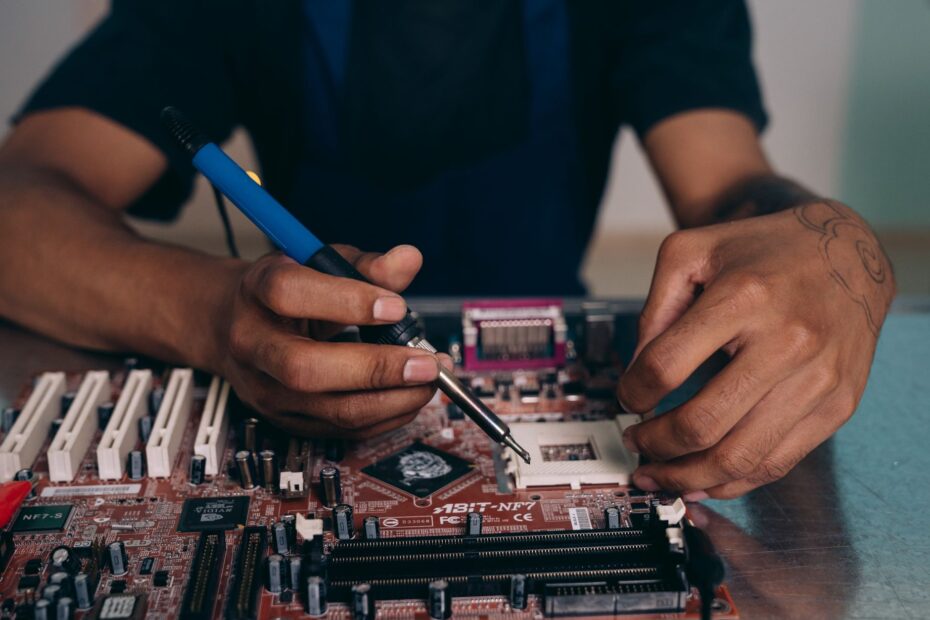
At every keystroke, electricity and software instructions turn user actions into visible results on the screen. A desktop receives binary data from input devices, processes it through internal hardware, and sends output to a display, speakers, printer, or network connection within milliseconds.
You will see how the hardware, startup sequence, operating system, and data flow fit together so your setup and troubleshooting choices make more sense.
A Desktop Converts Input Into Output
A keyboard press starts as a small electrical signal, yet it can become text in a document, movement in a game, or a command in a program. Your desktop receives input, processes instructions, and sends the result to output devices such as a display, printer, or speakers.
Your mouse, keyboard, microphone, camera, and network adapter act as input devices. Each sends information as binary data, using bits represented by 0s and 1s. Software gives those bits meaning and tells the hardware which action follows.
The Input-Process-Output Cycle Runs Every Task
Data enters through an input device, moves through internal hardware, and returns as a visible or audible result. You can see that cycle during a video call: a webcam captures an image, the CPU handles the data, and graphics hardware draws the call window on your display.
Output does not stay on a screen. Your desktop can send a document to a printer, audio to headphones, or a file through an Ethernet cable. Word processing, browsing, photo editing, and spreadsheet work all follow this same pattern.
Desktop Designs Use a Fixed Workspace
A desktop computer stays in one location, unlike a laptop with its display, battery, keyboard, and internal hardware packed into a portable shell. Tower PCs use separate peripheral devices, while all-in-one computers place the display and main hardware in one unit.
That extra physical space gives your desktop room for larger cooling fans, more ports, extra storage drives, and replaceable parts. Your desk still needs wall power, display hardware, and separate accessories around the computer case.
Internal Hardware Shares Power and Data Paths
Signals from your keyboard reach several connected parts inside the case. The motherboard holds sockets, slots, connectors, and electrical traces that link the central processing unit (CPU), random access memory (RAM), storage drive, graphics processing unit (GPU), power supply unit (PSU), and USB ports.
Your desktop computer parts and functions become clearer once every part has a separate role. The CPU runs instructions, RAM holds active data, storage keeps files after shutdown, and the GPU prepares visual information for the display.
The Main Components Perform Separate Jobs
| Component | Job inside your desktop | What you notice |
|---|---|---|
| Motherboard | Links major hardware and external ports through electrical pathways. | Your internal parts and connected devices exchange signals. |
| Central processing unit | Runs program instructions and directs calculations. | Your apps react to commands and finish tasks. |
| Random access memory | Holds active code and data for fast access. | Your open apps switch without reloading data from storage. |
| SSD or HDD | Retains software, files, and the operating system after power loss. | Your photos and documents remain available after shutdown. |
| Graphics processing unit | Draws windows, video, images, and 3D scenes. | Your display receives a usable visual signal. |
| Power supply unit | Changes wall current into low-voltage DC power. | Your internal hardware receives the voltage it needs. |
Intel and AMD make many desktop CPUs, while NVIDIA, AMD, and Intel make graphics processors. Brand names matter less than the task: your CPU handles broad instruction work, while your graphics processing unit focuses on pixels and visual calculations.
Power and Data Travel Through Different Routes
The power supply unit sends electricity through dedicated cables to the motherboard, CPU, graphics card, storage drives, and cooling fans. Data follows separate routes through motherboard traces, memory channels, PCI Express lanes, and storage links such as SATA or NVMe.
Wall outlet | Power supply unit | Motherboard ---- CPU ---- RAM | | | | +---- Storage drive | +---- GPU ---- Display | +---- USB ports ---- Keyboard, mouse, printer | +---- Network adapter ---- Ethernet or Wi-Fi
Your cooling system keeps the hardware within a workable temperature range. A heat sink draws heat away from the CPU or GPU, fans move warm air out of the case, and thermal paste fills tiny gaps between a chip and its cooler.
Those connected, cooled components must be recognized in a dependable order before any application can run.
Startup Brings Hardware Online Before Software Loads
The display stays dark briefly after you press the power button because the operating system has not loaded yet. Before Microsoft Windows, Linux, or another operating system can start, the PSU and motherboard bring the hardware into a usable state.
Wall outlets supply alternating current, called AC. The PSU changes that mains electricity into low-voltage direct current, called DC, for desktop hardware. A failed PSU can leave the entire case silent even though your display still has power.
The Boot Sequence Checks Hardware Before Startup
- Power signal: Your power button sends a start signal through the motherboard, which tells the PSU to send DC power.
- Firmware wake-up: Firmware stored on the motherboard starts before an operating system appears on your display.
- Hardware check: BIOS or UEFI checks memory, processor access, video hardware, and attached boot devices.
- Boot drive search: Firmware looks for an SSD or HDD containing operating system startup files.
- System loading: The operating system moves from storage into RAM and then shows your sign-in screen.
BIOS is older firmware terminology, while UEFI is the newer standard used by current desktop systems. Both run before your operating system. A loose RAM module, disconnected keyboard, or unavailable boot drive can halt startup and trigger an error message or beep pattern.
Do not switch off your desktop during a firmware update. Lost power during that short process can leave motherboard startup code unusable and can require hardware repair.
After the operating system reaches RAM, it takes control of routine work. That handoff explains why your computer can show a manufacturer logo before your familiar desktop, taskbar, and saved files appear.
The Operating System Links Programs With Hardware
A browser does not directly command every transistor inside your CPU or every pixel on your display. The operating system sits between software and hardware, assigning processor time, memory space, file access, and device communication.
Your computer might run Microsoft Windows, Linux, or another operating system. Each handles the same core jobs: scheduling programs, assigning RAM, controlling accounts and permissions, tracking files, and using drivers so attached hardware works with software.
Drivers Turn Software Requests Into Device Actions
A driver is specialized software that helps the operating system communicate with a connected device. Your printer driver turns a document into print instructions, while a graphics driver helps the GPU draw windows, video, and games correctly.
USB keyboards and mice use standard connections, so modern systems recognize them with little setup. Advanced graphics cards, audio interfaces, scanners, and specialized input equipment still need a manufacturer driver for full functionality.
Applications and Files Have Different Roles
An application is software you run, such as Microsoft Word, a browser, or a photo editor. A file is data used by that application, such as a report, image, spreadsheet, or music track.
Your browser is an application. A downloaded PDF is a file. The operating system stores the PDF on your SSD, gives the browser access to it, assigns RAM while it is open, and sends drawing work toward the GPU.
The CPU, RAM, Storage, and GPU Divide Each Task
Opening a document activates several components at the same time, though each handles a different part of the work. The CPU reads program instructions, RAM holds active information nearby, storage supplies saved data, and the GPU turns visual data into pixels.
The CPU Runs a Repeating Instruction Cycle
The CPU repeatedly fetches, decodes, and executes instructions. It fetches an instruction from memory, decodes its meaning, then executes the requested operation, such as adding numbers, moving data, or checking a program condition.
Modern CPUs contain several processing cores, allowing separate work streams to run together. Your operating system assigns work across those cores, so a browser, music player, and document editor can remain active at the same time.
RAM and Storage Handle Different Kinds of Data
| Feature | RAM | SSD or HDD |
|---|---|---|
| Main purpose | Holds active programs and working data. | Stores files, apps, and operating system data. |
| Access speed | Supplies active data faster than long-term storage. | Supplies retained data, with SSDs faster than HDDs. |
| Power loss | Contents disappear after shutdown. | Contents remain after shutdown. |
| Common symptom | Too little RAM slows multitasking. | Too little space blocks file saves and system updates. |
RAM acts like your desk surface, holding papers open while you work. Storage acts like a filing cabinet, holding those papers after the office closes. Your desktop loads a file from an SSD into RAM because active work needs faster access.
The GPU Draws the Visible Result
Integrated graphics sit inside some CPUs and share system memory. A dedicated GPU is a separate card with its own processor and video memory, which helps with demanding games, video editing, 3D design, and multiple high-resolution displays.
Your GPU draws images and video, then sends a visual signal through HDMI, DisplayPort, or another connector. A display turns that signal into the pixels you see, refreshing the image dozens of times each minute.
A Typing Task Shows the Full Data Path
Pressing the letter A looks simple, yet the action follows a defined chain. Your keyboard sends a digital signal through USB or Bluetooth, the operating system identifies the key event, and the active application receives the instruction.
The word processor places the new character into active document data in RAM. The CPU processes that change, the GPU redraws the updated window, and the display receives a fresh image. Your eyes see the letter a fraction of a moment later.
Saved Files Move Into Long-Term Storage
Saving changes sends data toward a separate destination. The application asks the operating system to write document data to your SSD or HDD, where it remains after you shut down the desktop.
Your unsaved edits remain vulnerable because RAM loses its contents without power. Autosave features reduce that risk, yet a standard save writes the work to storage rather than leaving it in temporary memory.
Web Activity Uses the Same Hardware Chain
A web page begins with your network adapter. Ethernet carries data through a wired cable, while Wi-Fi uses radio signals from a router. The adapter receives network packets and passes them to the operating system.
Your browser processes page code, the CPU runs scripts, RAM holds active tabs and images, and the GPU draws text and media. That is how does a computer work during ordinary browsing: hardware and software split one task into fast, coordinated actions.
That coordination begins and ends with the devices you touch, see, and hear each day.
A Complete Desk Setup Includes Devices Outside the Tower
A tower alone cannot show an image or accept a password. Your working desk setup needs output devices, input devices, cables, and power protection around the main computer case.
The Essential Setup List Covers Daily Use
- Desktop tower: Your tower contains the motherboard, processor, memory, storage drive, and power supply unit.
- Display and cable: Your screen needs HDMI, DisplayPort, or another compatible video connection.
- Keyboard and mouse: These input devices send typing, pointer movement, and button commands to your system.
- Power cables: Your tower and display each need a suitable cable connected to wall power.
- Surge protector: A quality surge protector adds a layer of defense against voltage spikes.
- Internet connection: Ethernet or Wi-Fi gives your desktop network access for browsing, updates, and online work.
What do you need for a desktop computer beyond that core list depends on your task. Speakers or headphones handle audio, a webcam helps with calls, a printer handles paper documents, and an external backup drive stores another copy of valuable files.
Physical Placement Affects Heat and Reliability
- Leave vent space: Leave several inches around intake and exhaust vents so warm air can leave the case.
- Attach the display: Run the video cable from your display to the GPU port or motherboard video port.
- Add input devices: Plug in your keyboard and mouse, then attach speakers, printer, or webcam as needed.
- Connect wall power: Connect the tower and display to a surge protector, then connect that strip to the wall.
- Join the network: Plug in Ethernet or enter Wi-Fi details after the operating system starts.
Accessibility tools can change your daily experience. Your operating system can enlarge text, read screen content aloud, show an on-screen keyboard, slow pointer speed, or accept speech input.
Desktop and Laptop Ownership Involves Trade-Offs
A fixed desk setup gives you room for a large display, full-size keyboard, extra ports, and repairable hardware. It also keeps your work in one location and takes more space than a laptop.
Your desktop can use stronger cooling and larger internal parts than a thin portable system. That makes it suitable for long editing sessions, engineering software, gaming, large spreadsheets, and multi-display work. But it cannot travel with you to a classroom, coffee shop, or client site.
Desktop Computer vs Laptop Choices Depend on Your Work
| Use case | Desktop fit | Laptop fit |
|---|---|---|
| Permanent home office | Strong fit for larger displays and comfortable accessories. | Works with a dock, though screen size stays limited. |
| Travel and classes | Poor fit because it needs a fixed desk and wall power. | Strong fit because battery power and portability matter. |
| Upgrades and repairs | Strong fit for replacing RAM, drives, GPUs, and fans. | Limited fit because many parts are compact or fixed. |
| Demanding visual work | Strong fit for larger GPUs and higher cooling capacity. | Works for some tasks, though compact hardware limits sustained performance. |
Your laptop is enough for mobile email, documents, browsing, and light creative work. A desktop makes more sense where you want a permanent workstation, easier part replacement, multiple displays, or sustained processing power.
Basic Checks Solve Common Desktop Problems
- No power: Check the wall outlet, surge protector switch, PSU rear switch, and both ends of the power cable.
- No display: Confirm the display has power, select the correct input, and reseat the video cable.
- System overheating: Clear blocked vents, remove dust with compressed air, and check that fans spin during use.
- Slow response: Close unused apps, check available storage space, and restart to clear active memory use.
- Missing device: Reconnect the USB cable, try another port, and check driver status inside your operating system.
Shut down and unplug your desktop before opening the case. Touch grounded metal before handling internal parts, and avoid a household vacuum because static electricity can damage components.
Dust acts like a blanket across heat sinks and fan grilles. Clear it every few months in a dusty room, guard the system from power spikes, and start fault checks with cables and power sources before suspecting expensive internal hardware.
Putting the Hardware Chain Together
Your desktop is not a single machine doing one job. The PSU supplies power, the motherboard carries signals, the CPU runs instructions, RAM holds active work, storage retains files, and the GPU draws visual results. Once you can follow that chain from a keypress to the display, your setup choices and basic fixes become easier to understand.
FAQ
How does a desktop computer work step by step?
Your desktop receives data from input devices, sends that data through the motherboard, processes instructions with the CPU and RAM, reads or writes files through storage, and sends visual output through the GPU to a display. The operating system coordinates each part of that sequence.
What happens when you turn on a desktop computer?
Your power button starts the PSU and motherboard, then firmware checks key hardware such as memory, processor access, display hardware, and boot storage. BIOS or UEFI selects a boot drive, loads the operating system into RAM, and hands control to the sign-in screen.
What is the difference between RAM and storage?
RAM holds active programs and data while your desktop is running, giving the CPU fast access to current work. Storage, such as an SSD or HDD, retains software and files after shutdown. Your computer loads data from storage into RAM for active use.
What all do you need for a desktop computer?
A basic setup requires six essentials: a tower or all-in-one unit, display, display cable, keyboard, mouse, and power cables. A surge protector is useful, while Ethernet or Wi-Fi is needed for internet access. Speakers, webcams, printers, and backup drives are optional extras.
Do you need a desktop computer alongside a laptop?
Your laptop can cover everyday work, school tasks, browsing, and travel because its display, keyboard, battery, and hardware travel together. A desktop earns its desk space where you want a larger display, easier upgrades, extra ports, stronger cooling, or a dedicated workspace.
What are the disadvantages of a desktop computer?
A desktop takes up more desk space than a laptop and needs wall power, a display, and separate peripheral devices. You cannot carry it between locations with ease. Its larger case, cables, and fixed placement can make a small room feel crowded.