A homeschool desk is a strange little command center: math on one screen, a writing lesson on another, a curious kid asking for the dictionary tab while you try to grade a paragraph. The right computer pulls that chaos into something workable. After sorting through what families actually need (durability, screen comfort, enough horsepower for browser-based curricula, and a price that doesn’t sting), I narrowed nine solid options. Every pick below is laid out with its honest strengths, the trade-offs that come with it, and who fits best.
The Shortlist At A Glance

Zrasu 15.6 inch Pink Laptop, 16GB RAM, 256GB SSD

Dell 27″ All-in-One, Intel Core 7, 16GB

Dell 27″ All-in-One, Intel Core 5

Clue Finders 3rd Grade Educational Computer Game
Samsung Chromebook 4 15.6″ Full HD

Dell Slim Desktop ECS1250, Core i3, 512GB SSD
Zrasu 15.6″ Laptop, 8GB RAM, 128GB SSD

Lenovo 100E Chromebook 2nd Gen 11.6″
Zrasu 14″ Laptop, 16GB RAM, 512GB SSD
Meet The Standout Selections
The first thing most families notice about the Zrasu 15.6 inch Pink Laptop is the color, but the real headline is what’s underneath. With a Pentium Gold 6500Y (a dual-core chip that bursts up to 3.4 GHz when it needs to push harder) paired with 16GB of RAM, this machine handles a typical homeschool day of browser tabs, word processors, and a video call without breaking a sweat. The 1080p Full HD display keeps text crisp for younger readers, and 256GB of SSD storage (much faster than the older spinning hard drives) means curriculum files, ebooks, and projects boot up quickly.
Compared with the more traditional Zrasu gray option later in this list, this pink version is essentially the same machine with a fun color swap. That matters because some kids simply engage more with a device that feels personal. USB-C, WiFi 5 (the previous-generation wireless standard, still common in most homes), and Bluetooth 5.0 round out a setup that should slot into most learning environments without fuss.
Good Reasons To Consider
- 16GB RAM is generous for browser-heavy curriculum apps, allowing many tabs to stay open without slowdown.
- The pink finish makes the device feel like a personal possession, which can help reluctant students sit down willingly.
- SSD storage at 256GB holds a full year of lesson files, downloaded worksheets, and family photos without slowing down.
- The Full HD screen keeps long reading sessions easier on young eyes than lower-resolution alternatives.
Things To Consider
- Color-matched accessories and cases are typically harder to find than neutral ones, so a protective sleeve may take extra hunting.
- The Pentium Gold line is fine for everyday learning but may feel stretched by heavier creative software like video editing suites.
Made For
Elementary and middle-school learners who want a personal-feeling device that handles everyday coursework smoothly.
Skip It When
You’d rather grab the Samsung Chromebook 4 if your curriculum lives entirely in Chrome and you’d prefer a lighter machine.
An all-in-one desktop is essentially a computer and monitor fused into one unit, and that single design choice solves a lot of homeschool headaches. No tower to find a home for, fewer cables snaking across the desk, and a 27-inch FHD screen big enough for two students to share during read-alouds or science videos. Powered by an Intel Core 7 150U with 16GB of RAM, this Dell has headroom for more demanding tasks like video editing, light coding environments, or running multiple browser-based learning platforms simultaneously.
Where this model differs from the Dell Core 5 version below is in processor tier and a touch more speed under sustained loads. For a family running simultaneous math software, a video lecture, and a sibling writing assignment, that extra muscle can feel like the difference between “fine” and “smooth.” Windows 11 Home comes standard, so familiar Office-type workflows slot right in.
Real Benefits
- A 27-inch FHD display lets siblings co-learn comfortably or gives one student room to spread out multiple windows.
- The Core 7 150U handles heavier multitasking, including video editing for media-rich projects.
- All-in-one form factor reduces cable clutter, a real win in shared study spaces.
- 16GB of RAM keeps lesson platforms responsive even with a full house of browser tabs.
Worth Noting
- All-in-one machines are stationary by design, so students who switch between kitchen table and bedroom need a second device.
- A 27-inch display is harder to relocate; cleaning the screen requires care to avoid streaking the panel.
Feature Snapshot
Right Fit For
Families with a dedicated homeschool room running multiple students on one shared station.
Consider Something Else When
The household needs portability, in which case the Samsung Chromebook 4 15.6″ gives up screen size for genuine mobility.
The Dell 27″ All-in-One with the Intel Core 5 120U is essentially the smarter-money sibling of the Core 7 model above. You still get that generous 27-inch FHD display and Windows 11 Home, just paired with a slightly more modest processor that still handles the bulk of homeschool tasks without complaint. For families who don’t run heavy creative software, the difference in day-to-day feel is small.
The shared screen real estate means read-alouds, group science lessons, and afternoon movie-based history units all work well here. Because the all-in-one form factor keeps the footprint tidy, this is a strong match for dining tables doubling as classrooms or kitchen counters that need to clear by dinner. Cleaning is straightforward: a microfiber cloth handles fingerprints, though the large panel benefits from a careful touch.
Everyday Advantages
- The same spacious 27-inch screen as the Core 7 model at a more accessible tier.
- All-in-one design means fewer cables and a tidier study corner.
- Windows 11 Home supports widely used educational software and Office-style workflows.
- Big screen works well for two students during co-op lessons.
Honest Caveats
- The Core 5 chip trails the Core 7 when running heavier creative applications like Photoshop or video editors.
- Stationary design rules this out for families who need a computer that moves from room to room.
Best Suited To
Families wanting a shared family-room desktop for browsing, writing, and video lessons without overpaying for premium-tier silicon.
Look Elsewhere When
You’d rather have a slim tower with more storage flexibility, in which case the Dell Slim Desktop ECS1250 offers a different kind of setup.
The Clue Finders 3rd Grade Educational Computer Game isn’t a full computer. It’s old-school supplemental software, the kind that runs on a Windows PC rather than a browser. And honestly, that’s part of the charm for some families. Where flashier online platforms try to gamify everything, this one focuses on 30 interactive activities covering more than 75 skills across four difficulty levels, with progress reports to track what your kid is actually getting.
The software supports a long stretch of Windows versions (Windows 98, Me, 2000, XP, Vista, and Windows 7), so it’s flexible on older hardware or hand-me-down machines. For parents who want a focused math and reading drill without another subscription on the pile, this fills a specific niche. You wouldn’t build a whole curriculum around it, but as a daily warm-up or rainy-Friday supplement, it earns its place.
What Earns Its Place
- 75+ skills and 30 activities provide meaningful variety rather than repeated drills.
- Progress reports give parents visibility into what a student is actually practicing.
- Broad Windows compatibility makes it usable on older or hand-me-down machines.
- Four skill levels adapt to a student’s growing ability.
Points To Note
- This is supplement material, not a full computer or a complete curriculum on its own.
- Older software visuals may feel dated compared to modern browser-based alternatives.
Whose Shelf It Belongs On
Parents who want screen-time-with-purpose for early elementary students without adding another monthly fee.
Reach For A Different Pick When
The household needs a primary device for daily coursework, in which case the Lenovo 100E Chromebook is a stronger foundation.
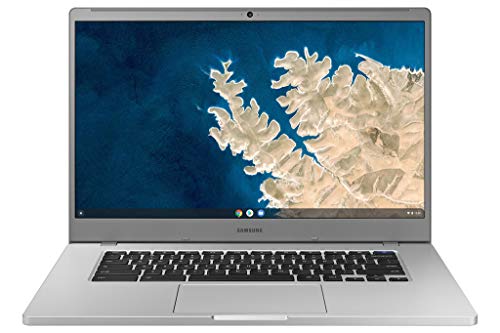
Chromebooks run Chrome OS, a Google-built operating system centered on the Chrome browser and web apps. For homeschools built around Google Classroom, Khan Academy, or similar browser-based curricula, that focus becomes a feature, not a limitation. The Samsung Chromebook 4 pairs a 15.6-inch Full HD display with an Intel Celeron N4000 (an entry-level chip designed for efficiency rather than raw power), 4GB of RAM, and 32GB of eMMC storage (a compact, flash-based storage type that boots quickly but offers modest capacity).
The bigger screen is the selling point here, giving kids more room than a typical 11-inch Chromebook for split-screen work. Gigabit Wi-Fi (the fastest commonly available home wireless standard) keeps video lessons smooth, and Chrome OS handles updates in the background, which removes a real chore from the parent’s plate. Compared with the rugged Lenovo 100E later in the list, this Samsung trades toughness for a more grown-up look and a larger display.
Practical Pluses
- 15.6-inch Full HD display gives comfortable reading space without a premium price tag.
- Chrome OS stays current with automatic background updates, reducing parental maintenance.
- Gigabit Wi-Fi supports smooth video streaming for online curricula.
- Lightweight enough to move between kitchen table and bedroom without strain.
Points To Keep In Mind
- 32GB of local storage fills quickly, so cloud-based workflows are essentially required.
- 4GB of RAM struggles with more than a handful of browser tabs running concurrently.
Quick Facts
Perfect Match For
Families using cloud-based curricula and wanting a low-maintenance laptop that updates itself.
Swap It Out When
A younger student needs something more drop-resistant, in which case the Lenovo 100E Chromebook is the tougher choice.
A slim tower desktop is a less flashy choice than an all-in-one, but in some homeschools it’s the smarter one. The Dell Slim Desktop ECS1250 runs an Intel Core i3 14100, 8GB of DDR5 RAM (the newest generation of system memory, faster than DDR4), and a 512GB SSD. That last spec matters: a half-terabyte of fast storage is roomy enough for an entire homeschool year of files, software installs, and downloaded videos without ever thinking about cleanup.
Where this differs from the Dell all-in-ones above is flexibility. The slim tower pairs with whatever monitor you prefer (or already own), and the compact case tucks into a bookshelf or corner of the desk without dominating the room. WiFi 6 (the newest widely available wireless standard) keeps the connection fast, and Intel UHD Graphics 730 handles everyday visual tasks fine. Multi-monitor support via HDMI and DisplayPort makes a parent-co-teaching setup easier.
What Helps Most
- 512GB SSD holds a full academic year of curriculum files without constant cleanup.
- DDR5 RAM and a modern Core i3 keep lesson platforms feeling snappy.
- Slim tower design fits on a bookshelf or under a monitor without dominating space.
- WiFi 6 supports modern wireless speeds for video-heavy curricula.
Some Limits To Know
- A separate monitor is required, adding to total cost if one isn’t already on hand.
- Towers need occasional dusting inside to keep vents clear, a small but real maintenance step.
Built With In Mind
Families building a permanent homeschool workstation and willing to add their own monitor for full control over the setup.
Where Another Pick Suits Better
Households that prefer a single-cable solution should look at the Dell 27″ All-in-One with Intel Core 5 for a tidier desk.
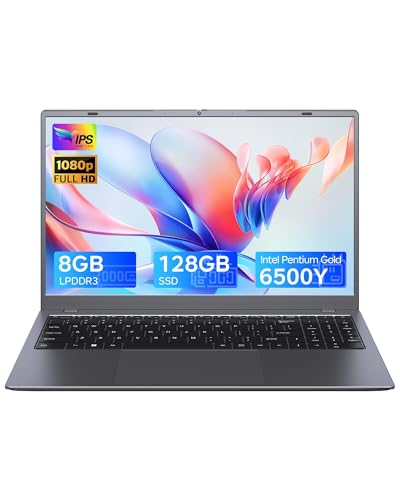
The gray Zrasu 15.6″ Laptop with 8GB RAM and 128GB SSD is the trimmed-down cousin of the pink version at the top of this list. Same Pentium Gold 6500Y chip, same 1080p Full HD display, same USB-C and Bluetooth 5.0 convenience. The two trade-offs are 8GB of RAM instead of 16GB and half the storage at 128GB. For a household where the daily workload is mostly browser tabs and a word processor, those trade-offs may not matter at all.
Where the smaller storage can become real friction is when families try to keep large video files or a year of photos locally. Cloud storage or an external drive covers that gap, but it’s an extra step worth planning for. The honest read is that this is a lean, capable machine for the student whose curriculum doesn’t push storage limits. Compared with the 14-inch Zrasu later in the list, you get a slightly larger screen and the same general feel, just in a tighter storage package.
Reasons It Performs
- Full HD screen keeps reading and writing comfortable for hours.
- Same Pentium Gold chip as the pink sibling means consistent everyday performance.
- USB-C connectivity future-proofs against older cable hassles.
- Neutral gray finish suits older students who prefer a grown-up look.
Practical Considerations
- 128GB of storage fills quickly with downloaded videos or large project files.
- 8GB of RAM may bottleneck under heavier multitasking compared to 16GB-equipped options.
Who Should Grab It
Older students doing writing-heavy coursework who mostly live in cloud storage and don’t need a big local library.
Not Your Match When
Storage is a priority, in which case the Zrasu 14″ Laptop with 512GB SSD gives you more breathing room in a smaller frame.
The Lenovo 100E Chromebook is the laptop built with the assumption that a kid will drop it, spill something on it, or both. Its drop-resistant design and water-resistant keyboard make it the most forgiving pick in this list. The MediaTek MT8173C is a low-power processor aimed at Chromebook workloads, and 4GB of RAM paired with 16GB of eMMC storage defines this as a focused, browser-first machine. In practice, that means it handles Google Docs, classroom portals, and educational videos without drama.
The 11.6-inch HD display with antiglare coating (a screen treatment that reduces reflections from overhead lighting) keeps text readable in brightly lit rooms, and weighing just 2.7 pounds with up to 10 hours of battery life, it goes anywhere a kid does. The 720p front camera is fine for video check-ins. Compared with the Samsung Chromebook 4 above, the Lenovo trades a larger screen and full HD resolution for serious ruggedness. For younger learners, that’s usually the right call.
What Makes Sense
- Drop-resistant build and water-resistant keyboard handle everyday kid mishaps.
- Up to 10 hours of battery supports a full school day on one charge.
- Antiglare 11.6-inch screen stays readable in well-lit study areas.
- Light 2.7-pound chassis is easy for small hands to carry.
Where It Is Less Suited
- 16GB of local storage is tight, so cloud habits are essentially mandatory.
- The smaller 11.6-inch screen can feel cramped for split-screen work or long reading assignments.
Who It Suits Best
Younger learners in elementary grades who need a forgiving machine and a parent who values durability over screen size.
A Better Fit Elsewhere
Older students who want more screen real estate for writing-heavy work should pick the Samsung Chromebook 4 with its 15.6-inch Full HD display.
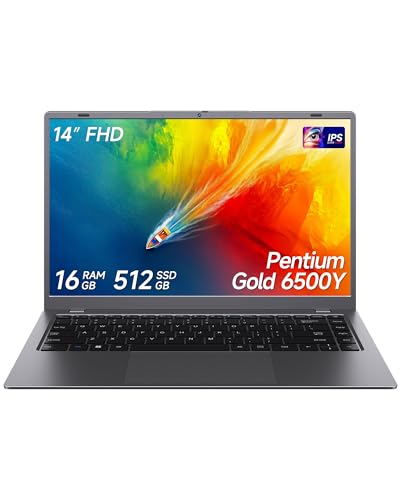
The Zrasu 14″ Laptop is the most storage-rich of the three Zrasu models in this roundup, with 16GB of RAM and a generous 512GB SSD, all in a more compact 14-inch form factor. That smaller screen size is the real story here. It slips easily into a kitchen drawer between lessons, sits comfortably on a small homeschool desk, and travels without complaint. The 1080p Full HD panel keeps text sharp even at the smaller size.
The Pentium Gold 6500Y handles the same everyday workload as the larger 15.6-inch siblings, so performance isn’t sacrificed for portability. The trade-off is screen size for students who prefer larger viewing areas, which is a real consideration for older readers doing long assignments. USB-C, WiFi 5, and Bluetooth 5.0 round out a tidy package for families who want one laptop to do everything without a dedicated workstation.
Benefits That Matter
- 512GB SSD holds a large curriculum library locally without constant cleanup.
- Compact 14-inch form factor travels between rooms and stores easily.
- Full HD display keeps text crisp even at the smaller screen size.
- 16GB of RAM supports smooth multitasking across lesson platforms.
A Few Limitations
- The 14-inch screen feels small for split-screen workflows or shared viewing.
- Pentium Gold performance is fine for daily learning but won’t carry heavy creative software.
Feature Card
Right Fit For
Families wanting a single portable machine with generous storage for a full academic year of files.
Skip It When
You need a true workstation setup, in which case the Dell Slim Desktop ECS1250 with its Core i3 and monitor flexibility is the better path.
What Matters Most Before Choosing Computers For Homeschooling
Match the Machine to the Curriculum
Before picking hardware, look at what your kid will actually run. Browser-based curricula like Khan Academy or Google Classroom work beautifully on Chromebooks, while Windows-specific math software, Office workflows, or creative tools need a Windows machine like the Dell all-in-ones or the Dell Slim Desktop. Matching the platform to the platform reduces friction immediately.
Decide Between Stationary and Portable
A family that does school at the kitchen table needs portability. A family with a dedicated room benefits from a stationary desktop with a bigger screen. The 27-inch Dell all-in-ones reward shared, sit-down learning. The Samsung Chromebook 4 or the Zrasu laptops reward families who roam. Choosing wrong here usually means an underused machine.
Consider Storage and RAM Honestly
For most homeschool years, 8GB of RAM is workable but 16GB is comfortable, and 256GB of storage is the floor while 512GB lets you forget about cleanup. If your student downloads videos or works with large files, lean toward higher storage. If everything lives in the cloud, you can save money by going lean.
Plan for Durability
A drop-resistant chassis like the Lenovo 100E Chromebook’s is worth its weight in gold for younger learners. Older students are typically easier on hardware, so the trade-off can shift toward thinner, lighter laptops that feel more grown-up.
Key Considerations Across These Picks
Pitfalls Shoppers Hit
The biggest mistake is buying based on specs alone without checking the software list for your curriculum. A Chromebook is wonderful until you need a Windows-only program. The other common trap is underestimating storage: downloaded videos, ebooks, and project files add up faster than expected. For Chromebook picks especially, plan around cloud storage from day one.
Where The Extra Money Goes
Higher tiers in this roundup buy you a few specific things: more RAM for smoother multitasking, larger SSD for storage peace of mind, more powerful processors for creative software, and bigger screens for shared or long-form learning. For a single elementary student doing basic coursework, the budget-friendly picks earn their place. For multi-student households, the upgrade genuinely pays off in fewer slowdowns and more flexibility as needs grow.
Frequently Asked Questions
How much RAM does a homeschool computer really need?
For most browser-based curricula and writing tasks, 8GB of RAM is the workable minimum, while 16GB gives comfortable headroom for multitasking across lessons. The Zrasu laptops and Dell all-in-ones in this list with 16GB handle heavier daily loads more gracefully than 4GB Chromebooks.
Is a Chromebook enough for homeschooling?
Yes, when the curriculum lives in the browser, the Google ecosystem, or web apps. Programs like Google Classroom, Khan Academy, and many reading platforms run perfectly on Chromebooks. A Chromebook is not enough when your student needs Windows-specific software, which is where the Dell options or Zrasu laptops come in.
Should I get a laptop or a desktop?
A laptop makes sense when school happens in multiple rooms or on the go. A desktop makes sense when there’s a dedicated study spot and a desire for a larger screen or lower cost per performance point. All-in-one desktops like the Dell 27-inch models split the difference nicely with big screens and tidy footprints.
How important is storage size?
It depends on whether you keep files locally or in the cloud. Families using Google Drive, OneDrive, or similar cloud services can get by with 128GB or even 32GB on Chromebooks. Families storing videos, large photos, or full curriculum libraries locally should target 256GB or more, with 512GB being the comfortable zone.
What about screen size for younger readers?
For elementary-aged students, an 11.6-inch to 14-inch screen works well and is easier on small hands. For older students doing long reading or writing assignments, 15.6 inches with Full HD resolution reduces eye strain. The Dell all-in-ones are excellent when siblings share a screen.
Wrap Up
Choosing the right computer for homeschooling comes down to matching your real curriculum and home setup, not chasing the biggest spec sheet. The pink Zrasu laptop and Dell 27-inch all-in-ones anchor the high-capability end of this list, the Lenovo 100E anchors durability, and the budget-friendly Zrasu options keep the door open for families watching spending. Pick the one that fits your day-to-day, and your kid will barely notice the hardware, which is exactly the goal.