Adding a second or third screen shouldn’t require a degree in IT. The right adapter or docking station turns a single laptop port into a full multi-monitor workstation, letting traders, editors, developers, and remote workers spread their work the way they actually think. I’ve pulled together ten solid options covering everything from a tiny DisplayPort dongle to a full 11-in-1 dock, so there’s something here for tight desks and ambitious home offices alike.
Your Options, Compared

WAVLINK 11-in-1 USB C Docking Station (Triple 4K)

Woieyeks 4K HDMI Dummy Plug Emulator

Plugable Triple Display Docking Station (3 HDMI)
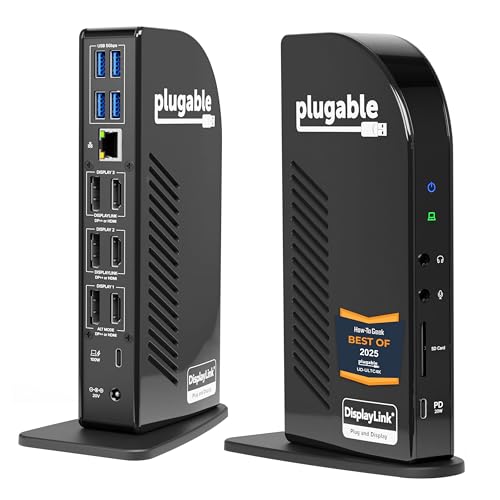
Plugable 13-in-1 USB C Dock (UD-ULTC4K)

i-magBac 6-in-1 USB C Hub (4K HDMI)

ABIWAZY USB C Dual Monitor Hub (2 HDMI)

Plugable 13-in-1 USB-C Dock (UD-ULTCDL)
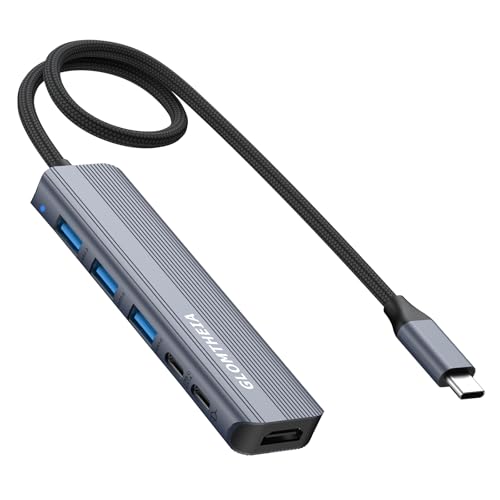
Glomtheia USB C Hub HDMI Multiport Adapter
UANTIN DisplayPort to HDMI Splitter (3 Monitors)
WENTER USB to HDMI Adapter (1080p)
The Picks, Examined More Closely
The WAVLINK 11-in-1 sits at the top of the list because it tackles the two headaches most multi-monitor users hit at the same time: resolution headroom and cable clutter. It supports a single 8K output, or three screens running at 4K, which is enough bandwidth for color-graded photo work, financial dashboards, and a reference monitor on the side.
That 125W pass-through (the dock feeds your laptop the rated wattage while it works) means a 14-inch MacBook Pro or a ThinkPad stays topped up without a second brick on the desk. For anyone working from a single USB-C port who wants the rest of the desk cleaned up, this is the kind of gear that pays for itself the first week you stop swapping cables.
Advantages To Know
- Triple 4K (or single 8K) means serious screen real estate without dropping to 1080p on the third panel.
- 125W Power Delivery (a charging standard that sends laptop-level wattage through the USB-C cable) covers most mainstream laptops in one cable.
- HDMI plus two DisplayPort outputs (DP, a digital video port favored on graphics cards and pro monitors) give flexibility when one of your screens only takes DP.
- The included power adapter removes the worry of underpowered behavior common with bus-powered docks.
- 11 ports means USB sticks, Ethernet, and audio all share the same desk hub.
Points To Keep In Mind
- Higher-end specs come with a heavier brick and a larger footprint than the pocket hubs below.
- Triple 4K at full refresh rate is a real load, so a recent CPU and dedicated GPU help.
Who Will Love This
Power users running creative apps, multi-window trading setups, or anyone who wants a single cable to replace three.
Where Another Pick Suits Better
For a smaller travel kit, the i-magBac 6-in-1 is a better match for backpack-only commuters.
This little HDMI plug, also called a headless display adapter or EDID emulator (a device that fakes a monitor’s identity to the computer), doesn’t actually show anything on a screen. Instead, it tells your computer that a 4K display is connected so your GPU (the graphics processing unit that renders images) stays unlocked at full power. That’s why streamers, VR tinkerers, and anyone running a server without a monitor reach for one.
It plugs into a DisplayPort source and presents a clean 3840×2160@60Hz signal, which keeps NVIDIA and AMD cards from idling their render pipelines. For users running game capture, screen sharing, or a mini server that needs to keep its GPU awake, this is a tiny tool with an outsized effect on real workloads.
A Strong Showing
- Keeps a GPU active even when no physical monitor is attached, which prevents frame drops in game streaming setups.
- Resolutions up to 4096×2160@60Hz cover virtually every consumer display standard.
- Works across Windows, macOS, and Linux for cross-platform tinkering.
- Costs less than most HDMI cables and takes up almost no space.
Honest Caveats
- Requires a DisplayPort output; HDMI-only laptops need a different approach.
- It creates a virtual display, not a real one, so it isn’t a substitute for actual screens.
Made For
Streamers, VR users, and headless server owners who need their GPU to stay awake without a real monitor.
Look Elsewhere When
For users who actually want three physical screens, the WAVLINK 11-in-1 dock is the more useful build.
Plugable’s triple HDMI dock leans on practicality over flash. You get one 4K 30Hz port for a primary display and two 1080p 60Hz ports for everyday work, all through one USB-C cable. The trade-off is clear: the top screen looks crisp, the side screens stay snappy, and you don’t need a separate graphics card to make it work.
Six USB-A ports (5Gbps, meaning five gigabits per second of data throughput) handle a keyboard, mouse, webcam, and a couple of dongles without crowding. Gigabit Ethernet (a wired network port delivering up to one gigabit per second) keeps the Wi-Fi congestion off Zoom calls. It runs on Windows, macOS, and ChromeOS, which matters for shared workspaces where nobody has the same laptop.
Where It Excels
- Three HDMI outputs are easy to wire up since most monitors ship with HDMI cables.
- 100W Power Delivery covers mid-range laptops like a Dell XPS or a 13-inch MacBook cleanly.
- Cross-OS support makes it a safe choice for shared hot desks.
Room For Improvement
- Only one of the three outputs runs at 4K; the other two top out at 1080p, which may bother users running high-DPI side monitors.
At A Glance
Right Fit For
Hybrid office workers who want a clean three-screen setup without juggling adapters for each monitor.
Not Your Match When
The Plugable 13-in-1 UD-ULTC4K is the better fit for users who need every screen at full 4K60.
The UD-ULTC4K is the dock you buy when every screen needs to be sharp. Three HDMI outputs, three DisplayPort outputs, and full 4K60 across the board turn a mid-range laptop into something close to a desktop workstation. It connects over a 10Gbps USB-C uplink (a single high-bandwidth cable carrying video, data, and power at once), so even Thunderbolt laptops feel right at home.
It does require a driver, which puts it a step beyond the truly plug-and-play options in this list. For users who don’t mind a one-time setup through DisplayLink (a driver technology that compresses video signals so extra monitors can run over standard USB), the payoff is a dock that doesn’t blink when spreadsheets, timelines, or 3D viewports start demanding more.
The Upside
- Triple 4K at 60Hz is rare at this tier and works for color-accurate work.
- Six video ports in total give flexibility for odd monitor mixes.
- 100W charging covers most 14 to 16 inch laptops.
Possible Compromises
- Requires a driver install, which adds a setup step on a fresh machine.
- Heavier footprint than the simpler Plugable dock covered earlier.
Best Suited To
Pro users with multiple 4K monitors who prioritize pixel density over portability.
Consider Something Else When
If you mainly need one or two extra screens, the Plugable Triple Display dock saves desk space.
The i-magBac hub is the kind of adapter that lives at the bottom of a backpack. An aluminum shell keeps it cool, the body is small enough to fit in a coat pocket, and the ports cover what most laptops are missing. It turns a single USB-C port into HDMI, three USB-A ports, and an SD card slot.
It pairs nicely with MacBooks and the smaller Lenovo or Dell machines that ship with a stingy port layout. The HDMI port runs 4K at 30Hz, which is plenty for a side reference screen, a slide deck, or a hotel TV at the end of a workday.
The Good Stuff
- Compact size fits a coffee shop workflow without crowding the table.
- Aluminum body helps shed heat during long sessions.
- SD and microSD slots cut out a separate card reader.
Small Caveats
- Single HDMI means no true three-monitor setup from the device itself.
Quick Facts
Perfect Match For
Coffee shop commuters and MacBook owners who want one extra screen plus everyday ports in their bag.
A Better Fit Elsewhere
For a true three-monitor desk, the ABIWAZY dual-HDMI hub makes more sense at home.
ABIWAZY’s hub fills the gap for laptops that don’t have enough ports to begin with. Two HDMI ports, a DisplayPort, a VGA, three USB-A ports, and USB-C power passthrough cover a wide range of monitor styles, including older VGA projectors that still hang around in conference rooms.
The big caveat is USB-C compatibility. The hub needs a USB-C port that supports DP Alt Mode (DisplayPort Alternate Mode, a feature that lets a USB-C port carry a full video signal), which not every laptop has. Once that’s confirmed, the dock is genuinely plug-and-play and avoids driver installs.
The Practical Payoff
- Dual HDMI plus DP and VGA make it adaptable to mixed monitor setups.
- No drivers or software needed for basic operation.
- USB-C power passthrough keeps a single charger on the desk.
Trade Offs
- Only works on USB-C ports with DP Alt Mode, which older laptops may lack.
Whose Shelf It Belongs On
Owners of mid-range laptops with a recent USB-C port who want two screens without a driver setup.
Skip It When
Anyone running a Mac or needing three displays should step up to the Plugable UD-ULTCDL.
This Plugable dock is the answer for anyone whose MacBook only supports one external display out of the box. The M-series chips restrict multiple extended desktops without help, but DisplayLink (a driver-based video technology that adds extra screens beyond a laptop’s hardware limits) bridges that gap, and this dock ships with everything needed to set it up.
Three HDMI outputs, Gigabit Ethernet, four USB ports, and 100W charging go through one USB-C cable. The 20W front USB-C port also handles a phone or a tablet at a reasonable speed. For Mac users who have given up on the idea of three screens, this is the realistic path back.
A Few Highlights
- Adds triple external displays on Mac hardware that otherwise caps at one.
- 100W charging means a 14 or 16 inch MacBook Pro stays powered.
- Comes from a brand with a long track record in the docking space.
Less Ideal Details
- DisplayLink driver has to be installed and updated for stable behavior.
Feature Snapshot
Built With In Mind
M-series MacBook owners who need three external displays without giving up their laptop.
Reach For A Different Pick When
Windows users running native multi-monitor support should grab the Plugable Triple Display dock.
Glomtheia keeps the dongle simple: one HDMI output, a USB-C data port, three USB-A ports, and pass-through charging up to 100W input (around 85W delivered to the laptop). It is the right shape for users who want a single extra screen plus more ports, and who don’t need three panels.
The 5Gbps USB-C data port is a thoughtful addition over hubs that only repeat the charging port. Moving files between a portable SSD (solid-state drive) and the laptop stays at full speed rather than dropping to USB 2.0 territory.
Everyday Advantages
- 85W pass-through keeps most laptops charging during long workdays.
- Three USB-A ports handle keyboards, mice, and USB sticks without swapping.
- Compact enough to toss in a laptop sleeve.
Where It May Fall Short
- Single HDMI output limits users to one external screen plus the laptop display.
The Right Fit
Minimalist mobile setups that only need one extra screen for presentations or split-screen work.
Swap It Out When
For triple-display ambitions, the ABIWAZY hub adds a second HDMI at a similar price.
The UANTIN splitter takes a single DisplayPort 1.2 (or higher) output and sends the signal to three HDMI monitors at 4K60Hz, provided the GPU supports an 18Gbps (gigabits per second) link. It is a different approach than the docks on this list, and a smart one for desktop owners who already have a beefy graphics card.
It works in either mirror or extended mode depending on the GPU’s driver settings. For trading, gaming, or design work where the GPU can handle the load, this splitter is a tidy way to add three displays without buying a second graphics card or a new motherboard.
Noteworthy Benefits
- Drives three HDMI monitors from one DisplayPort output.
- 4K60Hz is supported when bandwidth permits, which suits modern GPUs.
- Compatible with most desktop graphics cards released in the last several years.
Practical Considerations
- Requires a graphics card rather than a laptop, which limits portable use.
- Mirror and extended modes depend on driver support, so behavior may vary.
Who Should Grab It
Desktop GPU owners running trading, design, or content workflows who want three screens without a full dock.
Another Choice May Suit
Laptop-first users will find the WAVLINK 11-in-1 dock easier to live with day to day.
The WENTER adapter is the simplest path to a second screen from a USB-A port. It uses a USB 3.0 connection (a five-gigabit-per-second port found on most laptops from the last several years) to deliver 1080p at 60Hz with audio, which is enough for spreadsheets, browser windows, or a presentation on a TV.
It only works on Windows, which excludes Mac users, and it tops out at 1080p. For users with older laptops that lack USB-C video output, however, it’s an inexpensive way to get an extra screen without replacing the laptop first.
Useful Strengths
- USB-A input means it works on older laptops without USB-C ports.
- Plug-and-play install on supported Windows versions.
- Carries audio alongside video for TV or projector use.
Some Limits To Know
- 1080p max resolution rules out 4K monitors for primary use.
- Windows only, which excludes macOS users.
Who It Suits Best
Owners of older Windows laptops who need a simple second screen without upgrading hardware.
Where A Sibling Pick Shines
Anyone with a USB-C laptop should reach for the i-magBac hub and get more ports for the price.
What To Weigh Before Picking Hdmi Adapters For Multiple Monitors
Match The Adapter To Your Port Layout
Start with the ports you already have. A USB-C laptop with DP Alt Mode opens up docks like the WAVLINK 11-in-1 or the Plugable Triple Display. A USB-A-only laptop narrows the field to adapters like the WENTER. M-series Mac owners need DisplayLink to break past the single-screen limit, which puts the Plugable UD-ULTCDL on the shortlist. Matching the adapter to the port saves time and avoids the frustration of discovering that a hub won’t negotiate video at all.
Decide How Many Screens And At What Resolution
Two screens at 1080p is a different problem than three at 4K. The Plugable Triple Display dock covers the first case cleanly, while the WAVLINK 11-in-1 and the Plugable UD-ULTC4K tackle the second. For traders and editors, 4K on the center panel and 1080p on the sides is a common compromise that saves money without sacrificing the primary workspace. A desktop with a strong GPU can use the UANTIN splitter to feed three HDMI monitors from one DisplayPort, which is often the cleanest wiring.
Driver Or No Driver
Driver-free docks work the moment you plug them in, which is great for shared desks and travel. Driver-based docks (the two Plugable 13-in-1 models) unlock more screens or higher resolutions, but they require a one-time install and occasional updates. For home users who don’t mind setup, the extra capability is worth it. For corporate hot desks, no-driver options keep IT support requests down.
Power Delivery And Cable Hygiene
Laptops that charge over USB-C benefit from a dock with pass-through power (the dock sends electricity back through the same cable to the laptop). 100W covers most 14 to 16 inch machines, while 85W handles smaller laptops fine. A single cable to the laptop beats three adapters and a power brick every time, and it makes the dock easier to dock and undock throughout the day.
Key Considerations Across These Picks
Common Buying Slip Ups
The most common mistake is buying a USB-C hub without confirming the laptop’s port supports DP Alt Mode. Several USB-C ports only carry data and power, which means HDMI and DisplayPort outputs simply won’t light up. A second trap is assuming every “triple monitor” dock runs all three screens at 4K; many top one out at 1080p, which is fine for spreadsheets but not for color-critical work. Always cross-check the laptop specs against the dock’s resolution table before adding to cart.
Why Top Tier Costs More
Docks at the top of this list cost more because they push more pixels, carry heavier power budgets, and add driver layers that handle bandwidth compression. The WAVLINK 11-in-1, for example, runs a single 8K panel or three 4K screens through one cable, and that bandwidth costs real engineering. The Plugable 13-in-1 docks rely on DisplayLink drivers to extend display count beyond hardware limits, which adds licensing and support overhead. For users running simple two-screen setups, mid-tier docks save money with no real sacrifice. For anyone working with 4K timelines or color-accurate images, the extra spend pays back in workflow time.
Frequently Asked Questions
Do all USB-C hubs support multiple monitors?
No. Only USB-C ports that support DP Alt Mode can carry a video signal through HDMI or DisplayPort outputs. Check the laptop’s spec sheet for “DP Alt Mode,” “DisplayPort Alt Mode,” or a DisplayPort logo next to the USB-C port before buying a video dock.
Can I use a docking station on a MacBook?
Yes, but M-series MacBooks only extend a single external screen natively. To run multiple external displays, a DisplayLink dock like the Plugable UD-ULTCDL adds the extra screens through a driver-based compression technology.
What’s the difference between a hub and a docking station?
A hub is usually a small, bus-powered device that adds ports and one or two video outputs. A docking station is larger, often includes its own power supply, and supports multiple displays, charging, and wired networking. Both serve the same broad goal, but docks handle heavier multi-screen and charging workloads.
Will a DisplayPort splitter mirror or extend the desktop?
It depends on the graphics card’s driver. Most modern NVIDIA and AMD cards support both mirror and extended modes through a DP splitter, but behavior varies by driver version. Some splitters are passive and only mirror; active splitters handle both modes.
Do these adapters need external power?
Most small hubs draw power from the laptop, which keeps things simple but can limit performance on heavy displays. Larger docks with pass-through charging come with their own power brick, which is necessary for charging a laptop and running multiple high-resolution screens at once.
Closing Remarks
The right HDMI adapter for multiple monitors depends less on brand and more on the port your laptop actually has, the resolution your screens expect, and how willing you are to install a driver. Match those three things first, then pick the dock that hits your resolution target without overpaying for ports you won’t use. For most desks, that lands somewhere between the WAVLINK 11-in-1 and the Plugable Triple Display, with a travel hub tucked into a laptop bag for the days you work away from home.