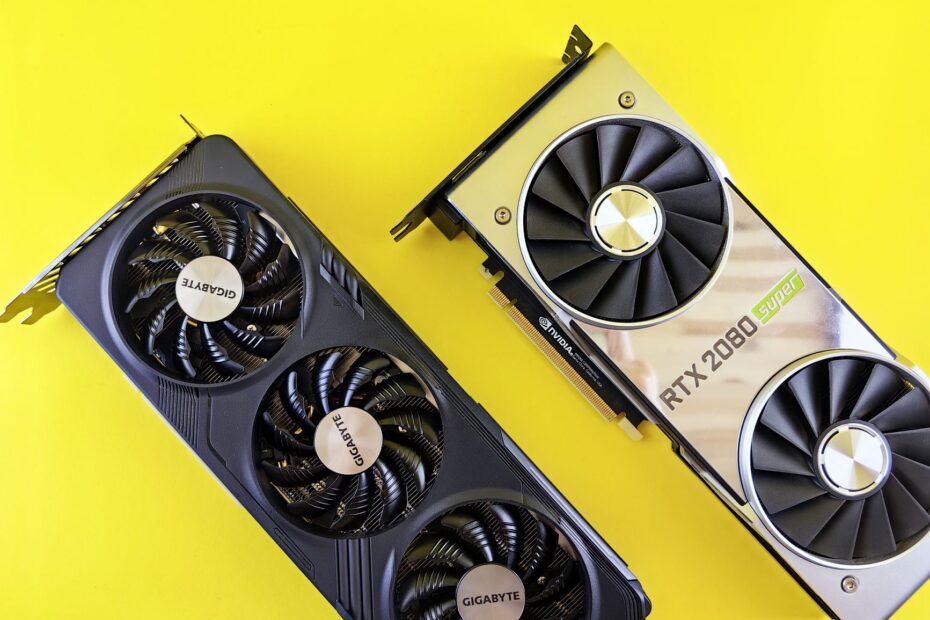
Before a frame reaches your display, the CPU prepares visual instructions and the GPU turns them into colored pixels. The graphics card handles thousands of parallel calculations, stores active image data in VRAM, and sends finished frames to your monitor.
This explanation follows the hardware, rendering path, heat limits, display connection, and setup checks that shape what you see on screen.
The GPU, Graphics Card, and Integrated Graphics Serve Different Roles
A graphics card is the full expansion board inside your desktop PC, while the graphics processing unit (GPU) is the processor chip mounted on that board. Your card also contains video random-access memory (VRAM), power circuits, cooling hardware, a PCI Express (PCIe) connector, and display outputs.
That distinction matters because the GPU performs the visual math, but the surrounding hardware keeps it powered, cooled, and connected to your monitor. A two-fan or three-fan card is not simply one chip; it is a complete visual subsystem.
| Part | Role in your PC | Visible result |
|---|---|---|
| GPU chip | Runs large batches of graphics calculations in parallel. | Games and creative software draw complex scenes faster. |
| Graphics card | Holds the GPU, VRAM, power circuits, cooler, and display ports. | Your desktop gains dedicated visual hardware and monitor outputs. |
| Integrated graphics | Places graphics hardware inside the CPU package and shares system memory. | Your PC handles desktop tasks but reaches limits in demanding 3D workloads. |
Integrated graphics appear in many Intel and AMD processors, so your PC can show Windows without a separate card. Web browsing, documents, streaming video, and light photo work fit that setup well. A dedicated graphics card becomes useful once your work includes high-frame-rate games, large 3D scenes, video encoding, AI acceleration, or GPU compute.
Card Hardware Turns Software Instructions Into Pixels
Parallel work is the reason a GPU handles visual tasks differently from a CPU. Shader cores split lighting, geometry, texture, and pixel work into thousands of smaller jobs. Your GPU processes those jobs at the same time instead of handling them one at a time.
The result is useful in a crowded game scene. A brick wall, reflective water, particle effects, and dozens of characters each add visual calculations. Your graphics card keeps those calculations moving through dedicated memory, power delivery, and cooling.
VRAM Holds Active Image Data Near the GPU
Video random-access memory (VRAM) stores textures, 3D models, frame buffers, depth data, and temporary effects data while a scene is drawn. This memory sits beside the GPU and offers far more bandwidth than ordinary system memory.
At 4K resolution, each frame contains four times as many pixels as 1080p. High-detail texture packs also occupy more memory. Your card can stutter, show texture pop-in, or force lower settings once active assets exceed available VRAM.
PCI Express Links the Card to the Motherboard
A 16-lane expansion slot carries data between the motherboard and graphics card. Your CPU sends rendering commands and scene data across that link, while the GPU returns status information. PCIe carries instructions, but it does not carry the completed picture to your monitor.
- Shader cores handle geometry, lighting, shading, and visual effects across parallel workloads.
- VRAM chips hold textures, models, frame buffers, and temporary rendering data close to the GPU.
- Voltage regulators convert PSU power into the steady low voltage required by the card.
- Cooling hardware moves heat away from the GPU so clock speeds stay stable under load.
- Display outputs send completed frames through HDMI or DisplayPort connections.
The CPU and GPU Split the Rendering Work
Each game frame starts with the CPU rather than the graphics card. Your CPU handles game rules, character movement, physics, audio timing, menus, and scene preparation. It then sends draw calls describing the objects, materials, lights, and camera position that the GPU must render.
This split explains why a stronger graphics card does not fix every frame-rate problem. At 240 Hz, your processor must prepare up to 240 frames each second. A CPU bottleneck appears when frame preparation cannot keep pace with the GPU.
Graphics Drivers Translate Application Requests
Between a running application and the GPU, software converts requests into commands the hardware can use. NVIDIA, AMD Radeon, and Intel drivers translate graphics API requests into instructions suited to the GPU. Your driver version affects stability, feature access, and behavior in a newly released game.
DirectX and Vulkan are major graphics APIs for desktop PC gaming. DirectX has close ties to Windows, while Vulkan gives developers lower-level hardware access across several operating systems. Metal serves Apple hardware, and OpenGL remains present in older software and specialist tools.
Draw Calls Carry Scene Details to the Card
- Game logic runs as your CPU updates movement, physics, menus, and game-world state.
- Scene data forms as your CPU sorts visible objects, lights, materials, and camera position.
- Draw calls leave as the graphics API and driver pass rendering instructions toward the card.
- GPU work starts as shader cores process the visual work needed for a completed frame.
How GPU rendering works depends on both processors doing their part at the right pace. Your CPU prepares the scene, then your GPU shades and rasterizes it. A fast card waits for the CPU during processor-bound scenes, while a slow card limits visual detail during GPU-bound scenes.
The Rendering Pipeline Produces Each Screen Frame
Draw calls enter a sequence that turns a 3D scene into screen pixels. Vertex processing places model points in a virtual space, then rasterization maps triangles onto your two-dimensional display. Your monitor receives pixels, not the original 3D model.
Triangles form the basic building blocks of real-time graphics because complex models can be broken into manageable surfaces. A character model, vehicle, or building becomes a large set of triangles. The GPU calculates where each visible triangle belongs in the final frame.
Shaders Give Surfaces Color and Detail
For every visible pixel, small programs read textures and material settings to set color, shine, roughness, transparency, and surface detail. Lighting calculations add direct light, shadows, fog, reflected color, and other effects. A plain cube can appear as painted metal, wet pavement, or skin.
Anti-aliasing smooths jagged edges. Post-processing can add motion blur, color grading, depth of field, or sharpening. The finished image enters a frame buffer, which is a VRAM region holding a completed frame ready for display.
Ray Tracing Uses a More Demanding Light Model
Rasterization remains the main method for real-time graphics because it draws scenes quickly. Ray tracing follows simulated light paths to improve reflections, shadows, and indirect lighting. Your card needs far more processing power for ray-traced effects than for rasterized geometry alone.
Upscaling tools reduce that load by rendering fewer internal pixels and scaling the image upward. Your final image depends on the selected resolution, rendering mode, and frame-rate target. A higher setting can look sharper yet place more work on VRAM, shader cores, and cooling.
HDMI and DisplayPort Carry the Finished Image to Your Monitor
After rendering ends, the card’s display engine scans the frame buffer and sends the image through HDMI or DisplayPort. That final path bypasses the PCI Express slot. Your display cable is part of the image chain because it carries the completed signal from the card to the screen.
| Connection | What your setup gains | What your display needs |
|---|---|---|
| HDMI | Video and audio travel through one cable. | An HDMI input with enough bandwidth for your resolution and refresh rate. |
| DisplayPort | Desktop monitors can run high refresh rates and adaptive-sync features. | A matching DisplayPort input and capable cable. |
| Adaptive-sync | The monitor adjusts its refresh timing to better match GPU output. | Compatible variable-refresh support from both card and display. |
Frame rate measures rendered frames per second, while refresh rate measures how many times your monitor redraws each second. A 144 Hz display redraws up to 144 times per second. Your game looks smoother once GPU output, monitor refresh, and synchronization settings work together.
Screen tearing appears when a monitor shows portions of two frames at once. V-Sync reduces tearing by pacing frame output, though it can add input delay. Adaptive-sync technologies from AMD and NVIDIA vary monitor refresh timing during frame-rate swings.
Smooth output also depends on the card maintaining its intended clocks under load.
Power and Heat Set the Card’s Sustained Speed
High frame rates create heat and electrical demand inside a compact area. The PCI Express slot supplies limited power, so stronger cards use dedicated PCIe power connectors from the power supply unit (PSU). Your PSU needs the required connector layout, not merely a high wattage label.
Check the card maker’s stated PSU requirement and connector count before installation. A loose 8-pin PCIe plug can cause a black screen, crashes, or sudden shutdowns under load.
Cooling Holds Clock Speeds During Long Sessions
Voltage-regulation circuitry feeds the GPU stable power, while heat sinks spread chip heat across a larger metal surface. Fans push air through those fins. Liquid coolers move heat into a radiator, though your case still needs airflow.
As temperatures rise, a graphics card can lower its clock speed to stay within safe limits. Your benchmark score can look fine during a short run yet drop during a 45-minute game session with poor case airflow. That gap points to sustained heat rather than a short burst of GPU work.
Whole-System Limits Shape Graphics Results
- GPU architecture sets the card’s feature set and raw parallel-processing capacity.
- VRAM capacity limits the high-resolution texture data your card can keep active.
- Memory bandwidth affects how quickly the GPU reads textures and frame data.
- Screen resolution raises pixel work, with 4K pushing four times as many pixels as 1080p.
- Graphics settings change shader load through shadows, ray tracing, view distance, and effects.
- CPU speed limits frame preparation in crowded scenes and high-refresh games.
Desktop Graphics Card Installation Requires Physical and Electrical Checks
A card that fits the PCI Express slot can still conflict with the rest of your system. Card length, thickness, front radiator placement, power connectors, and case clearance all matter before desktop graphics card installation. Your monitor connection also needs to move from the motherboard output to the card output.
Measure the available case space before opening the PC. Thick cards can block nearby expansion slots, while stiff power cables need room to bend without pressing against the side panel. Your motherboard manual identifies the main full-length PCIe slot for the card.
Physical and Electrical Checks Come Before Seating
- Primary PCIe slot gives your card the motherboard’s main full-length expansion path.
- Case clearance must cover card length, height, thickness, and cable bend room.
- PSU capacity must cover your card, CPU, storage, fans, and power spikes.
- Power plugs must match the card’s required 6-pin, 8-pin, or newer connector layout.
- Monitor input must match an HDMI or DisplayPort output on the installed card.
Installation Uses a Fixed Hardware Sequence
- Power down your PC, switch off the PSU, and remove the side panel.
- Seat the card in the primary PCI Express slot until the retention latch locks.
- Attach power with every required PCIe connector from your PSU.
- Move the cable from motherboard video ports to the card’s HDMI or DisplayPort output.
- Install drivers after startup, then confirm the GPU appears in Windows Device Manager.
No display after installation points to a short list of faults. Check that your monitor cable connects to the card, reseat power plugs, inspect the PCIe latch, and select the correct monitor input. BIOS display settings and conflicting graphics drivers can also cause trouble after the card is seated correctly.
Your Workload Decides Whether a Dedicated Card Makes Sense
Do you need a dedicated graphics card depends on the software you run and the display target you expect. Integrated graphics fit office apps, web browsing, streaming, and light visual work. A dedicated card earns its place in demanding games, 3D design, video editing, machine-learning tasks, and compute-heavy software.
| Setup | What it favors | Trade-off for your use |
|---|---|---|
| Desktop GPU | Stronger cooling, higher power limits, and upgrade access. | Your case, PSU, and desk space must fit a larger component. |
| Laptop GPU | Graphics hardware stays inside a compact portable chassis. | Battery capacity, heat, and lower power ceilings limit sustained speed. |
| External GPU | A Thunderbolt laptop connects to a desktop card through an enclosure. | The cable link reduces some performance and requires more desk space. |
A desktop GPU vs laptop GPU comparison comes down to cooling and electrical headroom. A desktop card has space for large heat sinks and more power. A laptop chip lives within a thin chassis, where battery draw and heat place tighter limits on sustained graphics work.
List your programs, monitor resolution, refresh target, and the exact slowdown you see. A 1080p office monitor needs far less graphics power than 4K video editing or a 165 Hz racing game. Your next hardware choice should address that specific limit instead of a vague specification.
Putting the Signal Chain Together
Your graphics card moves work through a clear sequence: the CPU prepares scene data, graphics drivers translate requests, the GPU renders, VRAM holds active assets, and HDMI or DisplayPort carries finished frames to your screen. That sequence gives you a practical way to locate a slowdown.
A low frame rate can begin with CPU preparation, VRAM capacity, heat, power delivery, graphics settings, or display configuration. The symptom matters. Stutter near a crowded city scene points to a different part of your system than a black screen after you install a card.
FAQ
How does a graphics card work in a PC?
Your CPU prepares scene data and draw calls, then graphics drivers pass those requests through the PCI Express slot. The GPU processes geometry, textures, lighting, and pixel shading in parallel. Finished frames enter VRAM, then your card sends them from HDMI or DisplayPort to your monitor.
What is the difference between a GPU and a graphics card?
Your GPU is the processor chip that performs graphics calculations. Your graphics card is the larger circuit board containing that GPU, VRAM, cooling hardware, power circuitry, display outputs, and the PCI Express connector. Integrated graphics place a smaller GPU inside your CPU package.
Is a graphics card plug and play?
Your card can display an image after installation, but full setup involves more than seating it in a slot. Your PSU needs the right PCIe power connectors, your case needs enough room, your display cable belongs in the card, and graphics drivers help avoid crashes or missing features.
Can a PC run without a dedicated GPU?
A processor with integrated graphics can keep a PC running without a dedicated card. That setup handles normal desktop work well, but shared system memory and lower graphics power limit demanding games, 3D rendering, and heavy video workloads.
Why would someone need a dedicated graphics card?
Your dedicated card has more parallel processing power and dedicated VRAM than integrated graphics. That hardware lets your PC render higher resolutions, detailed textures, advanced shadows, ray tracing, and higher frame rates. CPU-heavy games still depend on strong frame preparation from your processor.