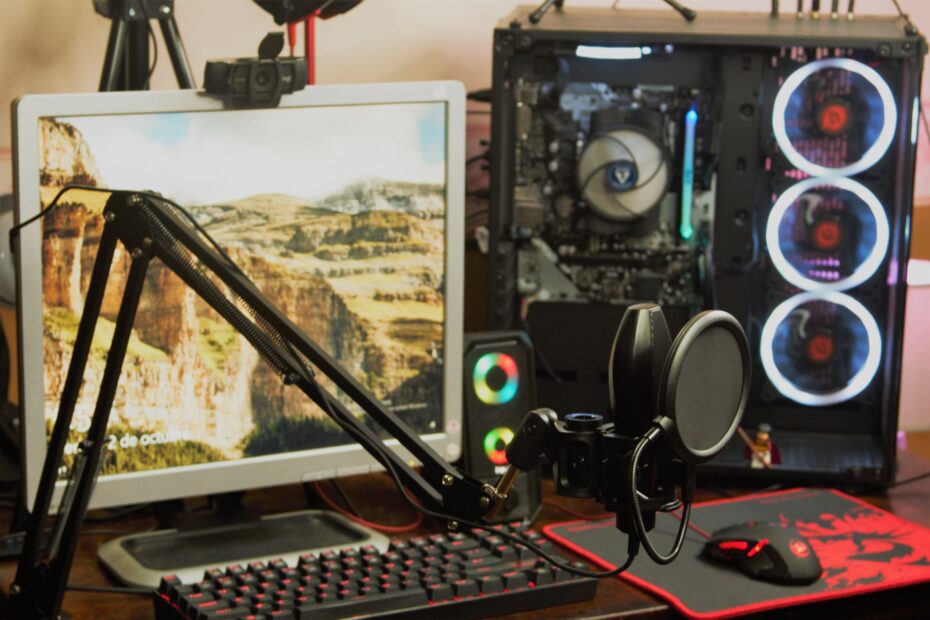
A compatible parts list guides a practical sequence: select hardware, assemble it in order, boot the system, and install software. Your initial build may resemble a box of costly puzzle pieces, yet every connector has a defined role and every manual points you toward the next task.
This walkthrough covers planning, hardware selection, assembly, BIOS/UEFI setup, operating system installation, and startup diagnosis for a desktop used for school, work, or gaming.
A PC Build Follows a Clear Hardware Sequence
Separate components become one desktop system
A desktop begins as separate hardware: a CPU (central processing unit), motherboard, RAM, SSD storage, power supply unit (PSU), CPU cooler and thermal paste, graphics hardware, and PC case. Each part has a specific job, and the motherboard links them through sockets, slots, headers, ports, and BIOS/UEFI firmware.
Your planning starts before any screw enters the PC case. CPU socket type, RAM generation, motherboard size, graphics-card clearance, and PSU connectors shape the rest of your parts list, so random hardware choices can leave you with pieces that do not fit together.
Assembly is only one stage of the process. BIOS/UEFI must detect the CPU, RAM, storage, fans, and GPU (graphics processing unit) before operating system installation can begin, and driver setup finishes the path from powered hardware to a working desktop.
Time and care matter more than prior hardware experience
Most new builders finish a standard desktop in four to eight uninterrupted hours. The slow parts are not electrical work; they involve reading a front-panel pin diagram, locating the correct fan header, and confirming that a plug faces the right direction.
Set aside a clear afternoon for the work. Your motherboard manual, case manual, cooler instructions, and PSU cable labels settle model-specific details, since header locations and mounting hardware vary between boards and cases.
Do not force a component into place. A CPU, RAM module, M.2 drive, or power plug that resists alignment needs a closer inspection rather than added pressure.
DIY value depends on the entire desktop budget
A self-assembled desktop gives you direct control over your spending. You can place more of the budget toward a GPU for gaming, larger SSD storage for video files, or a quieter cooler for a work desk rather than accepting a fixed preassembled configuration.
Building your own PC is not always less expensive than a preassembled computer. Your complete total also includes an operating-system license, monitor, keyboard, mouse, display cable, and any Wi-Fi hardware absent from the motherboard.
That comparison becomes easier after you know each component’s role. The motherboard acts as the shared connection point, so its ports, slots, and size limits deserve attention before your hardware list is complete.
Core Components Give the Desktop Its Basic Functions
Every major part has a distinct job
The CPU handles program instructions and calculations, while RAM holds short-term data for active programs. SSD storage keeps files after shutdown, and the motherboard links those components through electrical traces, sockets, slots, and firmware.
Your PSU changes wall power into the low-voltage power used by the desktop. The PC case holds the hardware in place, while the CPU cooler moves processor heat into a heatsink and fan so sustained work does not force a thermal shutdown.
| Part | What it does | What must match |
|---|---|---|
| CPU | Runs program instructions and calculations | Motherboard CPU socket and chipset support |
| Motherboard | Links components and holds ports | CPU, RAM generation, case size, storage slots |
| RAM | Holds active program data | DDR4 or DDR5 board support and paired slots |
| SSD or HDD | Stores Windows, games, files, and apps | M.2, SATA, or PCIe interface support |
| PSU | Supplies electrical power | Required wattage and connector set |
| CPU cooler | Moves heat away from the processor | Socket mount and case height clearance |
Graphics hardware should match your workload
Integrated graphics sit inside many Intel and AMD Ryzen processors and share system memory for video output. They handle web browsing, office work, streaming video, and light creative tasks, provided your chosen CPU includes graphics hardware.
A dedicated GPU has its own processor and video memory. You need one for current gaming, 3D modeling, GPU-rendered video work, machine-learning tasks, or multi-monitor setups that exceed integrated-graphics capability.
NVIDIA GeForce cards and AMD Radeon cards are common dedicated GPU examples. Connect your monitor to the graphics card after installation, because motherboard display ports route through integrated graphics and can leave a complete gaming system showing a black screen.
Small missing items can delay a finished desktop
- Display cable: Match HDMI, DisplayPort, or USB-C to both your monitor and graphics output.
- Wi-Fi path: Verify whether your motherboard includes Wi-Fi, then choose Ethernet or an expansion card where needed.
- Input devices: Keep a keyboard and mouse ready for firmware setup and operating system installation.
- Bootable USB drive: Prepare an 8 GB or larger USB installer before your new desktop reaches its initial boot.
- Case hardware: Sort screws, standoffs, and zip ties because similar-looking screws fit different threads.
- Thermal material: Inspect your cooler for pre-applied thermal paste before opening a separate tube.
Those small items lead into the most costly planning stage: choosing hardware that fits physically and electrically. A PC parts compatibility checklist catches many mistakes before shipping boxes reach your door.
Compatibility and Budget Choices Shape the Parts List
Socket, size, and connectors set hard limits
The CPU socket is the physical contact pattern beneath the processor, and it cannot be improvised. Intel CPUs and AMD Ryzen CPUs use different platforms, while processors from the same manufacturer may still need different socket families and chipset support.
Your motherboard form factor determines the PC case size. ATX boards need an ATX-compatible case, microATX boards fit smaller cases, and Mini-ITX boards suit compact systems but leave fewer expansion slots and tighter cable space.
- Match the socket: Confirm that the CPU socket and motherboard socket share the same named platform.
- Verify chipset support: Confirm that the board lists your exact processor, including any required BIOS version.
- Match RAM generation: Pair DDR4 memory with DDR4 boards and DDR5 memory with DDR5 boards.
- Measure GPU clearance: Compare GPU length and thickness against the case specification, including front radiator space.
- Measure cooler clearance: Match tower-cooler height or radiator placement to the case limits.
- Count storage connections: Confirm enough M.2 slots and SATA ports for every planned drive.
PCPartPicker can flag obvious conflicts such as a mismatched CPU socket or an oversized graphics card. Your final review still belongs in the manuals, because front fans, radiators, drive cages, and thick cables alter available space inside a PC case.
PSU cables need exact matches
PSU wattage must cover the processor, GPU, drives, fans, and short power spikes. A desktop with a 65-watt CPU and a 200-watt graphics card needs far less capacity than a high-end gaming rig, yet connector availability matters as much as the wattage figure.
| Connection | Destination | Purpose |
|---|---|---|
| 24-pin ATX | Motherboard edge | Main board power |
| CPU EPS 4+4-pin | Top edge of motherboard | Processor power |
| PCIe 6+2-pin | Many graphics cards | GPU power |
| 12V-2×6 | Some newer graphics cards | High-power GPU connection |
| SATA power | 2.5-inch SSDs, HDDs, and hubs | Peripheral power |
Never use modular cables from a different PSU, even where the plug fits. PSU-side pin layouts differ, and a borrowed cable can send power to the wrong pins.
A $1,000 parts list has clear tradeoffs
A $1,000 budget can produce a capable everyday desktop or a midrange 1080p gaming system in many US markets. Your target game settings, monitor resolution, local pricing, storage capacity, and included peripherals decide where compromises appear.
For school, browser tabs, spreadsheets, coding tools, and light photo work, you can favor a current CPU, 16 GB or 32 GB of RAM, and a 1 TB SSD. A gaming-focused system at the same budget shifts more money toward the GPU and may use a simpler case, smaller SSD, or stock CPU cooler.
Once your measurements and cost limits are settled, physical safety becomes the next layer of protection. A misplaced standoff or loose screw can cause more trouble than a modest hardware compromise.
A Controlled Workspace Reduces Assembly Errors
Preparation keeps small parts from disappearing
A kitchen table or desk with bright light gives you room to lay out hardware without losing screws. Work on a hard surface rather than carpet, keep drinks away from the parts, and open one component box at a time so packaging does not swallow small mounting pieces.
Static electricity (ESD) can damage sensitive electronics, though panic is unnecessary. Touch an unpainted metal area of the PC case or PSU housing before handling the motherboard, then repeat that contact after walking across carpet or changing clothes.
- Phillips screwdriver: Keep a medium Phillips-head screwdriver with a magnetic tip for motherboard and case screws.
- Motherboard manual: Keep the header diagram open for RAM slots, front-panel pins, and fan connections.
- Case accessory box: Separate motherboard screws, PSU screws, and standoffs before hardware enters the case.
- Cable ties: Set aside zip ties or Velcro straps for loose bundles after every connection works.
- Thermal paste: Keep a small tube nearby only where your selected cooler lacks pre-applied compound.
- USB installer: Prepare operating system media on another computer before assembly begins.
Standoffs keep the motherboard away from bare metal
Metal standoffs hold the motherboard above the case tray. Each standoff belongs beneath a matching mounting hole, leaving clearance between delicate solder points and the metal chassis.
Inspect the tray before lowering the board into place. An extra standoff beneath blank motherboard material can create an electrical short, while a missing standoff lets the board flex as you seat RAM or attach the 24-pin cable.
With the workspace ready, assemble the motherboard core outside the case. That open surface leaves room around the CPU socket, RAM latches, and M.2 screw.
Assemble the Motherboard Core Before Case Installation
The CPU belongs in the socket before the board enters the case
Lift the socket retention arm, align the tiny CPU orientation marker with the matching socket mark, and lower the chip straight down. The processor should settle under its own weight without sideways movement or pressure.
Your CPU socket is among the most fragile areas in the desktop. Bent pins on many AMD processors, or damaged contact pins inside many Intel motherboard sockets, can stop startup and lead to a costly replacement.
Close the retention mechanism after the CPU sits flat. Some socket covers pop loose during this step on Intel boards, and that behavior is normal; retain the packing materials until your desktop runs correctly.
RAM and SSD storage need their intended slots
Install the M.2 SSD before the motherboard enters the PC case, because a large GPU or cooler can block access later. Remove an M.2 heatsink only where the motherboard manual directs it, peel thermal-pad film only where present, then secure the drive with its small retaining screw.
RAM slots have side latches and a notch that fits only one direction. Your motherboard manual identifies the paired slots for two memory modules, commonly A2 and B2, and that layout enables dual-channel memory operation.
Press each RAM module down evenly until the latches lock. A module that looks seated but misses one latch is a common reason that a new desktop reports missing memory at startup.
Cooling completes the processor heat path
Thermal paste fills microscopic gaps between the CPU heat spreader and the cooler base. Use pre-applied paste where your cooler already has it; otherwise, a pea-sized dot in the center suits most mainstream desktop processors.
Mount the cooler with even pressure by tightening opposing screws in small turns. Plug its fan into the CPU_FAN header rather than a random case-fan header, because BIOS/UEFI uses that header to track processor cooling.
- Seat the CPU: Align the markers, lower the chip without force, and lock the socket mechanism.
- Fit the M.2 drive: Insert the SSD at an angle, lower it gently, and fasten its retaining screw.
- Install RAM: Use the manual’s paired slots and press until both retention clips engage.
- Add thermal paste: Skip this task where paste already covers the cooler contact plate.
- Mount the cooler: Tighten evenly and attach the cooler fan to the CPU_FAN header.
That motherboard assembly is ready for the standoffs you reviewed earlier. The remaining hardware is less delicate but more crowded, especially around power leads and front-panel connectors.
Case Installation Brings the Hardware Together
The PC case determines mounting direction and airflow
Mount the PSU with its fan facing the case ventilation intended for it. A bottom vent with a dust filter normally calls for a downward-facing fan, while a solid bottom panel calls for the fan to face into the case interior.
Lower the motherboard onto the standoffs without scraping it against sharp case edges. Secure each screw until snug, then stop; overtightening can damage threads or bend the circuit board.
Airflow works best as a clean path through the case. Front or bottom fans bring cooler air inward, while rear or top fans exhaust warm air and feed the CPU cooler and GPU with steadier airflow.
Front-panel headers need the motherboard diagram
The 24-pin motherboard cable and CPU EPS cable power separate circuits, and their sockets sit in different places. Route both before installing a large graphics card, because the EPS socket near the upper edge becomes awkward in a crowded case.
Front-panel connectors control the case power switch, reset switch, drive light, and power light. Their labels are tiny, so follow your motherboard pin map rather than guessing from wire color or cable length.
| Case connection | Motherboard location | Common mistake |
|---|---|---|
| Power switch | Front-panel header | Placing it on LED pins |
| Front USB | USB 2.0, USB 3.x, or USB-C header | Forcing a keyed plug backward |
| Front audio | Audio header near lower edge | Using an older AC’97 plug instead of HD Audio |
| Case fan | SYS_FAN or CHA_FAN header | Leaving a fan unplugged |
| SATA data | SATA motherboard port | Confusing data with SATA power |
Attach case-fan leads to SYS_FAN or CHA_FAN headers. RGB connectors deserve extra care because 5-volt three-pin and 12-volt four-pin systems are not interchangeable, and forcing the wrong type can damage lighting hardware.
The graphics card completes the main hardware path
Place the GPU in the upper full-length PCIe x16 slot unless your motherboard manual states another slot. Remove the correct rear expansion covers, press the card down until the slot latch catches, then secure the bracket with case screws.
Your graphics card may need one or more PCIe power leads or a 12V-2×6 connection. Seat each plug fully, avoid sharp bends near the connector, and follow the GPU maker’s cable-routing instructions.
Cable management belongs after a successful startup rather than before it. Leave the side panels off, inspect every plug visually, and connect the display cable to the GPU output so your initial boot can show useful information.
Initial Boot Confirms the Hardware and Starts Software Setup
BIOS/UEFI verifies the physical assembly
A successful power-on should spin fans and show a firmware screen within seconds, though initial memory training can take longer on some DDR5 systems. Press the displayed key, commonly Delete or F2, to enter BIOS/UEFI setup.
Your firmware screen should list the correct CPU model, total installed RAM, SSD, connected fans, and processor temperature. A CPU temperature that rises rapidly at idle points toward a cooler issue, while a missing drive points toward an M.2 seating or storage-port issue.
- Verify CPU detection: Confirm that the processor name appears correctly before loading an operating system.
- Verify RAM capacity: Match the reported memory against the number and size of your installed modules.
- Verify storage detection: Confirm that your intended Windows drive appears in the storage list.
- Verify fan speed: Confirm that CPU_FAN reports a speed and that case fans spin in the intended direction.
- Verify temperatures: Look for a calm idle CPU temperature rather than a fast climb toward thermal limits.
Memory profiles and boot media follow stable startup
Start with a stable basic boot before enabling an XMP or EXPO memory profile. XMP is common on Intel-oriented memory kits, while EXPO is designed around AMD platforms; both load the rated speed and timings stored on the RAM module.
Your motherboard can run memory at a conservative default speed until that profile is enabled. Save the setting, restart the desktop, and return to BIOS/UEFI only after the system reaches a stable screen without repeated resets.
Select the USB installer as the boot device, then choose the intended SSD during operating system installation. Disconnecting extra storage drives during this stage avoids placing boot files on a secondary drive by accident.
Drivers give detected hardware its full function
Install chipset, network, audio, and graphics drivers from manufacturer download locations. A graphics driver lets the GPU deliver proper gaming performance and display features, while chipset software helps the operating system communicate with motherboard controllers.
Run Windows Update after driver installation, then review BIOS updates carefully. A BIOS update can add CPU support or improve stability, but it needs stable wall power and must not be interrupted.
Create a recovery drive or restore option after the desktop is configured. That preparation makes future storage trouble less disruptive, while normal work and gaming reveal whether the system stays stable beyond the firmware screen.
Validation and Structured Troubleshooting Confirm Stability
Normal workloads reveal heat and stability problems
Watch temperatures during idle time, a game session, video export, or the work that matters most to you. Fans should change speed smoothly, storage should remain visible, and the desktop should not restart, freeze, or make repeated clicking sounds.
Your CPU and GPU temperatures depend on room temperature, case airflow, workload, and cooler design. Sudden thermal spikes, harsh fan noise during light work, or shutdowns under stress need attention before you trust the system with long gaming sessions or work files.
Verify RAM capacity and SSD space in the operating system after setup. A 32 GB kit reported as 16 GB, or a missing secondary drive, points toward a seating, slot-selection, cable, or firmware issue.
Common symptoms follow a logical inspection order
| Symptom | Likely inspection | Next action |
|---|---|---|
| No power at all | Wall outlet, PSU switch, 24-pin, CPU EPS | Inspect front-panel power-switch pins |
| Fans run, no display | Monitor input and GPU display cable | Reseat RAM and graphics card |
| Repeated restart cycle | RAM seating or memory profile | Start with one RAM module at default settings |
| High CPU temperature | Cooler pressure and CPU_FAN connection | Remount cooler and inspect paste coverage |
| Drive missing | M.2 screw, SATA data, SATA power | Inspect firmware storage settings |
No power calls for a physical path inspection: wall source, PSU rear switch, 24-pin connector, CPU power connector, then front-panel power-switch pins. A screwdriver can briefly bridge the two power-switch pins named in the motherboard manual, isolating a questionable case switch.
No display needs a different path. Confirm that the monitor uses the correct input, attach its cable to the dedicated GPU, reseat the GPU, then test one RAM stick in the motherboard manual’s preferred single-module slot.
Change one item between restarts
Motherboard diagnostic LEDs and beep codes narrow POST troubleshooting. A CPU, DRAM, VGA, or boot light shows which stage stopped, so you can inspect that area rather than removing every part at once.
Remove nonessential USB devices, extra drives, and decorative RGB hubs during diagnosis. Keep the CPU, cooler, one RAM module, GPU where needed, PSU, and monitor connected until the system reaches BIOS/UEFI reliably.
Do not change three settings between restarts. One altered cable, module, or firmware setting gives you a clear result; several changes erase the clue that could have identified the fault.
That measured sequence is how to build a PC from scratch without treating a blank display as a disaster. Hardware symptoms become manageable after every cable and component has a known job.
Final Thoughts on a Successful PC Build
Your desktop becomes dependable through planning, compatible part selection, careful physical work, and a calm startup routine. Start with your motherboard platform and workload, verify dimensions and PSU connectors, assemble the core parts outside the case, then use BIOS/UEFI and controlled troubleshooting to confirm every connection.
Patience matters more than speed. Your manuals, a clear workspace, and one change at a time turn a complex group of parts into a desktop that you understand well enough to maintain.
FAQ
How does building a PC from scratch work from choosing parts to turning it on?
A typical first build needs a compatible CPU, motherboard, RAM, storage, PSU, case, cooler, and GPU where needed. You assemble the motherboard core, mount it in the case, attach power and front-panel cables, enter BIOS/UEFI, verify hardware detection, and complete operating system installation.
Is it difficult to build a PC from scratch?
Building a PC from scratch is manageable for you without prior hardware experience when you reserve four to eight uninterrupted hours and follow each component manual. The hardest parts are compatibility checks, CPU orientation, front-panel connectors, and diagnosing a missed cable, not advanced electrical work.
What parts do I need to build a complete PC?
All parts needed to build a PC include a CPU, compatible motherboard, RAM, SSD storage, PSU, PC case, CPU cooler, operating system, display, keyboard, mouse, cables, and a GPU where your workload requires one. Your motherboard may also need Wi-Fi hardware where Ethernet is unavailable.
How do I make sure a CPU, motherboard, RAM, GPU, case, and PSU are compatible?
A PC parts compatibility checklist starts with the CPU socket and motherboard chipset, followed by DDR4 or DDR5 RAM support, motherboard form factor, GPU length, cooler height, storage connections, and PSU connectors. PCPartPicker can flag basic conflicts, while your manuals settle exact BIOS, clearance, and cable details.
Is it really cheaper to build your own PC than buy a prebuilt computer?
Building your own PC can cost less when you select parts around a specific use, avoid unwanted extras, and reuse a monitor or storage drive. Your total can exceed a preassembled system after adding Windows 11, peripherals, Wi-Fi hardware, shipping, and tools you do not already own.
IsFAQ
,000 enough to build a good PC for gaming or everyday use?
A