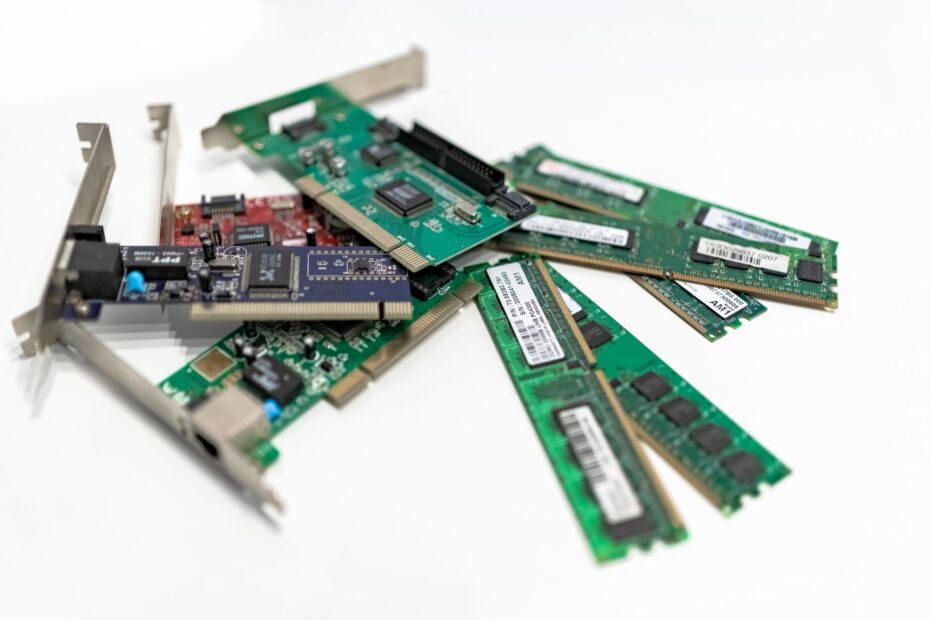
A motherboard’s socket, power headers, firmware, and expansion lanes must align for hardware to start, communicate, and operate together. A processor may fit its CPU socket yet stop at a black screen because the motherboard BIOS lacks that CPU’s required version. Your case is only one part of the equation.
This explanation walks you through platform selection, RAM, PCIe lanes, storage, cooling, power cables, and the exact checks that turn a parts list into a working desktop.
Compatibility Depends on Interfaces, Limits, and Hardware Lists
A desktop works as a chain. The CPU communicates through the motherboard chipset, the board routes data to RAM and storage, the PSU supplies power, and the PC case holds every installed part. Your hardware needs matching interfaces, dimensions, power leads, and firmware.
PC component compatibility means every item can connect, fit, receive power, boot, and perform its assigned role without blocking a needed feature. Hard conflicts stop installation or startup. Softer conflicts still allow operation but restrict transfer speed, ports, expansion slots, or upgrade room.
| Part relationship | What must match | Result of a mismatch |
|---|---|---|
| CPU and motherboard | Socket, chipset, and BIOS version | The system may fail to boot |
| RAM and motherboard | DDR generation, DIMM capacity, and slot layout | Modules may not install or run at rated settings |
| GPU and case | PCIe slot, card clearance, and power leads | The card may connect electrically but fail to fit physically |
| M.2 drive and board | Drive length, key type, and NVMe or SATA interface | The drive may remain undetected |
| PSU and system | Continuous wattage, connectors, and enclosure format | Startup trouble or cable shortages may follow |
An NVIDIA graphics card in a PCIe 4.0 slot can run in a PCIe 3.0 motherboard because PCI Express generations communicate across versions. Your card runs at the fastest speed shared by both connections. DDR4 and DDR5 do not work that way because their DIMM slots use different physical and electrical designs.
The motherboard sets the next set of rules. Its CPU socket, RAM generation, PCIe lanes, storage interfaces, headers, and form factor shape your compatible PC parts list before you select a GPU, cooler, or power supply.
The Motherboard Platform Sets Fixed Hardware Rules
The CPU Socket Defines the Processor Match
Start with the processor and motherboard as a matched pair. Intel and AMD use different socket families, and a processor seats only in the exact socket built for it. Your CPU socket is a mechanical and electrical requirement, not a broad size label.
A motherboard chipset controls available features such as USB ports, storage links, overclocking controls, and PCIe lane layouts. A board may share a socket with a processor yet lack the BIOS version required for that exact CPU model. Your part numbers matter more than a broad processor generation label.
| Platform detail | What you verify | Why it affects your system |
|---|---|---|
| CPU socket | Exact socket family listed by CPU and board | Pin layout and electrical contacts must match |
| Motherboard chipset | Feature set and CPU family coverage | Storage and expansion options vary by chipset |
| BIOS or UEFI version | Required version beside the exact CPU model | Older firmware can stop startup |
| CPU revision notes | Stepping or production revision comments | Rare revisions may carry separate requirements |
The CPU List Settles Firmware Questions
Open the board maker’s CPU list and locate the exact processor instead of a similar model name. That page names the required BIOS version and may reveal a motherboard revision difference. Your box label or board sticker may show shipped firmware, but retail inventory can vary.
A physically correct CPU can still produce no display on an older BIOS. Choose a motherboard with BIOS Flashback where practical because that feature permits a firmware update without an older working CPU installed.
- Match the socket: Confirm that your CPU and motherboard list the identical socket name.
- Read CPU notes: Locate your exact model in the motherboard maker’s processor database.
- Check firmware: Match the required BIOS number against the board’s shipped version.
- Count board headers: Confirm enough fan, USB, RGB, and front-panel connections for your hardware.
- Map expansion slots: Review PCIe slots and M.2 sockets before selecting add-in hardware.
With the platform fixed, RAM becomes a narrow choice rather than a broad category. Your motherboard DIMM slots define the RAM generation before speed ratings enter the picture.
Memory Matching Extends Beyond the DDR Label
DDR4 and DDR5 Use Different Slots
The offset notch on a DDR5 module differs from DDR4, along with signaling, voltage behavior, and memory controllers. A DDR4 stick cannot enter a DDR5 DIMM slot, and a DDR5 stick cannot enter a DDR4 board. Your processor platform and motherboard determine this choice together.
| Memory detail | DDR4 platform | DDR5 platform |
|---|---|---|
| Slot design | DDR4 DIMM slot | DDR5 DIMM slot |
| Module interchange | Accepts DDR4 only | Accepts DDR5 only |
| Profile type | XMP is common | XMP or AMD EXPO may appear |
| Board documentation | Lists capacity and speed limits | Lists capacity and speed limits |
Memory speed printed on the package is a profile target, not a promise at every DIMM count. Four DIMMs place more load on the memory controller than two. Your motherboard memory list offers useful examples, though a kit outside that list may run at a lower setting.
Matched Kits Reduce Timing Conflicts
Buy RAM as one matched kit instead of mixing two kits with the same label. Separate kits may use different memory chips, timings, or voltage settings. Your system may start, yet firmware may choose slower values to keep all modules stable.
Slot placement matters as well. Two sticks belong in the paired sockets named in the motherboard manual, commonly A2 and B2. That layout activates dual-channel operation, giving your CPU two paths to system memory instead of one.
Do not chase the largest frequency number before checking capacity, stick count, and profile compatibility. A stable 32 GB kit in the correct slots serves your workload better than unstable settings that lead to repeated resets.
Memory settings point toward the next hardware limit. Every fast device needs a route back to the processor, and storage drives or add-in cards use the board’s PCIe lane map for that route.
PCIe Lanes and Storage Paths Share Finite Connections
Slot Length and Lane Count Are Different Details
A full-length x16 slot describes the plastic connector size, not always the number of live PCIe lanes behind it. Compact boards may use an x16-length slot wired for x4 lanes, while larger boards may split processor lanes between two physical x16 slots. Your motherboard manual lists the electrical lane count.
PCIe 5.0, 4.0, and 3.0 hardware communicates across generations on most desktop platforms. A PCIe 4.0 SSD in a PCIe 3.0 connection works at PCIe 3.0 speed. Your graphics card follows the same fastest-shared-link rule.
| Connection item | What you inspect | Possible trade-off |
|---|---|---|
| Primary GPU slot | Length, electrical lanes, and slot position | A lower slot may share lanes or sit near the case floor |
| Upper M.2 socket | NVMe generation and drive lengths | It may use processor lanes reserved for storage |
| Lower M.2 socket | NVMe or SATA mode and key type | It may disable SATA ports |
| PCIe add-in slot | x1, x4, or x16 electrical wiring | A wide GPU may cover nearby slots |
M.2 Names the Shape, Not Every Storage Interface
M.2 refers to the small card shape, not one storage interface. An M.2 drive may use NVMe over PCIe or SATA signaling, and each motherboard socket lists the accepted type. Your drive length matters too: 2280 marks an 80 mm module.
Lane-sharing notes deserve careful reading. Filling a certain M.2 socket may disable two SATA ports, reduce a lower expansion slot, or reserve bandwidth through a chipset path. That detail can escape a PC compatibility checker even after every listed part appears compatible.
Take an ATX board with four SATA ports and three M.2 sockets. Installing an NVMe drive in M.2_2 may shut off SATA_5 and SATA_6. Your planned SATA hard drive then needs another port rather than another cable.
Electrical matching still leaves a physical concern. A motherboard, GPU, CPU cooler, and radiator may all match on paper yet collide inside the enclosure.
Case Dimensions and Cooling Decide Physical Fit
Motherboard Form Factor Sets Mounting Limits
ATX, Micro-ATX, and Mini-ITX describe motherboard dimensions and mounting patterns. A PC case must list the exact form factor it accepts. Your smaller board does not fit every smaller enclosure because some cases accept Mini-ITX only.
| Physical measurement | Where you find it | What you compare |
|---|---|---|
| Motherboard form factor | Case and board specifications | ATX, Micro-ATX, or Mini-ITX mounting support |
| GPU length and height | GPU drawing and case clearance chart | Card body plus front radiator space |
| GPU thickness | GPU slot count | Open expansion positions and airflow room |
| CPU cooler height | Cooler and case specifications | Maximum air-cooler clearance |
| Radiator dimensions | Cooler chart and case layout | Mount location, fan thickness, and tube path |
Published Clearance Figures Need Extra Room
Graphics card clearance involves more than card length. Tall cards may press against a side panel, while thick cards use three or four expansion positions. Your PCIe power plug also needs bend room, especially with 12V-2×6 cables that should not fold sharply beside the connector.
Front-mounted radiators reduce usable GPU length because the radiator and fans sit in the card’s path. A listed 360 mm front mount may use 52 mm or more after adding a 27 mm radiator and 25 mm fans. Your case diagram should list the reduced GPU limit.
Air coolers create a different collision point. A tall front fan may hang over the nearest RAM slot, forcing a higher fan position and greater side-panel clearance. Your CPU cooler mounting hardware must match the CPU socket, while its base needs room around tall heatsinks.
Leave 10 to 20 mm beyond a published graphics card length where the enclosure layout allows it. A cable grommet, radiator tube, or front fan frame can erase clearance that appeared comfortable in a specification table.
Those measurements decide whether hardware enters your case. PSU wattage and cable count then decide whether each installed device receives power through the proper lead.
Power Delivery Needs Wattage, Connectors, and Headroom
Continuous Output Matters More Than One Estimate
PSU wattage must cover sustained CPU and GPU demand, storage, fans, pumps, and USB devices. Leave room above estimated load because modern graphics cards can draw brief spikes beyond average use. Your system runs with less strain when the PSU stays below its label limit.
A 250 W graphics card and a 125 W processor do not equal a 375 W computer. Motherboard power, fans, drives, and short bursts add to that figure. Your 650 W or 750 W choice depends on the full parts list and the GPU maker’s stated guidance.
| Power connection | Hardware served | What you verify |
|---|---|---|
| 24-pin ATX | Motherboard | The PSU includes the main board cable |
| 8-pin EPS or 4+4 EPS | CPU power socket | The board’s required CPU power sockets are covered |
| PCIe 6+2-pin | Many graphics cards | Enough separate plugs exist for the GPU |
| 12V-2×6 | Some newer high-power GPUs | The cable reaches without a tight side-panel bend |
| SATA power | 2.5-inch drives, hubs, and controllers | Enough plugs reach each installed device |
Connector Count Can Override PSU Wattage
A high-watt PSU without enough GPU leads is the wrong match for a card that needs three 8-pin connections. Adapters can work within the GPU maker’s stated limits, though they add cable bulk and need careful seating. Your GPU manual states the required connector arrangement.
Small-form-factor cases add another limitation. An SFX PSU fits numerous compact layouts, while a full ATX unit may block airflow or drive mounts. Your case specification lists accepted PSU length, and modular cable sockets need room behind the unit.
Never reuse modular cables from a different PSU model. The plugs may fit at the PSU end while internal pin wiring differs, which can damage connected hardware. Your replacement cable must come from the same PSU cable family.
After power, the remaining conflicts come from process rather than broad specifications. Automated part lists catch basic mismatches, but revision labels, cable bends, and lane-sharing notes still need your attention.
Compatibility Checkers Work as a Verification Layer
Automated Lists Catch Basic Conflicts
PCPartPicker and similar tools flag socket mismatches, memory generation errors, form-factor conflicts, and rough power estimates. They help you shape a starting list. Your selections still need a manual review against manufacturer specifications for every exact model.
A PC compatibility checker cannot reliably account for a front radiator reducing GPU room, a BIOS version shipped with shelf inventory, or a blocked SATA port. Those details appear in motherboard manuals, case diagrams, and PSU connector charts.
A Fixed Review Order Reduces Oversights
- Start with platform: Match CPU socket, motherboard chipset, and BIOS version for the exact processor.
- Set RAM rules: Choose the board’s DDR generation, stick count, capacity, and profile type.
- Map storage paths: Match each M.2 drive to socket type, length, keying, and lane-sharing notes.
- Place expansion hardware: Confirm GPU slot access, electrical lanes, and open positions for add-in cards.
- Measure the enclosure: Compare card, cooler, radiator, fan, and cable dimensions with case drawings.
- Count power leads: Match motherboard, CPU, GPU, SATA, and peripheral connectors to the PSU.
Manufacturer documentation settles conflicts between a tool and a product listing. Your motherboard manual carries the port-sharing map, while its processor list names firmware requirements. RAM QVLs work as reference points rather than a complete catalog of usable kits.
That order shows you how to check PC parts compatibility without trusting one score or warning icon. Your final review should turn every broad claim of fit into a part number, measurement, BIOS version, or connector count.
A Pre-Purchase Audit Finds Details Tools Miss
Exact Model Details Matter at Checkout
Put your final parts list beside the manuals before spending money. PC component compatibility can fail in small details: a motherboard revision, an M.2 port label, a 3.5-slot GPU, or one missing EPS connector. Your audit should name every item rather than rely on category labels.
- CPU firmware line: Match your exact processor to the board’s required BIOS version and update method.
- RAM kit code: Confirm DDR generation, capacity, stick count, speed, and XMP or EXPO profile.
- M.2 sharing map: Mark SATA ports or PCIe slots lost after each SSD installation.
- GPU dimensions: Include length, height, thickness, and required cable bend room.
- Cooling layout: Account for radiator position, fan depth, RAM height, and socket mounting hardware.
- PSU cable count: Count EPS, PCIe, 12V-2×6, SATA, and motherboard leads separately.
Budget Changes Capability Rather Than Basic Rules
A $1,000 desktop can be fully compatible, though that budget creates trade-offs among graphics speed, storage capacity, cooling noise, and future expansion. Your workload decides where the money belongs. Windows 11 office work, 1080p gaming, video editing, and local AI tasks place very different demands on the same budget.
A modest AMD CPU, Micro-ATX motherboard, 32 GB DDR5 kit, 1 TB NVMe drive, and midrange GPU can fit near that figure during favorable local pricing. A larger GPU, extra SSD, or quieter cooler can push the total higher. Your parts should serve the work you plan to do rather than a generic target list.
Common errors are plain but expensive: assuming every M.2 socket accepts every drive, ignoring radiator-related GPU clearance, and trusting wattage without counting cables. Your careful review makes those limits visible before boxes arrive.
Final Hardware Check
The strongest parts list starts with a compatible CPU and motherboard, then follows every dependency through RAM, storage lanes, physical room, cooling, and power leads. Your desktop does not need the highest specification in every category. It needs each connection, measurement, and firmware requirement to agree with the hardware around it.
FAQ
How do I know whether PC parts are compatible with each other?
Start with the CPU and motherboard, then verify the exact socket, chipset, and BIOS requirement. Your next checks cover DDR generation, M.2 interface and lane sharing, GPU clearance, CPU cooler fit, PSU connectors, and PC case form factor. Manufacturer manuals settle details that automated tools cannot see.
Do PC parts have to be compatible?
Yes. Parts must meet electrical and physical requirements to start and run correctly. Your CPU needs the right socket and firmware, DDR4 and DDR5 cannot share slots, and a graphics card needs both an accessible PCIe slot and the required power connectors.
Can any graphics card work with any motherboard?
Most modern graphics cards work with a motherboard that has an accessible PCIe x16-length slot because PCI Express versions communicate across generations. Your case clearance, slot lane wiring, GPU thickness, power connectors, and PSU capacity still decide whether the card suits your system.
How do I calculate how much PSU wattage and which power connectors I need?
Add CPU and GPU demand, then include motherboard power, storage, fans, pumps, and room for brief graphics-card spikes. Your PSU needs enough continuous output plus every required EPS and GPU connector. A wattage estimate alone does not confirm that your cables match the hardware.
Can DDR4 RAM work in a DDR5 motherboard, or vice versa?
No. DDR4 and DDR5 use different DIMM slot shapes, electrical standards, and memory controllers. Your DDR5 motherboard accepts DDR5 modules only, while a DDR4 motherboard accepts DDR4 modules only. The notch positions stop an incorrect module from seating in the slot.
How can I tell whether a CPU cooler and graphics card will fit inside my case?
Compare the case clearance chart with your cooler height, GPU length, GPU height, GPU thickness, radiator dimensions, fan depth, and cable bend room. Your front radiator may reduce usable graphics card length by more than 52 mm after adding a 27 mm radiator and 25 mm fans.