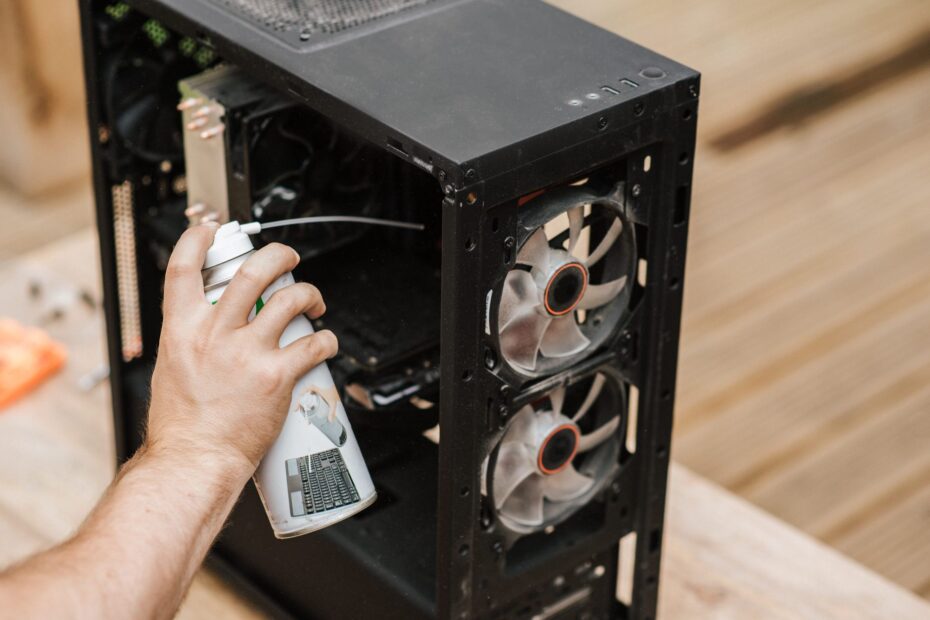
A clogged front intake can turn dust into a heat-management problem, raising CPU and GPU temperatures and triggering thermal throttling that lowers clock speeds. Your desktop does not lose speed because dust uses memory; it slows after a clogged cooler cannot move heat into case airflow.
This covers heat, noise, FPS, inspection, and cleaning choices for desktop owners who need to judge whether dust has become a cooling problem.
Dust Creates Performance Loss Through Heat
Dry household dust does not consume CPU cycles, fill RAM, or directly slow storage. Performance loss begins at the cooling system, where debris narrows the route room air needs to travel through your case.
The chain is direct: dust restricts airflow, component temperatures rise, and protective firmware lowers clock speeds. CPUs and GPUs use thermal throttling to reduce heat output before silicon reaches an unsafe operating point.
Surface Dust and Blocked Cooling Paths Are Different
A light film on tempered glass or a cable sleeve is mainly cosmetic. Dust packed into intake filters, fan blades, heatsink fins, radiator channels, or GPU shrouds changes how much heat your PC can move out of the case.
Your highest-priority areas sit where air enters, crosses a heatsink or radiator, and exits. A gray mat over a front dust filter can restrict cooling more than a thicker layer resting on the power-supply shroud.
Residue and Moisture Create a Separate Risk
Ordinary dry dust is not strongly conductive, so it rarely causes an electrical fault on its own. Smoke residue, moisture, pet oils, and metallic debris change the situation because they can leave sticky deposits or conductive paths on exposed surfaces.
Do not power a PC with visible moisture, residue, or debris lodged around exposed circuitry. Remove power and clear the contamination before normal use resumes.
Restricted Airflow Raises Temperatures Across the Case
That blocked intake path affects every part that depends on moving air. Cool air enters through intake fans, passes over hot hardware, and leaves through exhaust fans; a clogged filter forces case fans to pull against resistance rather than feed the CPU cooler and GPU with fresh room air.
Heatsink fins need open gaps between them. Dust fills those gaps like felt in a coat, reducing the metal surface exposed to moving air and slowing heat transfer from a CPU cooler, GPU cooler, or radiator.
| Location | Dust effect | What you may see |
|---|---|---|
| Front intake filter | Less cool air enters the case | Your case fans run harder at idle |
| CPU heatsink fins | Heat stays around the processor cooler | Your CPU temperature rises during long workloads |
| GPU heatsink | Graphics cooling loses surface airflow | Your frame rates dip after several minutes |
| Radiator fins | Fan pressure cannot pass through the radiator well | Your liquid cooler becomes louder |
| PSU intake | Power-supply ventilation weakens | Your PSU exhausts hotter air |
Fan curves react to higher sensor readings by raising fan RPM. You hear that response as a constant whoosh or sharper fan tone, even during work that once left your PC quiet.
CPU, GPU, Fans, and the PSU Respond Differently
Long workloads reveal where restricted cooling reaches its limit. Your CPU can lose sustained boost clocks during a Blender render, a large code compile, or a video export after debris insulates its cooler.
| Part | Dust-related effect | Practical result for you |
|---|---|---|
| CPU cooler | Restricted fin airflow raises processor heat | Your sustained clocks can fall during heavy tasks |
| GPU cooler | Blocked heatsink forces higher fan speed | Your gaming can stutter or lose FPS |
| Case fans | Dirty blades move less air and collect imbalance | Your system becomes noisier |
| Power supply unit | Blocked intake limits internal ventilation | Your PSU runs hotter, with no easy internal access |
Gaming Reveals GPU Cooling Limits
Games hold graphics hardware under load for 20 minutes or longer, making GPU blockage easy to spot. Your dusty PC gaming performance can include lower frame rates, uneven frame pacing, stutter, and a fan curve that stays near its upper range.
A CPU bottleneck behaves differently. Frame rates can stay steady in a graphics-heavy scene while simulation-heavy areas, shader compilation, or large multiplayer matches drop after processor heat builds.
Fans and Power Supplies Need Different Care
Dusty blades lose aerodynamic efficiency, while worn bearings can add clicking, buzzing, or grinding sounds. Your fan noise is not always dust, since a failing bearing can stay loud after the blades are cleared.
Clean only the outside of a power supply unit (PSU) intake and exhaust grille. Never open the PSU housing, because capacitors inside can retain hazardous electrical charge after your PC has been unplugged.
Visible Blockage and Changed Behavior Signal a Problem
A thin, even coating rarely calls for an urgent cleanup. Trouble starts once debris forms mats over filters, bridges heatsink fin gaps, or gathers around GPU fans where air should enter.
- Persistent fan roar suggests that your cooling system is compensating for higher sensor readings.
- Hot idle exhaust points to poor heat removal without a demanding workload.
- Rising idle temperatures show that your PC has less cooling headroom than its normal baseline.
- Gaming stutter can appear after GPU clock speeds fall under sustained heat.
- Crashes or shutdowns signal a heat issue severe enough to interrupt stability.
- Visible fin blockage shows that dust has moved beyond a harmless surface layer.
Your answer to how to tell if a PC is too dusty should rest on obstruction, not appearance alone. A gray filter that still passes air needs less attention than a radiator whose fin channels have disappeared beneath packed lint.
Heat is not the only possible cause. Failed case fans, dried thermal paste, poor cable placement, malware, a full storage drive, unstable memory, or aging hardware can also slow your PC or cause crashes.
Because several faults can produce similar symptoms, measured thermal behavior helps identify dust as the likely driver.
Do not blame dust solely because your PC looks dirty. Temperature and clock-speed readings separate a cooling fault from a software or hardware fault.
Temperature and Clock-Speed Checks Separate Cause From Coincidence
Numbers reveal a dust-related limit better than a quick look inside the case. Record CPU/GPU temperatures, clock speeds, fan RPM, and workload performance before removing a single filter.
Use the same workload before and after cleanup. Your familiar game benchmark, a 15-minute render, a Cinebench loop, or a long compile gives you a more useful comparison than opening a web browser.
| Reading | Before cleaning | After cleaning |
|---|---|---|
| CPU package temperature | Record sustained-load value | Look for a lower stable value |
| GPU temperature | Record after 10 to 15 minutes | Check for reduced heat buildup |
| Core clock speed | Record sustained clocks | Check for fewer heat-driven drops |
| Fan RPM | Record fan response under load | Look for quieter operation during the same task |
| Frame rates | Record average and low FPS | Check for steadier gameplay |
Short temperature spikes tell you little. Airflow restriction becomes clearer after several minutes, once the heatsink, case air, and GPU cooler have absorbed enough heat to reach a sustained state.
Lower temperatures and fan RPM still matter where desktop work feels unchanged. Your PC gains thermal headroom, which can reduce instability during a demanding task later that day.
When the readings point to heat rather than another fault, careful cleaning becomes the appropriate corrective step.
Safe Cleaning Restores Cooling Without New Damage
Start with a powered-down, unplugged system in a ventilated area. Your components should cool before you open the side panel, and the PSU switch should stay off through the cleanup.
- Remove dust filters and clear them away from the open case so loose debris does not blow back inside.
- Ground yourself by touching unpainted case metal before reaching near the motherboard, GPU, or memory.
- Hold fan blades still while using air to stop overspinning and unwanted current through fan headers.
- Clear cooling fins with short controlled bursts through the CPU cooler, GPU cooler, and radiator.
- Brush stuck debris with a soft anti-static brush using gentle strokes that do not bend fins.
- Check filter seating so each intake path stays covered after the panel returns.
Compressed air works well, but it is not your only option. For how to clean dust from a PC without compressed air, use a low-setting electric dust blower or a soft anti-static brush with controlled movement rather than force.
A microfiber cloth belongs on case panels and filter frames, not circuit boards. Avoid a household vacuum directly on components because static electricity and accidental contact can damage small parts, headers, or surface-mounted hardware.
Cooling Recovery Helps Thermals Before Everyday Speed
Cleaning restores lost performance only where heat had already lowered clock speeds. Your hardware does not gain new CPU cores, GPU shaders, memory capacity, or storage speed after dust leaves the case.
Gaming gives a clear example. A graphics card that starts at full clocks but slows after 12 minutes can regain steadier frame rates once its heatsink fins and intake path are clear.
Light Work Can Feel Unchanged
Web browsing, documents, email, and streaming place a light load on modern hardware. Your PC can feel identical after cleaning because those tasks never pushed the CPU or GPU near a thermal ceiling.
Noise can still drop sharply. A system that spun case fans at 1,200 RPM during a video call can settle near 700 RPM after airflow returns, even without a visible change in app responsiveness.
Lower Heat Helps Sustained Stability
Major temperature improvement without an FPS increase is still worthwhile. Your components spend less time near heat limits, fans work less aggressively, and sustained tasks have more room before instability appears.
PC dust accumulation affect performance in bursts rather than every minute. The symptom appears during heat-heavy work, not while your desktop sits idle.
Preventing buildup matters most before demanding workloads turn marginal cooling into throttling.
A Simple Routine Limits Returning Dust
Dust returns at the rate your room supplies it. Inspect filters and cooling paths every one to three months, then clean once visible restriction appears rather than following a rigid calendar date.
- Inspect more frequently around pets, carpet, smoke residue, open windows, or active construction dust.
- Raise the case off the floor where practical because floor-level air carries more hair and lint.
- Clear intake space so a desk panel, wall, or curtain does not choke front or side ventilation.
- Seat filters fully after each cleanup because gaps allow debris to bypass the intended barrier.
- Track changed behavior through fan noise, sustained temperatures, and long-load frame rates.
Your decision rule is direct: clean after filters, vents, or cooling fins show blockage, or after temperatures, noise, and sustained performance change together. A light surface layer with normal readings can wait until your next inspection.
Final Takeaways
Dust rarely slows your PC by itself. The real cost appears after blocked airflow raises heat enough to force lower CPU or GPU clocks, louder fans, stutter, crashes, or shutdowns.
Clear the airflow path, record sustained readings before and after cleanup, and focus your effort on filters, heatsinks, radiators, graphics coolers, case fans, and external PSU vents. Your measurements show whether cleaning changed temperatures, noise, clock speeds, or FPS.
FAQ
Does dust buildup affect PC performance?
Restricted airflow can degrade performance once component temperatures begin to rise. Your CPU or GPU can reduce clock speeds through thermal throttling, so the clearest losses appear during gaming, rendering, compiling, and other long workloads rather than light desktop use.
How can you tell if a PC is too dusty?
Debris packed into filters, heatsink fin gaps, fan blades, or the GPU cooler signals an overdue cleaning. Persistently loud fans, higher idle temperatures, hot exhaust air, stutter, crashes, and shutdowns add evidence that airflow has become restricted.
Is it bad if dust gets inside your PC?
Dry dust inside your PC is not automatically harmful, but packed debris can reduce cooling and raise noise. Dust mixed with moisture, smoke residue, pet oils, or conductive debris creates a greater reliability concern because deposits can cling to circuitry and trap heat.
How much dust is too much for a PC?
A light surface film rarely causes enough restriction to warrant concern. Your threshold is visible obstruction: intake mesh covered by a mat, radiator or heatsink channels closed by lint, fan hubs loaded with debris, or GPU cooler openings that no longer allow clear airflow.
Will cleaning dust from a PC make it faster?
Restoring airflow can improve speed when thermal throttling had reduced CPU or GPU clock speeds. Light workloads can feel unchanged, yet your system can still run cooler and quieter, with steadier frame rates or better stability during long, demanding sessions.