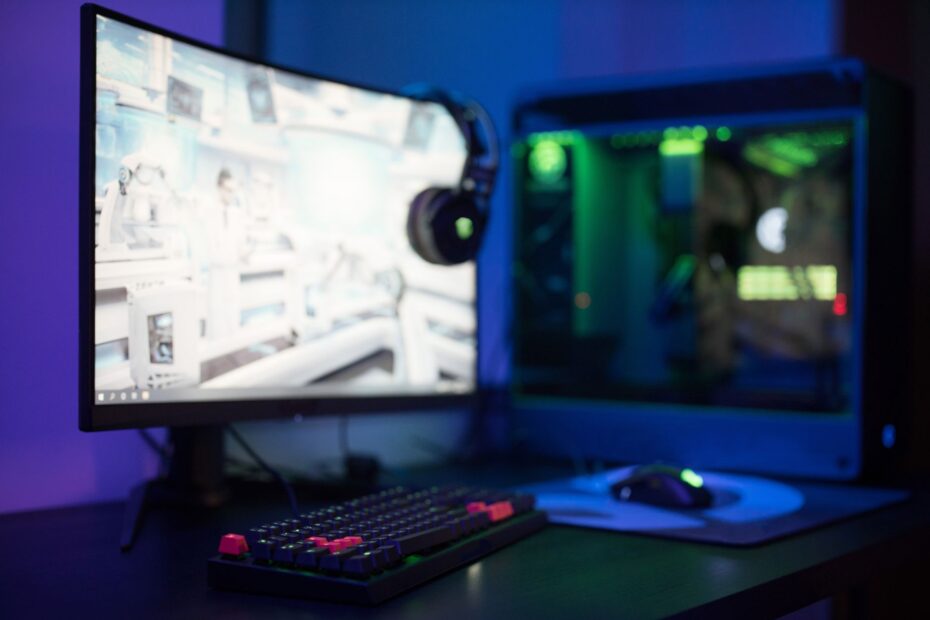
In each 1,000-millisecond interval, a display can update only as many times as its hertz rating allows, independently of the frames your PC renders. At 144Hz, a fast camera turn appears in smaller visual steps than at 60Hz, and your crosshair receives newer frame data sooner.
This guide helps competitive PC gamers weigh monitor speed against GPU performance, clarifying motion artifacts, synchronization problems, latency, and why consistent frame pacing matters before upgrading.
Refresh Rate Sets the Display Update Rhythm
Hertz measures display redraws
A panel redraws on a fixed schedule, and Refresh rate (Hz) states how many redraw cycles occur during one second. A 60Hz panel redraws 60 times, while a 144Hz panel redraws 144 times during that same span.
Your 240Hz screen has 240 opportunities to show newer GPU output. That faster schedule does not add detail to a game scene, but it reduces the visual distance between motion samples during a rapid turn.
Fast motion exposes the spacing
Camera movement makes refresh spacing easy to spot. Sweep across a map in a first-person shooter, follow a car through a hairpin turn, or track an opponent across a bright background, and higher Hz delivers more motion samples to your eyes.
Smaller steps can make target tracking feel steadier during rapid movement. Your display still relies on the frames sent by the GPU, so the next part of the chain is FPS and frame delivery.
FPS, Frame Time, and Refresh Rate Describe Separate Jobs
CPU and GPU work set FPS
Your CPU prepares game logic, physics, draw calls, and player input. The GPU renders Frames per second (FPS), based on resolution, graphics settings, ray tracing, and the limits built into the game engine.
A monitor only shows frames arriving at its input. A 240Hz panel cannot turn a 70 FPS game into 240 FPS because your GPU has not rendered the extra images.
| Term | What your setup tracks | What you see or feel |
|---|---|---|
| FPS | Your CPU and GPU render this number of frames. | Your game has more motion samples at higher FPS. |
| Refresh rate | Your panel redraws at a fixed Hz setting. | Your display shows newer frames sooner. |
| Frame time | Your PC spends a measured number of milliseconds rendering each frame. | Your motion feels steadier with even frame delivery. |
| Response time | Your pixels shift from one shade to another. | Your moving objects show less trailing or smear. |
Frame time shows delivery consistency
Frame time is the gap between rendered frames. At 60 FPS, your PC outputs a frame every 16.67 ms; at 120 FPS, that interval drops to 8.33 ms.
Uneven frame times make motion look jerky even with a high average FPS counter. A game reporting 120 FPS can still alternate between 6 ms and 22 ms frames, producing uneven pacing that your eyes can detect during movement.
That inconsistency can undermine a faster display’s responsiveness gains, especially when input timing matters.
Your monitor’s maximum Hz limits display updates, while FPS reflects rendering work. Raising graphics settings too far can pull GPU performance below the panel’s refresh ceiling.
Higher Hz Reduces Display-Side Delay
Shorter refresh intervals reveal newer frames
The display schedule tightens as Hz rises. At 60Hz, your panel waits 16.67 ms between redraws; at 144Hz, that interval falls to 6.94 ms.
That reduction limits the period during which a rendered frame waits off-screen. Your screen can show a newer image sooner, which is why a high-refresh panel feels more immediate during rapid aiming corrections.
| Refresh setting | Your refresh interval | Your visible effect |
|---|---|---|
| 60Hz | Your screen updates every 16.67 ms. | Your slower games remain playable, but fast pans show wider motion steps. |
| 120Hz | Your screen updates every 8.33 ms. | Your camera movement gains a clear jump in fluidity. |
| 144Hz | Your screen updates every 6.94 ms. | Your target tracking feels more continuous. |
| 165Hz | Your screen updates every 6.06 ms. | Your gain over 144Hz is visible but modest. |
| 240Hz | Your screen updates every 4.17 ms. | Your high-FPS competitive play gets the shortest display wait. |
Input lag includes more than the panel
Your input passes through mouse or controller polling, USB processing, game-engine work, CPU submission, GPU rendering, display scanning, and pixel transitions. Higher Hz trims the display portion of that chain by showing fresh frames earlier.
Network delay remains separate in online matches. A 240Hz panel cannot fix a 70 ms connection spike, and it cannot remove a CPU bottleneck that leaves your GPU waiting for new work.
For aim-heavy games, the effect is more current visual feedback during a fast correction. That benefit grows as your frame delivery stays near the refresh ceiling instead of rising only during quiet scenes.
Tearing, Stutter, and Blur Have Different Causes
Unsynced frames can split the image
A fixed-refresh panel scans from top to bottom on its own schedule. Screen tearing appears where the GPU sends a new frame during that scan, leaving part of one frame above part of another.
Your risk of visible tears rises with FPS above refresh rate and no synchronization. A game running at 180 FPS on a 144Hz screen can show a horizontal split during a quick turn, even though its average performance looks strong.
VRR matches panel timing to frame delivery
Variable refresh rate (VRR) changes panel timing to follow incoming frames inside a supported operating range. AMD FreeSync and NVIDIA G-SYNC use VRR behavior to reduce tearing and stutter during FPS swings.
Adaptive-Sync is the broad display standard behind many VRR modes. Your result depends on the monitor’s VRR range, the GPU connection, and whether frame delivery stays inside that range.
Response time shapes motion clarity
Refresh rate is not response time. A high-Hz screen can still show ghosting where pixels shift too slowly, leaving a faint trail behind a dark object moving across a bright scene.
VA panels can show dark-level smear in some models, while IPS panels tend to handle dark transitions more cleanly. OLED pixels switch very quickly, but your room lighting, text use, and screen-care needs still shape the right panel choice.
Those panel strengths translate into smoother play only when the GPU delivers frames consistently.
Do not judge motion from an Hz label alone. Check response-time behavior at the refresh setting you plan to use, since aggressive overdrive can add bright inverse-ghost trails.
Stable Frame Rates Decide the Real-World Gain
Consistent delivery matters more than brief peaks
A frame counter touching 240 FPS in an empty hallway says little about a crowded fight. Your display gains the most where the game holds a high rate during scenes that place heavy load on your CPU and GPU.
Competitive players lower shadows, volumetric effects, resolution scale, and ray tracing to protect frame consistency. Your visual trade-off is direct: richer lighting can cost the FPS needed to use a fast panel well.
Sixty FPS keeps its own timing
Sixty FPS does not look worse simply because your screen runs at 240Hz. Each rendered frame repeats across four refresh cycles, producing clean cadence while retaining the 16.67 ms spacing of a 60 FPS game.
Your 240Hz panel does not invent the missing 180 frames. A cinematic adventure can look clean at 60 FPS, yet it will not show the dense motion sampling visible in a 240 FPS esports match.
Resolution can become the limiting factor
A 4K image asks your GPU to shade four times as many pixels as 1080p. That trade-off can push a game from 180 FPS to 85 FPS, changing how much of a high-refresh screen your hardware can use.
An RTX-class GPU might run a tactical shooter near 240 FPS at 1080p competitive settings, then fall far below that level at 4K with heavy ray tracing. Your preferred image quality decides whether that loss in frame rate makes sense.
The Practical Gap Between 60Hz and 240Hz
The largest jump arrives before 144Hz
The move from 60Hz to 120Hz cuts the refresh interval in half, from 16.67 ms to 8.33 ms. Your mouse movement, scrolling camera, and moving scenery look materially smoother because each redraw arrives twice as quickly.
The shift from 120Hz to 144Hz is smaller but still useful for PC gaming. A 165Hz screen trims another 0.88 ms from 144Hz, a subtle gain suited to balanced systems that sustain the extra frames.
240Hz serves a narrower gaming focus
The 144Hz vs 240Hz gaming difference is real, though it is less dramatic than 60Hz vs 144Hz for gaming. The refresh interval falls from 6.94 ms to 4.17 ms, a 2.77 ms gap rather than the 9.73 ms cut between 60Hz and 144Hz.
PC monitor refresh rate for gaming has its strongest 240Hz value in esports shooters, fast racing games, and action titles where your PC holds very high FPS. Slower strategy games and cinematic single-player releases place greater value on image quality than extreme update speed.
- Choose 60Hz carefully for slower games, older hardware, or a sharp image where high FPS is not your priority.
- Use 120Hz broadly for a visible motion upgrade and console modes that output 120 FPS.
- Target 144Hz or 165Hz for balanced PC play across shooters, action games, and desktop use.
- Reserve 240Hz for competitive play where your hardware sustains 200 FPS or more during demanding moments.
Match Refresh Rate to Hardware and Setup
Your sustained frame range sets the target
A sensible target starts with the FPS your system holds during real gameplay, not the highest number shown in a menu. Your game genre, resolution, and graphics priorities narrow the range from there.
| Your priority | Your refresh target | Your likely fit |
|---|---|---|
| Your cinematic visuals | 60Hz | Your single-player games favor resolution, detail, and stable 60 FPS. |
| Your console and general play | 120Hz | Your supported console games use 120 FPS modes through HDMI 2.1. |
| Your balanced PC library | 144Hz or 165Hz | Your shooters and action games gain fluid motion without extreme FPS demands. |
| Your competitive focus | 240Hz | Your esports titles run near 240 FPS with settings tuned for speed. |
Connection limits can cap refresh settings
Your monitor can list 165Hz or 240Hz yet run at 60Hz through the wrong port or cable. DisplayPort bandwidth, HDMI version, resolution, color depth, GPU output, and monitor input all shape the modes available to your setup.
HDMI 2.1 carries 4K at 120Hz for compatible consoles and displays. DisplayPort is common on PC gaming monitors, while older HDMI connections can restrict refresh settings at higher resolutions.
Setup checks reveal missed performance
- Check in-game FPS with the game counter or a trusted overlay during real matches rather than menus.
- Set Windows refresh in Settings, System, Display, and Advanced display, then select your panel’s highest available Hz.
- Inspect cable routing so your GPU connects directly to the monitor through the port that carries your target resolution and Hz.
- Confirm port limits in GPU, monitor, and console specifications before expecting 4K 120Hz or 1440p 240Hz.
- Enable VRR carefully in your GPU control panel and display menu, then verify that AMD FreeSync or NVIDIA G-SYNC is active.
- Tune graphics load by lowering CPU-heavy or GPU-heavy settings until frame delivery stays steady.
PC monitor refresh rate for gaming pays off only where your signal chain carries the intended mode. A 144Hz setting left disabled in Windows gives you the same 60Hz experience as a basic office screen.
Final Thoughts
Your panel refresh rate controls how soon it shows frames your hardware already rendered. The strongest upgrade comes from matching Hz to sustained FPS, then checking VRR, response time, cable bandwidth, input lag, and Windows settings.
For most PC setups, 144Hz or 165Hz offers a practical middle ground. A 240Hz screen rewards a narrower competitive focus and hardware that holds high frame rates during demanding gameplay.
FAQ
How does a PC monitor refresh rate affect gaming performance and visual smoothness?
A higher refresh rate lets your screen show newer frames at shorter intervals. Your 144Hz panel refreshes every 6.94 ms, while a 60Hz panel refreshes every 16.67 ms, so fast turns and moving targets appear in smaller visual steps.
What is the difference between refresh rate and FPS?
A 144 Hz monitor redraws 144 times per second, whereas FPS measures how quickly your CPU and GPU render game frames. Your display can show new frames sooner at higher Hz, but it cannot raise the frame rate produced by your PC.
Does a higher refresh rate help if my game runs at lower FPS?
Yes, a higher-Hz monitor can still present incoming frames with less display-side wait. Your game will retain the motion spacing set by its FPS, though, so a 70 FPS game does not gain the visual density of a 144 FPS or 240 FPS game.
Does a higher refresh rate increase FPS?
No. Your CPU, GPU, game settings, resolution, and engine determine FPS, while your display only shows frames that arrive. A 144Hz or 240Hz panel can present fresh frames sooner, but your screen cannot render extra frames for your PC or raise a game’s performance counter.
Is 144Hz or 240Hz better for gaming?
Your 240Hz screen offers shorter 4.17 ms refresh intervals than 144Hz at 6.94 ms, so it suits high-FPS esports play. Your jump from 60Hz to 144Hz is more dramatic, making 144Hz or 165Hz a stronger fit for balanced gaming systems and mixed game libraries.
Does 60 FPS look worse on a 240Hz monitor?
No. Your 240Hz panel can display each 60 FPS frame evenly across four refresh cycles, so 60 FPS retains clean timing. Your motion still has 60 FPS spacing, though, and it lacks the smoother movement and lower display-side delay available from a game rendering near 240 FPS.