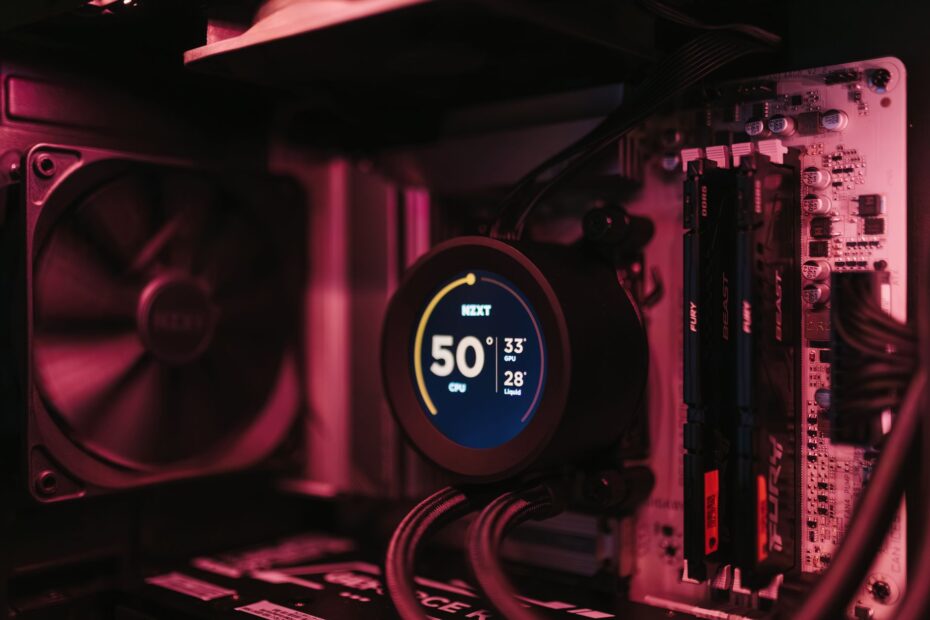
A single overloaded CPU core can delay frame production while the GPU waits for new work. Your game may feel choppy beside a powerful graphics card because a busy CPU thread, hot component, memory shortage, or frame cap sets the pace.
This explanation covers CPU, GPU, memory, cooling, settings, and display factors so you can isolate the limit affecting your hardware and frame-rate target.
Frame Production Sets the Active Performance Limit
Every frame starts as instructions rather than pixels. Your CPU handles game logic, enemy behavior, physics, audio coordination, asset streaming, and draw calls before the GPU turns those instructions into the image on your screen.
That handoff works like a kitchen pass. A fast grill cannot serve a plate until prep sends ingredients forward, and a fast CPU cannot raise frame rate once the GPU is busy drawing millions of pixels. PC bottlenecking shifts with your game, scene, settings, and screen resolution.
Frames Pass Through Several Hardware Stages
| Frame stage | Main hardware responsibility | What can slow your frame rate |
|---|---|---|
| Game simulation | Your CPU processes AI, physics, and world behavior. | Dense crowds, complex physics, and heavy scripts. |
| Draw-call submission | Your CPU sends rendering instructions to the GPU. | Large object counts and game engine overhead. |
| Image rendering | Your GPU shades, lights, and rasterizes pixels. | High resolution, ray tracing, and demanding effects. |
| Frame display | Your monitor presents completed frames. | V-Sync, refresh limits, and a frame-rate cap. |
A limit does not mean your parts are mismatched or damaged. At 4K with ray tracing, your graphics card may carry the heaviest load. At 1080p while chasing 240 FPS, your processor may become the slower stage. Your PC always has a component setting the frame-production pace.
Utilization percentages need context. A 99% GPU reading can be healthy, while 55% total CPU utilization can hide one saturated thread. The source of delay matters more than one percentage shown in an overlay.
CPU Limits Start Before the GPU Renders the Frame
A graphics card cannot render instructions that have not arrived. Your processor becomes the limiting stage once game logic and draw-call preparation take longer than the GPU needs to draw the completed frame.
This is the core of what causes CPU and GPU bottlenecks. The GPU may have unused capacity, yet it waits because the CPU has not finished AI, physics, object visibility, or draw-call work for the next frame.
Simulation Workloads Raise CPU Demand
Large open worlds place steady pressure on your processor because the system streams nearby assets, tracks distant objects, and updates movement every frame. A city scene with 80 NPCs requires far more CPU work than an empty indoor corridor.
- Dense crowds: Your CPU tracks animation, pathfinding, collision, and behavior for numerous characters at the same time.
- Physics effects: Destructible objects, vehicles, cloth, and debris add simulation work before rendering begins.
- Long view distance: Your processor prepares more objects and visibility data across a wider scene.
- Heavy draw calls: Each object submission adds CPU overhead, especially in older game engines.
- World streaming: Your system moves textures and game data from storage into RAM while you travel.
CPU Bottleneck Symptoms Appear in Frame Delivery
Low GPU utilization is a common CPU bottleneck symptom because the graphics card waits for new work. Frame rate may stay lower than expected after you reduce shadows or texture quality, since those changes do little to reduce simulation time.
Your 1% low FPS tells a useful story. Average performance may show 120 FPS, yet repeated drops into the 55 to 70 FPS range can feel rough during combat, driving, or crowd-heavy scenes. Those drops point to uneven frame time rather than a lower benchmark score alone.
Watch per-core CPU usage instead of total CPU utilization alone. One overloaded thread can hold back the game while seven other cores remain lightly used.
Intel, AMD, and Windows report total CPU load as an average across available threads. A 12-thread processor showing 35% total usage can still have one thread near 100%, which stops the game from sending another completed frame to your GPU.
Your PC may appear to use more CPU than GPU for that reason. The processor is not necessarily doing more useful work than the graphics card; it may be holding up the pipeline before the GPU receives enough instructions to stay busy.
GPU Limits Appear During Heavy Rendering Work
Once the CPU keeps frames flowing, pixel work becomes the pacing factor. A GPU bottleneck occurs once your graphics card stays busy rendering a frame while the processor already has additional work ready.
Visual Settings Load the Graphics Card
Screen resolution directly changes pixel workload. Moving from 1080p to 1440p raises pixel count by about 78%, while 4K contains four times as many pixels as 1080p. Your GPU must shade, filter, and light every pixel.
Ray tracing adds another demanding layer. Reflections, shadows, and global illumination require more calculations per pixel, while demanding shaders, volumetric fog, anti-aliasing, and high render scale add pressure to NVIDIA, AMD, or Intel graphics hardware.
| Observed pattern | What it suggests | Useful next move |
|---|---|---|
| 40% CPU and 96% GPU | Your game is probably GPU-limited. | Check frame caps and temperatures before changing hardware. |
| High GPU load with smooth frame time | Your graphics card is being used well. | Keep settings where visual quality meets your target. |
| Low GPU load and one CPU thread full | Your processor is delaying frame submission. | Lower CPU-heavy settings or cap FPS. |
| Low load on both components | A cap, background issue, or power limit may be present. | Inspect display settings, clocks, and system activity. |
A reading of 40% CPU utilization and 96% GPU utilization is not a harmful mismatch by itself. With normal temperatures, V-Sync behavior, and frame caps, that pattern means the GPU is carrying the work demanded by your resolution and visual preset.
For image-quality-focused gaming, a GPU-limited result can suit your goal. Your graphics card stays busy, frame delivery stays more predictable than in a CPU-limited scene, and higher resolution adds visual detail without greatly raising processor work.
Resolution, Settings, and Frame Caps Change the Balance
The same hardware can appear CPU-limited at 1080p and GPU-limited at 4K. Lower resolution shortens render time, so the graphics card completes frames sooner and exposes the time your processor needs for game simulation.
CPU-Heavy and GPU-Heavy Controls Work Differently
| Setting type | Primary load | What you may see |
|---|---|---|
| View distance | CPU and GPU | More objects, draw calls, and visible terrain. |
| Crowd density | CPU | Lower 1% lows in busy city scenes. |
| Simulation detail | CPU | More physics and world calculations per frame. |
| Resolution and render scale | GPU | Higher graphics-card load and lower FPS. |
| Ray tracing and shadows | GPU | Longer rendering time per frame. |
| Texture quality | GPU memory | Stutter near VRAM limits rather than steady low FPS. |
Your display target changes the result as well. A 60 Hz monitor needs 60 completed frames per second, while a 240 Hz display demands much higher CPU throughput. A capable GPU can sit below full usage because your CPU cannot feed 200 or more frames each second.
V-Sync, G-Sync, and FreeSync also change the numbers shown in your overlay. V-Sync holds output to display timing, while a frame-rate cap stops your CPU and GPU from producing extra frames. Lower utilization under a 60 FPS cap is expected behavior, not proof of PC bottlenecking.
Because caps and settings can deliberately suppress demand, isolating variables is the only reliable way to diagnose the hold-up.
Remove artificial limits before judging hardware behavior. A 60 FPS cap can make a powerful GPU appear underused during a smooth game session.
A Controlled Test Shows Which Component Holds Back Performance
Random gameplay produces messy data because scenes change constantly. Use the same save point, route, weather condition, game mode, resolution, preset, and frame cap for every run so your numbers describe hardware behavior rather than a different scene.
That repeatable setup is the clearest route for how to tell if your PC is bottlenecking. A crowded street, a busy combat section, or the same driving route gives your measurements a useful reference point.
Record Data That Explains Stutter
MSI Afterburner with RivaTuner Statistics Server can show FPS, frame time, GPU utilization, CPU utilization, per-core load, temperatures, clock speed, RAM use, and VRAM use in one overlay. Your log needs more than average FPS because stutter occurs between the averages.
- Set one scene: Stand in a demanding location for 60 to 90 seconds, then repeat the same camera movement.
- Record a baseline: Write down FPS, 1% low FPS, frame time, component load, clocks, and temperatures.
- Lower GPU load: Reduce render scale, ray tracing, shadows, or resolution while leaving crowd and simulation settings unchanged.
- Repeat the run: Use the same route and duration so your results remain comparable.
- Read the change: Large FPS gains point to GPU pressure, while little movement points toward CPU or system limits.
Frame Time Shows Why FPS Can Feel Uneven
A steady 60 FPS means each frame takes about 16.7 milliseconds. At 120 FPS, each frame takes about 8.3 milliseconds. Your game feels smooth once those times stay close together instead of jumping from 8 milliseconds to 28 milliseconds during a busy moment.
Frame-time spikes explain why a game can show a strong average yet feel rough. A graph with sharp spikes during driving may point to storage stutter, RAM pressure, asset streaming, or CPU thread stalls. Your next step should follow that pattern rather than the average alone.
System Issues Can Resemble a CPU-GPU Mismatch
Falling clock speeds can produce the same low-FPS pattern as a weak processor. Thermal throttling reduces CPU or GPU frequency after temperatures reach a component limit, leaving your hardware slower than its expected boost behavior.
Heat, Power, and Drivers Distort Results
Your CPU and GPU need stable power delivery under load. A restrictive Windows power plan, loose PCIe power connection, aging power supply, or GPU power limit can cut clock speeds and leave utilization readings confusingly low.
Driver faults can also change game performance after an update. Clean graphics-driver installation, chipset updates from Intel or AMD, and current game patches can remove a software issue that looked like a hardware imbalance.
Memory and Storage Interrupt Frame Delivery
- Low RAM capacity: Your system can page data to storage after physical memory fills, causing sharp frame-time spikes.
- Single-channel memory: One memory stick limits bandwidth and can hurt CPU-sensitive games more than expected.
- Memory profile disabled: XMP or EXPO settings let compatible RAM run at its intended speed.
- Slow storage streaming: A hard drive can struggle with open-world asset loading beside a modern SSD.
- Background tasks: Browsers, recording tools, antivirus scans, and launchers consume CPU time and RAM.
Kingston memory modules and SSDs matter only where your system lacks capacity, bandwidth, or storage speed. More RAM does not raise GPU performance in every game, but insufficient RAM can cause paging that damages your 1% lows.
A single poorly optimized title cannot diagnose your entire PC. Run the same controlled trial in two or three games with different engines. Your hardware is less likely to be the root cause with stutter or low utilization appearing in one title alone.
Targeted Changes Reduce the Limitation Without New Hardware
Lowering every graphics control at once can make diagnosis harder. Reduced GPU work can expose a CPU limit, leaving FPS nearly unchanged while image quality falls. Match your adjustment to the evidence from your controlled scene.
These changes answer how to fix a CPU bottleneck without immediately replacing components. Start with settings that reduce simulation work, then check cooling, memory behavior, and background processes.
Settings That Ease CPU Pressure
- Lower crowd density: Fewer active NPCs reduce AI and animation work on your processor.
- Reduce view distance: Shorter visibility ranges cut object handling and draw-call pressure.
- Set a sensible cap: A 90 or 120 FPS cap can stabilize frame time on a CPU-limited system.
- Close background tasks: Remove avoidable CPU and RAM use before launching your game.
- Check cooling: Clean dust, confirm fan behavior, and watch clocks during a demanding scene.
- Enable XMP or EXPO: Proper memory settings can improve CPU-fed frame delivery on compatible systems.
Settings That Ease GPU Pressure
Lower render scale, resolution, ray tracing, shadows, volumetrics, and anti-aliasing to reduce graphics-card work. Supported upscaling tools such as NVIDIA DLSS, AMD FSR, and Intel XeSS render fewer internal pixels, then reconstruct the image for your display.
Your target should be stable play rather than a flashy average FPS number. A locked 90 FPS with tight frame-time delivery can feel far better than 140 FPS that drops to 55 during every heavy scene.
If sensible adjustments still miss the experience you want, the right upgrade depends on where and how you play.
Upgrade Choices Depend on Your Games and Display Target
Hardware spending makes sense after repeated results point in one direction. A CPU upgrade fits a pattern of saturated game threads, low GPU utilization, weak 1% lows, and little FPS movement after you lower GPU-heavy settings.
CPU and GPU Upgrades Address Different Limits
| Your repeated result | Component worth examining | Reason |
|---|---|---|
| Low GPU load in crowded scenes | CPU and RAM configuration | Frame submission or simulation holds your GPU back. |
| 95% to 99% GPU load at 1440p or 4K | GPU | Rendering pixels and effects takes the longest. |
| Stutter with high RAM use and disk spikes | RAM capacity and SSD | Paging or asset streaming interrupts frame delivery. |
| Falling clocks during long sessions | Cooling and power delivery | Heat or power limits reduce component speed. |
Your motherboard socket, BIOS support, cooler capacity, RAM type, and power-supply headroom matter before a CPU or GPU swap. A faster graphics card cannot fix an overheating processor, and a new processor cannot overcome a weak power supply or full memory.
Online bottleneck calculators serve as rough compatibility screens rather than performance forecasts. They cannot account for your game engine, screen resolution, game graphics settings, frame-rate cap, RAM profile, background load, or the exact scene causing your stutter.
Final Takeaways
Most gaming PCs encounter component limits during play, and that normal behavior is not a defect. Keep a normal GPU limit where your frame rate and frame time meet your target, investigate uneven pacing before spending money, and change only the component or setting identified by repeatable results.
FAQ
Is 40% CPU usage and 96% GPU usage a bottleneck?
That pattern points to your graphics card as the active limit, which is normal at higher resolution or demanding visual settings. Your CPU has enough headroom to prepare work, while your GPU spends most of its time rendering each frame.
Why is my PC using my CPU more than my GPU?
Your processor may be occupied by dense AI, physics, draw calls, world streaming, or a heavily loaded game thread. Low GPU utilization follows because your graphics card receives frames too slowly to stay busy.
How do I tell if my PC is bottlenecking?
Use the same demanding game scene and record FPS, 1% lows, frame time, GPU utilization, per-core CPU usage, clocks, temperatures, RAM use, and storage activity. Lower GPU-heavy settings during a repeat run, then watch whether frame rate rises sharply or barely changes.
How do I fix a bottlenecking CPU?
Lower crowd density, view distance, object detail, and simulation settings while closing background programs and setting a sensible FPS cap. Your CPU can regain performance through better cooling, current drivers, and correctly configured XMP or EXPO memory settings.
Is a CPU or GPU bottleneck bad for a PC?
Neither condition damages your PC by itself. A GPU-limited game is a healthy result, while a CPU limit becomes frustrating only where your frame rate, 1% lows, or frame-time consistency fall below your display and game-style needs.
Are bottleneck calculators accurate?
Calculator scores can flag extreme hardware pairings, but they cannot predict your real performance. Your game engine, scene complexity, screen resolution, graphics settings, RAM behavior, thermals, and frame cap have more influence than one compatibility percentage.