Cool room air follows a route through your case, while poorly placed cables can obstruct it. Loose cables near GPU fans can raise temperatures, but blocked intakes, clogged dust filters, reversed fans, and poor exhaust paths usually create the larger heat problem. Your cooling path matters more than visual tidiness.
This practical walkthrough covers fan direction, pressure balance, cable routing, temperature checks, and maintenance for gaming PCs, compact builds, and larger tower cases.
Case Ventilation Sets the Starting Temperature
Room temperature creates the floor for every cooler inside your PC. A CPU cooler or GPU heatsink transfers heat into nearby air, so that air needs to stay cooler than the metal fins for heat to leave the component.
Intake fans pull room air into the chassis. Exhaust fans push heated air out after the CPU, GPU, motherboard voltage regulators, and storage devices warm it. Faster air exchange leaves cooler air around your heatsinks and reduces heat buildup inside the case.
Room Heat and Component Load Set Limits
A 30 C room gives your hardware a warmer starting point than a 22 C room. Your CPU temperature also depends on wattage, cooler size, mounting pressure, thermal paste contact, fan curves, and processor boost behavior.
Case ventilation lowers the air temperature around a cooler. It does not reduce the electrical heat created by a processor drawing 150 watts or a graphics card drawing 300 watts during a demanding game.
Keep the side panel installed during normal use. An open case can let intake air spill out before it reaches the GPU and CPU cooler, while your closed panel guides airflow from the intake side toward the exhaust side.
That guided stream still needs to cross the components producing the most heat before it escapes.
Removing a side panel works as a short diagnostic check. A large temperature drop points toward restricted case ventilation rather than a permanent open-case arrangement.
Air Needs a Clear Route Across Hot Hardware
Fresh air must cross the parts that produce heat before it exits the chassis. Front or bottom intake fans should feed the GPU and CPU cooler, while rear and top-rear exhaust fans remove warmed air from the upper half of the case.
Warm air rises, but fan placement still matters more than that natural effect. Your rear exhaust sits close to a tower cooler, so it can pull heated air away from the CPU fin stack instead of letting it linger near the motherboard.
Useful Airflow Reaches the GPU and CPU Cooler
Fan count alone says little about cooling. Two properly placed fans can outperform six fans that push air in competing directions, especially in a compact microATX case with limited open space.
Your GPU needs cooler air beneath and beside its fans. A tower CPU cooler works best with a front-to-back stream that enters through the front panel, passes through the fin stack, and leaves through the rear exhaust.
| Case area | Useful direction | Layout result |
|---|---|---|
| Front panel | Fans pull inward | Your intake feeds the GPU and motherboard area. |
| Bottom mounts | Fans pull inward | Your intake supplies cooler air below a power-hungry GPU. |
| Rear mount | Fan pushes outward | Your exhaust removes CPU-cooler discharge. |
| Top-rear mount | Fan pushes outward | Your exhaust releases rising warm air. |
Recirculation Creates Persistent Hot Spots
Recirculation starts when expelled warm air loops back toward an intake instead of leaving the chassis. Your GPU can run hot despite several fans where a top intake fights a nearby top exhaust or rear fan.
Dead zones also form around drive cages, radiator tubes, and cable bundles. A fan rated for 60 cubic feet per minute does little for your temperatures unless its airflow crosses a heatsink and reaches a clear exit.
That route is the basis for how to improve PC case airflow. Clear the intake path, move heated air past the hardware, and give the warmed air an exit near the rear or top-rear of the enclosure.
Cable Routing Matters at Airflow Bottlenecks
A neat interior does not automatically mean a cooler PC. Cable routing affects thermal behavior where wires cover a radiator face, interfere with a fan blade, block a front intake, or hang directly over the GPU intake area.
No. Your roomy mesh-front case may show little change after cosmetic cable cleanup, while your compact system can show a clearer temperature change where a thick bundle blocks a narrow intake path.
Cables Near Fans Deserve Attention
A thick GPU power lead can bow over graphics card fans and interfere with their clearance. Loose SATA leads, front-panel wires, and unused power supply cables also matter near a lower front intake, where they can interrupt the cool-air stream heading toward the GPU.
| Cable location | Temperature effect | Routing priority |
|---|---|---|
| Behind the motherboard tray | Airflow remains clear | Your priority is low after basic securing. |
| GPU leads over fan intakes | GPU receives less cool air | Your priority is high. |
| Extra PSU leads at the front intake | Intake stream weakens | Your priority is high. |
| Cables against radiator fans | Fan flow and blade safety suffer | Your priority is immediate. |
Route cables behind the motherboard tray where your case allows it. In cases without a shroud, keep excess power leads low beside the power supply instead of letting them form a soft wall through the center of the chassis.
PC airflow and cable management work together at those restricted points. A cable tie behind the tray changes little, but a GPU lead pulled away from intake fans can restore a direct path for cooler room air.
Once obstructions are cleared, fan direction determines whether that open path actually carries heat outward.
Fan Orientation Has More Impact Than Fan Count
The rear fan has a larger cooling role than an extra decorative fan near the top-front mount. A solid intake and exhaust fan setup uses front intake fans, one rear exhaust, and optional top exhaust fans placed toward the rear.
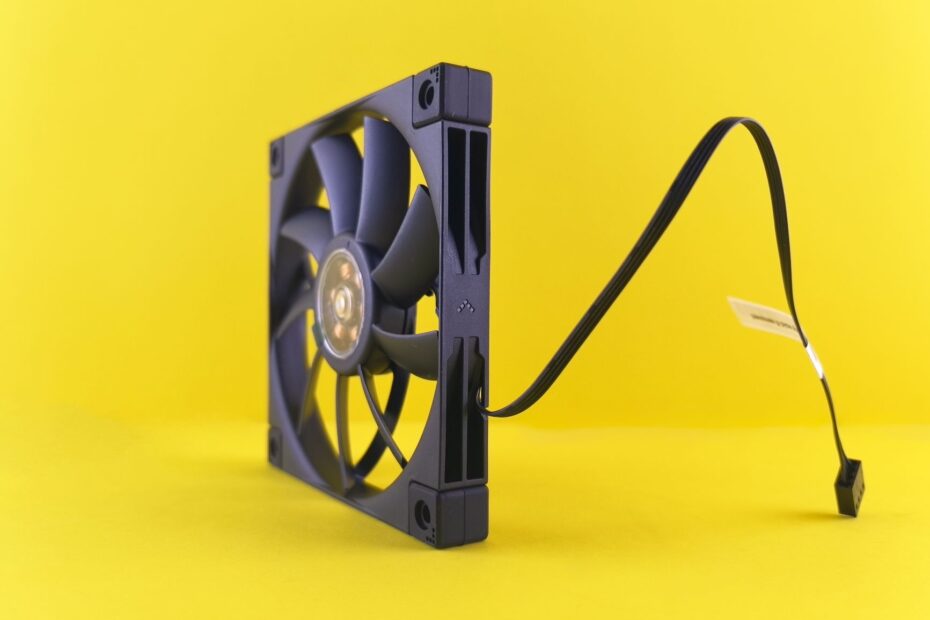
Most case fans move air toward the side with plastic support struts and the hub label. Many models also show a small arrow on the fan frame, which settles orientation before you install the screws.
- Feed the front Front-mounted fans should draw room air through the panel and dust filters.
- Clear the rear Your rear fan should push heated air away from the CPU-cooler area.
- Favor rear top mounts A top-rear fan should exhaust rising heat without pulling away fresh front intake air.
- Avoid fan conflicts Nearby fans should not push directly against each other through an open mount or radiator.
- Check radiator direction Radiator fans need a route that carries warmed air out of the case.
Ten case fans are overkill after ventilation and component coolers stop limiting temperatures. Extra fans can add turbulence, motor noise, and a higher noise floor while shifting load temperatures by only a small amount.
Do not run every fan at full speed. Your fan curves should raise airflow during sustained CPU or GPU load and settle during light desktop work.
Pressure Balance Controls Dust Entry
Fan direction also controls where dust enters your PC. Positive air pressure happens where intake fans move slightly more air into the case than exhaust fans move out, pushing air through gaps instead of drawing dusty room air inward.
Negative air pressure occurs where exhaust airflow exceeds intake airflow. That layout can remove heat effectively, but your case can pull unfiltered dust through expansion slots, panel seams, and unused fan mounts.
| Pressure state | Dust behavior | Setup result |
|---|---|---|
| Slight positive pressure | Filtered intakes control dust entry | Your PC stays cleaner between cleanings. |
| Neutral pressure | Dust enters through filters and gaps | Your thermal result stays close to balanced layouts. |
| Negative pressure | Gaps pull unfiltered dust inward | Your exhaust-heavy layout needs more cleaning. |
Filtered intakes paired with modestly stronger intake airflow suit many homes. Dust filters catch debris before it reaches heatsink fins, though dense filters resist airflow and need regular cleaning.
A solid front panel can restrict cooling more than a missing fan mount. Intake fans cannot draw much air through a narrow side slit or a clogged filter, regardless of rated speed or static pressure fans.
A Cable-Routing Routine Clears the Main Air Path
Start with measurements and photos instead of a pile of zip ties. Your baseline CPU temperature, GPU temperature, fan directions, and cable positions show whether routing changes helped after the system goes back together.
- Shut down safely Disconnect wall power, press the power button briefly, and wait for stored power to drain.
- Document the layout Photograph fan arrows, cable positions, temperatures, clocks, and room temperature before moving anything.
- Clear the intakes Move unused PSU leads behind the motherboard tray or low beside the power supply shroud.
- Shape GPU leads Route GPU cables beside the card, leaving space for fan intake and card removal.
- Secure danger zones Tie loose wires away from radiator fans, CPU-cooler fans, and exposed fan blades.
- Close the panels Leave enough slack for the side panel and avoid sharp bends at power connectors.
Your cable management should leave the front intake, GPU fan area, and radiator face open. Tight bends at a power connector can strain the cable, so leave a gentle curve after the connector rather than forcing a sharp turn against the side panel.
That cleanup sets up more useful temperature checks. PC airflow troubleshooting works only where you change one physical detail at a time and keep the workload consistent.
Controlled Checks Separate Airflow Limits From Cooler Limits
A five-minute temperature glance cannot show much because modern CPUs change clock speed and power draw from moment to moment. Your comparison needs the same room temperature, side-panel position, fan curves, workload, and runtime for every pass.
Use one repeatable game scene, a fixed benchmark loop, or the same rendering task for 15 to 20 minutes. Record CPU package temperature, GPU temperature, wattage, and average clock speed after readings stabilize.
| Result after a change | Likely source | Next check |
|---|---|---|
| Side-panel result drops sharply | Case airflow is restricted | Check intake clearance and exhaust direction. |
| CPU stays hot with panel removed | Cooler contact or capacity is limited | Check mount pressure and thermal paste. |
| GPU stays hot with panel removed | GPU cooler or fan curve is limited | Check GPU fan speed and power draw. |
| Temperatures rise with room heat | Ambient temperature sets the floor | Address room cooling rather than adding fans. |
Change one variable per run. Your cable cleanup, fan swap, panel check, radiator placement change, and fan-curve adjustment need separate runs, or normal variation can hide the real cause.
A large panel-off drop points toward case restriction. Little change with the panel removed points more directly toward cooler mounting, thermal paste contact, component power, or a limited cooler design.
Temperature Context and Maintenance Guide Your Next Move
A 72 C CPU temperature during gaming or sustained work is normal for many modern processors. Your acceptable number depends on processor limits, cooler size, power settings, ambient temperature, and stable clock behavior.
A 90 C CPU reading deserves a closer look at the processor’s thermal limit and throttling behavior. Brief peaks near that range can occur during boost activity, while sustained 90 C operation paired with lower clocks points toward a cooling issue.
GPU temperatures need the same workload context. Your graphics card can run warmer during a 300-watt game load than during desktop use, yet sudden fan noise, falling clocks, or a large panel-off drop points toward airflow obstruction.
- Clean intake filters Your filters need attention before packed dust turns them into a blocked front panel.
- Brush heatsink fins CPU and GPU fins release heat less effectively under a dust layer.
- Wipe fan blades Blade buildup reduces airflow and can add imbalance noise.
- Inspect cable ties Ties can loosen after upgrades or a graphics card change.
- Tune fan curves Your system should meet your temperature and noise preference before you add hardware.
Fractal Design and iBUYPOWER systems follow the same physical rule despite different layouts. Cool room air needs a clear route to your hardware, and heated air needs a clear exit after it passes through the case.
Bottom Line
Your largest temperature gains come from a ventilated case, clear front or bottom intake, correct rear or top exhaust, clean dust filters, and realistic room-temperature expectations. Cable cleanup earns its place where thick leads or loose bundles obstruct those routes.
PC airflow and cable management becomes practical rather than cosmetic once you focus on bottlenecks. Record a baseline, change one physical detail, and judge the result under the same sustained load before adding more fans.
FAQ
Does cable management actually lower CPU and GPU temperatures?
Temperature drops occur only when wires block a fan, radiator face, front intake, GPU intake area, or CPU-cooler path. Your neatly routed wires may show no measurable change in a spacious case, while your crowded compact system can gain cooler component intake air after rerouting.
How much can bad cable management affect PC cooling performance?
Bad cable management can have little effect in an open mesh-front case or a larger effect in a compact chassis with limited intake space. Your temperature change depends on cable location, fan direction, front-panel restriction, component wattage, and whether the bundle blocks the GPU or radiator intake path.
Which cables are most likely to block airflow in a PC case?
GPU power leads, unused PSU leads, SATA cables, and loose front-panel wires create the largest airflow issue near intakes and fan blades. Your cables behind the motherboard tray rarely affect cooling, while a lead hanging across GPU fans deserves immediate attention.
What is the best intake and exhaust fan setup for a gaming PC?
Two or three front intakes, a rear exhaust, and optional top-rear exhausts create a practical gaming-PC layout. Your layout should feed cool air toward the GPU and CPU cooler, then move heated air out through the rear and upper rear mounts.
Is positive pressure better than negative pressure for temperatures and dust control?
Slight positive air pressure suits dust control because filtered intake fans push air out through small case gaps. Your negative-pressure setup can cool well, but it draws more unfiltered dust through seams, expansion slots, and unused mounts.
Is 72 C too hot for a CPU?
During gaming, rendering, or stress workloads, 72 C remains safe for many CPUs. Your processor, cooler, power limit, and room temperature set the proper context. Stable clock speeds and normal fan behavior matter more than treating one load temperature as a universal warning sign.