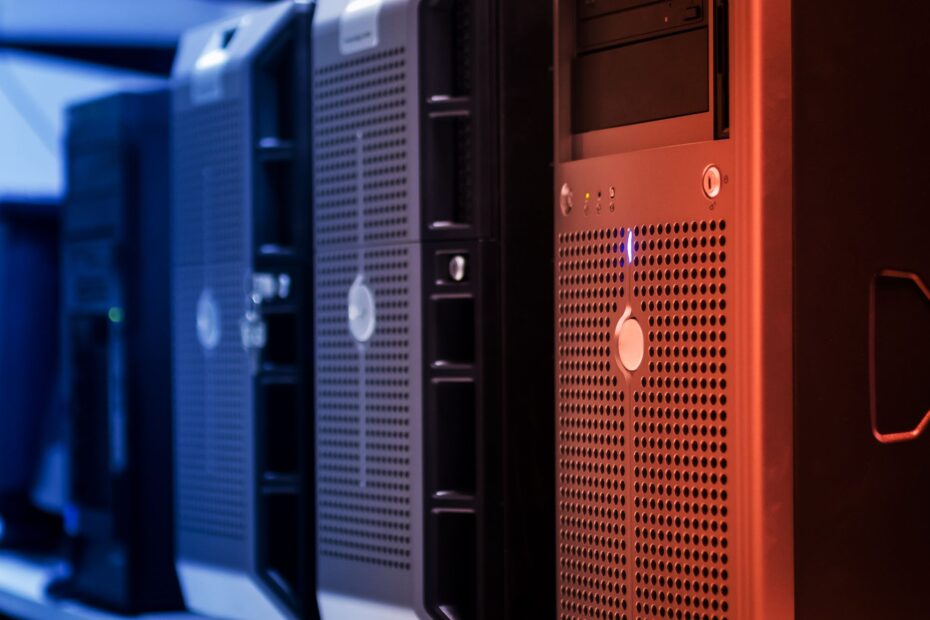
Desktop vs. server hardware is the practical distinction between machines built for local, interactive work and machines set up for shared services and faster recovery from faults. A desktop can run server software, while dedicated platforms bring ECC memory, RAID, remote control, and redundant power for work that cannot pause.
Your choice comes down to workload size, acceptable downtime, room for expansion, noise, heat, and the ongoing cost of keeping hardware powered.
A Server Role Does Not Require Server-Class Parts
A machine becomes a server because it delivers a service across your network. Your desktop can host shared files, a media library, a website, a database, backup storage, or virtual machines without changing its basic role.
That distinction matters because server hardware is a design choice, not a rule. A quiet tower can serve a household well, while a rackmount server may be justified for a shared business database that needs rapid recovery after a drive, power supply, or operating system failure.
Desktop parts favor local response, consumer graphics, low fan noise, and familiar upgrades. Server platforms focus on shared access, repair speed, storage capacity, expansion slots, and uptime and reliability for services that several devices depend on at once.
A current desktop CPU may finish short tasks faster than an older Intel Xeon processor. Yet that Xeon platform may hold far more RAM, accept several network cards, and keep running after one power supply fails. Your workload, rather than a benchmark score, should guide the hardware choice.
Core Components Reveal the Practical Split
Memory channels, storage ports, and PCIe lanes reveal the gap faster than clock speed alone. A server motherboard may include extra memory channels, more expansion slots, several storage connections, and, on some platforms, two CPU sockets.
Your desktop motherboard trades that capacity for lower complexity and a smaller physical footprint. That trade works well for gaming, office work, photo editing, and a modest home server, but it becomes restrictive once storage, network cards, and virtual machines compete for the same slots.
Graphics needs also separate these platforms. In a desktop computer vs. server setup, your consumer GPU may handle games, design applications, video editing, or several displays. Rackmount servers rarely need powerful graphics because their services are reached across a network rather than through a local monitor.
Once local-display needs are set aside, resilience features become the more consequential differentiator.
| Part | Desktop focus | Server focus |
|---|---|---|
| CPU and board | Your local programs benefit from strong single-core speed, graphics choices, and consumer sockets. | Your shared workloads benefit from higher RAM limits, more PCIe lanes, and broader input-output capacity. |
| RAM | Your desktop normally uses standard DDR memory for local applications and games. | Your server may use ECC memory and larger multi-channel RAM layouts for long-running services. |
| Storage | Your drives sit behind a case panel and are replaced during planned downtime. | Your chassis may use RAID controllers and hot-swappable drive bays for faster drive replacement. |
| Power and cooling | Your tower commonly uses one quiet power supply and slower fans. | Your chassis may use redundant power supply units and high-speed airflow for dense components. |
| Network access | Your keyboard, display, and one network port handle most daily tasks. | Your platform may use several network ports and remote management hardware for off-site control. |
| Chassis | Your ATX tower leaves room for consumer upgrades and direct access. | Your rack chassis favors density, cable routing, and quick part swaps. |
Availability Features Address Specific Failure Scenarios
A single memory error can corrupt a database record or crash a virtual machine. ECC memory checks stored data and corrects certain single-bit errors before software receives them, giving your long-running services another layer of data integrity.
ECC does not make a machine faster. Its value appears during workloads that hold data in RAM for long periods, such as virtualization, databases, file services, and business applications where a silent data error could spread through shared records.
Storage failures create a different problem. RAID spreads data across multiple disks so a service may remain available after a drive fails, while hot-swappable drive bays let you replace that failed disk without taking the chassis offline.
Redundant fans and a redundant power supply address separate single points of failure. Your server may continue running after one fan or power supply stops, but only where the remaining hardware has enough capacity to carry the load.
RAID is not a backup. Keep separate copies that your main system cannot erase, encrypt, or lose during fire, theft, controller failure, accidental deletion, or ransomware damage.
A nightly backup on separate storage protects your data, while RAID protects service availability. Your two-drive mirror can survive one failed disk, yet it also mirrors accidental deletion and damaged files across both drives.
When a fault cannot be prevented, the speed of reaching and repairing the machine becomes critical.
Remote Management Changes the Recovery Process
A frozen operating system should not force you to stand beside the machine just to press a power button. Remote management tools such as IPMI, Dell iDRAC, and HPE iLO run through a separate controller outside the main operating system.
Through that controller, you can view hardware alerts, open a remote console, review boot messages, and restart the machine. Your access remains available even where the main operating system has stopped responding or the network services are unavailable.
That recovery path becomes more valuable as your service becomes less local. A server in a closet, basement, branch office, or data room is easier to diagnose from another location than a desktop that needs a keyboard and display connected before every restart.
Large server platforms also leave room for expansion. AMD EPYC and Intel Xeon systems may expose enough PCIe lanes and memory channels for several network adapters, fast storage, RAID controllers, and dense virtual machine workloads without forcing your hardware into a slot shortage.
Separate capacity from availability before spending on either. More RAM, CPU cores, and network bandwidth raise the amount of work your machine handles; ECC, hot-swap bays, and remote recovery reduce the disruption after a component fault.
Desktop Towers Suit Modest Shared Services
A spare tower with 16 GB of RAM can serve a household better than a loud rack unit. Media streaming, home file sharing, smart-home services, light web hosting, backup targets, and learning labs fit a desktop where a brief outage is acceptable.
Your desktop PC can work as a server where low noise, lower power draw, and simple repair matter more than redundant hardware. Give it stable wired networking, enough storage space, and cooling that keeps hard drives from overheating during long transfers or backup jobs.
- Use wired networking. Your gigabit Ethernet connection avoids wireless dropouts during large backups, file transfers, and media playback.
- Leave RAM headroom. Your operating system, file cache, containers, virtual machines, and active applications all compete for memory.
- Choose stable power. Your power supply affects system stability more than a small CPU clock increase affects shared services.
- Schedule backups. Your separate copy should exist before a failed drive exposes a weak spot in your storage plan.
- Plan repair windows. Your household may accept a restart that would interrupt a shared work system.
Using server hardware in a desktop becomes useful where your tower needs extra drive bays, ECC capability, higher RAM capacity, or several network cards. But consumer parts remain sensible where your service has few users and downtime has limited consequences.
The equation changes when an outage interrupts work that users or customers cannot readily postpone.
Business Services Need Faster Recovery Paths
Ten staff members locked out of a shared accounting database can lose hours of work from a minor hardware failure. That is where server hardware for small business earns its place: the platform shortens the path from fault detection to restored service.
Consider a small office with two virtual machines, 12 staff accounts, and a 4 TB shared folder. Your recovery target may be one hour instead of the next evening, making remote management, hot-swappable drives, ECC memory, and replaceable components far more useful.
Your service level should match the support you can actually handle. Staff count, data value, remote access, growth plans, available IT help, and acceptable outage length shape the right platform more clearly than the chassis style alone.
A redundant power supply has limited value where a building outage also shuts down your router, switch, and internet connection. Pairing server features with realistic power, network, and backup planning gives you a more useful result than buying isolated enterprise parts.
ECC Memory and Drives Have Compatibility Limits
ECC is not a universal desktop upgrade. Your CPU, server motherboard or desktop motherboard, firmware, and memory type must all work together before the system can use ECC correction.
Registered ECC memory, also called RDIMM, does not work in most consumer desktop systems. Your platform may accept unbuffered ECC memory, but that still depends on the CPU, motherboard, firmware, and the exact RAM type installed.
Server hard drives and SSDs need a separate compatibility check. A server hard drive or SSD can work in your desktop where its physical size, power connector, storage interface, and controller match the machine.
SATA drives use the same familiar connector found in desktop computers. SAS drives need a SAS-capable host bus adapter, so your desktop motherboard SATA ports cannot communicate with a SAS drive directly.
- Check chassis depth. Your rack server may exceed the depth of a closet shelf, cabinet, or shallow equipment rack.
- Inspect power plugs. Your proprietary server power supply may use connectors that do not match ATX hardware.
- Verify fan headers. Your server fans may rely on unusual pinouts, high-speed signals, or firmware speed checks.
- Review firmware limits. Your older platform may reject unfamiliar drives, replacement parts, or expansion cards.
- Count circuit load. Your dual-CPU system can draw far more wall power than a compact desktop tower.
Do not assume a low used-hardware cost makes a project inexpensive. Your electricity use, heat output, fan noise, rack depth, older-platform efficiency, and proprietary-part needs continue after installation.
Operating Costs Shape the Long-Term Choice
High-speed fans can turn a used enterprise rack unit into a room-filling source of noise. Older platforms may also run deep, heavy, and hot, with CPUs that draw substantial idle power even while your services have little activity.
Your server PC cost continues through electricity use, cooling demands, replacement disks, backup storage, UPS capacity, maintenance time, and the disruption caused by an outage. A low purchase cost does not erase those long-term expenses.
A rack-mounted chassis suits a utility room or proper equipment rack better than a bedroom, studio, or small front office. Your quieter option may be a tower with several drive bays or a compact prosumer system that uses less idle power.
Those alternatives still fit a modest file server, media library, or home lab. But a dense virtual host or business database may justify the heat, fan noise, rack depth, and energy draw that come with enterprise equipment.
Workload and Downtime Tolerance Select the Platform
Service importance should choose your platform before CPU brand or chassis style. Your media library needs smooth playback and enough disk space, while your payroll database needs data integrity, remote recovery, and a clear repair path.
| Workload | Suitable platform | Reason for the fit |
|---|---|---|
| Media streaming and basic NAS | Desktop tower | Your low noise, modest power draw, and basic storage needs outweigh full redundancy. |
| Home lab learning | Desktop tower or prosumer tower | Your RAM capacity, storage space, and network access matter more than rack density. |
| Moderate virtualization | Prosumer tower or workstation | Your extra RAM, faster networking, and several drives leave room for virtual machines. |
| Shared database or business file service | Server-grade tower or rack system | Your uptime, remote recovery, ECC memory, and replaceable parts reduce service disruption. |
| Dense virtual machine host | Server-grade rack or tower | Your high memory capacity, PCIe lanes, and centralized administration address resource limits. |
Choose desktop hardware where quiet operation, low energy use, physical access, and a small budget matter most to you. Choose server hardware where data loss, long recovery, limited expansion, or repeated outages would disrupt your work.
That is the practical difference between desktop and server hardware. Your machine does not need enterprise parts merely because it runs a service, but your risk level may justify them.
Final Thoughts
Your service defines the machine, while the cost of interruption defines how much server-focused design you need. A desktop can run valuable services with sound backups, stable cooling, wired networking, and realistic expectations about downtime.
Enterprise features earn their place where they remove a failure mode that would materially disrupt your home, lab, or business. Start with the service your machine must deliver, then choose the CPU, RAM, storage, power, and chassis features that fit that responsibility.
FAQ
How is server hardware different from desktop hardware?
Around-the-clock workloads demand fast repairs, expansion capacity, shared access, and minimal downtime. Your desktop hardware favors local response, quiet cooling, consumer graphics, and a lower entry cost. You can use ECC memory, remote management, more memory channels, RAID controllers, and redundant power with server boards, while desktop hardware centers on direct local work.
Can a desktop PC be a server?
A spare home PC can run server software for file sharing, media streaming, backups, home automation, websites, and learning labs. Your results depend on adequate RAM, stable storage, wired networking, cooling, automated backups, and a service where a restart or short repair window does not cause serious disruption.
Is a server basically a computer?
A networked machine delivers services to other devices or systems across the network. Your old desktop becomes a server once it hosts shared files, a game service, a website, or virtual machines. Server-class parts add reliability and administration features, but they do not define the role your machine performs.
Can a server hard drive work in a desktop?
With matching interfaces, physical size, power connections, and controller support, an enterprise drive can work in a desktop. SATA server drives fit standard SATA ports. SAS drives need a SAS controller, so your desktop motherboard SATA ports cannot communicate with them directly.
Why do servers use ECC memory and redundant power supplies?
A single flipped memory bit can be corrected by ECC, while redundant power supplies keep a machine running after one unit fails. Your home media server may run well without either feature. A shared database or business file service benefits more because corrupted data or extended downtime carries a larger operational cost.
What are RAID, hot-swappable drives, and remote management used for?
After a drive failure, RAID preserves storage access, hot-swappable bays allow replacement without a shutdown, and remote management provides console and power control. Your separate backup still protects against accidental deletion, ransomware, fire, theft, and controller failure.