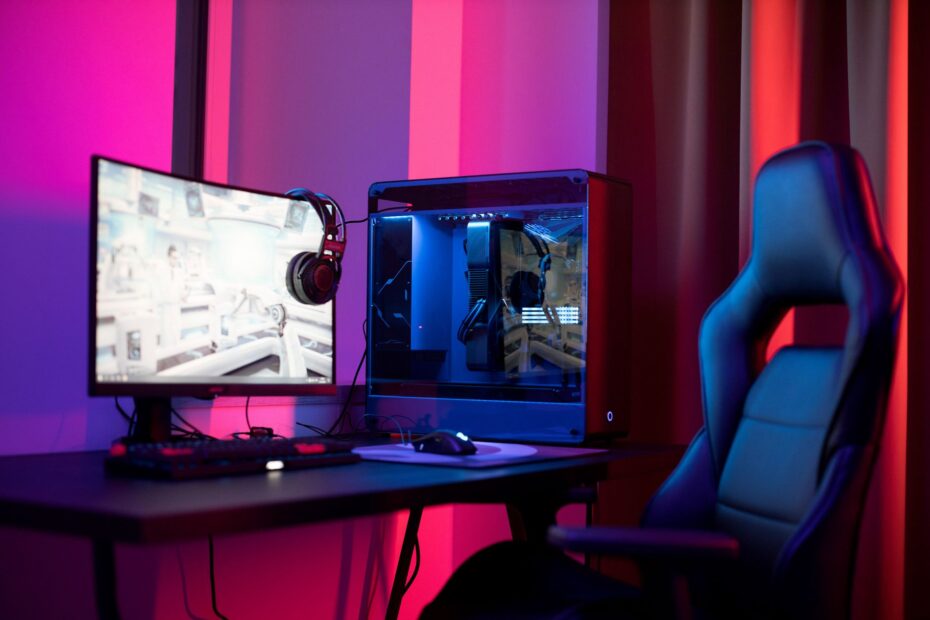
A 4K panel renders four times as many pixels as 1080p, changing image detail, GPU workload, and achievable frame rates on a PC. You gain sharper edges and clearer distant detail as resolution rises, but your graphics processing unit must render far more pixels for every frame.
Your monitor screen size, refresh rate, game genre, and hardware budget determine whether speed, sharpness, or a middle ground suits your desk.
Pixel Count Sets the Image Detail and GPU Load
Every frame starts as a grid of colored pixels. At 1080p (1920 x 1080), your GPU draws about 2.07 million pixels per frame. That count rises to 3.69 million at 1440p (2560 x 1440) and 8.29 million at 4K UHD (3840 x 2160).
| Resolution tier | Pixel dimensions | Pixel count | Rendered load versus 1080p |
|---|---|---|---|
| 1080p | 1920 x 1080 | About 2.07 million | 1x |
| 1440p | 2560 x 1440 | About 3.69 million | About 78% more pixels |
| 4K UHD | 3840 x 2160 | About 8.29 million | 4x as many pixels |
1440p asks your graphics card to shade about 78% more pixels than 1080p. 4K UHD asks it to shade four times as many pixels as 1080p and 125% more pixels than 1440p. Your FPS falls once the GPU becomes the limiting part of the PC.
Fine foliage, thin wires, distant building edges, and small interface text gain detail at higher resolutions. More pixels also give anti-aliasing a cleaner starting point, so diagonal lines show less visible stair-stepping before post-processing enters the frame.
Resolution changes desktop space and game detail
Higher resolution gives your desktop more usable room at the same monitor size. A 2560 x 1440 workspace fits more windows than 1920 x 1080, while 3840 x 2160 fits far more detail. Operating-system scaling still controls how large text and icons look on your screen.
Texture quality remains separate from output resolution. A game with low-detail textures can still look flat at 4K, while high-quality textures can look strong at 1440p. Ray tracing, HDR, shadow quality, and anti-aliasing each affect a different part of the image.
Pixel count alone does not predict what your eyes will see at your desk. Pixel density (PPI), panel size, and viewing distance decide whether extra resolution looks dramatic or subtle.
Pixel Density Shows Where Each Resolution Looks Sharp
A 27-inch 1440p panel has a much denser pixel grid than a 27-inch 1080p panel. Pixel density (PPI) describes that spacing. Higher PPI makes text, UI lines, and fine game detail look tighter because each visible pixel occupies less physical space.
| Common monitor pairing | Approximate pixel density | Visible result at a desk |
|---|---|---|
| 24-inch 1080p | 92 PPI | Clear image for fast play and standard desk distance |
| 27-inch 1440p | 109 PPI | Sharper text and cleaner detail without very small interface elements |
| 32-inch 4K | 138 PPI | Dense text, detailed scenes, and broad desktop workspace |
Your 1080p display can look clean at 24 inches, yet softer at 27 or 32 inches. Each pixel becomes physically larger as panel size rises. That larger spacing makes edge shimmer, blocky curves, and rough-looking text easier for your eyes to see.
A 27-inch 1440p monitor reaches about 109 PPI, which suits mixed PC gaming and desktop work. A 32-inch 4K screen reaches about 138 PPI. You can see its added density in small text, detailed terrain, cockpit instruments, and complex strategy interfaces.
Viewing distance changes the visible upgrade
At a standard desk distance, 1440p and 4K can appear close on a compact 27-inch screen. Move closer or use a larger panel, and 4K’s added pixel density becomes easier to spot. Your seating position changes the result as much as the resolution label.
RTINGS examines text clarity, pixel structure, contrast, and motion during monitor evaluations because resolution does not describe the full screen experience. Panel quality still matters. A poor 4K panel does not automatically look better than a strong 1440p display.
Once your panel exposes the added detail, the GPU must keep up with that denser image. Render load becomes the next practical limit, especially at high refresh rates.
GPU Limits Become More Visible at Higher Resolutions
Your graphics processing unit rasterizes geometry, shades pixels, and moves data through memory for each completed frame. Higher resolution raises that workload. The same game settings can deliver far fewer frames per second at 4K than at 1080p.
1080p can expose CPU limits
At 1080p, a powerful GPU can finish rendering so quickly that the CPU becomes the hold-up. Large multiplayer matches, simulation-heavy scenes, background tasks, RAM speed, and game-engine limits can cap FPS before your graphics card reaches full load.
Your system may reach 180 FPS at 1080p yet gain little from lower graphics settings. That result points to a CPU limit rather than a GPU limit. In that situation, a stronger graphics card alone will not add much speed.
4K puts more pressure on graphics hardware
At 4K, graphics hardware carries a much heavier pixel workload. VRAM matters more because high-resolution textures, ray-traced data, render targets, and frame buffers occupy more memory at the same time.
The 4K gaming FPS difference has no fixed percentage. A CPU-limited esports game can show a modest drop, while a ray-traced single-player game can lose far more FPS. Your game engine, GPU, VRAM capacity, graphics settings, and upscaling mode all change the result.
Ray tracing, volumetric fog, high shadow settings, and resolution scale do not reduce FPS by equal amounts. Lower the option that strains your specific game instead of dropping every setting at once.
NVIDIA DLSS, AMD FidelityFX Super Resolution (FSR), and Intel XeSS can reduce a GPU-bound load. They do not remove a CPU cap. Your refresh-rate target shows where those tools offer the most value.
Refresh Rate Changes the Value of Each Resolution Tier
A 144 Hz monitor refreshes 144 times per second, while a 240 Hz panel refreshes 240 times. Your PC needs similar FPS to fill those refresh cycles with fresh frames. High refresh rates reward stable frame times as much as high peak FPS.
Competitive games favor frame-rate headroom
1080p remains a sensible fit for competitive gaming because it places less strain on the GPU. In Counter-Strike 2, Valorant, Rocket League, and Overwatch 2, your mouse response and moving targets can matter more than distant texture detail.
- Higher FPS headroom: Your PC can stay closer to 144 FPS or 240 FPS during particle-heavy fights.
- Clearer motion: Your display can show more unique frames during fast turns and target tracking.
- Lower input delay: Shorter render times let newer frames reach your screen sooner.
- Lower GPU load: Your hardware budget can favor CPU speed, memory, and a high-refresh panel.
Many professional esports setups still use 1080p displays at 240 Hz or 360 Hz. Tournament hardware, game settings, supplied PCs, and practiced habits shape that choice. 1440p also appears in competitive play, particularly where hardware can hold high FPS.
1440p gives a middle-ground desktop experience
For a 27-inch monitor, 1440p gives you sharper edges and more desktop space than 1080p. A capable midrange or high-end GPU can still target 120 to 165 FPS in many games with sensible settings. That balance explains its appeal for mixed game libraries.
4K suits a different priority. Cyberpunk 2077, Microsoft Flight Simulator, Baldur’s Gate 3, and dense strategy maps can show striking detail on a large screen. Your target might sit nearer 60, 90, or 120 FPS than 240 FPS.
Native 4K is not the only route to a high-resolution image. Reconstruction tools can lower internal render resolution while keeping 4K output on your monitor.
Upscaling Makes 4K More Practical for Demanding Games
Modern upscalers render a game below the monitor’s native pixel grid, then reconstruct the frame for higher-resolution output. NVIDIA DLSS uses AI-based reconstruction on supported GeForce GPUs. AMD FidelityFX Super Resolution (FSR) works across a wider range of hardware, while Intel XeSS serves compatible Arc and other GPUs.
Internal render resolution drives the gain
Performance mode uses a lower internal resolution than Quality mode. Your GPU shades fewer pixels, then the upscaler rebuilds the image toward 4K. That can raise FPS without changing the output resolution selected in your game menu.
Dynamic resolution takes a similar route during demanding scenes. A particle-heavy battle, crowded city drive, or large explosion can trigger a lower internal resolution. The game raises it again after GPU pressure drops.
Artifacts set the useful limit
Fine hair, fence wires, moving foliage, transparent effects, and rapid camera motion reveal weak spots in aggressive upscaling modes. Your image can show shimmer, unstable detail, or soft textures where the game lacks clean source data.
Frame generation can raise displayed FPS on supported hardware, but it does not lower CPU time for the base frame. Your input response still relies heavily on the original rendered FPS. A low baseline remains a poor fit for fast competitive shooters.
Start at native resolution or an upscaler’s Quality setting, then inspect a familiar moving scene. Your eyes can spot unstable foliage and shimmering fences faster than a benchmark chart.
Upscaling changes the 4K value calculation, yet it does not make every monitor size or game type point toward 4K. Your games and display size still set the sensible target.
Your Games and Monitor Size Point to the Right Tier
A 24-inch monitor aimed at 240 Hz calls for a different PC than a 32-inch 4K screen built around detailed single-player games. Your preferred games, target FPS, panel size, and GPU budget should point in the same direction.
| Resolution | Strong fit | Monitor pairing | Frame-rate priority |
|---|---|---|---|
| 1080p | Budget PCs and competitive shooters | 24 inches, 144 Hz to 360 Hz | High and consistent FPS |
| 1440p | Mixed game libraries and desktop work | 27 inches, 144 Hz to 180 Hz | High FPS with sharper detail |
| 4K UHD | Detail-focused AAA games and simulations | 32 inches or larger, 60 Hz to 165 Hz | Visual density over extreme FPS |
Game genres change the visual trade-off
Fast shooters reward motion clarity and low latency, making 1080p or 1440p logical targets. Strategy games, racing simulators, flight simulators, and slower adventures reward dense interfaces and distant detail. Your 4K screen can show more of that information without rough-looking pixel edges.
Your 1080p vs 1440p gaming decision also depends on monitor size. A 24-inch 1080p setup remains sharp enough for intense play. A 27-inch screen makes 1440p the more comfortable fit for text clarity and desktop space.
Check the parts of your current setup
- Match panel size: Use 1080p near 24 inches, 1440p near 27 inches, and 4K near 32 inches or larger.
- Track real FPS: Run your most-played games at settings that match how you actually play.
- Set a target: Pick 60, 120, 144, 165, or 240 FPS before selecting a monitor refresh rate.
- Watch GPU load: Near-100% GPU use points toward a graphics limit rather than a processor limit.
- Plan related parts: Include the display, graphics card, power supply, and cooling in the same spending plan.
For many PCs, 1440p is the sensible middle position between 1080p speed and 4K detail. But 1080p suits stable high-FPS play, while 4K makes more sense where your hardware and screen size reveal its extra density.
Final Thoughts
Your monitor resolution should fit the way you play instead of sitting at the top of a spec sheet. Choose 1080p for high-refresh competitive speed, 1440p for balanced desktop and game use, and 4K for large displays with strong GPU performance.
In 1080p vs 1440p vs 4K gaming, the useful choice is the tier that keeps your preferred games sharp and smooth at your target FPS. Pixel density, refresh rate, VRAM, and upscaling all shape that result.
FAQ
What is the actual difference in pixel count between 1080p, 1440p, and 4K?
1080p has about 2.07 million pixels, 1440p has about 3.69 million, and 4K has about 8.29 million. Your GPU renders about 78% more pixels at 1440p than 1080p, while 4K renders four times as many pixels as 1080p.
How much more GPU performance does 1440p and 4K gaming require than 1080p?
1440p renders about 78% more pixels than 1080p, while 4K renders four times as many. Your exact FPS loss depends on the game engine, graphics processing unit, ray tracing settings, VRAM use, CPU limit, and upscaling mode.
Is there a noticeable difference between 1440p and 4K gaming?
Yes, you can see a clear difference on a 32-inch or larger monitor, especially in fine foliage, small text, distant objects, and detailed UI elements. On a 27-inch display at normal desk distance, your visual gain can be much smaller, while GPU load rises sharply.
Can the human eye tell the difference between 1440p and 4K?
Your eyes can tell the difference where individual detail stands out, such as on a larger screen or at a close viewing distance. At 27 inches from a standard desk position, 1440p already looks dense, so 4K delivers a subtler change.
Do pro gamers play on 1080p or 1440p?
Many professional players still choose 1080p with 240 Hz or 360 Hz refresh rates because high FPS and motion clarity matter in competitive games. Your tournament setup, GPU power, and game type can make 1440p viable, particularly at 144 Hz or higher.
Should I use 1080p or 4K for gaming?
Choose 1080p where your priority is high FPS, competitive response, a 24-inch monitor, or limited hardware spending. Choose 4K where your PC has strong GPU performance, your display is 32 inches or larger, and your games reward visual detail more than extreme refresh rates.