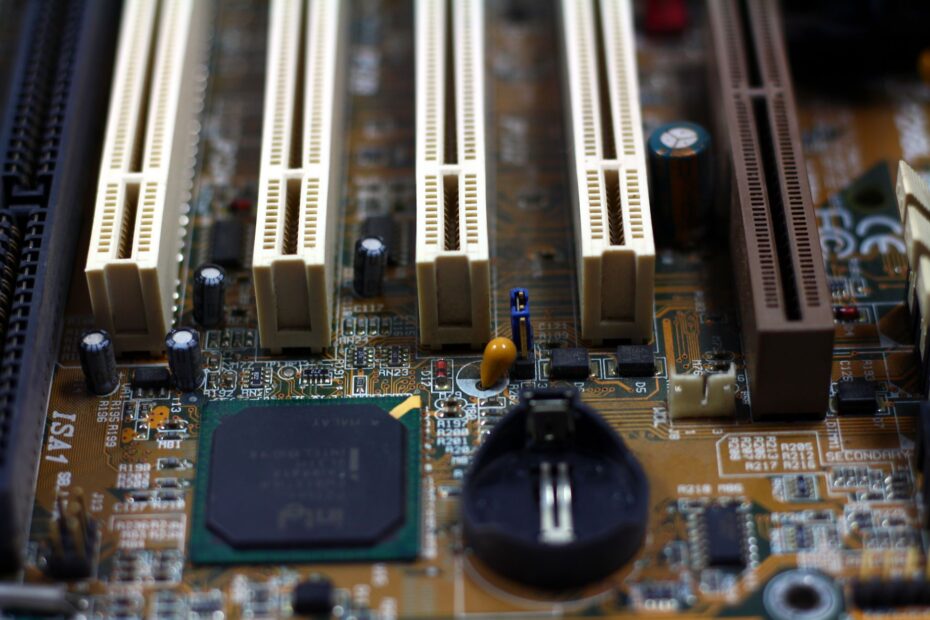
On a typical board, controller silicon routes extra input and output connections between the CPU and hardware such as USB ports, SATA drives, PCI Express slots, and network controllers. It expands your board’s connectivity, while your CPU handles memory access and the fastest device links.
This explanation follows the data path from ports to processor, shows where lane sharing appears, and helps you match Intel or AMD board features to your desktop build.
The Chipset Sits Between Added I/O and the CPU
A motherboard is a circuit board rather than a single controller. Your CPU runs instructions, your RAM holds active data, and the board carries electrical traces among those parts. The chipset handles much of the remaining I/O, including added USB connectivity, SATA ports, PCI Express lanes, audio, network links, and power-state signals.
The CPU, Motherboard, and Chipset Handle Separate Work
Your CPU runs program instructions and handles work that needs low latency. Memory controllers sit inside current Intel and AMD desktop processors, so your RAM communicates with the CPU without routing through chipset silicon.
The motherboard holds the socket, traces, voltage-regulation hardware, headers, and physical ports your system needs. A chipset sits soldered to the board, often below a small heatsink near the lower PCIe slots. From that point, it directs traffic from attached devices toward your processor.
| Part | Main role | What it means for your PC |
|---|---|---|
| CPU | Runs instructions and hosts memory control | Your processor handles game logic, rendering work, and active memory access. |
| Motherboard | Holds components and electrical traces | Your ports, slots, socket, and power hardware depend on the board layout. |
| Chipset | Coordinates added I/O | Your extra drives, USB devices, and expansion hardware receive routes toward the CPU. |
| BIOS or UEFI | Starts hardware and stores setup settings | Your firmware configures hardware settings, but firmware is not chipset silicon. |
Your BIOS or UEFI is firmware stored on a flash chip. It starts hardware before the operating system loads. Chipset drivers then give Windows the instructions it needs for platform hardware, including ports, controllers, and power features.
That division answers the motherboard chipset vs CPU question. Your CPU processes instructions and hosts direct memory links, while the chipset adds connections that would otherwise need to come straight from the processor package.
Northbridge and Southbridge Became a Modern PCH Layout
Older desktop boards used two large controller chips. The Northbridge handled memory and graphics traffic, while the Southbridge handled USB, SATA, audio, and older ports. That split explains the crowded diagrams found on older desktop platforms.
Memory and Graphics Moved Into the Processor
- Northbridge role: Your memory and graphics traffic passed through a chip near the CPU before reaching the processor.
- Southbridge role: Your USB, SATA, audio, and lower-speed expansion hardware connected through a companion controller.
- CPU integration: Intel and AMD moved memory control and primary PCI Express lanes into the processor package.
- Modern layout: Intel uses the PCH, while AMD chipset silicon focuses on added connectivity and expansion paths.
Intel’s PCH, short for Platform Controller Hub, descends from the Southbridge role. AMD chipsets serve a similar purpose in your PC. Your graphics card and primary M.2 and NVMe storage drive can use direct processor links instead of the older multi-chip route.
That hardware shift explains why chipset silicon has little direct effect on CPU core speed. Your processor, RAM settings, cooling, and graphics card still shape frame rendering and compute workloads. Chipset capacity matters more as you add drives, peripherals, and PCIe cards.
That growing collection of attached devices ultimately converges on a single path back to the processor.
Ports and Drives Reach the Processor Through a Shared Uplink
A rear USB port looks simple, yet its data crosses several components before software receives it. Your keyboard, external SSD, or audio interface communicates with a USB controller, and the chipset forwards that traffic through a high-speed link to the CPU.
Intel DMI and AMD Uplinks Carry Grouped Traffic
Intel calls the processor-to-PCH connection Direct Media Interface, or DMI. AMD uses a chipset uplink with the same broad job. Neither link gives every peripheral a private route to the processor; devices on the chipset side share that connection.
| Connected device | Typical route | Practical result for your PC |
|---|---|---|
| Rear USB SSD | USB controller to chipset to CPU uplink | Your transfer shares the uplink with other chipset-connected hardware. |
| SATA hard drive | SATA controller to chipset to CPU uplink | Your drive traffic follows a longer route than a CPU-direct NVMe slot. |
| Lower PCIe slot card | Chipset PCIe lanes to CPU uplink | Your capture card or sound card uses a shared path. |
| Primary graphics slot | CPU-direct PCI Express lanes | Your GPU avoids chipset-uplink sharing during rendering. |
Consider a 10Gbps external SSD. Your enclosure sends data through a rear USB port, an onboard controller, the chipset, and the CPU uplink before Windows writes files into memory or another drive. A port label states its speed capability, but it does not show the complete route.
Internal headers follow the same pattern. Your front-panel USB-C port may use a chipset-fed controller, while Ethernet, Wi-Fi, and audio codecs also connect through board-level controllers. Consult your board manual and block diagram for the exact layout rather than judging a connection by slot size.
CPU-Direct PCIe Lanes and Chipset Lanes Have Different Roles
A full-length PCIe x16 slot does not always carry 16 processor lanes. Board makers use physical slot length for mechanical fit, while electrical wiring sets your real lane count. Your manual identifies a connection as x16, x8, x4, or another width.
Direct Lanes Serve High-Throughput Hardware
Graphics cards use CPU-connected lanes because rendering moves large blocks of data between the GPU and processor. Your primary M.2 NVMe slot also sits near the CPU socket on many boards for that reason, though routing differs by model.
CPU-direct lanes have a shorter path because the device communicates with the processor without crossing the chipset uplink. Your GPU and boot drive benefit most from that placement during heavy graphics work, game loading, and storage activity.
Chipset Lanes Expand the Rest of the Board
Additional M.2 sockets, lower PCIe slots, SATA ports, USB controllers, network chips, and audio hardware can use chipset lanes. This arrangement gives your board room for far more connectivity than the CPU package alone exposes.
| Connection type | Common routing | Why your routing matters |
|---|---|---|
| Top PCIe x16 slot | CPU-direct | Your graphics card gets a short path for high-throughput work. |
| Primary M.2 slot | CPU-direct on many boards | Your boot NVMe drive avoids shared chipset traffic. |
| Extra M.2 slot | Chipset-fed | Your added storage shares the chipset uplink. |
| Lower PCIe slot | Chipset-fed on many boards | Your card may run at fewer lanes than its physical length suggests. |
Two M.2 sockets may look identical while behaving differently in your build. Your board manual may state that an installed drive disables two SATA ports or reduces another slot’s lane width. Those trade-offs come from finite chipset resources and trace routing rather than a board defect.
That is why the physical layout matters before you install a capture card, sound card, second NVMe drive, or 10Gb Ethernet adapter. Read the storage and expansion notes near the board specifications, since a small footnote can change your available ports.
Shared Uplink Bandwidth Limits Chipset-Attached I/O
Every chipset-attached device feeds into a shared route toward your processor. Your USB drive does not receive an isolated CPU link, and neither does a chipset-connected NVMe drive, capture card, or network controller. Contention appears during simultaneous heavy transfers rather than ordinary desktop activity.
Your motherboard can list several high-speed ports while routing them through one shared uplink. Consult the manual before assigning simultaneous recording, storage, and capture work to chipset-fed connections.
A single game loading from one NVMe drive rarely reaches that limit. Your web browsing, office tasks, and standard gaming leave plenty of bandwidth available. The ceiling becomes visible while you copy large files between fast SSDs with external storage, 10Gb Ethernet, and video capture hardware active.
Consider a workstation recording camera footage to one NVMe drive while copying source files from a USB-C SSD. Add a PCIe capture card on chipset lanes, and the three streams compete for the same uplink. Your system may show reduced transfer speed, dropped frames, or uneven storage performance.
That shared path is a capacity issue rather than a claim that chipset-fed connections are slow. A SATA drive, mouse, keyboard, audio interface, and standard USB accessories use far less bandwidth than several SSDs transferring data at once.
Because contention occurs only among traffic routed through the chipset, it does not make processor cores run slower.
Chipset Features Add Connections Rather Than CPU Speed
More ports do not make your processor cores faster. A higher-tier chipset exposes added PCIe slots, USB generations, SATA connections, RAID options, and tuning controls, while your CPU still runs the same instruction set at the same settings.
Gaming Relies More on CPU and GPU Placement
With the same CPU, GPU, RAM settings, and CPU-direct graphics slot, frame rates stay close across suitable boards. Not through extra CPU speed; it affects your setup through storage capacity, USB accessories, network hardware, and tuning access.
Integrated graphics also come from your CPU rather than chipset silicon. Your rear HDMI or DisplayPort connector works only with a processor that includes graphics hardware and a motherboard that routes that signal to its display outputs.
Platform Tuning Depends on Chipset and Board Design
Intel chipset tiers place different limits on processor overclocking, while AMD platforms expose different tuning controls through firmware. Your voltage regulation, cooling, BIOS options, and memory trace design still set practical limits, even where the chipset allows adjustment.
Power behavior also depends on that platform relationship. Sleep states, wake events, USB charging behavior, and fan controls rely on firmware settings and board implementation. The chipset supplies capabilities, while the board maker selects the controllers and headers present on your board.
Intel and AMD Chipset Tiers Shape Board Features
Names such as B760, Z790, B650, and X670 describe platform families rather than identical motherboards. Your exact board can have fewer ports, fewer slots, or different network hardware than another model with the same chipset label.
| Chipset example | Typical position | What to inspect |
|---|---|---|
| Intel B760 | Mainstream Intel desktop boards | Your USB count, M.2 layout, memory-tuning options, and expansion wiring vary by board. |
| Intel Z790 | Higher-feature Intel desktop boards | Your board can expose added I/O choices and CPU-overclocking controls with compatible processors. |
| AMD B650 | Mainstream AM5 desktop boards | Your PCIe generation, USB-C connection, and storage layout depend on the model. |
| AMD X670 | Higher-expansion AM5 boards | Your board may use added chipset resources for more storage and peripheral connections. |
Intel B760 and Intel Z790 can run the same compatible processor at stock settings. Your difference lies in I/O capacity and overclocking access rather than an automatic CPU speed increase. Z790 boards also differ because manufacturers select their own controllers, slot wiring, and power stages.
AMD B650 and AMD X670 follow the same pattern. Your AMD X670 board may expose broader expansion options, yet a B650 model suits a gaming PC with one GPU, two drives, and standard USB hardware. Intel vs AMD chipset tiers matter only after your socket and required connections are clear.
Socket and Port Checks Shape a Build Plan
Socket compatibility comes before port counts. Your CPU must fit the motherboard socket, and its generation must appear on the board’s processor list. A later CPU release may need a BIOS update before installation.
Your Selection Sequence Starts With Compatibility
- Match the socket: Match your processor to the board socket, such as Intel LGA1700 or AMD AM5.
- Verify CPU listing: Find your processor model and required BIOS version on the manufacturer’s processor list.
- Count storage paths: List your NVMe drives, SATA drives, and port-sharing limits shown in the manual.
- Map external hardware: Count your USB-A, USB-C, display, Ethernet, audio, and front-panel connections.
- Inspect slot wiring: Verify lane width for your GPU, capture card, sound card, or network adapter.
- Review tuning access: Match memory and CPU overclocking access to the settings you plan to use.
CPU and motherboard chipset compatibility depends on the socket, processor generation, firmware version, and board-level wiring. A chipset name alone does not confirm that your processor will start. Your board manufacturer’s CPU list supplies the model-specific answer.
How to identify your motherboard chipset starts with the board model. Windows System Information may show your board manufacturer and product name. The manufacturer specification sheet then identifies the chipset, while CPU-Z and HWiNFO also display chipset details.
Your manual remains the clearest source for lane-sharing rules. It shows which M.2 socket disables SATA ports, which lower PCIe slot shares bandwidth, and which USB headers depend on added controllers. That detail matters more than the chipset label alone.
A desktop motherboard chipset cannot be swapped like RAM or an M.2 drive because it is soldered to the board. Your route to another tier, more ports, or a different socket requires a motherboard replacement. Plan your storage and expansion needs at least one upgrade ahead.
Final Thoughts on the Desktop Data Path
Your chipset is not a speed button. It directs traffic for your PC’s added storage, ports, expansion lanes, and platform options. Place your GPU and primary NVMe drive on CPU-direct links where your board permits it, then use chipset-fed connections for the rest of your hardware.
Once you understand the route map, motherboard specifications become clearer. Your next board choice should follow the devices you plan to connect, the CPU socket you need, and the lane-sharing limits shown in the manual.
FAQ
What does a chipset on a motherboard do?
Your motherboard chipset coordinates added I/O that is not wired directly to your CPU. It routes USB ports, SATA drives, extra PCIe lanes, audio hardware, network controllers, firmware-related functions, and power-state signals through a high-speed link to the processor.
What does a motherboard chipset do?
That expands the connections available beyond CPU-direct memory, graphics, and primary storage links. It routes added USB controllers, SATA ports, lower PCIe slots, audio, networking, and board-level hardware toward your processor through a shared uplink.
How does a motherboard chipset communicate with the CPU?
A high-speed platform link carries signals between the controller hub and the CPU. Intel calls that link DMI between the CPU and PCH. AMD uses a chipset uplink that carries grouped traffic from chipset-attached storage, USB, network, and PCIe hardware.
What is the difference between a chipset and BIOS or UEFI?
Your chipset is physical controller silicon soldered to the motherboard. Your BIOS or UEFI is firmware stored on flash memory. Firmware starts your PC and stores setup settings, while chipset hardware routes and coordinates attached I/O devices.
Is a motherboard chipset the same as BIOS?
No. Your chipset is hardware, while your BIOS or UEFI is firmware. You use firmware settings to configure hardware behavior, but the firmware does not replace the chipset’s role in routing USB, storage, PCIe, audio, and network traffic.
What is the difference between the old northbridge and southbridge and a modern PCH?
The old Northbridge handled memory and graphics traffic, while the Southbridge handled slower I/O such as USB, SATA, and audio. Modern CPUs absorb memory control and primary PCIe lanes, leaving Intel’s PCH and AMD chipset silicon focused on added connectivity.