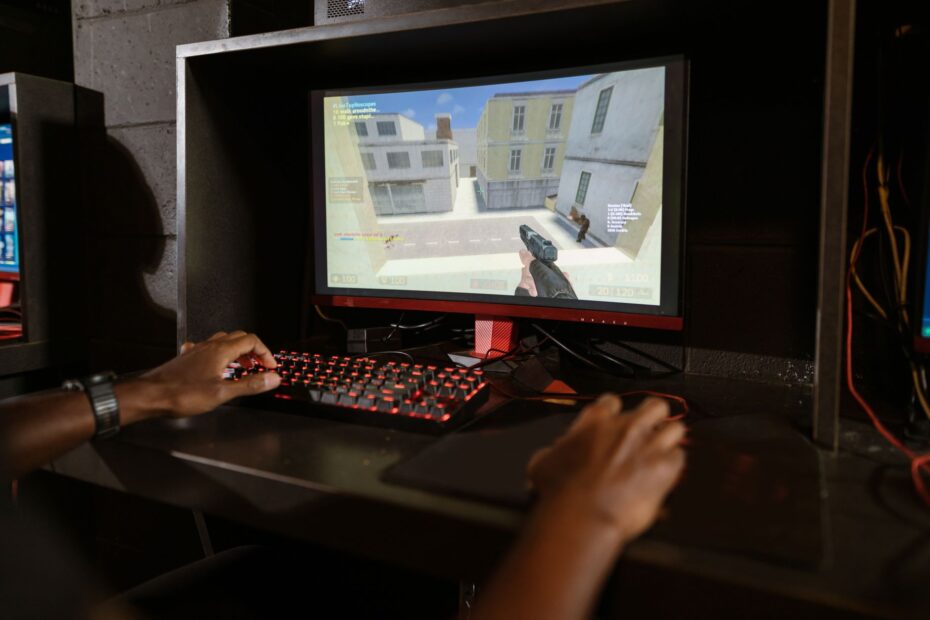
A 16.7-millisecond frame interval corresponds to 60 completed frames per second, while delivery timing reveals smoothness during play. A 90 FPS reading can conceal a sharp hitch in a firefight, so you need frame-time data and low-percentile results for a complete view.
This explanation covers FPS, frame time, display refresh limits, overlays, Benchmarking, Bottlenecks, and the settings that shape your own results.
Frames Show How Fast Your PC Draws Game Images
A game appears to move through a rapid stream of still images called frames. Your GPU (graphics processing unit) draws those frames, and FPS records how many completed images reach the display during a fixed interval.
Higher FPS reduces the visual distance between each position in motion. At 60 FPS, your game draws twice as many images as it does at 30 FPS across the same 1,000 ms period, so camera movement looks smoother and your input reaches a new image sooner.
A racing car at 30 FPS appears to jump farther across the track between visible positions. At 60 FPS, its position updates more closely, and your steering input waits less time for the next completed frame.
FPS measures throughput, not the full feel of play. Your PC gaming performance measurement also needs delivery consistency, because rapid frames mixed with slow frames can feel rough despite a high average.
Frame Time Explains the Timing Behind FPS
Uneven delivery appears clearly in frame time, which records the milliseconds required to draw one frame. Lower frame time means a new image reaches your display sooner, while steady frame time keeps motion from lurching.
Frame Time Uses an Inverse Formula
FPS equals 1,000 divided by frame time in milliseconds. A 16.7 ms result equals 60 FPS, while a 33.3 ms result equals 30 FPS.
Your frame-time target gets tighter as your FPS target rises. Reaching 120 FPS requires about 8.3 ms per frame, leaving less time for the CPU (central processing unit), GPU, game engine, and memory system to finish their work.
| Frame rate | Frame time | Visible effect |
|---|---|---|
| 30 FPS | 33.3 ms | Playable motion with wider gaps between frames |
| 60 FPS | 16.7 ms | Smoother camera motion and quicker feedback |
| 120 FPS | 8.3 ms | Fast motion with shorter input-to-image intervals |
| 144 FPS | 6.9 ms | Useful for 144 Hz displays and rapid competitive play |
A single 50 ms frame can interrupt a 60 FPS sequence, even though the counter recovers moments later. That gap shows why an average figure cannot describe every rough moment you feel.
Average FPS and Low Percentiles Reveal Different Problems
An average of 90 FPS can look strong until a busy scene exposes repeated drops. Average FPS divides every rendered frame across the full run, so it describes total output rather than the roughest moments inside that run.
Low Percentiles Expose Short Slowdowns
The 1% low FPS figure describes the slowest 1% of frames in a run. The 0.1% low FPS figure narrows the view further and exposes rare but severe frame-time spikes.
You get a clearer view of stutter through those values because they reveal poor frame pacing that an average hides. A game averaging 100 FPS with a 1% low near 35 FPS can feel less controlled than one averaging 85 FPS with a 1% low near 70 FPS.
| Metric | What it describes | What it reveals for you |
|---|---|---|
| Average FPS | Total output across a full run | Broad speed across a route or benchmark |
| 1% low FPS | Slowest 1% of delivered frames | Noticeable drops during busy scenes |
| 0.1% low FPS | Slowest 0.1% of delivered frames | Rare pauses, asset-streaming hitches, or spikes |
| Frame-time graph | Each frame’s render duration | The pattern behind a stutter |
A flat frame-time line shows steady pacing. Tall isolated spikes mark the moments where your game pauses, even with a high average FPS figure.
Two PCs can report the same 80 FPS average while feeling very different. One system may stay near 12.5 ms per frame, while another swings between 6 ms and 40 ms as new areas load.
Those swings originate before the display’s refresh cycle determines which completed frames you can actually see.
Rendered FPS and Refresh Rate (Hz) Are Separate Limits
Rendered frames still need to meet the rhythm of your display. Refresh rate (Hz) states how many times the panel can refresh during a 1,000 ms interval.
A 60 Hz display can show no more than 60 distinct frames in that interval, but your GPU can render 120 FPS or 200 FPS behind it. Your system is not limited to 60 FPS, though the panel cannot show every newly rendered frame as a separate refresh.
Higher Refresh Rates Show More Unique Frames
A 120 Hz or 144 Hz display can show more unique frames than a 60 Hz panel, provided your system renders them. At 120 FPS on a 120 Hz screen, each refresh can present a new frame, which improves motion clarity and lowers visible input delay.
Your display and frame rate do not need an exact match to work. But mismatched timing can cause screen tearing, where the top and bottom portions show parts of different frames.
Sync Settings Change Pacing and Latency
- V-Sync enabled: Caps output near refresh rate and reduces tearing, though your input latency can rise.
- Frame cap: Limits output to a chosen number, which can reduce heat, power draw, and frame-time swings.
- Variable refresh: G-SYNC and FreeSync let compatible displays vary refresh timing to follow rendered frames.
- Uncapped output: Produces maximum frames, though tearing and higher power use can appear on fixed-refresh panels.
Steam, NVIDIA App, and AMD Software can display these values while you play. Your Frame rate counter becomes more useful once you know whether it shows a display limit, a cap, or raw GPU output.
Performance Overlays Turn Gameplay Into Measurable Data
A small corner counter works for a quick check, but a log captures hitches that disappear before you can look up. Built-in game benchmarks are a strong starting point because they replay a fixed scene under repeatable conditions.
You can enable an in-game counter, Steam’s performance monitor, Windows Game Bar, NVIDIA App overlay, or AMD Software metrics. These tools can show FPS, frame time, GPU utilization, CPU load, clock speeds, temperatures, VRAM use, and RAM use during active play.
Logging Captures the Exact Problem Scene
A live counter can miss a half-second hitch near a crowded street or a heavy boss effect. Logging records the complete sequence, giving you evidence from the point where gameplay felt wrong.
For PC gaming performance measurement, use an overlay that records a CSV file or frame-time graph. CapFrameX, built around PresentMon data, is widely used for reviewing percentile performance after a run instead of relying on memory.
Recorded data becomes trustworthy only when each run follows the same route, settings, and test conditions.
- Repeat one route: Replay the same 60 to 120 second path through the same save file.
- Watch frame time: Look for tall spikes instead of watching only the largest FPS figure.
- Record temperatures: Rising GPU or CPU temperature can reveal heat throttling after several minutes.
- Check memory use: Full VRAM or strained RAM capacity can cause stutter during texture streaming.
Controlled Benchmarking Produces Comparable Results
One pass through a busy city block can change because of background tasks, random AI activity, or shader compilation. Useful Benchmarking depends on holding meaningful conditions still across every run.
Your result needs enough detail for a later run on the same PC to mean something. A benchmark label without Resolution and graphics settings, driver version, and scene details is only an isolated number.
Fixed Conditions Remove Noise
| Keep fixed | Why it changes results |
|---|---|
| Game version and driver | Updates can alter shader behavior, CPU load, and GPU output |
| Resolution and preset | Pixel count and effects load the GPU differently |
| Upscaling and ray tracing | DLSS, FSR, and ray tracing can shift output sharply |
| Route and duration | Different scenes stress different parts of your PC |
| Background tasks | Downloads and browser tabs can consume CPU, RAM, or storage access |
Repeated Runs Give You Better Evidence
- Set one scene: Choose a built-in benchmark or a repeatable route lasting at least 60 seconds.
- Close background load: Shut down downloads, game launchers, browser tabs, and recording tasks you do not need.
- Run three passes: Repeat the same sequence three times after shaders have had time to compile.
- Record full results: Write down average FPS, 1% low FPS, 0.1% low FPS, frame-time behavior, and temperatures.
- Change one setting: Alter a single variable, then repeat the exact route before drawing a conclusion.
Frame generation needs a clear label in your notes. A result with NVIDIA DLSS Frame Generation or AMD FidelityFX Super Resolution frame generation active is not directly equivalent to traditionally rendered FPS.
Hardware and Graphics Settings Set the Performance Ceiling
The slowest major part of the rendering path sets the pace. In a graphics-heavy scene, the GPU spends the most time drawing pixels, shadows, lighting, textures, and ray-traced reflections.
You can spot a GPU limit through sustained GPU utilization near its practical ceiling while the CPU has spare room. Lowering resolution, reducing ray tracing, or changing demanding graphics settings reduces GPU workload and can raise frame rate.
CPU and Memory Bottlenecks Behave Differently
A CPU bottleneck appears more clearly at lower resolutions or very high FPS targets. Simulation games, large multiplayer matches, dense crowds, physics, and draw-call-heavy scenes can hold back a fast graphics card.
Your GPU utilization can fall below full load during that limit because it is waiting for the CPU to prepare the next frame. Lowering texture detail or resolution rarely fixes this pattern because the GPU was not the limiting part.
RAM capacity and memory speed affect consistency too. A system short on RAM can move data to storage, while limited VRAM can force texture swaps that appear as 0.1% low FPS drops.
Frame Generation Needs Separate Reporting
Frame generation inserts generated images between traditionally rendered frames. NVIDIA DLSS Frame Generation and AMD FidelityFX Super Resolution frame generation can raise displayed FPS, especially on a high-refresh display.
Your native render rate still supplies source frames, game simulation, and input response. Report base FPS, generated FPS, frame-time stability, and latency conditions separately rather than treating one larger counter as the complete experience.
Do not chase a graphics preset that raises average FPS while 1% lows collapse. A steadier 75 FPS can feel cleaner than a volatile 100 FPS.
FPS Results Point to the Next Adjustment
The right target depends on what appears on your screen and how you play. Stable 30 FPS can work in slower cinematic games, while 60 FPS is a practical smoothness baseline for many PC titles.
Your 120 Hz or 144 Hz display gives higher stable rates more visible value, especially in competitive shooters, racing games, and fast action games. Simulation titles can need a CPU-focused adjustment instead, even with a powerful GPU.
Match the Change to the Evidence
- GPU near full load: Lower resolution, ray tracing, shadows, volumetrics, or anti-aliasing before changing CPU-focused options.
- CPU heavily loaded: Reduce crowd density, view distance, simulation quality, or background tasks that consume processor time.
- Memory pressure visible: Close extra applications and lower texture use where VRAM capacity is near full.
- Heat climbs steadily: Check fan curves, dust buildup, case airflow, and clock-speed drops during a longer session.
- Rare sharp hitches: Review the 0.1% low FPS result and frame-time graph for shader compilation or streaming spikes.
- Output exceeds refresh: Set a frame cap near your display range to reduce heat and pacing swings.
Change one setting at a time, then repeat the same route. That discipline turns how to improve gaming FPS from guesswork into a clear record of what changed your system.
Final Takeaways
FPS shows how fast frames are rendered, while frame time shows whether they arrive with a steady rhythm. Your next step is to record average FPS beside 1% lows, 0.1% lows, utilization, and temperatures, then adjust the component or setting identified by the data.
FAQ
What determines your FPS on a PC?
Your FPS depends on the slowest part of the rendering path. GPU power, CPU speed, RAM capacity, VRAM, game-engine behavior, resolution, ray tracing, graphics settings, temperatures, and background activity can limit how quickly your PC finishes each frame.
Does 60Hz mean you can only get 60 FPS?
No. Your GPU can render more than 60 FPS on a 60 Hz display, but the panel can visibly refresh only 60 distinct frames during the same 1,000 ms interval. Extra rendered frames can still affect input latency, though tearing can appear without V-Sync or variable refresh.
Is 60 FPS or 120 FPS better for gaming?
120 FPS delivers a new frame about every 8.3 ms, while 60 FPS delivers one every 16.7 ms. Your 120 Hz or faster display can show that added motion detail, and fast games benefit most from the shorter input-to-image interval.
Is 30 FPS faster or smoother than 60 FPS?
No. At 60 FPS, your PC renders twice as many completed frames during the same 1,000 ms interval as it does at 30 FPS. Motion appears smoother at 60 FPS, and controls tend to feel more responsive because each frame takes less time to finish.
How can you check FPS while playing a PC game?
You can use a built-in game counter, Steam’s performance monitor, Windows Game Bar, NVIDIA App, or AMD Software. For occasional stutter, use a logging tool that records frame time, 1% lows, GPU utilization, CPU load, temperatures, and memory use across a full run.
What is the difference between average FPS, 1% lows, and 0.1% lows?
Average FPS shows total frame output across a full run. Your 1% low FPS result covers the slowest 1% of frames, while the 0.1% low FPS result isolates rarer and more severe frame-time spikes.