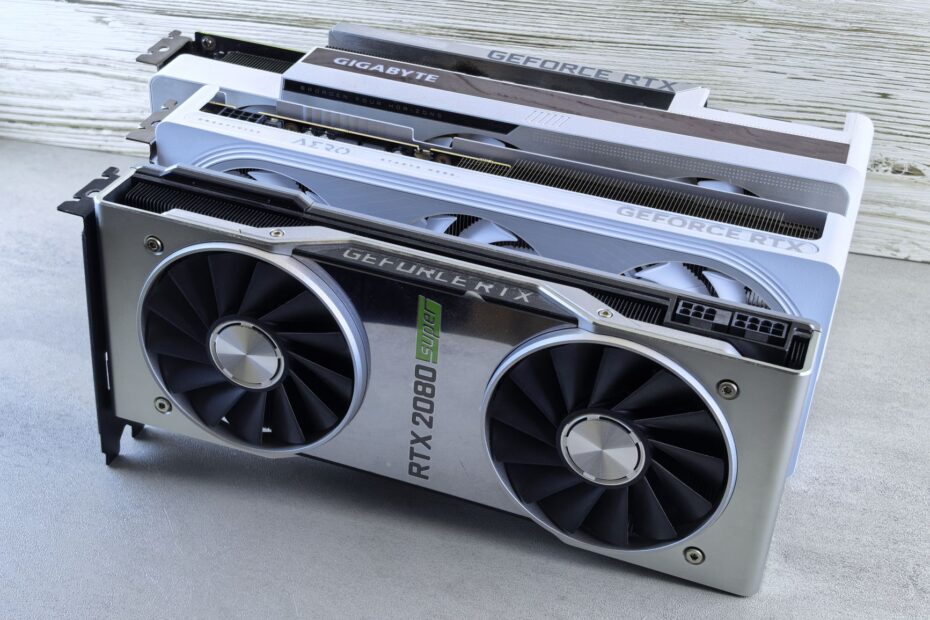
A graphics card running its factory clocks differs from one pushed past them by delivering more speed at the cost of extra heat and power. Your frame rate can rise, but heat, fan noise, power draw, and crash risk rise too. A 10% clock increase rarely produces 10% more FPS.
This comparison covers stock clocks, factory-overclocked graphics cards, manual overclocking, sustained speed, cooling, and value for your gaming PC or workstation.
Three Hardware States Set the Starting Point
Graphics hardware operates in three practical states: stock, factory OC, and manual tuning. The same GPU chip can behave differently under load because its clock targets, power limit, cooling, and voltage rules differ. Your sustained result depends on who set those values and how well your hardware holds them during a long session.
Stock Settings Set the Reference
Stock settings are the rules loaded by the chip maker or board partner at shipment. They cover clock behavior, voltage rules, temperature targets, fan behavior, and power limits. Your GPU still changes speed during a game, though it stays within its shipped operating range.
For a CPU, stock behavior includes multiplier logic, package power limits, and thermal controls. For a GPU, stock behavior covers core frequency, memory frequency, voltage curve, and board power target. Your baseline starts here because every claimed gain needs a known reference.
Factory OC and Manual Tuning Work Differently
A factory-overclocked graphics card ships with a small preset increase from the board partner. The vendor sets that profile before the card reaches your PC, and the added speed is intended to work with its cooler and power design. Your system needs no slider changes to run that preset.
| Hardware state | Clock and power behavior | What it means for you |
|---|---|---|
| Stock model | Settings stay at the vendor baseline while dynamic clocks react to load. | Your system favors predictable heat, noise, and broad stability margins. |
| Factory OC model | The card ships with a modestly higher frequency target and sometimes a raised power ceiling. | Your system gains a little speed without manual adjustment, though cooling varies by model. |
| Manual OC profile | Chosen core, memory, voltage, or power values exceed the shipped profile. | Your result depends on chip quality, cooling, patience, and stability checks. |
Manual overclocking changes values through software such as MSI Afterburner, AMD Adrenalin, or motherboard firmware. You can raise a GPU core offset, memory offset, or power limit, while a CPU tune may alter multipliers and voltage. Results do not transfer neatly from another PC because every chip has its own silicon quality.
That difference matters because a label on a card box tells only part of the story. A factory OC is a preset with a narrow margin, while your manual tune can be conservative or aggressive. The frequency held during play adds another layer to the comparison.
Because boost logic responds to temperature and power headroom, identical settings can settle at different real-world clocks.
Automatic Clock Behavior Changes the Baseline
A GPU listed at a 2,500 MHz boost clock can run above that figure in a cool system with room under its power limit. Modern CPUs and GPUs raise frequency automatically as temperature, workload, voltage, and board power leave room. Your non-OC model already adjusts speed rather than sitting at one fixed printed number.
Base, Boost, and Sustained Clocks Describe Different Results
The base clock is a low reference point, not the speed expected during a demanding game. The boost clock is a target reached under suitable conditions. Your sustained clock matters most after 20 minutes of rendering, racing, or shader compilation.
Heat changes that sustained speed. A card that begins a benchmark at 2,800 MHz may settle lower after its cooler absorbs heat and its fans reach their programmed curve. Your average clock across a full run says more than a brief peak on a monitoring overlay.
| Clock label | Practical meaning | Useful check |
|---|---|---|
| Base clock | The chip has a conservative reference frequency for light or restricted conditions. | Your game speed can sit well above this figure. |
| Boost clock | The chip aims for this level where power and thermals permit it. | Your card can exceed it during short, cool periods. |
| Sustained clock | The component settles near this level during extended load. | Your long benchmark loop reveals whether heat pulls it down. |
Coolers Can Shrink Small Model Differences
NVIDIA cards use dynamic frequency logic, while AMD Radeon cards use related controls that react to electrical and thermal headroom. A standard model with a large heatsink can hold a high real clock, while a factory OC card with a smaller cooler can lose its paper advantage. Your cooler design matters as much as the frequency label.
Take two versions of the same GPU. Card A has a 60 MHz factory offset but uses a compact dual-fan cooler. Card B uses stock firmware and a thicker three-fan heatsink. During a 1440p game, your Card B can sustain equal or higher clocks after heat builds, despite its lower listed target.
Automatic scaling explains why a manual adjustment needs workload data. A number entered in software is not the same as a frequency held under full load. The visible result comes from sustained behavior, not the slider position alone.
Clock-Speed Gains Rarely Match FPS Gains
A 100 MHz adjustment can look dramatic on a settings screen and barely move a frame-time graph. Factory and manual GPU tuning commonly produces modest single-digit gains, though the result changes with power limits, cooling, chip quality, memory speed, and the program running. Your expectation should be extra headroom, not a new performance tier.
Higher Clocks Do Not Scale in a Straight Line
A graphics card spends time waiting on more than core frequency. Memory bandwidth feeds textures and frame buffers, cache behavior affects data access, and game engines impose their own limits. Your 10% higher core clock cannot speed work waiting somewhere else.
Frame rate compresses gains at high numbers. Moving from 60 FPS to 66 FPS is visible in a benchmark and can feel smoother in a demanding scene. Moving from 240 FPS to 246 FPS changes the result by the same 2.5%, yet your display and eyes may reveal little difference.
| Reported change | Possible game result | Reason for the gap |
|---|---|---|
| 5% core-frequency rise | FPS may rise around 1% to 5%. | The game can hit memory, engine, CPU, or power limits first. |
| 10% memory-frequency rise | FPS may barely move or rise several percent. | The workload benefits only where memory bandwidth limits rendering. |
| Raised power ceiling | Score rises only where the card was power-limited. | The cooler must hold the added heat without reducing frequency. |
Workstation Tasks Have Different Limits
Blender rendering, HandBrake encoding, and code compilation do not react the same way. A GPU render that fully occupies shader cores can gain from a stable higher frequency. Your video encode can stay limited by the encoder block, storage throughput, or CPU threads instead.
Memory tuning has its own pattern. A higher memory offset can help bandwidth-heavy tasks, yet errors may appear as bright pixels, corrupted textures, or a failed benchmark run rather than an immediate crash. Your fastest score has little value where a longer render produces a flawed file.
Silicon lottery is the informal term for chip-to-chip variation. Two cards from the same production line can reach different stable settings, so your result deserves more weight than a screenshot from another PC. The visible gain also depends on which part of your system holds back the workload.
Workload Bottlenecks Decide Whether Speed Is Visible
A GPU tune shows itself most clearly where the graphics card already works near full load. High resolution, ray tracing, dense shadows, and heavy effects push rendering work toward the GPU. Your added frequency has little room to matter while a CPU thread limits every frame.
GPU-Bound Games Show the Extra Headroom
At 1440p with ultra settings, a demanding scene can keep the graphics card near full utilization for minutes. That is where OC vs non-OC GPU performance has the clearest chance to separate. Your frame rate may move from 72 FPS to 75 FPS, a visible benchmark gain that still feels modest in play.
At 4K, each frame requires far more pixel work than at 1080p. Your GPU tends to become the limiting part, so a stable tune can show a larger percentage difference than in a CPU-limited esports title. Frame caps, V-Sync, and a display refresh ceiling can still hide that difference.
CPU and Memory Limits Can Erase the Gain
A fast graphics card cannot outrun a CPU that is busy preparing game logic, draw calls, and physics. In a 1080p competitive game, your GPU may sit below full utilization while one CPU core reaches its limit. Raising graphics frequency in that state produces nearly identical FPS.
System memory can form another barrier. A 16 GB system that spills data into storage during a demanding open-world game can stutter regardless of a higher GPU clock. Your storage activity, background tasks, and memory capacity can affect frame pacing more than a small graphics adjustment.
Use a practical case. A card produces 90 FPS at 1440p ultra settings and 180 FPS at 1080p medium settings. Your manual GPU tune adds 4 FPS at 1440p because the card is loaded, while the 1080p result stays at 180 because the CPU and frame cap set the ceiling.
That workload difference leads directly to heat and power. Extra electrical headroom has a physical cost, and a score from a cool five-minute run does not settle the matter.
Higher Speeds Add Heat, Power, Noise, and Stability Costs
Every added watt becomes heat inside your case. Raising clock speed requires more switching activity, and a higher power limit lets the GPU hold aggressive frequencies longer. Your room temperature, case airflow, and cooler capacity decide where that heat goes.
Power Draw Affects the Entire PC
A modest factory OC can draw more power than a baseline version of the same card, particularly where the board power limit is raised. Your power supply needs headroom for GPU spikes, CPU load, drives, fans, and USB devices at the same time. A marginal unit can turn a stable card into a reboot problem.
Fan curves answer rising heat with higher speed. More fan RPM means more airflow, but it also adds a sharper whine or rush beside your desk. Your quiet PC can become louder for a few frames per second.
Your highest stable score is not always your strongest daily profile. Use the setting that holds speed without disruptive fan noise, excessive temperatures, visual errors, or repeated crashes.
Thermal Throttling Removes Paper Gains
Thermal throttling occurs where a component reduces frequency to stay within its temperature target. A tune that starts faster and then falls back toward stock clocks delivers little lasting benefit. Your temperature graph should stay consistent through a long game session, not only a short benchmark.
Case airflow shapes that behavior. Two front intake fans, a clear path through the heatsink, and sensible cable routing can lower internal temperatures more effectively than pushing another 25 MHz. Your graphics card draws cooler air only where the case replaces the heat it exhausts.
Instability Appears in Several Forms
Crashes are the obvious warning, but they are not the only warning. Graphical artifacts can appear as flashing polygons, colored specks, texture corruption, or black screens. Your system can also freeze, restart, fail to boot, or report an error during a demanding run.
CPU instability adds a separate concern: silent data errors during compression, code compilation, or long calculations. A game crash is annoying; a flawed work file is harder to spot. Your tuning choices need stricter scrutiny for production work than for a weekend game.
Those risks do not make manual tuning reckless. They mean the process needs a controlled sequence rather than a large slider jump.
Controlled testing turns a promising tune into evidence that it can survive everyday use.
Manual Overclocking Needs Measured Validation
Start with evidence from your untouched system. Record average FPS, frame-time consistency, core temperature, memory temperature where available, fan speed, clock behavior, and power draw during the same game scene. Your stock record gives every later change a fair reference point.
Small Changes Expose the Real Limit
Raise one control at a time. A core offset and memory offset changed together can produce an error without showing which setting caused it. Your notes should include the exact offset, power setting, fan curve, temperature, and result for each run.
- Save the baseline. Record settings and results from a repeatable game scene before changing any clock or power value.
- Raise core speed. Add a small core offset, then run the same workload long enough for temperatures to settle.
- Watch for errors. Look for crashes, artifacts, driver resets, score drops, or unusual frame-time spikes during load.
- Tune memory alone. Return core settings to the known stable point before raising memory in small steps.
- Check sustained behavior. Run a longer game session and your real workload after finding a promising benchmark result.
- Keep stock settings. Save your stock profile so you can return to it after a driver update or hardware change.
Repeatable Workloads Matter More Than One Score
Use a built-in game benchmark, a repeatable race replay, or a fixed rendering scene. Synthetic tools such as 3DMark can reveal broad GPU behavior, while your daily game reveals whether frame pacing stays clean. Your chosen workload should match the task that matters to you.
Long runs expose heat soak. A card can complete one short pass at a setting that fails after 30 minutes, once the cooler, case air, and memory modules reach steady temperature. Your stability claim needs that longer evidence.
Voltage deserves restraint. Extra voltage can stabilize a higher frequency, but it also raises heat and electrical stress quickly. Manual settings can affect warranty coverage, and firmware changes carry more risk than a reversible software profile.
Stop where another 1% of speed demands a noisy fan curve, a steep power jump, or repeated troubleshooting. Your daily profile should leave room for warm weather and dusty filters.
After finding a stable result, verify that the system is actually using it. A control-panel label, an advertised clock, or a used-PC seller description is not enough.
System Tools Show Whether Hardware Runs Overclocked
A used graphics card can look stock until you inspect its settings under load. GPU-Z, HWiNFO, MSI Afterburner, AMD Adrenalin, and vendor utilities display frequencies, board power, temperatures, and fan behavior. Your goal is to separate normal dynamic clocks from a persistent offset or altered power ceiling.
Model Specifications Reveal Factory Changes
Find the exact model number on the card, packaging, or system inventory screen. Check the board partner’s listed game clock, boost clock, memory rate, and power specification against the reference version of that GPU. Your card may be a factory OC even with untouched software sliders.
| Item to inspect | Stock reference | Sign of an overclock |
|---|---|---|
| Core-frequency offset | The software profile reads zero offset. | The profile shows a positive offset or custom voltage curve. |
| Power ceiling | The board uses its shipped percentage limit. | The limit is raised above the default profile value. |
| Memory setting | The memory offset remains at zero. | The memory has a positive offset beyond the shipped profile. |
| Sustained load clock | The card follows its model specification and thermal behavior. | The card holds a pattern above the baseline model under equal conditions. |
Firmware Settings Need Context
Desktop CPU tuning can hide in motherboard firmware. Look for changed CPU ratio values, altered voltage, memory profiles, raised power limits, or automatic enhancement modes. Your memory profile can count as overclocking because it runs RAM above the basic industry default.
Do not treat a high observed frequency as proof of manual tuning. Dynamic clock control raises speed at stock settings where conditions permit it. Your evidence becomes stronger where a positive offset, altered limit, or nondefault firmware profile appears alongside the higher frequency.
Record load behavior before touching any settings. A screenshot showing your clock, temperature, fan speed, GPU power, CPU package power, and FPS gives you a recovery point. That record also helps you spot later changes from drivers, dust buildup, or a hot summer room.
Once the hardware state is clear, the purchase choice becomes less emotional. The useful issue is not whether an OC badge exists, but what your money and system conditions gain from it.
Value Favors GPU Tier, Cooling, and Cost Over a Small OC Badge
A 3% graphics gain should not carry a 12% price premium. Factory overclocked vs non-overclocked GPU choices make sense only after performance, cooling, noise, and cost sit on the same scale. Your budget gains more from a stronger GPU tier than from a tiny frequency bump on the same chip.
Price-to-Performance Math Clarifies the Choice
Divide the extra cost by the measured performance gain. A $500 standard card and a $540 OC version differ by 8% in cost. Your 3% FPS gain gives the OC model a weaker price-to-performance ratio, unless its cooler, acoustics, ports, or build quality also suit your setup.
Take a different case. A $500 standard card and a $515 OC version differ by 3%, while your game benchmarks show a 3% gain and the OC model has a larger heatsink. That trade can make sense because your added spend matches the observed speed and may lower fan noise.
| Situation | Stronger choice | Reason |
|---|---|---|
| The standard card is far less expensive. | Non-OC model | Your saved money can go toward storage, memory, airflow, or a higher GPU tier. |
| The OC model costs slightly more and has a larger cooler. | Factory OC model | Your small premium buys preset speed and a quieter thermal design. |
| The next GPU tier fits your budget with a small stretch. | Higher-tier GPU | Added shader resources produce a larger gain than a small frequency offset. |
| Your current system already meets your FPS goal. | Stock profile | Lower heat and noise matter more than a benchmark number you will not feel. |
Manual Tuning Fits Specific Situations
Manual tuning can be worth your time where you enjoy adjustments, your cooling has room for added heat, and a 3% to 8% gain helps you cross a useful target such as 60, 120, or 144 FPS. Your effort brings less value in CPU-limited or frame-capped games.
Factory-overclocked graphics cards are not inferior hardware. They are stock products with a slightly altered preset, and their larger appeal can be the board design rather than added MHz. Your attention should go to heatsink mass, fan quality, case clearance, connector placement, and power supply headroom.
Stock vs overclocked performance changes by use case. Your stock setting suits quiet, low-effort reliability. A factory OC suits a model where the cooler costs little extra. Your manual profile suits workloads where sustained gains justify the heat, power, and time involved.
Final Takeaways
Your hardware already adjusts speed far more actively than box numbers suggest. Treat overclocking as a small trade, not a shortcut to a new class of benchmark performance. A stable profile with controlled temperatures and clean frame pacing beats a higher setting that throttles, crashes, or makes your PC louder.
FAQ
Is overclocking actually worth it?
GPU-bound games can gain enough FPS from a modest clock boost to justify the extra heat when cooling has headroom. Your return stays small in CPU-limited games, frame-capped titles, or systems already running loud and hot.
Is it better to buy an overclocked GPU?
A factory-overclocked GPU makes sense where its added cost is close to its measured speed gain or where the model includes a larger cooler and quieter fans. Your money produces a larger jump by moving from one GPU tier to the next rather than paying heavily for a small preset offset.
How much faster is overclocking in games?
Your game result commonly lands in the single digits for a factory or manual GPU tune rather than matching the clock-speed increase exactly. A 10% frequency rise can produce only 2% to 6% more FPS because memory limits, CPU limits, power rules, heat, and engine behavior still shape each frame.
How can I tell whether my GPU or PC is overclocked?
Check GPU-Z, HWiNFO, MSI Afterburner, AMD Adrenalin, or motherboard firmware for positive clock offsets, raised power limits, custom voltage settings, and altered memory profiles. Your sustained clocks under load also help, but high automatic frequency alone does not prove a manual overclock.
Do factory-overclocked GPUs run hotter or use more power?
A factory OC can use more power because its preset may allow higher clocks or a higher board power ceiling. Your temperatures and fan speed depend on the cooler, case airflow, room temperature, and fan curve, so a well-cooled OC model can stay quieter than a poorly cooled standard version.