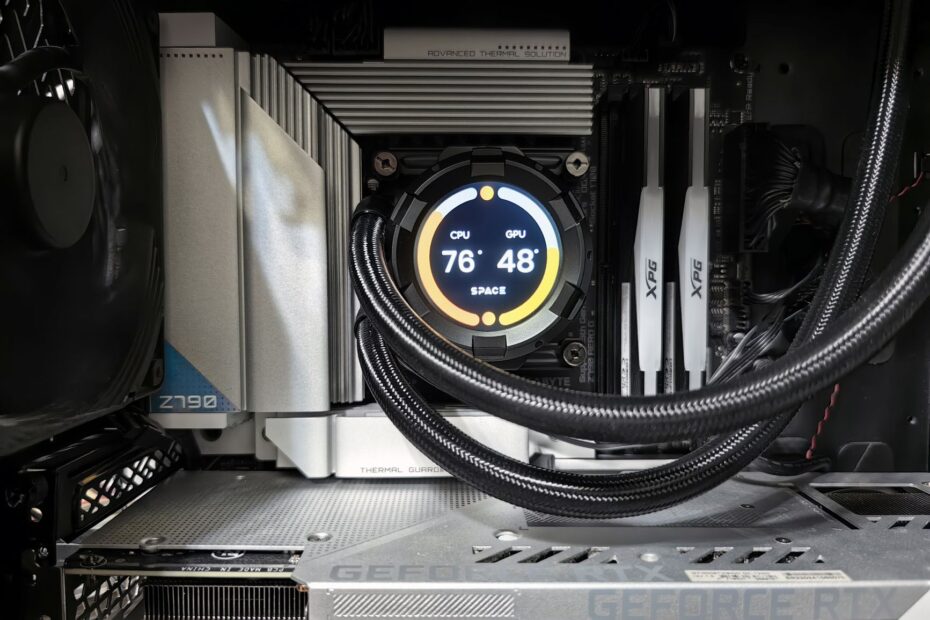
A CPU, graphics card, or memory kit can run beyond its factory frequency or power behavior when its operating limits are raised. You trade extra speed for more heat, electrical draw, and stability work, so a higher frame rate can come with crashes or throttling after an aggressive voltage change.
This explanation covers CPU, GPU, and RAM tuning for desktop owners weighing gaming performance, render time, cooling capacity, and dependable daily use.
Stock Limits Define the Starting Point
A processor does not operate at one fixed speed all day. Chip makers set targets for frequency, voltage, current, temperature, and power, then program limits around those targets. Manual tuning changes one or more values so your hardware runs faster or holds higher clocks for longer workloads.
Factory behavior differs from manual tuning
Intel, AMD, and Nvidia set factory behavior for their components. A CPU can carry a listed base clock plus higher turbo speeds. Your system can reach those turbo speeds automatically during short or sustained loads without a manual adjustment.
Manual tuning starts after you alter a CPU multiplier, base clock, voltage value, power limit, memory profile, or graphics offset beyond default behavior. PC overclocking can involve a CPU, GPU, RAM, or all three, though each part uses different controls and shows different failure signs.
| Operating state | Who sets it | What your PC does |
|---|---|---|
| Base specification | Chip maker | Runs at a stated baseline clock under rated limits. |
| Automatic boost | Chip maker firmware | Raises clocks within thermal, power, and current limits. |
| Manual tuning | You | Changes clock, power, voltage, or memory settings beyond defaults. |
| Memory profile | Memory maker | Loads stored frequency, timing, and voltage values through XMP or EXPO. |
Take a 3.6 GHz CPU with a 4.8 GHz advertised turbo ceiling. It can reach 4.8 GHz during a demanding game at stock settings, then fall back as heat or power limits rise. Raising an all-core target to 5.0 GHz asks the chip to hold a speed the factory settings did not require.
Your result depends on the individual silicon sample, motherboard power delivery, cooler, case airflow, room temperature, and workload. Two CPUs with the same retail label can reach different stable speeds because silicon varies from chip to chip, even within one production run.
That variation determines how much voltage a given chip needs, setting its thermal and stability ceiling.
Clock Speed and Voltage Shape Heat and Stability
A clock target matters only while the chip completes work correctly. Higher frequency shortens the time available for electrical signals to settle inside a CPU core. A setting that reaches Windows can still fail during a heavy render, a long game session, or a compression task.
Clock speed follows a simple relationship
CPU speed comes from base clock multiplied by a CPU multiplier. With a 100 MHz base clock and a 50x multiplier, the processor runs at 5,000 MHz, or 5.0 GHz. Raising the multiplier to 51x produces 5.1 GHz without changing the base clock.
Base clock, also called BCLK, touches more than CPU cores on many platforms. A small BCLK change can affect memory, storage, and interconnect behavior, which makes multiplier tuning less disruptive for most desktop systems. Your BIOS/UEFI can expose both controls, but the multiplier is the cleaner starting point.
GPU controls use different labels but follow the same electrical logic. A core clock offset raises graphics frequency above a vendor curve, while a memory clock offset raises video memory speed. RAM tuning changes data rate, timings, controller load, and DRAM voltage rather than a CPU core ratio.
Voltage adds timing margin and heat
Core voltage gives transistors more electrical margin to switch at high speed. Too little voltage can produce calculation errors, app crashes, blue screens, freezes, driver resets, or failed boots. More voltage can restore stability, but it also raises electrical stress and heat.
Power rises sharply as voltage climbs because voltage has a squared effect in the power relationship. A small frequency step can need a larger voltage step near the chip’s limit. Your cooler then has to move that extra heat out of the silicon, through the heat spreader, and into the room.
Raise frequency before voltage. A stable 100 MHz gain at stock voltage is more useful than a higher number that needs a steep voltage increase and adds 15 degrees of heat.
Thermal throttling begins after a component reaches its programmed temperature limit. The chip cuts frequency or power to protect itself, so your benchmark score can fall despite an aggressive setting. Fan noise can rise at the same time, leaving you with more heat and less useful performance.
Stability sits at the end of this chain. Frequency raises demand, voltage supplies timing margin, power becomes heat, and heat can force clocks down. That loop explains why a fast-looking BIOS setting means little until your machine survives the work you actually do.
Because modern processors already chase available thermal headroom automatically, fixed overclocks often offer less room than expected.
Automatic Boost Reduces Manual Headroom
Current chips already chase thermal and electrical headroom hundreds of times per second. Intel Turbo Boost, AMD Precision Boost, and Nvidia GPU Boost raise clocks until a temperature, power, current, or voltage limit stops them. Your stock system already uses controlled speed scaling.
Turbo behavior is separate from manual tuning
A CPU reaching 5.6 GHz during a short burst does not prove that someone changed its settings. The processor is following factory boost rules. Intel and AMD publish boost behavior because workloads do not load every part of a chip in the same pattern.
Manual CPU tuning can still matter on unlocked desktop parts with spare cooling capacity. Yet modern boost logic leaves less unused headroom than older processors did. Your gain can be a few percent rather than the dramatic jump suggested by a single peak-clock screenshot.
GPU Boost also responds to temperature and power. A graphics card can run faster in a cool room than in a warm room without a saved tuning profile. That is why a repeatable stock baseline matters before you decide that a new setting helped.
Changed settings leave visible clues
Open BIOS/UEFI and inspect CPU ratio, BCLK, core voltage mode, power limits, memory profile status, and saved tuning profiles. A non-default ratio, raised power limit, manual voltage, or enabled XMP/EXPO profile shows that factory behavior changed.
Windows utilities can reveal the same clues. Intel Extreme Tuning Utility exposes supported Intel controls from the desktop, while AMD Ryzen Master shows clocks and tuning modes on supported Ryzen processors. HWiNFO, CPU-Z, GPU-Z, and MSI Afterburner show live speeds, temperatures, and power draw.
- Check CPU ratios Look for a fixed multiplier above the processor’s stock all-core behavior.
- Inspect power limits Raised long-duration or short-duration limits can raise sustained clocks without a ratio change.
- Read memory status An active XMP or EXPO profile means your RAM runs stored performance settings.
- Watch GPU offsets A positive core or memory offset points to graphics tuning software.
- Review saved profiles BIOS profile names and utility presets can reveal old settings you forgot about.
Your next choice should focus on the bottleneck, not the highest number in a menu. A faster CPU changes little in a graphics-limited game, while a memory adjustment can barely register in a GPU-heavy 4K workload.
CPU, GPU, and RAM Tuning Address Different Limits
A crowded city simulation behaves very differently from ray tracing at 4K. CPU overclocking for gaming helps where simulation, draw calls, AI, physics, or high-refresh frame delivery limits performance. A graphics card setting matters more once GPU use stays near full load.
Each component uses separate controls
| Component | Main controls | Likely benefit | Common warning sign |
|---|---|---|---|
| CPU | Multiplier, voltage, power limits | Faster CPU-bound games, compiling, rendering | WHEA errors, blue screens, freezes |
| GPU | Core offset, memory offset, power limit, fan curve | Higher graphics-bound frame rates | Driver reset, artifacting, game crash |
| RAM | Frequency, timings, DRAM voltage | Better latency in select games and workloads | Boot failure, memory errors, file corruption |
CPU tuning changes how fast processor cores execute code. Intel K-series desktop chips and AMD Ryzen parts with exposed controls can allow ratio changes, though motherboard support decides what you can access. Your motherboard voltage regulator module also has to supply clean power during long all-core loads.
GPU overclocking explained in plain terms means raising graphics-core and video-memory targets through software. MSI Afterburner exposes offsets, fan curves, temperature limits, and power limits without a BIOS edit. A modest core offset can raise frame rates, but unstable graphics memory can show sparkles, texture corruption, or sudden game exits.
Memory speed trades against latency
RAM overclocking settings include transfer rate, primary timings such as CAS latency, command rate, and voltage. A higher data rate can improve bandwidth, while tighter timings reduce delay. Your memory controller and motherboard traces decide whether a fast-looking combination runs cleanly.
XMP is Intel’s memory-profile format, and EXPO is AMD’s related format for compatible DDR5 kits. These profiles load values stored by the memory maker, yet they remain performance settings above baseline JEDEC behavior. Your system can need manual tuning even with a profile that runs on another board.
For example, a competitive game at 1080p with a powerful GPU can gain from CPU and memory work because the processor feeds very high frame rates. The same machine at 4K with high ray-tracing settings can remain GPU-bound, leaving a CPU ratio increase nearly invisible in average FPS.
Once the relevant bottleneck is identified, sustained gains depend on the heat and current the platform can handle.
Cooling and Power Delivery Set Practical Limits
Heat has nowhere to hide inside a compact case. Before touching a ratio, check that your processor, board, cooler, power supply, and chassis can carry the added electrical load. An unlocked chip alone does not make a practical tuning platform.
Desktop hardware sets the ceiling
CPU overclocking needs an unlocked processor and a motherboard chipset with clock controls. Intel locks ratio tuning on many non-K chips, while AMD platform options vary across product lines and boards. Your board manual shows whether multiplier, voltage, and power controls exist.
Cooling capacity shapes sustained performance more than a one-minute benchmark score. A large air cooler or a properly mounted liquid cooler can move more heat than a thin stock cooler, but case intake and exhaust still govern air temperature around that cooler.
Laptops and small-form-factor PCs need added caution. Their heat pipes, fans, battery limits, and tight chassis leave little room for sustained manual tuning. You can watch a laptop reach a high clock for seconds, then pull back hard after the shared CPU and GPU cooling system saturates.
Baseline records give later changes meaning
- Update firmware Install a stable BIOS/UEFI release that improves memory compatibility or CPU behavior.
- Clean airflow paths Remove dust from filters, heatsinks, and fans before judging your cooler’s capacity.
- Record baseline scores Save frame rates, render times, temperatures, clocks, and power draw at stock settings.
- Save current settings Store a BIOS profile or photograph each relevant screen before changing values.
- Install monitoring tools Use HWiNFO, GPU-Z, or similar software to watch clocks, temperatures, and limits.
- Use stable wall power Avoid tuning during power trouble or through an overloaded extension strip.
Do not start with voltage. A CPU that reaches its thermal ceiling at stock behavior has no useful headroom, regardless of how many tuning controls your BIOS exposes.
Ambient temperature matters too. A profile stable in a 68 F room can fail during an 82 F summer afternoon because the cooler starts with warmer intake air. Your baseline should include room conditions, especially for a machine used for long gaming or rendering sessions.
Small Changes Make Faults Easier to Find
One changed value creates one clear cause. Five changed values create a mystery. Start from documented stock behavior, move in small steps, and write down each result before advancing. Your log should capture frequency, voltage, temperature, benchmark score, fan speed, and any error.
CPU changes follow a deliberate sequence
- Load defaults Begin from stock BIOS settings and verify that your baseline workload completes without errors.
- Raise ratio Add one small multiplier step, such as 50x to 51x, while leaving voltage alone.
- Run workload checks Use a repeatable benchmark, game loop, render, or compression task for comparable results.
- Watch sensors Record peak temperature, sustained clock, package power, and any thermal or power-limit flag.
- Add voltage sparingly Raise core voltage only after a useful frequency step shows instability and temperatures stay acceptable.
- Save stable profile Store the last clean configuration before trying another change.
Manual voltage deserves restraint because it can raise heat far faster than the score gain suggests. Adaptive voltage modes can reduce idle voltage, while fixed modes hold a selected value more consistently. Your motherboard labels differ, so its manual matters before changes to load-line calibration or voltage offsets.
Advanced CPU menus can include AVX offsets. AVX instructions place heavy electrical demand on a CPU, and an offset lowers clock speed only during that workload class. This explains why a CPU stable in a game can crash during a dense video encode or scientific calculation.
Graphics and memory changes need the same discipline
Start GPU work with the power limit and fan curve visible in your tuning utility. Raise core offset in small increments, run the same game scene or benchmark, then inspect for crashes, artifacting, and score regression. Your card can look stable for ten minutes and fail after an hour of heat soak.
Memory needs more patience. Set a known XMP or EXPO profile before attempting higher frequency or tighter timings, then change one value at a time. A RAM error can damage an archive, corrupt a game install, or create a random-looking application failure days after the original adjustment.
For a concrete example, move a GPU core offset from +50 MHz to +75 MHz, then repeat the same 15-minute game route with the same graphics settings. A clean run with a 2 FPS gain is data. A 7 FPS gain followed by a driver reset is not a usable setting.
Repeatable Performance Matters More Than a Successful Boot
A desktop reaching the login screen has passed only the smallest hurdle. Stable operation means your machine completes real work without errors, clock collapse, crashes, or heat-driven slowdowns. The score that matters is the one you can repeat on another day, not the highest single run.
Measure work that matches your use
Use repeatable workloads. For gaming, capture average frame rate, 1% low frame rate, frame-time consistency, GPU use, and CPU use in the same scene. For production work, record render duration, compile duration, compression time, or export time with the same project files.
| Workload result | What it suggests | What you should do |
|---|---|---|
| Higher average FPS and higher 1% lows | Your adjustment helped a CPU-bound game. | Run longer sessions to confirm stability. |
| Higher clock with unchanged FPS | The game is GPU-bound or limited elsewhere. | Restore stock settings or tune the GPU instead. |
| Lower score after tuning | Heat or power limits are pulling clocks down. | Reduce settings or improve cooling. |
| Fast score followed by crash | The setting lacks load stability. | Step back to the prior clean profile. |
Consider a game running at 180 FPS with a GPU at 72% use and several CPU threads near their limit. A CPU ratio change can lift both the average and 1% lows because the graphics card has unused headroom. At 4K, that same game can show 99% GPU use and only a 1 FPS change from the CPU adjustment.
Stop conditions protect your hardware and time
Temperature limits differ across products, so use the maker limit for your exact CPU or GPU as the hard ceiling. Sustained temperatures close to that ceiling leave little room for a warm room, clogged filter, or hotter workload. Your quieter, cooler profile can be the smarter daily setting.
- System crash A blue screen, reboot, freeze, or driver reset means the current setting is not stable.
- Calculation error A workload error points to faulty data processing, even without a visible crash.
- Clock throttling Falling sustained clocks show that heat, power, or current limits defeated your change.
- Benchmark regression A lower score means added heat or correction work erased the frequency gain.
- Visual artifacting Flickering polygons, colored dots, or broken textures indicate unstable GPU core or memory settings.
- Excessive noise Fans running at full speed can make a tiny performance lift a poor daily trade.
Load checks reveal weaknesses, but no single program covers every instruction set, memory pattern, driver path, and game engine. Run more than one workload, then use your normal applications for several sessions. Your system stability has to hold under the tasks that matter to you.
Measured Gains Decide Whether Tuning Is Worthwhile
A 3% gain that adds 30 watts, louder fans, and an hour of troubleshooting is not automatically a win. Conservative tuning with strong cooling and close monitoring is manageable, but higher voltage and sustained heat can raise component wear and can affect vendor coverage outside stated limits.
Failed settings have a recovery path
A failed boot does not automatically mean damaged hardware. Many boards detect repeated failed starts and return to safe defaults after several attempts. Your motherboard manual lists recovery behavior, including the location of clear-CMOS pins or a reset button.
- Wait through retries Allow the board several startup attempts before cutting power during memory training.
- Load safe defaults Enter BIOS after recovery and restore stock settings before trying a lower value.
- Clear CMOS Use the board’s documented reset method after a persistent no-boot condition.
- Remove power fully Shut down the power supply before touching a CMOS jumper or battery.
- Restore known profile Reload the last stable BIOS profile instead of rebuilding settings from memory.
- Reduce one variable Lower the latest clock, timing, or voltage change rather than altering several controls.
CMOS reset procedures vary. Some boards use rear-panel buttons, some use two pins, and some need short battery removal with power disconnected. Your manual is the source for the exact method, since careless contact around a powered board can damage it.
Measured gains settle the decision
Overclocking is less compelling where automatic boost already holds high clocks, a game is GPU-bound, or your cooler is near its limit at stock operation. A graphics settings adjustment, lower ambient temperature, or hardware upgrade can deliver more visible improvement than a fragile manual profile.
PC overclocking remains worthwhile for you where a repeatable workload shows a meaningful gain, temperatures stay controlled, noise stays acceptable, and the machine stays stable across normal use. Stop at the point where the next frequency step costs more heat, voltage, or time than it returns.
What to Remember
Extra clock speed is never a standalone setting. Your useful limit appears where frequency, voltage, cooling, power delivery, workload demand, and silicon quality meet. Record a stock baseline, change one control at a time, and trust repeatable performance over a flashy peak number. That discipline turns tuning from guesswork into an informed trade.
FAQ
Is it healthy to overclock your PC?
Conservative tuning can run well for years with capable cooling, sensible voltage, and stable power delivery. Your risk rises with sustained high voltage, high temperatures, and repeated instability. Keep temperatures under the maker’s limit, avoid chasing maximum clocks, and restore stock behavior after errors appear.
How do I know if my PC is overclocked?
Check BIOS/UEFI for altered CPU ratios, raised power limits, manual voltage, active XMP or EXPO profiles, or stored tuning presets. Your monitoring software can also show unusual clock offsets, GPU power limits, and memory speeds above baseline JEDEC values.
Is it worth overclocking a CPU for gaming?
Your CPU tuning has the strongest effect in CPU-bound games, especially at 1080p or very high refresh rates. A game limited by a fully loaded GPU at 4K can show little frame-rate movement. Compare average FPS and 1% lows before deciding whether the heat and noise are worthwhile.
Is overclocking pointless with modern turbo boost CPUs?
Modern turbo behavior already captures much of the available headroom, so manual gains can be modest. Your manual setting still has value where cooling, motherboard power delivery, and workload behavior leave unused room, but stock boost is already highly capable on current desktop chips.
What happens if an overclock causes a PC not to boot?
Your motherboard can retry startup and return to safe settings after failed attempts. A persistent no-boot condition calls for a documented CMOS reset, followed by stock defaults or the last stable saved profile. Reduce the latest changed value before another startup attempt.
How hot is too hot when overclocking a CPU or GPU?
The hard temperature limit comes from your exact CPU or GPU maker, not a universal number. Sustained temperatures near that limit leave little margin for warmer room air or heavier workloads. Your daily profile should stay below the limit without constant fan noise or thermal throttling.