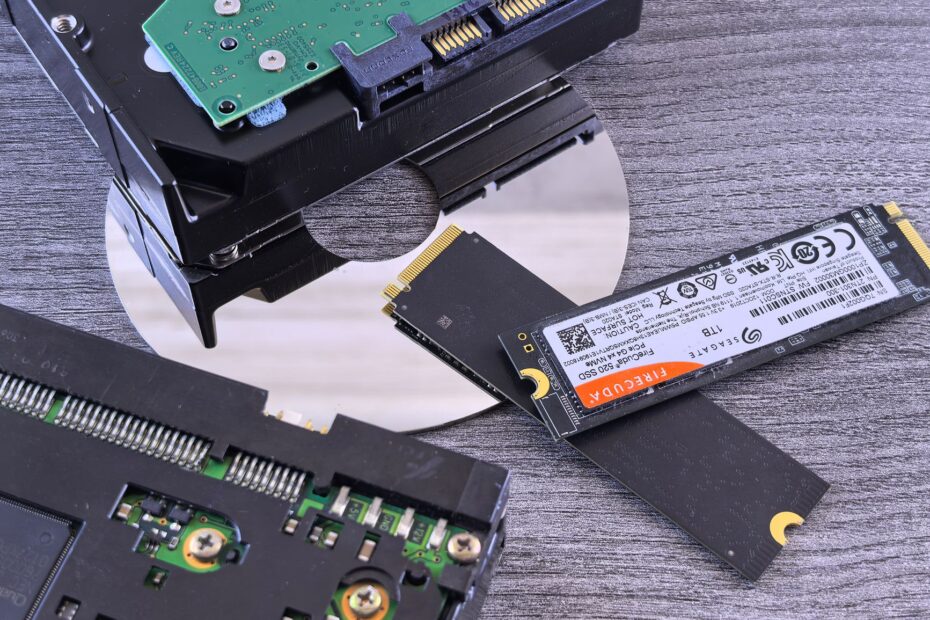
PCIe lanes let NVMe drives communicate directly with the processor, while SATA models rely on the older Serial ATA connection. Both use flash memory, but NVMe handles more simultaneous requests and reaches far higher sequential transfer speeds than SATA.
This guide helps a PC upgrader distinguish drive form factors, benchmark gains, real-world workload benefits, and motherboard checks before choosing storage for a new build or upgrade.
Two SSD Interfaces Use Different Data Paths
Flash memory stores your files, but the interface determines how that data travels between the drive and processor. SATA and NVMe describe separate connection methods and command protocols. Your drive label matters less than the route available on your motherboard.
SATA Uses AHCI and Serial ATA Connections
Serial ATA, shortened to SATA, came from the hard-drive era. A SATA SSD uses the SATA interface and AHCI protocol, both designed around storage devices with spinning platters. Your 2.5-inch SATA SSD connects through a slim data cable and a separate power cable.
Some laptops place a SATA SSD on an M.2 card instead of using cables. That card still sends data through SATA signals despite its newer appearance. Your computer sees the same AHCI protocol behind either physical format.
NVMe Uses PCIe Lanes for Flash Storage
NVM Express, shortened to NVMe, was designed for flash storage rather than mechanical drives. An NVMe SSD uses PCIe lanes, the same connection family used by graphics cards and expansion cards. Your processor gets a shorter path to the SSD controller.
AHCI handles one command queue with up to 32 commands. NVMe handles up to 65,535 queues, with up to 65,536 commands in each queue. That structure gives your system far more room for small, simultaneous storage requests.
| Storage type | Data connection | Command protocol | Common physical layout |
|---|---|---|---|
| SATA SSD | Serial ATA | AHCI | 2.5-inch SATA SSD or SATA M.2 card |
| NVMe SSD | PCIe | NVMe | M.2 card or PCIe add-in card |
Those separate data paths lead to the most confusing storage label: M.2. Your next check is separating a drive’s shape from the protocol running through it.
M.2 Identifies the Drive Shape Rather Than Its Protocol
A gum-stick-sized M.2 card can hold either SATA storage or NVMe storage. M.2 is a form factor with defined widths, lengths, connector keys, and mounting points. Your drive’s size does not identify its transfer method.
M.2 Cards Can Carry SATA or PCIe Signals
An M.2 SATA drive sends data through SATA wiring on the motherboard. An M.2 NVMe drive sends data through PCIe wiring. Both may use the common 2280 size, meaning 22 millimeters wide and 80 millimeters long.
Drive labels offer a clearer answer. Look for “SATA,” “AHCI,” “PCIe,” “NVMe,” “Gen3,” or “Gen4.” Your laptop manual should state whether each M.2 slot accepts SATA, PCIe, or both.
Slot Wiring Determines Functional Compatibility
Physical fit does not prove electronic compatibility. An NVMe drive will not communicate through an M.2 slot wired only for SATA, even where the card slides into the socket. Your system needs PCIe lanes and firmware that recognizes NVMe storage.
A notch pattern blocks some mismatches, but it does not prove full compatibility. Check your motherboard documentation before removing your current drive or opening new hardware.
Keying adds another detail. SATA M.2 drives commonly use a B+M key, while PCIe x4 NVMe models commonly use an M key. Your socket may accept an M-key card yet reserve only two PCIe lanes, cutting peak transfer speed.
The difference between SATA and NVMe M.2 is electrical as well as physical. Once your slot carries the required signal, sequential read and write speeds become the next practical comparison.
Speed and Latency Separate SATA From PCIe Storage
SATA III tops out at 6 Gb/s, leaving real SATA SSD sequential reads near 550 MB/s after protocol overhead. Modern NVMe drives move several gigabytes per second. Your 50 GB video folder crosses a fast NVMe connection far sooner than it crosses SATA.
Long File Transfers Favor NVMe
Sequential read and write speeds describe long, continuous transfers such as copying a camera project, loading a large game archive, or writing raw video. PCIe 3.0 x4 drives reach several thousand MB/s, while PCIe 4.0 and PCIe 5.0 drives reach higher figures with compatible hardware.
Peak figures need context. A PCIe 4.0 drive works in a PCIe 3.0 slot, but your system limits it to PCIe 3.0 bandwidth. Your source drive, destination drive, file mix, controller cache, and cable path also affect the transfer time you see.
| Performance trait | SATA SSD | PCIe NVMe SSD |
|---|---|---|
| Interface ceiling | 6 Gb/s | Depends on PCIe generation and lane count |
| Sequential read speed | Up to about 550 MB/s | Several GB/s on a modern x4 drive |
| Transfer latency | Higher due to AHCI overhead | Lower through a flash-focused protocol |
| Random IOPS | Lower queue-depth capacity | Higher parallel-request capacity |
Small Requests Expose Queue Depth and Latency
Your computer rarely reads one giant file at a time. Starting an application may involve thousands of small requests for settings, fonts, libraries, textures, and cache files. NVMe drives offer lower latency and stronger random read and write performance for that scattered activity.
Controller design matters alongside interface speed. A DRAM-equipped drive maps flash addresses faster than a budget model that relies on Host Memory Buffer. Your results also change with NAND type, spare capacity, firmware behavior, and the amount of used drive space.
Sustained writes raise controller temperature. Thermal throttling lowers transfer speed to protect the hardware once temperatures climb. A motherboard heat spreader or compact M.2 heatsink helps your drive hold speed through longer transfers.
Speed does not decide every experience. A fast SSD has less room to show its advantage where your processor, RAM, or network connection sets the wait.
Everyday Tasks Show Smaller Differences Than Heavy Workloads
A 10-year-old hard drive may spend minutes waking a slow computer, while either SSD removes much of that drag. Booting Windows, opening a browser, and loading a spreadsheet feel much quicker on SATA than on a hard disk. Your basic desktop work rarely holds a SATA SSD at its ceiling.
Light Tasks Reach Diminishing Returns
Office documents are small, browser tabs rely on RAM after loading, and many apps pause for processor work rather than storage access. Your move from a hard disk to SATA feels dramatic; the move from SATA to NVMe may feel like a shorter pause.
Consider a home desktop with 16 GB of RAM, a SATA boot drive, and a 300 Mbps internet connection. Your web activity still waits on the network, while video calls depend on connection quality and processor resources. An NVMe upgrade does not remove those limits.
Large Projects Make PCIe Speed More Visible
Large, repeated transfers tell a different story. Moving a 120 GB Premiere Pro project, unpacking a 90 GB game, or importing thousands of RAW photos gives PCIe bandwidth real work. Your wait drops most where both source and destination drives sustain high throughput.
Software compilation is another useful example. Visual Studio, Xcode, and related tools open and compile thousands of small files. NVMe random IOPS performance shortens storage-heavy portions of that work, though CPU cores and available RAM still set much of the pace.
Virtual machines create dense I/O activity. Running two guest operating systems while the host handles browser tabs and file sync produces many queued reads and writes. Your NVMe drive has more command capacity for that pattern than AHCI-based SATA storage.
Application limits still matter. A game limited by shader compilation, a photo editor limited by RAM, or a cloud project limited by upload speed will not reach storage limits. Compatibility checks matter more than chasing the largest benchmark figure.
Motherboard Compatibility Decides Whether the Upgrade Works
A drive that cannot communicate with your motherboard offers no speed benefit. Check the exact laptop model or motherboard manual before choosing a format. Your system documentation lists slot wiring, accepted lengths, PCIe generation, and storage-sharing rules.
M.2 Slots Need More Than a Matching Length
Desktop boards may disable one SATA port after an M.2 slot is populated because the connections share chipset lanes. Some compact laptops reserve their lone M.2 socket for NVMe only. Your manual’s storage diagram exposes those limits before installation.
- Check slot signaling Confirm SATA, PCIe, or dual-mode capability for the exact M.2 socket in your system.
- Match drive length Verify that your system accepts 2230, 2242, 2260, 2280, or 22110 cards.
- Check PCIe lanes Look for x2 or x4 wiring because lane count limits NVMe throughput.
- Review firmware notes Your older system may need a BIOS update before NVMe boot capability appears.
- Inspect shared ports Check whether an occupied M.2 socket disables a SATA connector or expansion slot.
2.5-Inch SATA Drives Need Cables and Mounting Space
A 2.5-inch SATA SSD needs a SATA data port and a SATA power lead in a desktop. Your case also needs a mounting point or adapter bracket, though many small drive trays hold the lightweight drive securely.
Your laptop needs an open 2.5-inch bay, a compatible cable or interposer, and clearance for the 7 mm drive height. Your service manual shows whether the bay exists, since versions of the same laptop chassis may omit it.
Existing Drives Reveal Their Interface Through Model Details
Windows Device Manager, Disk Management, and manufacturer utilities display your drive model number. Search that exact model in the maker’s documentation to identify its interface. Your drive label also states SATA or NVMe in many cases.
A physical inspection settles part of the question in a desktop. A 2.5-inch drive with two flat cables is SATA. A narrow card secured with one small screw is M.2, and your manual still identifies whether that card uses SATA or PCIe.
Do not use the M.2 label as proof of NVMe capability. Your laptop can contain an M.2 SATA drive and still lack a PCIe storage path.
After compatibility narrows your options, your workload decides whether extra PCIe speed deserves room in your budget.
Gaming, General Use, and Creative Work Need Different Storage
A game library does not need the same storage behavior as a 4K editing workstation. SATA SSDs remain capable for schoolwork, household desktops, older motherboards, and many installed games. Your available capacity can matter more than benchmark speed once files stop fitting.
Primary Drives Favor NVMe in Compatible New Systems
A new system with an open PCIe x4 M.2 slot gives your operating system lower latency for updates, app caches, project files, and background tasks. NVMe is a strong primary-drive choice where similar-capacity SATA and NVMe drives sit close in cost.
That does not make SATA obsolete. A 2 TB SATA SSD works well as secondary storage for documents, media, backups, and less-demanding games. Your older desktop gains far more from any SSD than from an interface it cannot host.
| Use case | Strong fit | Reason |
|---|---|---|
| Office work and web use | SATA or NVMe | Your processor and RAM set much of the visible pace. |
| New operating-system drive | NVMe | Your PCIe slot offers lower latency for daily system activity. |
| Large game library | SATA or NVMe | Your capacity target outweighs smaller load-time gaps in many titles. |
| Video, RAW photos, or virtual machines | NVMe | Your workload creates sustained transfers and parallel storage requests. |
| Older laptop upgrade | 2.5-inch SATA SSD | Your existing bay offers a large improvement over a hard drive. |
Games Gain Unevenly From Faster Storage
SATA vs NVMe for gaming has no single answer. NVMe can shorten level loads and help games that stream high-detail assets during play, yet frame rate still rests mainly on your graphics card and CPU. Your game engine must request data fast enough to expose the drive difference.
DirectStorage is a Windows storage API designed to reduce parts of game asset-loading overhead on suitable hardware. Your NVMe drive offers a stronger foundation for titles built around that approach, but installed capacity still matters once your library reaches 1 TB or more.
Creative work has a clearer split. Put active footage, cache files, and virtual-machine images on NVMe storage. Keep finished exports, music collections, and older game installs on SATA where your budget reaches further.
That split also exposes NVMe limits. More bandwidth brings heat, and high capacity changes the value calculation for your storage plan.
Capacity, Heat, and Endurance Temper NVMe Advantages
A fast controller works hard during sustained writes, producing more heat than a SATA drive in many systems. NVMe drives run warmer because PCIe moves more data through a compact board. Your SSD may lower its transfer rate after reaching its operating temperature limit.
Capacity Can Matter More Than Peak Throughput
SATA SSDs cost less per gigabyte in many capacity tiers, though market shifts can narrow or reverse that gap for specific drives. Your fixed budget may cover 2 TB of SATA storage instead of 1 TB of faster NVMe storage, leaving more room for games and project archives.
Flash speed also falls as a drive fills. Many SSDs use a fast pseudo-SLC cache, then slow during long writes after that cache runs out. Your drive needs unused space for garbage collection, wear leveling, and steadier write behavior.
Cooling Depends on Drive Placement
PCIe 4.0 and PCIe 5.0 NVMe drives benefit from a motherboard heatsink during repeated large transfers. A cramped laptop has less airflow, so your device may show greater thermal throttling than an open desktop. Check the manufacturer temperature guidance for your exact drive.
A thick heatsink creates another issue in thin notebooks. Your laptop bottom cover needs to close without pressing on the M.2 card. Use a thermal pad only where your system has enough clearance.
SSD Endurance Depends on Drive Design
A drive rated for 1,200 TBW can outlast a faster model with less durable flash. NAND type, controller firmware, write workload, spare area, and total bytes written rating shape SSD endurance more than the interface. Your drive’s TBW figure states the vendor-rated write volume during its coverage period.
- Check TBW rating Match the stated write volume with your editing, virtual-machine, or archive workload.
- Leave spare space Keep 10 to 20 percent unused so your controller rotates flash cells efficiently.
- Watch drive heat Fit a suitable heatsink where sustained transfers raise controller temperature.
- Maintain backups Keep another copy of valuable files because every SSD can fail without warning.
- Read coverage terms Check stated years and TBW limits rather than judging reliability by interface alone.
SanDisk, Kingston, Corsair, Samsung, WD, and Crucial sell drives across both interface families. Your drive controller, NAND, capacity, and coverage terms reveal more about endurance than the brand name or the word NVMe.
Those tradeoffs point back to your practical goal: choose storage that your system hosts and your daily work can use.
Your System and Workload Point to the Right SSD
Your motherboard is the gatekeeper, your workload is the demand signal, and your budget sets capacity. NVMe suits a compatible system that moves large files, runs virtual machines, edits media, or compiles code. Your PCIe slot gives that workload room for higher transfer rates.
NVMe Suits High-I/O Work and Fast Primary Storage
Choose NVMe storage for active project folders, 4K or 8K video scratch disks, large photo catalogs, database work, and demanding software development. A PCIe 4.0 x4 drive fits where your board accepts it and your files move across high-speed local storage.
Do not pay for PCIe 5.0 peak figures where your motherboard offers PCIe 3.0, or where a USB enclosure becomes the bottleneck. Your system cannot expose bandwidth that the connection path does not carry.
SATA Suits Capacity-Focused and Legacy Upgrades
Choose SATA for an older laptop with a 2.5-inch bay, a desktop with spare SATA ports, or secondary storage focused on capacity. Your existing hard drive can move to a SATA SSD without changing the motherboard storage path.
A SATA SSD also suits cold game storage, music, finished video exports, and document collections. Your computer still gains quiet operation, low access time, and far better responsiveness than a hard disk.
External Storage Depends on the Enclosure and Port
NVMe vs SATA external SSD performance depends on USB bandwidth as much as the internal drive. A SATA SSD in a USB 10 Gb/s enclosure approaches its own interface limit, while a fast NVMe drive needs USB 20 Gb/s, USB4, or Thunderbolt for a large advantage.
Port labels matter. USB 5 Gb/s caps practical transfers far below modern NVMe potential, and a slow cable creates the same limit. Your external setup needs a compatible enclosure, cable, and host port through every part of the connection.
- Identify your slots Read your manual for SATA ports, M.2 signaling, card length, and shared-lane limits.
- Map your workload Put active editing files, virtual machines, and code projects on your fastest compatible storage.
- Budget for capacity Choose enough room for your files rather than sacrificing usable space for unused benchmark speed.
- Plan data migration Clone your current drive or reinstall the operating system before removing old storage.
- Protect your files Keep local or cloud backups separate from the drive holding your working data.
The SATA SSD vs NVMe SSD which is better question has a practical answer. Your compatible NVMe slot and high-I/O work favor PCIe storage; your older hardware, larger capacity target, or secondary-drive role can make SATA the stronger fit.
Final Thoughts on SATA and NVMe Storage
NVMe excels where your system and workload feed it constant work, especially during large transfers and dense small-file activity. SATA remains a capable SSD interface rather than a failed version of NVMe. Your useful choice matches the slot you own, the files you move, the space you need, and the heat your machine can shed.
FAQ
What is the difference between NVMe and SATA SSDs?
Using PCIe lanes and the NVMe protocol, NVMe drives differ from SATA models, which rely on Serial ATA and AHCI. Your NVMe drive handles more queued commands and reaches much higher sequential speeds. SATA remains suitable for basic work, older systems, and capacity-focused storage.
Is NVMe noticeably faster than SATA in everyday use?
NVMe is faster in benchmarks, large copies, software compilation, virtual machines, and heavy file activity. Your web browsing, office work, and basic startup tasks may show a smaller visible difference because RAM, CPU performance, and network speed also set the pace.
Should I buy a SATA SSD or an NVMe SSD?
Choose NVMe for a compatible PCIe-capable system where your primary drive handles media files, code compilation, virtual machines, or heavy multitasking. Choose SATA for your older computer, a capacity-focused secondary drive, or basic work where the visible NVMe gain stays small.
Can an NVMe SSD be installed in a SATA M.2 slot?
No. An NVMe SSD needs PCIe lanes and NVMe firmware capability, while a SATA-only M.2 slot carries Serial ATA signals. Your NVMe card may physically fit in some sockets, but it will not communicate through a SATA-wired slot.
Is M.2 always NVMe?
No. M.2 describes the physical card format, not the storage protocol. Your M.2 drive may use SATA and AHCI or PCIe and NVMe. Check the drive model and motherboard documentation before choosing a replacement.
What are the disadvantages of NVMe SSDs?
NVMe drives may cost more in some capacity tiers, produce more heat during sustained transfers, and need a compatible PCIe slot. Your computer may also limit a newer drive to an older PCIe generation, reducing the value of higher advertised sequential speeds.