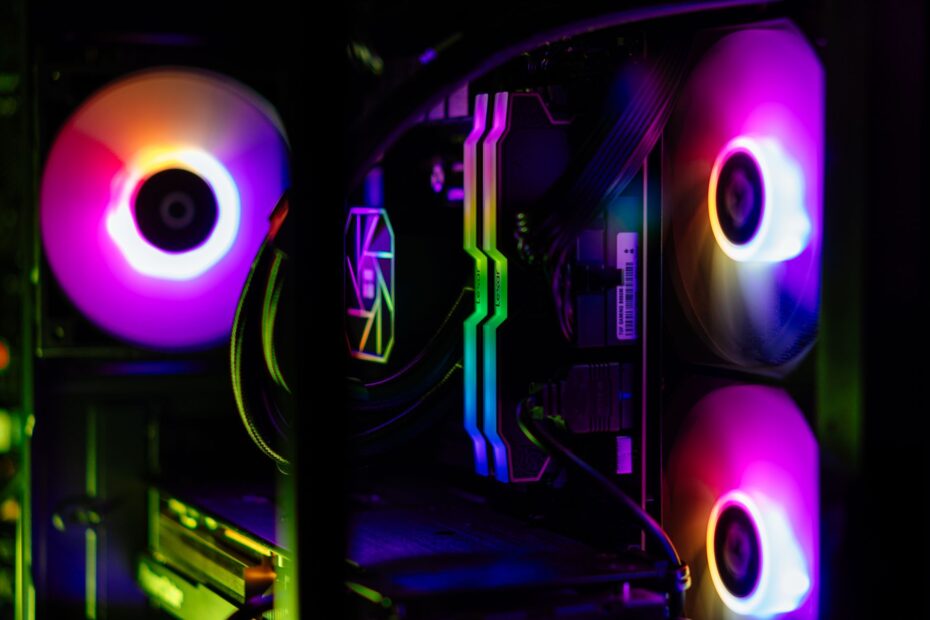
Heat follows two paths in a PC: the processor heatsink draws energy from the chip itself, while chassis fans push air through the enclosure. Your system needs both jobs covered because spinning chassis fans alone cannot draw heat out of the CPU package.
This comparison covers cooler assemblies, fan roles, motherboard headers, airflow placement, and temperature symptoms for your gaming or work PC.
CPU Coolers and Case Fans Work Along the Same Heat Path
Heat begins at the processor, not at the case wall. Your CPU cooler sits over the CPU socket and moves processor heat into metal fins or a liquid loop. Case fans then carry that released heat away from the surrounding hardware.
A CPU fan is only part of an air cooler. Your full air cooler includes a heatsink, mounting hardware, thermal paste, and at least one fan. An AIO liquid cooler includes a water block, pump, tubes, radiator, and radiator fans.
| Part | Main job | Heat target | Common location |
|---|---|---|---|
| CPU cooler | Moves heat away from the processor | CPU package | CPU socket area |
| CPU cooler fan | Pushes air through fins or a radiator | Heatsink or radiator | Attached to cooler hardware |
| Case fan | Moves fresh and warm air through the chassis | Whole enclosure | Front, bottom, rear, side, or top mounts |
That division explains the difference between a CPU cooler and case fans. Your processor needs direct heat transfer through a cooler base. Your GPU, motherboard power stages, SSDs, memory, and chipset depend on airflow through the chassis.
A tower heatsink transfers heat from the CPU heat spreader into heat pipes and aluminum fins. A radiator performs the same broad task through liquid moving between the water block and radiator. Your enclosure fans remove the warm air released after either cooler type does its work.
That division begins at the processor itself, where heat must first cross into a dedicated heatsink or water block.
Direct Contact Makes a CPU Cooler Necessary
Thermal paste fills tiny gaps between the CPU heat spreader and the cooler base. Heat then moves into aluminum fins and heat pipes, or into an AIO liquid cooler water block and radiator loop. Your cooler has to touch the processor securely for that transfer to happen.
Case fans do not replace a CPU cooler because air moving near a bare processor has too little contact area to pull heat from the package. Your CPU would reach its temperature limit far faster than enclosure airflow could carry that heat away.
Do not power a desktop system without a properly mounted cooler and thermal interface material. A rear exhaust fan does not protect an uncovered CPU.
Intel stock coolers, Noctua tower coolers, and Corsair AIO units all fill the direct-contact role through different hardware. Your cooler capacity needs to suit processor power draw, socket compatibility, case clearance, and sustained workload.
A compact Intel cooler may suit light office work on a modest chip, yet sustained rendering places far more heat into the heatsink. Your case fans still matter after that point because the cooler needs a path for its warmed air to leave the chassis.
CPU fan vs case fan differences start with this contact point. The fan attached to your heatsink serves the cooler assembly. A chassis fan serves the air inside the enclosure, even where both fans share a 120 mm frame size.
Case Fans Move Heat Away From Every Component
Cool room air enters through intake mounts, passes over components, and exits through exhaust mounts. Your front or bottom fans feed the GPU and CPU cooler, while rear and top fans move accumulated warm air out of the enclosure.
That moving air reaches hardware your CPU cooler never touches. Your graphics card, VRM heatsinks, NVMe drive, memory, and motherboard chipset all sit in the same warming air pocket during a long game or render.
Fresher Air Helps the CPU Cooler
A tower cooler works better with a steady supply of lower-temperature intake air. Case fans help lower CPU temperature indirectly because they reduce the air temperature around your heatsink or radiator.
Take a gaming PC with a 300-watt GPU. Its exhaust warms air near the CPU socket, leaving your CPU cooler fan with hotter air to push through the fins. A clear intake-and-exhaust route moves that GPU heat away before it lingers near the cooler.
No. Your cooler pulls heat from the CPU package, while chassis airflow gives that cooler less-warm air to work with.
Airflow Direction Sets the Heat Route
Front intake and rear exhaust form a short route across many mid-tower layouts. Your radiator location changes that route because a front-mounted CPU radiator sends warmed air toward the GPU and motherboard.
Top-mounted radiators send heat upward in plenty of builds, though clearance and hose routing still control whether that position fits. Your parts need an orderly route, not a group of fans facing random directions.
Frame arrows identify airflow direction before installation. One arrow marks blade rotation, while another marks air movement. Your intake fans should pull room air through the front, bottom, or side panel where the case supports those mounts.
Placement and Headers Separate Cooler Fans From Chassis Fans
The cable label reveals a fan’s role before your PC powers on. Your primary cooler fan belongs on CPU_FAN on many motherboards, while chassis fans use SYS_FAN or CHA_FAN headers.
| Detail | CPU cooler | Case fan |
|---|---|---|
| Purpose | Direct processor heat dissipation | Enclosure air exchange |
| Mounting point | CPU socket or supported radiator mount | Case fan bracket |
| Air direction | Through heatsink fins or radiator | Into or out of the chassis |
| Primary header | CPU_FAN | SYS_FAN or CHA_FAN |
| Speed response | Tracks CPU temperature closely | Tracks system heat more gradually |
Air coolers mount directly over the CPU socket. Your AIO radiator mounts at a supported front, top, or side position, but its radiator fans remain part of CPU cooling rather than ordinary enclosure fans.
- CPU_FAN monitoring: Your motherboard checks this header for fan speed and may flag a stopped primary cooler fan.
- SYS_FAN control: Your chassis fans can follow CPU, motherboard, or sensor-based temperature curves.
- PWM control: Your 4-pin PWM fans receive speed commands without running at full speed all day.
- Three-pin fans: Your DC-controlled fans still work well, though speed range varies by motherboard.
The CPU_FAN vs SYS_FAN header distinction matters during setup. Your cooler fan needs prompt response to CPU heat, while your case fans can use smoother curves tied to system heat. ASUS ROG boards may label several chassis headers, and your board manual lists amperage limits and sensor choices.
AIO pump wiring needs the cooler manual as well as the motherboard manual. Your pump may use AIO_PUMP, PUMP, or a specified CPU header setting. The intended connection varies across cooler and board models.
Fan Design Changes With the Restriction It Faces
Dense heatsink fins resist airflow like a narrow hallway filled with boxes. Your CPU cooler fan needs static pressure, meaning it pushes air against that resistance rather than losing flow at the fin surface.
Radiator fans face the same restriction. Your AIO liquid cooler benefits from pressure-focused blades and a close-fitting fan frame, especially with thicker radiators or tightly packed fins.
| Fan trait | Heatsink or radiator role | Open case-mount role |
|---|---|---|
| Priority | Static pressure through resistance | Airflow volume across open space |
| Blade design | Pressure-focused geometry | Broad airflow-focused geometry |
| Noise concern | Fan tone near CPU load | Combined sound from several mounts |
| Fit check | Clip, screw, and fin clearance | Mount size and panel clearance |
A 120 mm fan may physically fit in more than one location, but physical fit does not prove that the role suits the fan. Your swap needs matching mounting holes, thickness, connector, cable reach, blade clearance, and speed-control behavior.
A spare radiator fan can work as rear exhaust in a pinch. Your PC will run, yet an airflow-focused fan may produce less tonal noise in that open rear position. The reverse swap also works only where heatsink clips, screws, frame thickness, and clearance line up.
Case fan intake and exhaust setup benefits from purpose-built placement. Pressure-focused fans suit radiators and dense front filters. Open mounts reward fans designed to move a larger air volume across less resistance.
Balanced Intake and Exhaust Give You a Practical Starting Layout
Two filtered intakes and one rear exhaust form a sensible opening pattern in a case with those mounts. Your incoming air reaches the GPU and tower cooler before the rear fan draws warmer air past the motherboard.
Positive pressure means intake airflow exceeds exhaust airflow by a small margin. Your case then pulls more air through its filters instead of through unfiltered gaps near panels and expansion slots.
Fan Placement Follows a Clean Air Route
- Use front intake: Your front fans should pull room air through a clean filter toward the central hardware area.
- Use bottom intake: Your bottom mount can feed a GPU, provided carpet, cables, and the desk surface leave open space below it.
- Use rear exhaust: Your rear fan should draw heat away from the CPU socket and upper motherboard area.
- Add top exhaust: Your top mounts work well after warm air rises through the case rather than pulling fresh intake air away.
- Check frame arrows: Your fan-frame arrows show blade rotation and airflow direction before installation.
Glass-front cases need more fan speed than mesh-front cases where intake resistance is higher. Your fan curve may need a higher setting to move air through a narrow side vent or dense front filter.
Do not point every mount outward. Your enclosure needs supplied air as well as an exit path, and an all-exhaust layout draws dust through unfiltered seams around panels and slots.
Dust filters need periodic cleaning because a clogged front filter restricts intake before air reaches the GPU or CPU cooler. Your system may grow louder as fans spin faster against that blocked path.
Because restriction and component load change over time, fixed fan speeds rarely deliver both quiet and effective cooling.
Header Curves Keep Cooling Responsive Without Constant Noise
A cooler fan tied to motherboard temperature instead of CPU temperature can react too slowly during a sudden processor load. Your CPU_FAN curve should rise promptly as CPU heat climbs during compiling, rendering, or demanding games.
Case fans suit a smoother curve because enclosure heat changes at a slower pace. Your SYS_FAN settings can reference CPU temperature, motherboard temperature, or another supported sensor through board firmware.
Connection Checks Avoid Common Build Problems
- Read both manuals: Your motherboard and cooler manuals show the intended header, pump setting, and maximum header load.
- Use CPU_FAN: Your main air-cooler fan should connect to CPU_FAN unless the manual states another arrangement.
- Follow pump instructions: Your AIO pump may use AIO_PUMP, PUMP, or a specified CPU header setting.
- Use powered hubs: Your powered hub avoids placing several case fans on one motherboard header.
- Set PWM mode: Your four-pin fans need PWM mode enabled for precise speed control on compatible headers.
Fan speed monitoring catches a loose cable before a long gaming session turns into thermal throttling. Your BIOS hardware screen should show RPM for the cooler fan and every connected chassis fan.
Set pump speed according to the AIO maker’s instructions, then tune radiator fans for temperature and sound. Do not assume every pump should follow the same low-speed curve as a case fan.
CPU_FAN is not merely a convenient plug location. Your motherboard watches that header because loss of the primary CPU fan can raise processor temperature very quickly under load.
Those controlled responses also make unusual temperature behavior easier to trace to its source.
Temperature Patterns Point to the Cooler or the Airflow Route
A CPU that climbs sharply during a CPU-only benchmark points toward direct cooling. Your inspection list starts with cooler mounting pressure, thermal paste coverage, CPU_FAN rotation, cooler capacity, and dust packed between heatsink fins.
High gaming temperatures across several parts point toward enclosure airflow. Your GPU, motherboard, and storage drive rising together suggests blocked intake, reversed fan direction, weak exhaust, or hot air trapped near the graphics card.
Workloads Separate the Likely Source
Use the workload as your clue. Your browser and light desktop use reveal little, but a CPU-only render isolates processor cooling while a long game exposes heat buildup inside the chassis.
A CPU reaching its limit during Cinebench while GPU temperature stays normal calls for cooler work. Your next step is reseating the cooler, clearing dust, and checking thermal paste rather than adding three top fans.
- CPU-only heat: Your direct cooler, thermal paste, mounting pressure, and CPU_FAN operation need attention.
- GPU-heavy heat: Your intake path, bottom clearance, and exhaust route need attention.
- System-wide heat: Your cooler and chassis airflow both need inspection because warm internal air weakens direct cooling.
- Sudden fan noise: Your fan curves may be too aggressive or tied to a sensor with rapid temperature swings.
- Idle temperature drift: Your dust filters, radiator fins, room temperature, and background CPU load need a check.
Retain or upgrade the CPU cooler for processor-specific thermal limits, then add or reposition case fans for enclosure-wide heat. Your CPU cooler vs case fans choice becomes clear once the temperature pattern shows where heat remains trapped.
Final Thoughts
Your CPU cooler forms the direct bridge between a hot processor and moving air, while case fans stop that air from becoming a stagnant hot pocket. Give your cooler a secure mount, thermal paste, and a responsive CPU_FAN curve. Then give your chassis a clean intake-to-exhaust route.
The strongest results come from matching each part to its job. Your heatsink or radiator removes heat from the CPU package, and your enclosure fans move that heat out before it warms the GPU, storage, motherboard, and intake air.
FAQ
CPU Cooler Need With Case Fans
Yes. Your case fans move air around the enclosure, but they do not pull heat efficiently from the CPU package. Your processor needs a properly mounted air cooler or liquid cooler with thermal paste to move heat into fins or a radiator.
CPU Fan and Case Fan Differences
Yes. Your CPU fan attaches to a heatsink or radiator and moves air through restrictive fins, while a case fan moves air through open chassis space. Your CPU fan is part of a complete cooler, not the whole cooler assembly.
Case Fans and Lower CPU Temperature
Yes, indirectly. Your intake fans feed cooler room air to the heatsink or radiator, and your exhaust fans remove heat released by that hardware. Better chassis airflow lowers the air temperature surrounding your CPU cooler.
CPU Cooler Fan Use as a Case Fan
A 120 mm unit can fill a chassis mount when its screw holes, connector, thickness, cable reach, and clearance all fit. Your pressure-focused fan may work well as exhaust, though its noise character and airflow pattern may suit radiator duty better.
CPU Cooler Connection to CPU_FAN
Yes in most air-cooled systems. Your CPU_FAN header lets the motherboard track fan speed and raise cooler speed with CPU temperature. An AIO pump may use AIO_PUMP or another specified header, so your cooler manual controls that detail.
Case Fan Use on a CPU Heatsink
Standard 120 mm airflow fans can mount on a processor heatsink only when their frame size, clips or screws, thickness, cable length, and fin clearance fit correctly. Your heatsink benefits more from a pressure-focused fan than from an airflow-focused fan designed for an open mount.