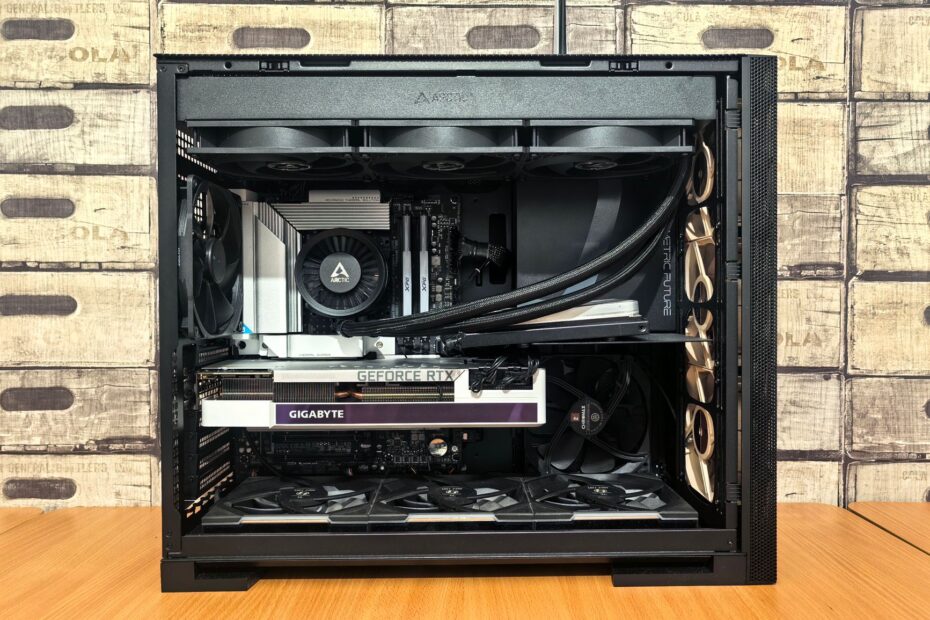
One desktop arrives fully assembled, while the other is built from components chosen to match your priorities. A prebuilt shifts assembly and early fault diagnosis to a seller, while a custom PC gives you control over the CPU, GPU, cooling, storage, and later hardware changes.
You can use this comparison to weigh component quality, setup time, total cost of ownership, repair coverage, and upgrade limits for gaming, schoolwork, streaming, work, or everyday use.
Two Paths Lead to a Working Desktop
A desktop can arrive fully assembled, or it can arrive as separate boxes waiting for assembly. That difference shapes who chooses the parts, who installs Windows, and who handles a problem during the opening days of ownership.
Prebuilt systems arrive assembled
A prebuilt PC arrives with its core hardware installed, cables routed, and startup checks completed. You connect a display, keyboard, mouse, and network connection, then finish the Windows 11 setup screens.
Large OEM brands such as Dell, HP, Lenovo, and Acer sell desktops with cases, motherboards, power units, or front-panel connectors designed for a specific product line. Those parts can limit later swaps because they may not match standard retail layouts.
System-integrator desktops sit closer to a custom configuration. Companies such as NZXT, iBUYPOWER, and CyberPowerPC assemble listed retail parts, so you may see an AMD Ryzen CPU, NVIDIA GeForce GPU, Corsair RAM, or standard ATX power supply unit.
Custom PCs begin with part selection
A DIY PC assembly starts with compatible hardware: a CPU, motherboard, RAM, storage drive, GPU, case, cooler, and power supply unit (PSU). Your work covers installation, cable routing, BIOS setup, Windows licensing, driver installation, and startup checks.
Some local computer shops assemble a configuration from parts you select. That route gives you control over the motherboard, cooler, and storage without requiring you to seat the CPU or connect small front-panel leads.
| Route | Who selects parts | Who assembles it | Who handles early faults |
|---|---|---|---|
| Large OEM desktop | Manufacturer | Manufacturer | One company contact |
| System-integrator desktop | You select listed options | Assembler | One company contact |
| DIY custom PC | You select each part | You | You and each part maker |
That split in responsibility leads directly to performance. A CPU and GPU label tells only part of the story until you inspect the RAM layout, cooler, storage, airflow, and PSU behind those headline components.
Component Choices Set Performance
Two desktops with the same Intel Core CPU and AMD Radeon GPU can produce different frame rates, fan noise, and export times. RAM configuration, CPU cooling, power limits, and case airflow shape how long those parts hold higher clock speeds.
Matching labels can produce different results
Single-channel memory can hold back a capable processor, while two matched RAM sticks activate dual-channel operation. A 16GB kit arranged as 2 x 8GB can outperform one 16GB stick in CPU-sensitive games and multitasking.
Desktop graphics cards have their own limits. A strong NVIDIA GeForce GPU can lose sustained speed inside a restrictive case, under a weak cooler, or beside a PSU that leaves little room for higher power draw.
Storage deserves the same scrutiny. A 500GB SSD fills quickly after Windows, Fortnite, Minecraft, school files, and several large games, while a 1TB NVMe drive leaves more room for your library and future updates.
Your workload sets the hardware priority
School portals, documents, video calls, and web use run well with 16GB of RAM and an SSD. Your desk does not need a large graphics card for those tasks.
Fortnite benefits from balanced CPU and GPU power, especially at 144Hz. Minecraft leans harder on CPU speed and RAM, while shader packs and large mod collections place greater pressure on graphics memory.
Streaming adds another hardware demand. Your PC needs enough memory for the game and broadcast software, plus a CPU or GPU encoder that handles video output without disrupting play.
Windows 11 runs smoothly on current hardware, but your specification list should show a supported processor, TPM 2.0, enough storage, and an included Windows license. Those details shape your opening night with the computer, not only its benchmark score.
Those first-day conveniences can carry costs that become visible only after the purchase.
Total Cost Includes More Than Parts
A lower checkout figure can mislead you once every item needed for a working desk enters the calculation. The answer to is it cheaper to build or buy a PC depends on the full parts list, Windows licensing, tax, delivery charges, labor, and your time.
| Cost item | Prebuilt desktop | DIY custom PC |
|---|---|---|
| Core hardware | Included in one figure | Purchased part by part |
| Windows license | Included in many systems | Separate expense |
| Assembly labor | Included | Your time or shop labor |
| Shipping and state tax | Added at checkout | Can apply across several orders |
| Tools and thermal paste | Not needed for setup | Small added expense |
Your total cost includes parts, Windows, shipping, state tax, tools, peripherals, assembly labor, and your time. A screwdriver costs little, but a weekend spent tracing a no-boot problem has value in your calculation.
Careful part selection can give a DIY system stronger performance at the same budget because you skip assembly labor and centralized technical help. A bundled desktop, a monitor package, or a period of scarce GPUs can reverse that result.
- Match exact CPUs. Check the full processor model instead of relying on “Intel Core” or “AMD Ryzen.”
- Name the GPU. Confirm graphics memory and the exact NVIDIA GeForce or AMD Radeon model.
- Count RAM sticks. Two matched modules reveal more than a vague “16GB RAM” line.
- Inspect the PSU. PSU wattage and maker affect stability and later graphics-card options.
- Include your time. Assembly can take four to eight hours during a careful opening attempt.
Do not assume a parts cart costs less until Windows, tax, delivery charges, tools, and your assembly time sit in the same calculation.
Those added line items also shape ownership after purchase. A hardware fault reveals who must identify the failed part, arrange a return, and wait for a replacement.
Repair Coverage Changes the Ownership Burden
A prebuilt desktop gives you one contact point during its coverage period. That arrangement matters when your new tower powers on without an image or shuts down under a game load.
Centralized help reduces early troubleshooting
Prebuilt owners can contact the seller for diagnostic steps and system-level service. You may need to run a memory check, send photos, or ship the whole tower back, leaving your desk without its main computer for days or weeks.
System-integrator coverage can suit hardware enthusiasts because listed retail parts are easier to identify. Still, return terms, labor coverage, and shipping responsibility vary, so your paperwork needs a close read before you pay.
DIY repair starts with fault isolation
A self-assembled system leaves you responsible for separate coverage on the motherboard, GPU, SSD, RAM, and PSU. You isolate the fault, contact the relevant manufacturer, and remove the part before sending it out.
Small installation errors can stop a new desktop from starting. Bent CPU socket pins, a loose EPS power cable, poorly seated RAM, outdated BIOS firmware, and a misplaced front-panel connector all produce different symptoms.
Your hardware confidence changes the workload. Someone comfortable reseating RAM and reading motherboard debug lights can solve a small fault in minutes; a newcomer may prefer one company responsible for the entire tower.
Accepting single-company support can also mean accepting designs that are harder to modify later.
Standard Hardware Leaves More Upgrade Room
A graphics-card swap works only when the case has physical room, the PSU has spare capacity, and the motherboard has suitable power connections. An empty PCIe slot alone does not mean your desktop is ready for larger hardware.
Retail standards keep hardware interchangeable
Custom PCs tend to use ATX or microATX motherboards, standard power supply units, SATA and M.2 storage connections, and common cooler mounts. That setup lets you swap a failed fan, add an SSD, or move hardware into a larger case without changing unrelated parts.
Some OEM desktops use proprietary components to fit a compact chassis or a specific internal layout. A nonstandard motherboard shape, custom power connector, or unusual cooler bracket can turn a modest upgrade into a motherboard-and-case replacement.
Pre-purchase checks reveal upgrade limits
- Find the motherboard. Seek the exact model and verify RAM slots, M.2 slots, and PCIe expansion space.
- Check PSU details. Get the wattage, maker, connector count, and graphics-card power leads.
- Measure GPU clearance. Case length limits can block a larger graphics card before installation begins.
- Inspect cooling space. Confirm fan mounts and radiator room before choosing a hotter CPU.
- Review RAM layout. Empty slots help only when memory speed and motherboard limits still fit your plans.
A desktop with one vacant RAM slot can still be a poor upgrade platform when its PSU lacks connectors or its case traps heat around a stronger graphics card.
Some are, especially models with retail-size motherboards, standard PSUs, and roomy cases. Your options shrink sharply with proprietary connectors, compact cases, or limited cooling space.
Your Needs and Confidence Set the Better Route
Convenience has value when school, work, or gaming needs to start tonight rather than after a Saturday of cable routing. A ready-made desktop suits your situation when immediate use and centralized technical help matter more than selecting every connector.
Your prebuilt vs custom PC choice leans toward DIY assembly when you want a precise streaming setup, a quiet air cooler, a specific case style, or a repair path based on standard retail hardware. Hands-on assembly teaches you what each part does, which helps during later upgrades.
A system-integrator desktop sits between those routes. You select parts such as an AMD Ryzen CPU, 32GB RAM, 1TB NVMe storage, and a named GPU, while an assembler handles physical installation and startup work.
Your final selection checklist
- Set your ceiling. Include the tower, display, keyboard, mouse, Windows, tax, and delivery charges in one figure.
- Name your workload. Select around home tasks, Fortnite at 144Hz, modded Minecraft, streaming, or video editing.
- Read each specification. Confirm the exact CPU, GPU, RAM layout, SSD capacity, cooler, motherboard, and PSU.
- Check coverage terms. Find labor length, return shipping rules, and the components covered through the system seller.
- Inspect proprietary parts. Ask about power connectors, board shape, cooler mounts, and case clearance.
- Price your time. Choose DIY assembly only when troubleshooting fits your comfort level.
Pick the route that leaves you comfortable with both the opening setup and the opening hardware fault, because either can arrive sooner than expected.
Final Takeaways
The main difference is responsibility. A ready-made desktop trades some component control for immediate use and one company contact, while a custom PC trades time and troubleshooting for exact hardware choices and cleaner upgrade paths.
Your workload, budget, patience, and repair confidence should direct the choice. The prebuilt vs custom PC comparison becomes clearer once you place the CPU, GPU, RAM, motherboard, PSU, Windows licensing, technical help, and future upgrades on the same checklist.
FAQ
What is the difference between a prebuilt PC and a custom PC?
A prebuilt PC arrives assembled with parts selected by an OEM or system assembler. A custom PC uses hardware selected by you, then assembled by you or a shop, giving your system more control over cooling, storage, power supply quality, and later upgrades.
Is it cheaper to buy a prebuilt PC or build one yourself?
A self-assembled computer can cost less for equivalent parts because you avoid assembly labor and centralized technical help costs. Your final total includes Windows, tax, shipping, tools, and time, while bundled desktops can cost less during unusual GPU market conditions.
Are prebuilt gaming PCs good for gaming?
At 1440p, smooth frame rates depend on the exact CPU, graphics card, dual-channel RAM, cooler, and power supply inside the machine. Check the full specification list because a strong GPU can lose speed through weak airflow or a single RAM stick.
Can you upgrade a prebuilt PC?
You can upgrade many prebuilts with more RAM, another SSD, or a new graphics card. Your options shrink when an OEM uses a proprietary motherboard, PSU, case, cooler mount, or front-panel connector, so inspect those parts before purchase.
Do custom-built PCs come with coverage?
A self-assembled custom PC has separate coverage from each component maker, such as the GPU, motherboard, RAM, storage drive, and PSU manufacturer. A shop-assembled system can add labor coverage, but your terms depend on that shop’s written policy.